
Use the Traveler List
Everyone on the tour, their app status, and each traveler's details page.
The Traveler List shows everyone on your tour, who's on the app, and each person's contact details. Your reports are there too.
- Step 1
Open the Traveler List
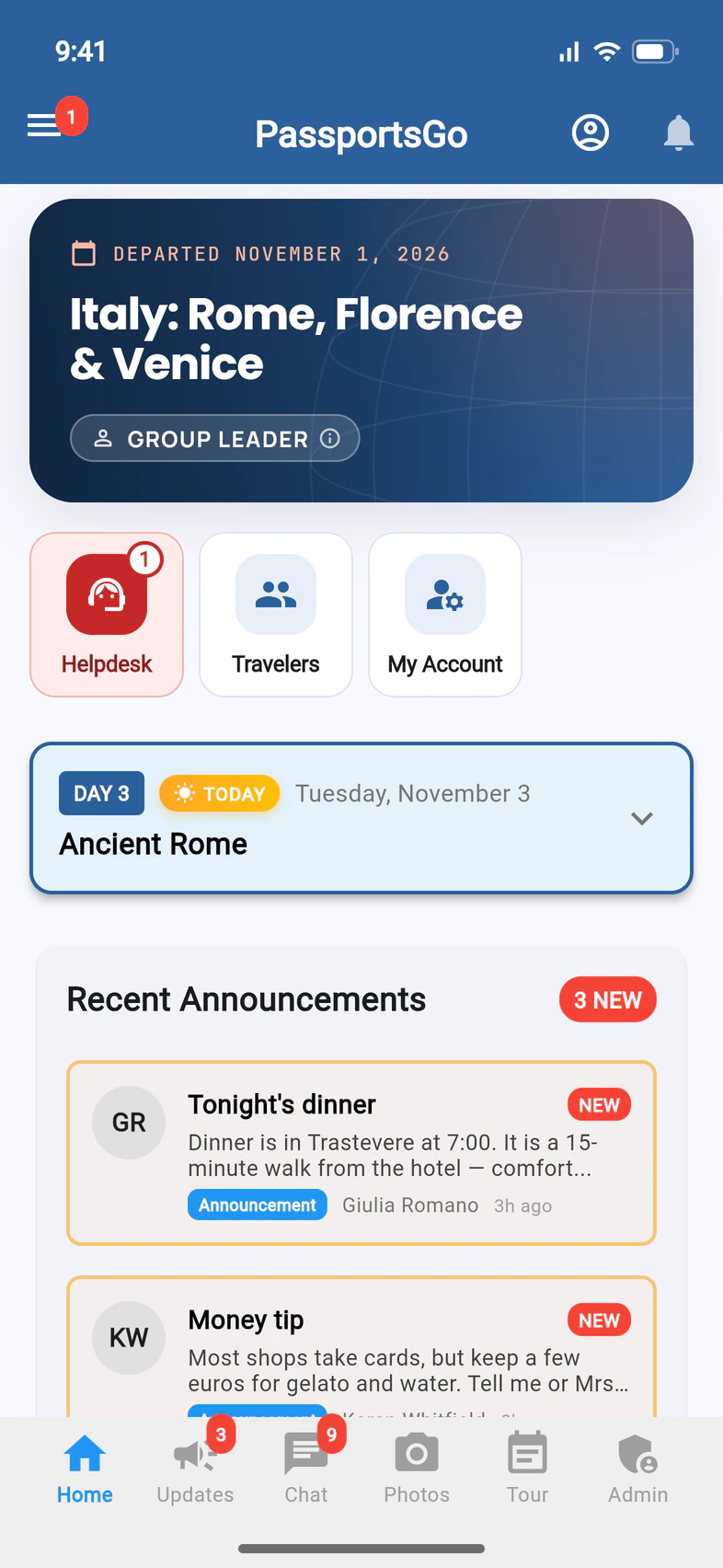
On Home, tap Travelers 1, the first blue tile. You can also open it from Admin › Traveler List.
When travelers on your waitlist can be added at your request, the tile turns red and shows how many: see Waitlisted below.
- Step 2
See who's on the app
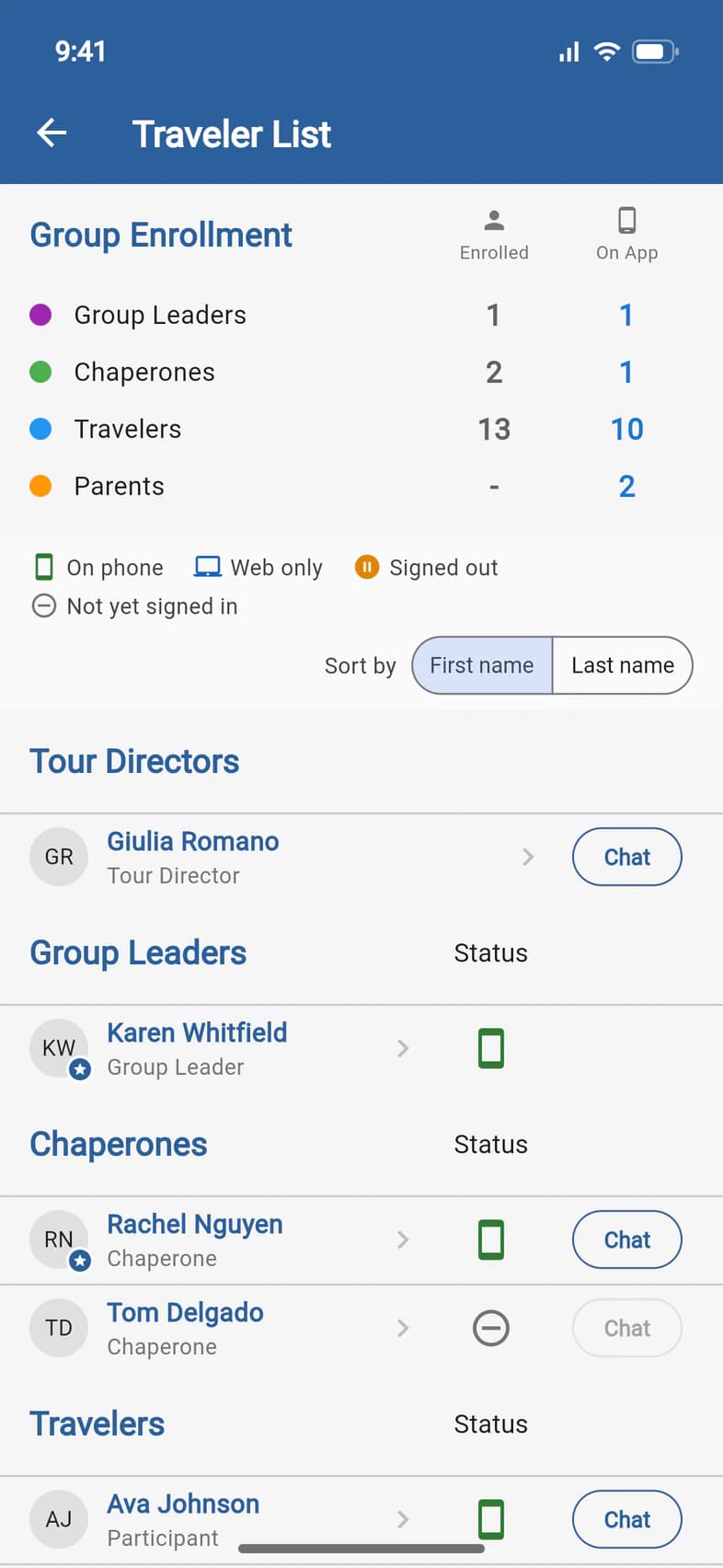
Group Enrollment 1 counts who's enrolled and who's on the app, for each role. The icon next to each person shows their app status 2: on their phone, on the web, signed out, or not yet signed in. Sort the list by first or last name 3.
Chat 4 opens a chat with that person. At the top, Message group emails your travelers, guardians, chaperones or interest list. To let someone follow the tour from home, like a grandparent or your principal, tap Add a visitor beside it, or on Admin › Chaperones & visitors: see Add a visitor.
Above Group Enrollment, the Reports row has the Report Builder, Copy emails (everyone's addresses, for your own email app) and ready-made reports: see Run traveler, dietary and document reports and Build your own report.
Someone isn't on the app yet? Families sign in with the email on their enrollment: point them to Sign in to PassportsGo.
- Step 3
Open someone's details
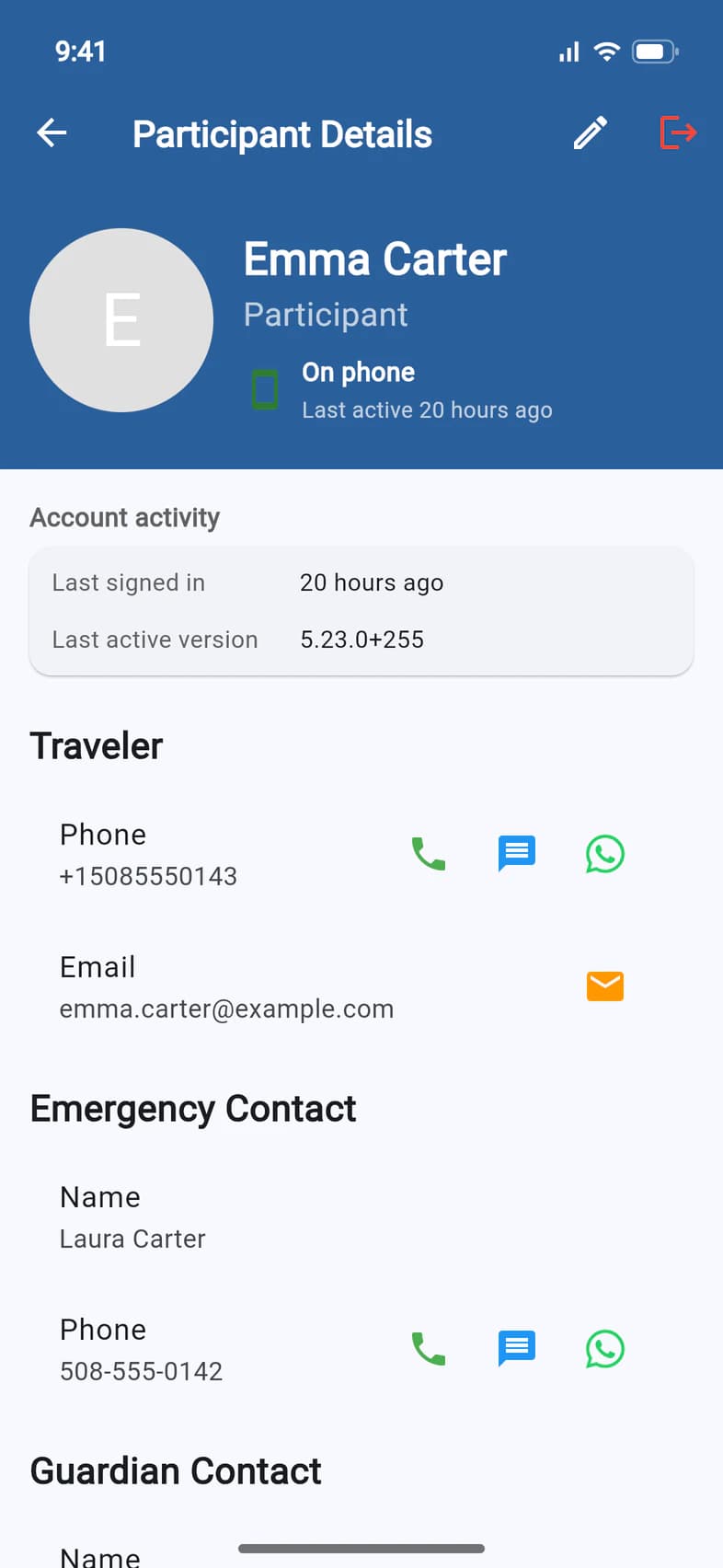
Tap a name. Their page shows their role and app status 1, Account activity 2 (when they last signed in), and their phone and email: tap to call, text or email. Further down are their Emergency Contact 3 and guardians.
- Step 4
Check their trip details
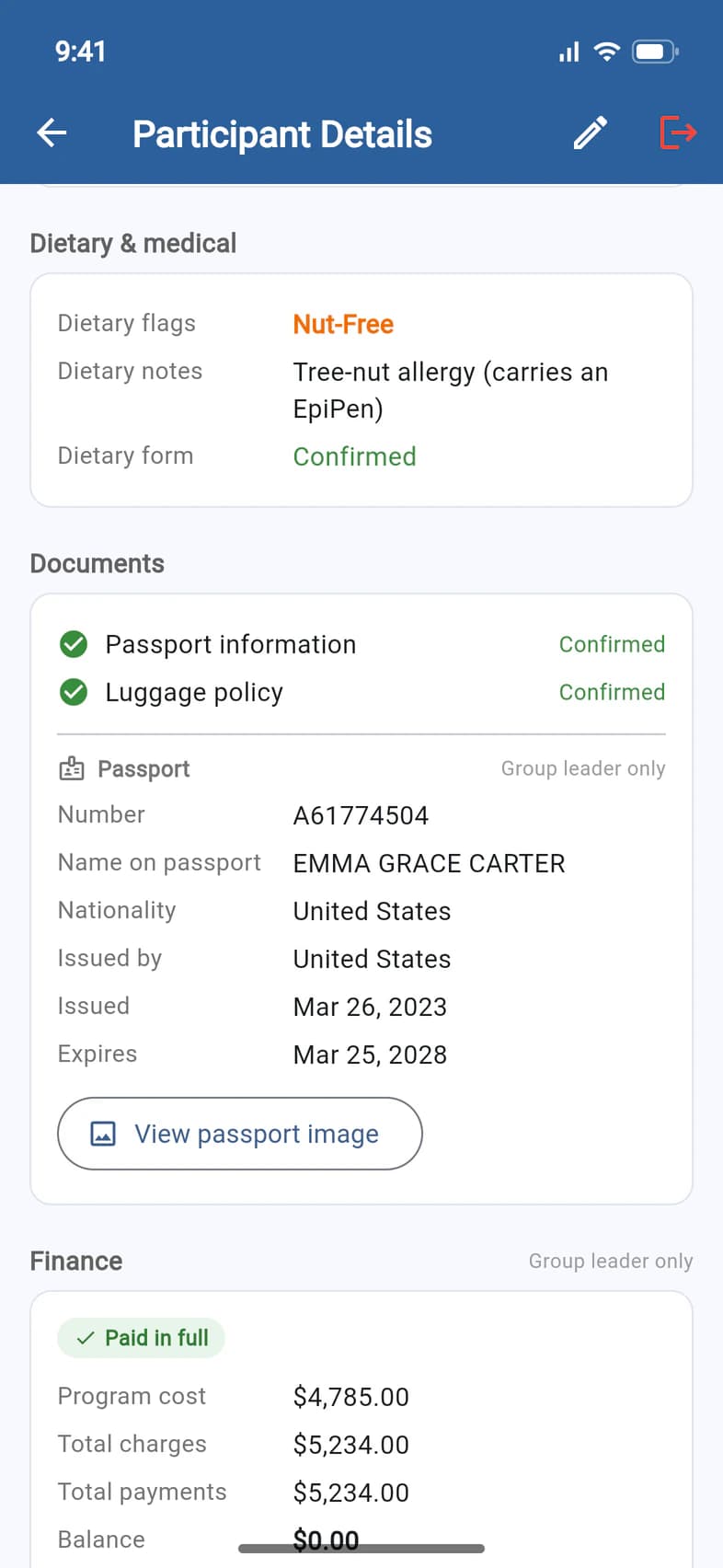
Further down the same page: their Dietary & medical details 1, and Documents 2, with where their passport and luggage forms stand. On a tour that needs a UK ETA, Documents shows theirs too, once the first family on the tour has confirmed one. The passport details and Finance (their balance and payments) show to group leaders only.
While a traveler owes a balance, Finance also has their private donation link, to copy or share with relatives: see Check participant balances. Emma is paid in full, so hers has none.
- Step 5
Add from your waitlist
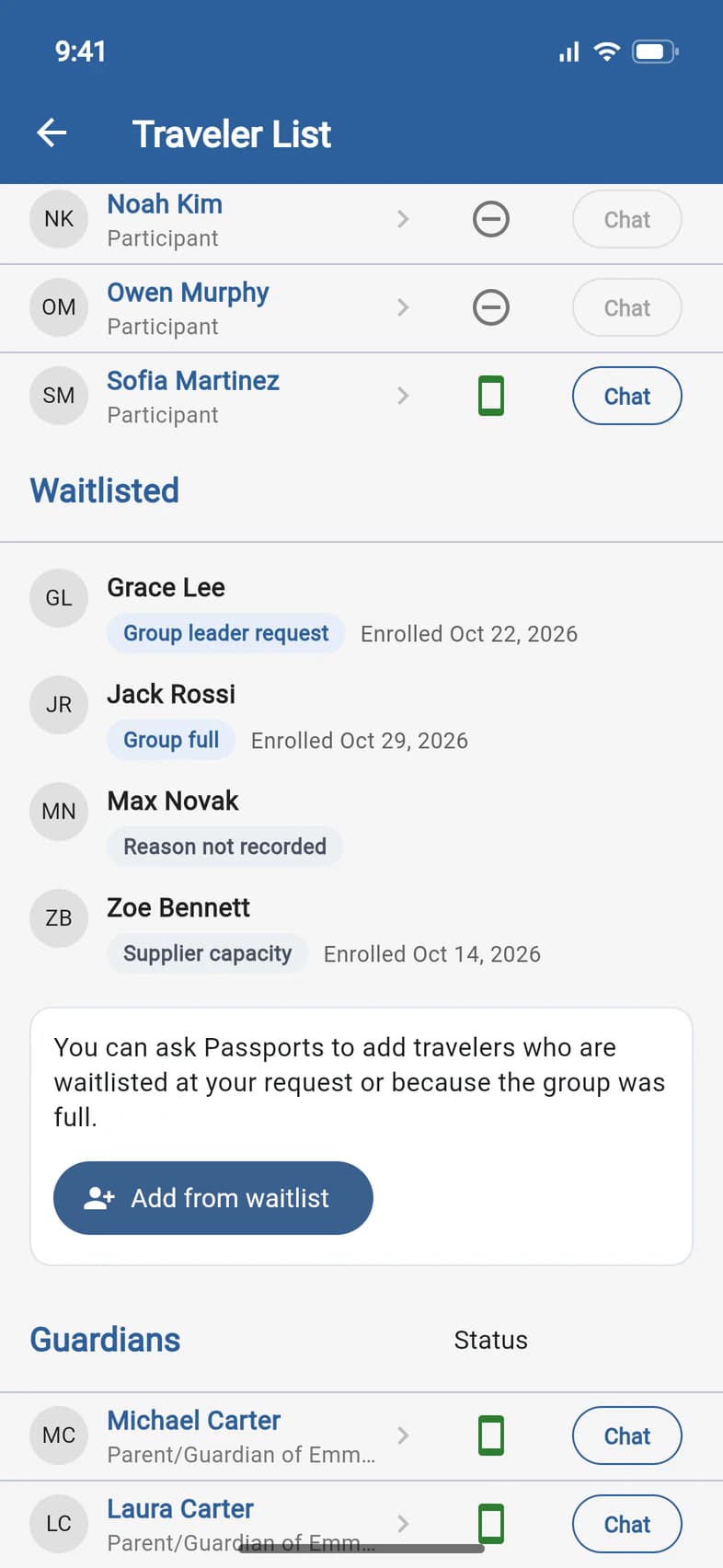
Travelers who enrolled but aren't on the tour yet are under Waitlisted 1, after Travelers. Each shows why, like Group leader request or Group full, and when they enrolled. They aren't in the other sections, the counts or the reports, and their names don't open.
To ask Passports to add some of them, tap Add from waitlist 2. Tick them under Who should we add?, add a note if you like, then tap Next: review and Send request. The request opens in your Helpdesk as a Waitlist request, where Client Services replies. Each family is emailed when their spot is confirmed, and so are you.
You can pick travelers waitlisted at your request or because the group was full. Passports decides on the others: they're grayed out under Passports decides.
Requests close 120 days before departure. After that, the section says so and has Ask Passports instead, for a question to Passports.
Good to know
How do I sign someone out of the app?
On their details page, tap the red sign-out icon at the top (Force Logout User), then Confirm.
Can I email the whole group?
Yes: tap Message group at the top of the Traveler List, tick who gets it (Travelers, Guardians, Chaperones or Interest list), write a Subject and Message, and tap Review and send. You can Send me a test first, Also post to Updates without a second notification, and see what went out under Sent messages: Email your group walks through it. Prefer your own email app? Copy emails in the Reports row copies the addresses.
Who sees the waitlist?
You, and chaperones with Admin Functions, who can look but not ask. Travelers and families don't see waitlisted travelers on the list.
I asked for travelers from the waitlist. Now what?
Waitlisted shows Request sent with the date. Tap View to open the conversation with Client Services. Once Passports adds a traveler, they move to Travelers.
Can I hide the Traveler List from families?
Yes. In Admin › Group Settings, under Traveler List, choose Who can see the Traveler List: Everyone on the tour (the default), Travelers and chaperones (not guardians or visitors) or Only admins (you and the people you gave Admin Functions). It sets everyone's View Traveler List box at once, and the people it hides the list from no longer have the Travelers tile on Home. You and your admins always see it.
Can I list a chaperone as a co-leader?
Yes. On their details page, under Display Settings, pick Co-Leader under Show as and tap Save Display Setting. They move under Group Leaders, after you, with Co-Leader under their name and on their own page, and Group Enrollment counts them there. It's only a label: Copy emails and the reports still count them as a chaperone, and it gives them no new rights. See Make someone an admin.
Can I change what someone can see?
Yes, on their details page under Permissions, or for a chaperone or a visitor, on Admin › Chaperones & visitors: see Make someone an admin. Passports can also set someone's permissions for you: ask in the Helpdesk.
Screens show a sample family and tour — your names, dates and amounts will differ. Checked against the app November 3, 2026.
Call us. A real person in Worcester picks up.
Monday to Friday, 8am to 4pm Eastern — and around the clock once your group is on tour. Or email passportsgo@passports.com.