
Call someone in the app
Audio calls from your phone around your tour dates: where the call button is, who can call whom, and why it may not show.
Call a traveler, a chaperone, a parent or your Tour Director right from PassportsGo, with no phone number. It's a voice call with one person at a time, over Wi-Fi or mobile data, and their phone rings even if the app is closed.
You also decide who in your group can call whom, and you can turn calling off.
Before you start
- PassportsGo on your phone, signed in. Calling doesn't work on passportsgo.com or a computer.
- Your tour dates. Calling opens 1 day before your tour starts and stays on for 3 days after it ends. Outside those days, there are no call buttons.
- Step 1
Allow the microphone
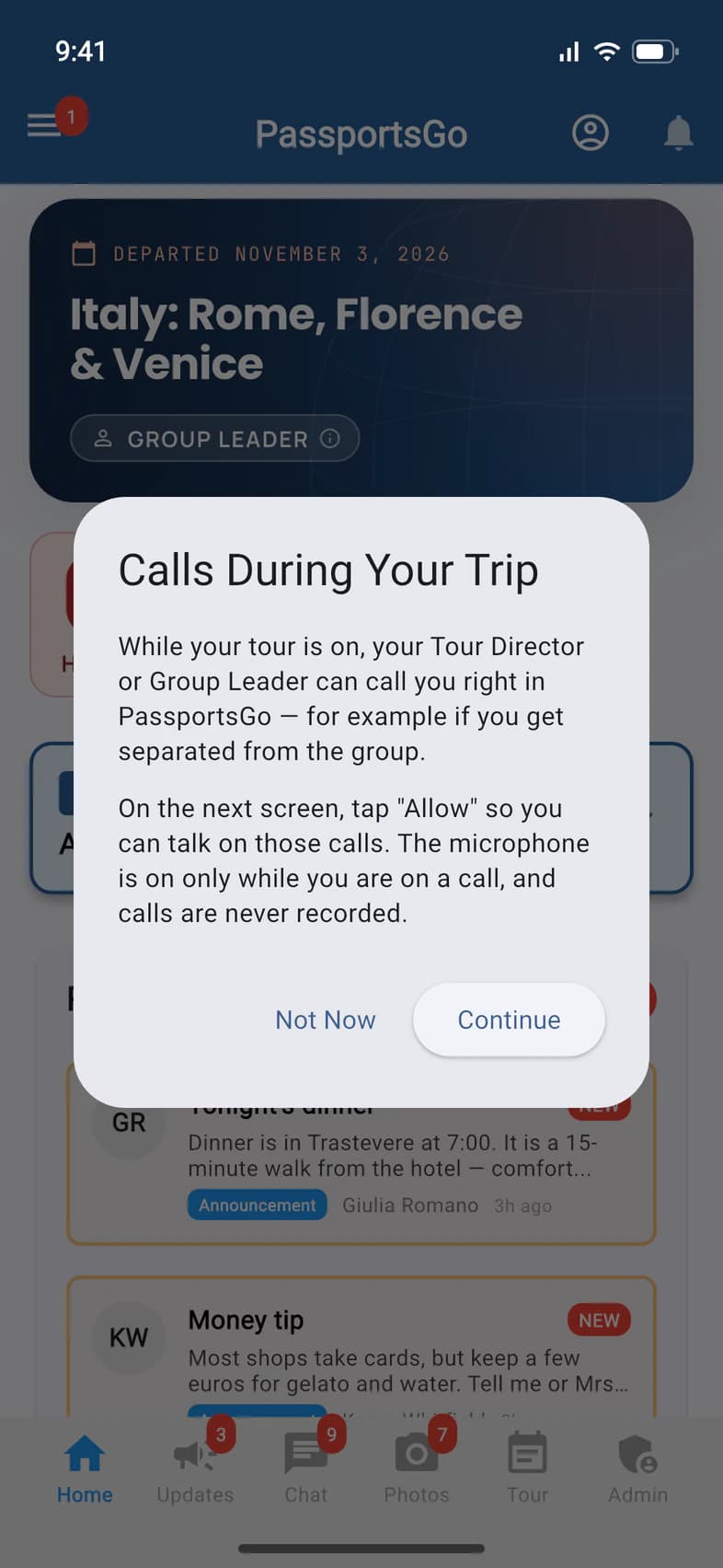
Once calling opens, PassportsGo asks for your microphone the next time you open it. On Calls During Your Trip, tap Continue 1, then Allow on the next screen.
The microphone is on only while you're on a call. Not Now is fine too: PassportsGo asks again in 3 days, and when you place a call.
Everyone in your group gets this question, so ask your travelers to say yes too. It's how they can talk when you call them. On an Android phone the next screen says "record audio", Android's name for the microphone.
- Step 2
Call from the Traveler List
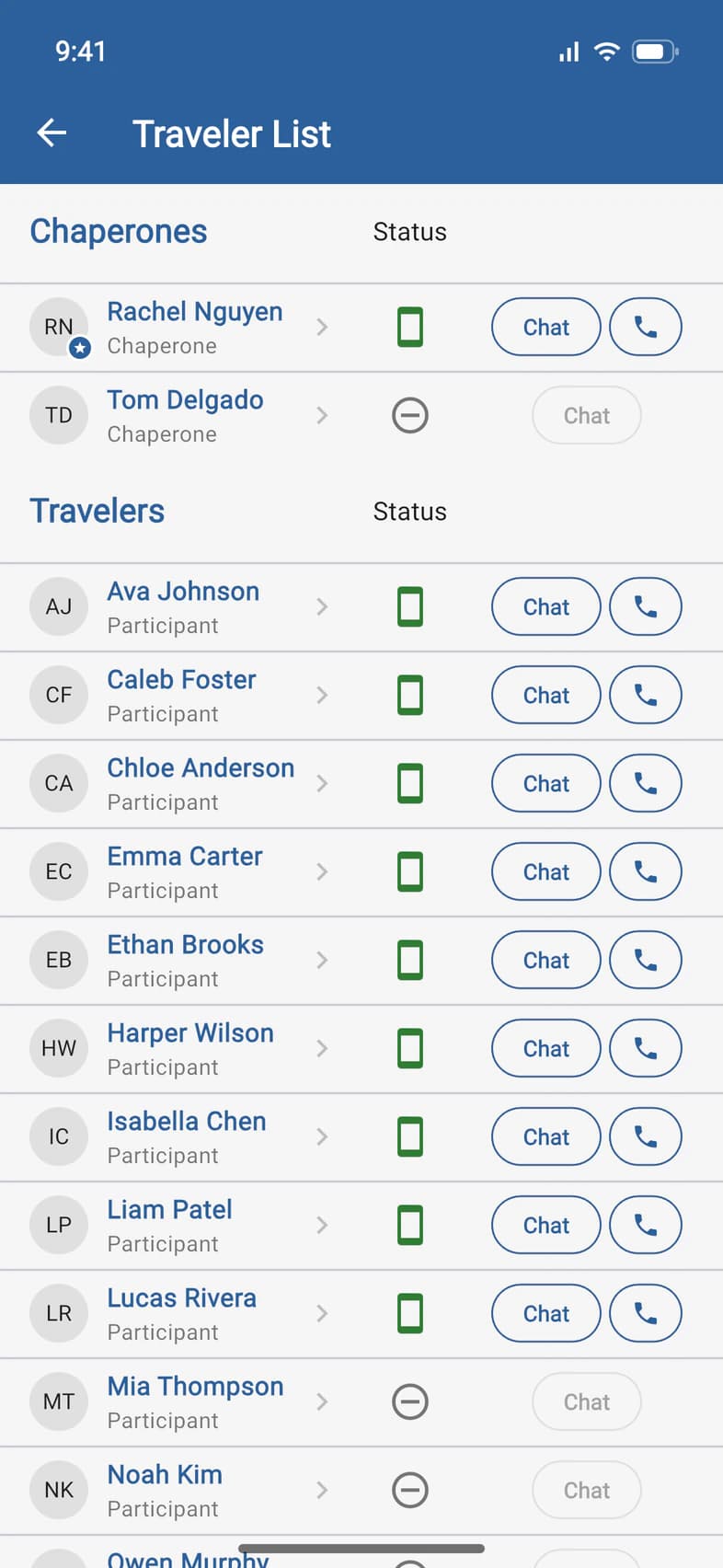
On Home, tap Travelers to open the Traveler List, and find the person. Tap the phone button 1 in their row.
Rows with a green phone under Status have the button, from your Tour Director at the top down to Guardians and Tour Viewers (your visitors) at the bottom. Someone like Tom Delgado 2, who hasn't signed in yet, has none: their phone can't ring.
- Step 3
Or call from a chat
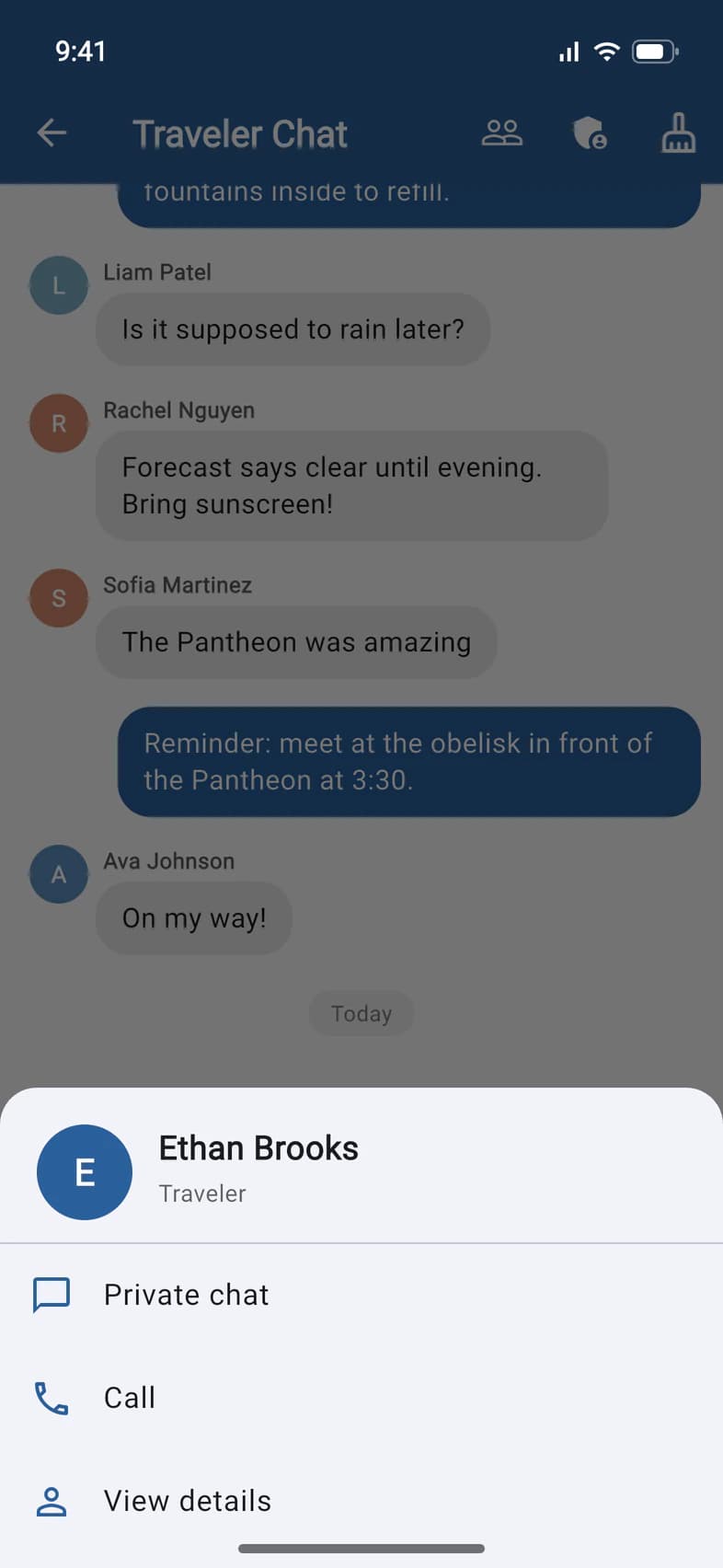
In any chat, tap or press and hold someone's name or picture. A sheet opens with their real name and role 1, whatever nickname they use. Tap Call 2.
Call shows only for someone who would have a phone button on the Traveler List.
- Step 4
While it rings
The call screen opens and says Calling… while their phone rings, for up to 45 seconds. It rings like a normal phone call, even with PassportsGo closed, and shows your name.
- If they answer, a timer starts. You can use Mute and Speaker, and End hangs up.
- If they decline, you see Call declined.
- If nobody answers, you see No answer. They get a missed call notification with your name.
- If you change your mind, tap Cancel. They get the same notification.
If the signal drops during a call, the screen says Reconnecting… and keeps trying for a minute before the call ends.
- Step 5
Open your calling settings
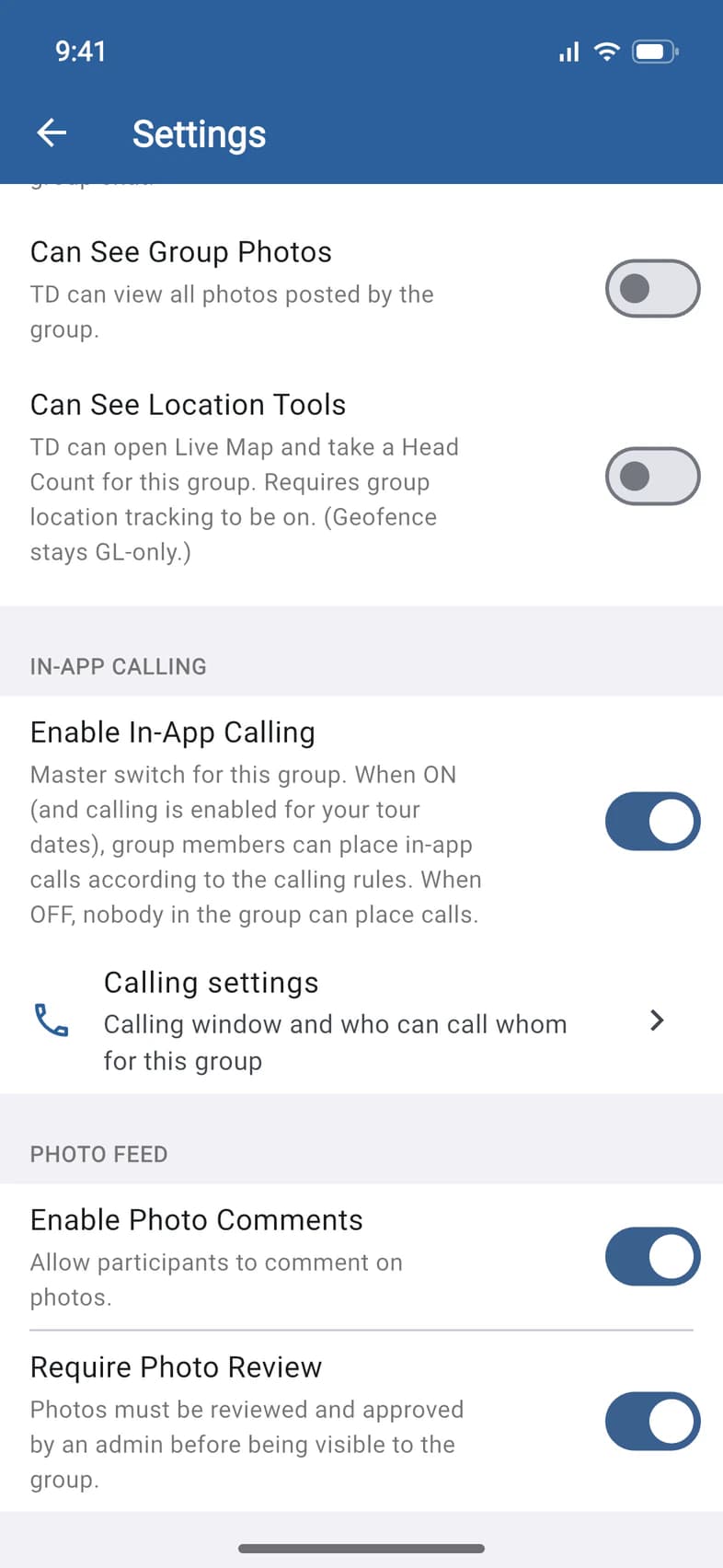
Only you can change these. Tap Admin, scroll down to CONFIGURATION and tap Group Settings. Near the bottom, under IN-APP CALLING, tap Calling settings 1.
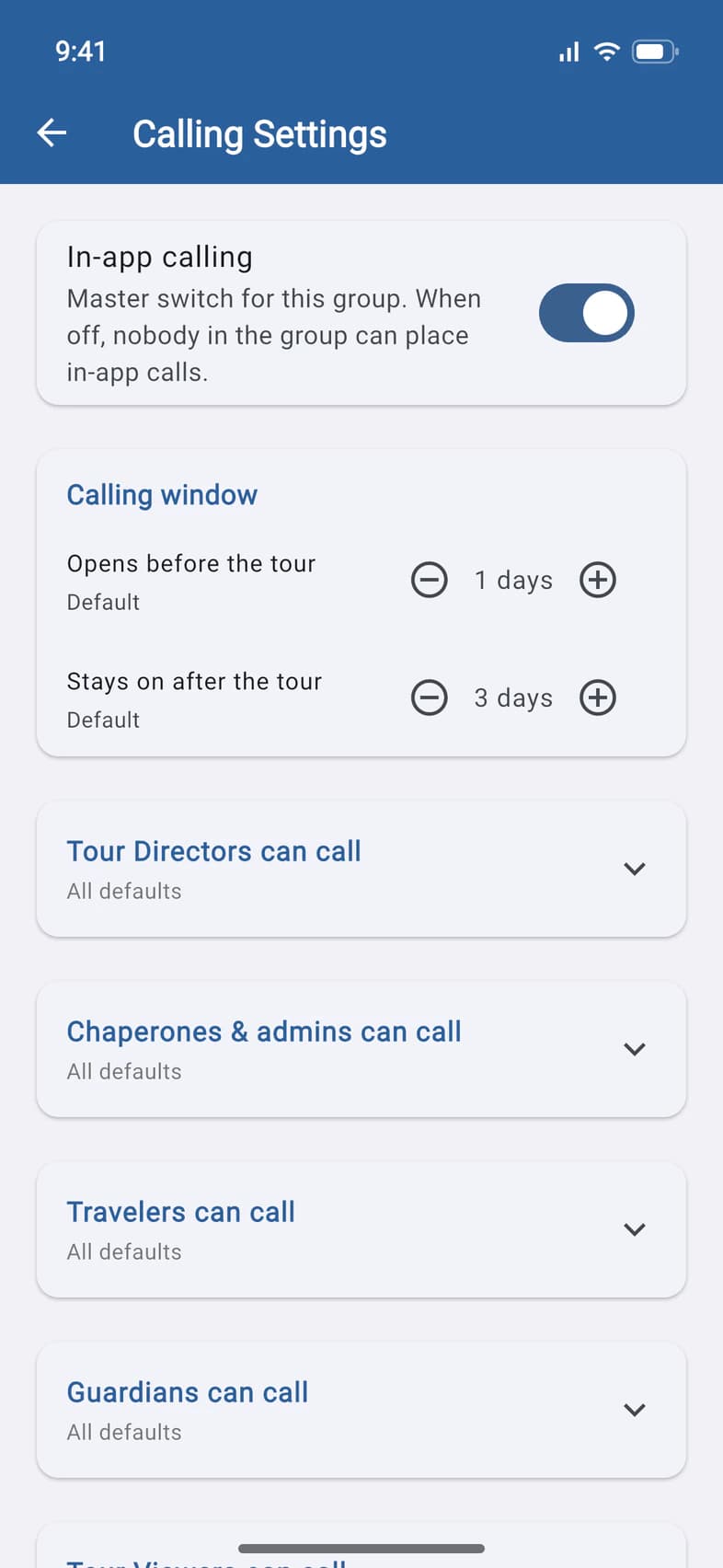
To turn calling off for your whole group, turn off Enable In-App Calling 2. Then nobody in your group can place a call, family calls included, until you turn it back on.
- Step 6
Choose who can call whom
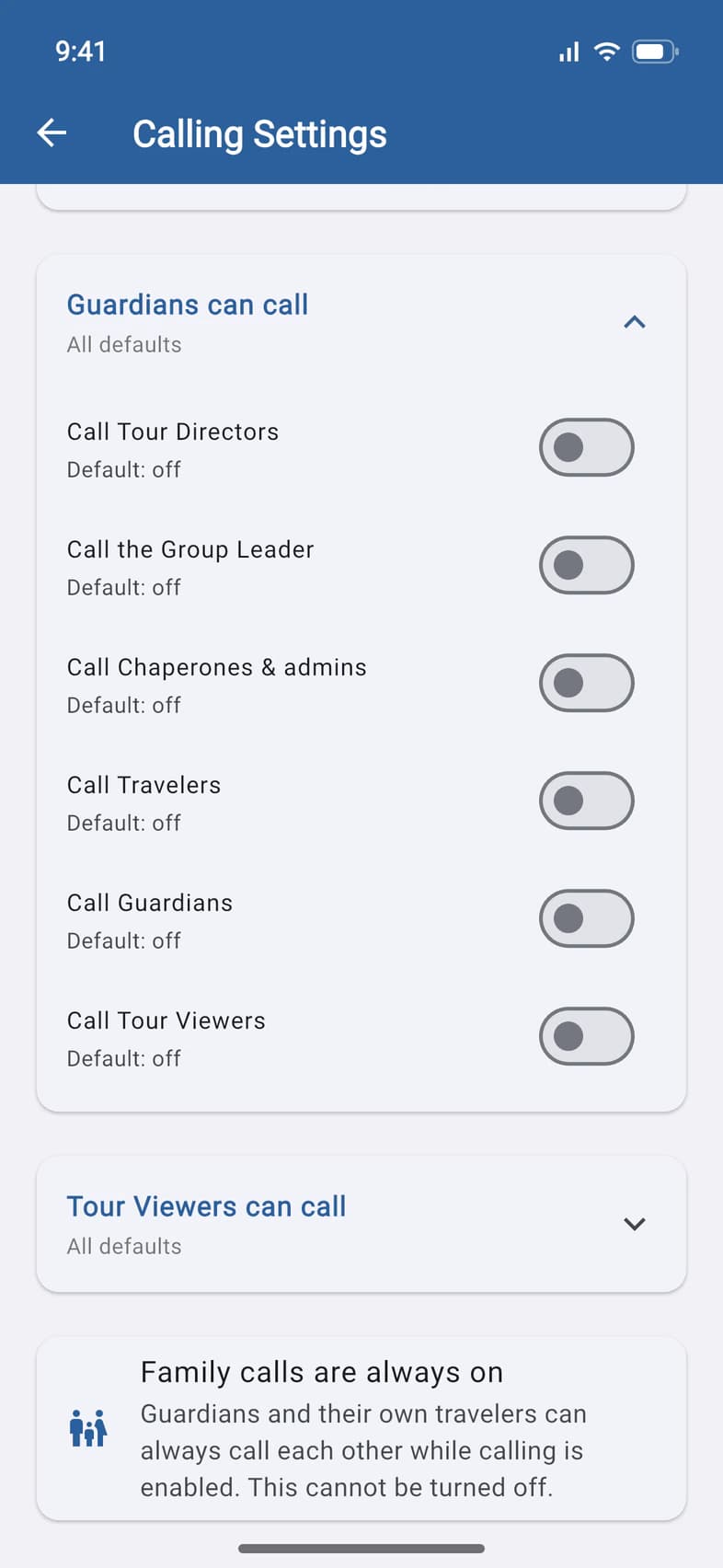
Calling Settings has a card for each role: Tour Directors can call, Chaperones & admins can call, Travelers can call, Guardians can call and Tour Viewers can call. There's none for you, because you can always call everyone. Tap a card to open it 1.
Unless you change them, the rules are:
- You, chaperones with Admin Functions and your Tour Director can call anyone on the tour.
- Travelers can call you, and nobody else. A chaperone without Admin Functions counts as a traveler here.
- Parents and guardians (Guardians) and visitors (Tour Viewers) can't call anyone.
Flip a switch and it saves right away. To let parents call you, say, open Guardians can call and turn on Call the Group Leader 2. The row then says Custom instead of Default, with an arrow to put it back.
Family calls are always on 3: parents and guardians and their own travelers can call each other, and you can't turn that off.
Hiding the Traveler List turns calling off too. Anyone you hide it from can't place a call, family calls included, though they can still get yours. See Change your group settings.
- Step 7
Choose when calling is on
At the top of Calling Settings, under Calling window, Opens before the tour 1 starts at 1 day and Stays on after the tour 2 at 3 days. Tap − or + to change either one, from 0 to 60 days.
The row then says Custom for this group, with an arrow to put it back.
Good to know
Why is there no call button next to someone?
A button shows only when all of these are true:
- They have PassportsGo on a phone, signed in, and have opened it in the last 45 days. Someone who only uses passportsgo.com in a browser can't get a call.
- You're on your phone, your calling window is open and Enable In-App Calling is on.
- The rules let you call them. As group leader, you can call anyone.
- It isn't you.
It says “They can't receive calls right now.”
Their phone can't be reached, usually because notifications for PassportsGo are off on it. Ask them to turn notifications on, and use Chat in the meantime.
Who can call me?
Your Tour Director, your chaperones and your travelers. Parents, guardians and visitors can't, unless you turn on Call the Group Leader under Guardians can call or Tour Viewers can call. To stop travelers calling you, turn it off under Travelers can call. Your phone rings like a normal call, even with PassportsGo closed.
Can parents call their own child?
Yes, and you can't turn that off. Parents and guardians and their own travelers can call each other, and so can two guardians of the same traveler, whenever calling is on for your group and they can see the Traveler List. A parent finds the phone button next to their traveler on the Traveler List. Travelers don't see guardians on that list, so a traveler can call a parent only from the parent's name in a chat they share.
Are calls recorded?
No. PassportsGo keeps only who called whom, when, and how the call ended. There's no call history in the app.
How long can a call last?
Up to an hour. Then the call ends and you see Call ended (1 hour limit). You can call again. Call back if you need more time.
Can I call from a computer?
No. Calling works only in the PassportsGo app on a phone. There are no call buttons on passportsgo.com or a computer, and a computer never rings.
Does it use my phone plan?
It doesn't use your phone number or your minutes. A call goes over Wi-Fi or mobile data. On mobile data it counts as data, so roaming charges can apply abroad. Wi-Fi avoids that.
It says “Microphone permission is required to make calls.”
You said no to the microphone. In your phone's Settings, find PassportsGo, turn on the microphone and call again.
Screens show a sample family and tour — your names, dates and amounts will differ. Checked against the app November 5, 2026.
Call us. A real person in Worcester picks up.
Monday to Friday, 8am to 4pm Eastern — and around the clock once your group is on tour. Or email passportsgo@passports.com.