
Email your group
Message group on the Traveler List: pick travelers, guardians, chaperones or your interest list, write it once, preview it, send it, and see what went out.
Send one email to the people on your trip, right from the Traveler List: your travelers, their parents or guardians, your chaperones, your interest list, or any mix. Everyone gets their own copy, signed with your name, and replies come to your own email.
Only the group leader can send a group message, up to 5 a day. It's email only: no push notification and no text.
Before you start
- PassportsGo on your phone, or passportsgo.com in a browser — signed in as the group leader.
- Step 1
Open Message group
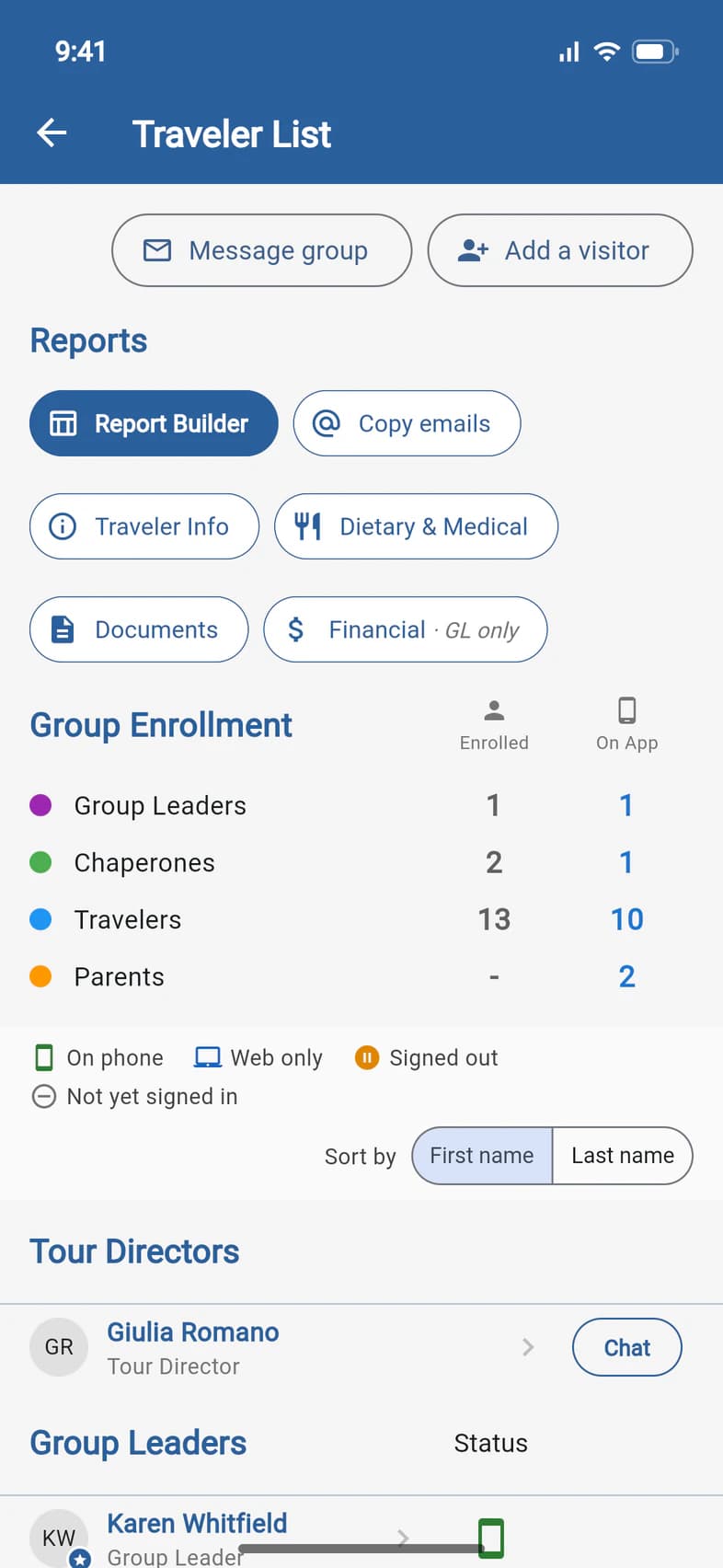
On Home, tap Travelers (or Admin, then Traveler List). At the top of the list, tap Message group 1, next to Add a visitor.
- Step 2
Choose who gets it
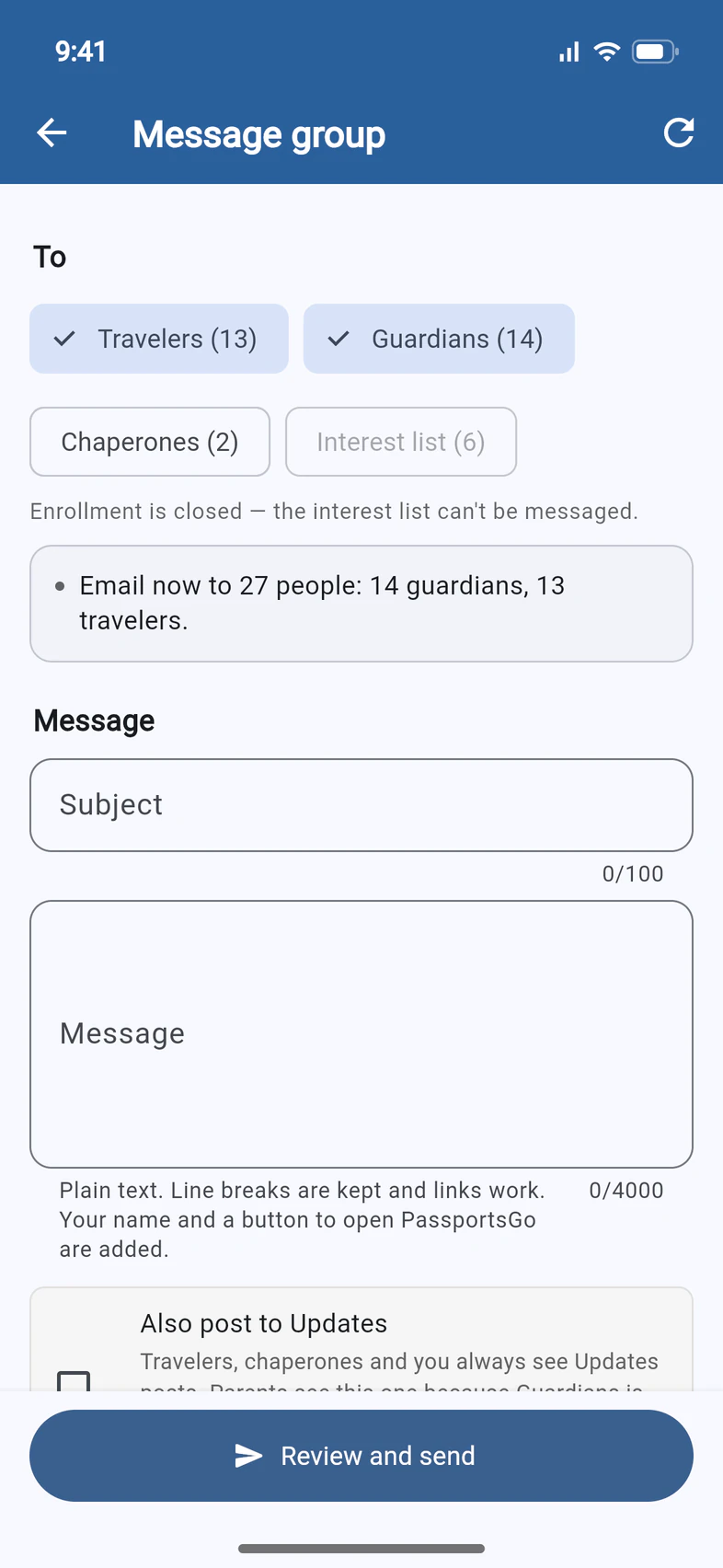
Under To, tap everyone who should get it 1: Travelers, Guardians (the parents or guardians on each traveler's enrollment), Chaperones or your Interest list, in any mix. The number on each is how many people it reaches. Nothing is picked until you choose.
The box underneath 2 counts exactly who gets it. Each email address gets one copy, even when two people share it.
Your Interest list 3 can be emailed only while your trip is open for enrollment. Once enrollment closes, it's greyed out, as it is here on tour.
- Step 3
Write your message
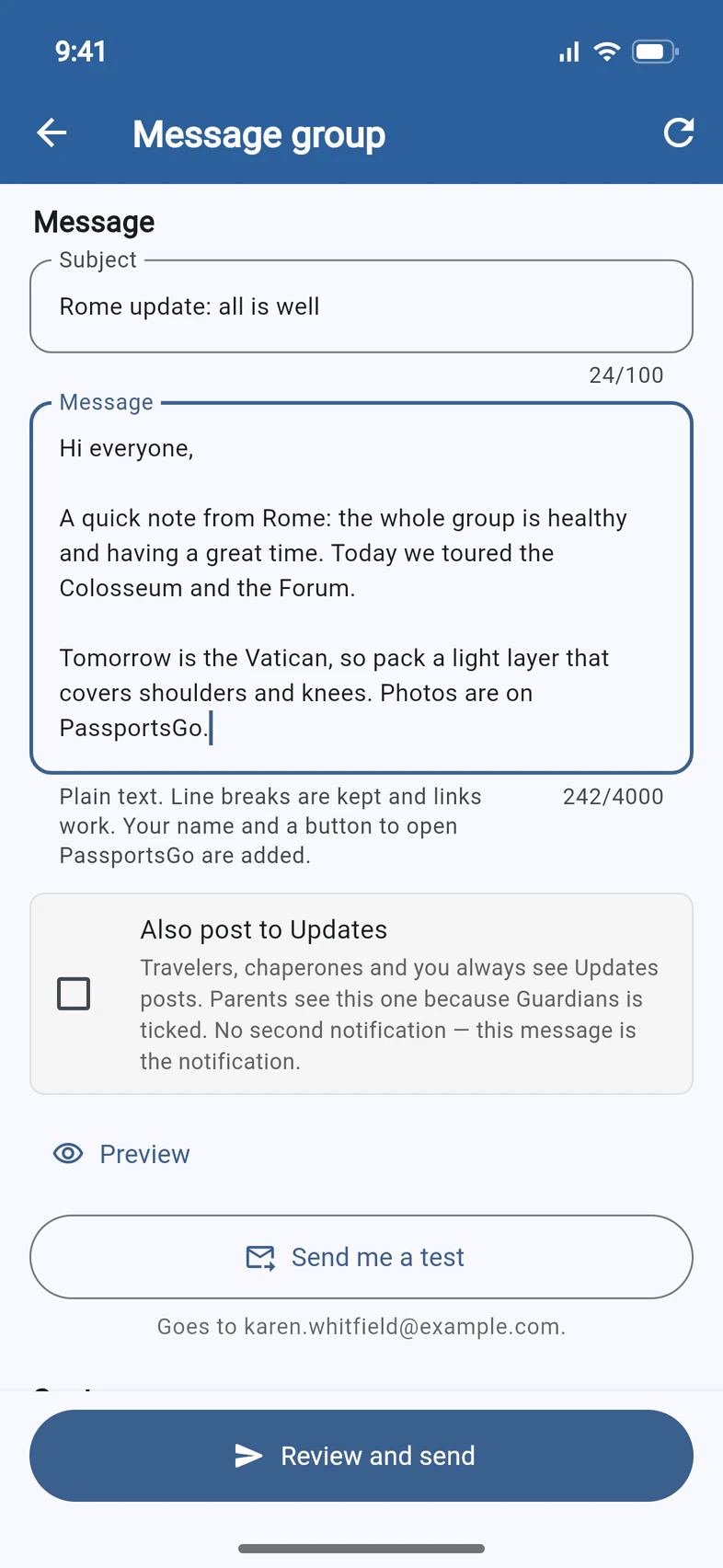
Type a Subject 1 (up to 100 characters) and your Message 2 (up to 4,000).
It's plain text: your line breaks are kept and links work. There's no need to sign it: your name and a button to open PassportsGo are added at the end.
- Step 4
Post it on Updates too
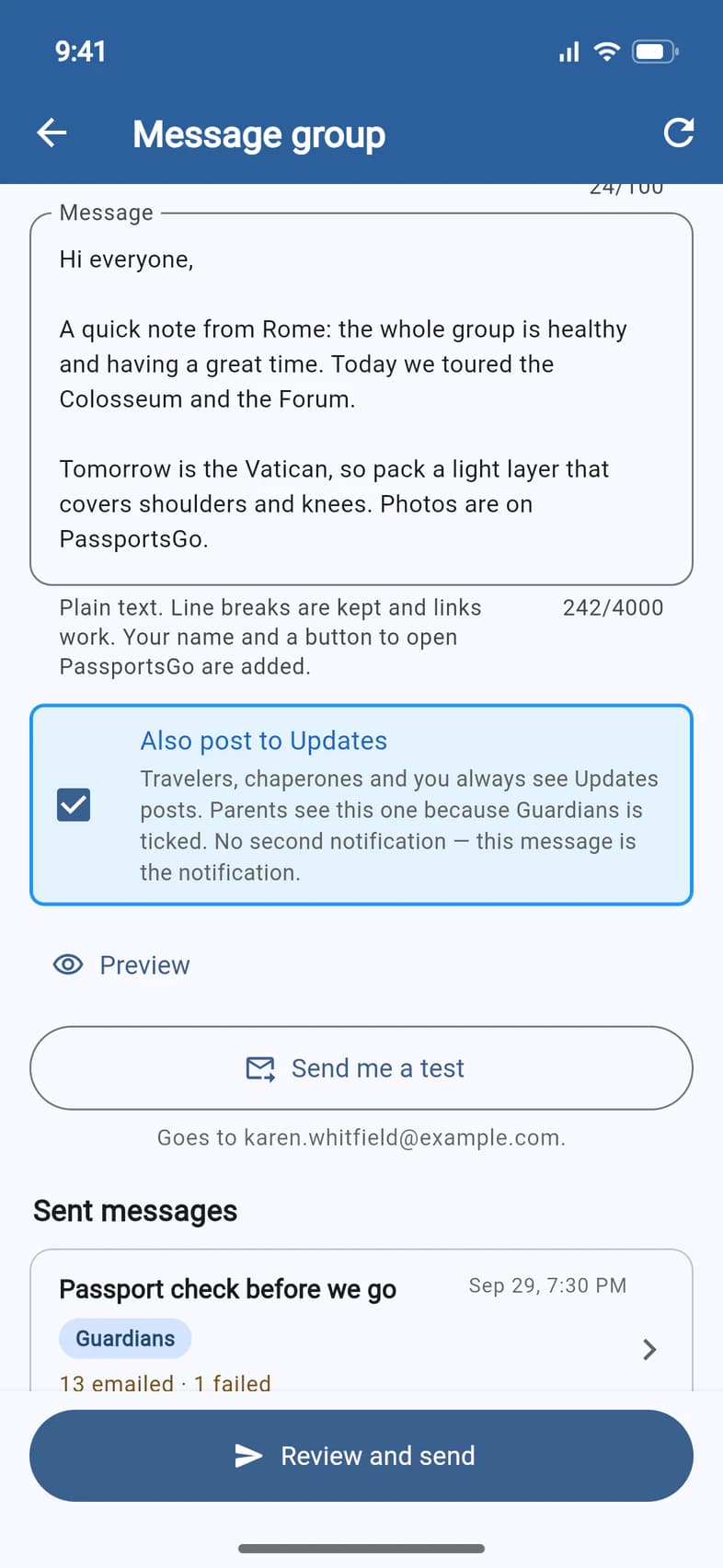
Want the same words on Updates as well? Tick Also post to Updates 1. It's off each time you start, and it shows only when Travelers, Guardians or Chaperones is picked.
Travelers, chaperones and you always see the post, and parents see it only when Guardians is picked, as the note under the box says. Your Tour Director doesn't see it.
The post sends no notification of its own: the email is the notification, and its button opens the post.
- Step 5
Preview it, or test it
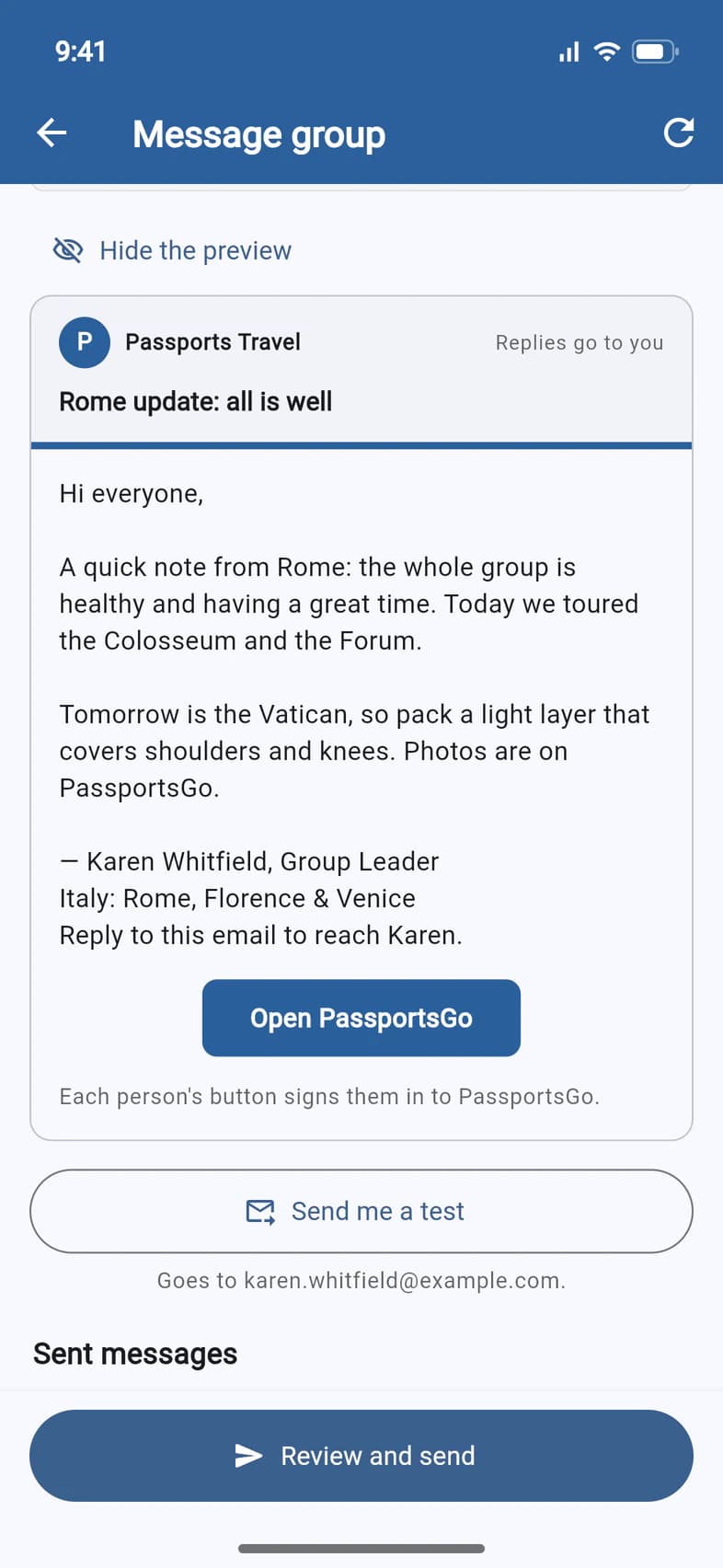
Tap Preview to see the email your group gets. It comes from Passports Travel with your subject 1, then your message, your name and your trip, and an Open PassportsGo button 2 that signs each person straight in. Tap Hide the preview to close it.
To see it in your own inbox first, tap Send me a test 3. The test goes only to you, at the address shown underneath.
Emailing your interest list too? The preview shows both versions. Theirs has your trip's name before the subject, a See the trip and enroll button instead of the sign-in button, and a line to stop these emails.
- Step 6
Review and send
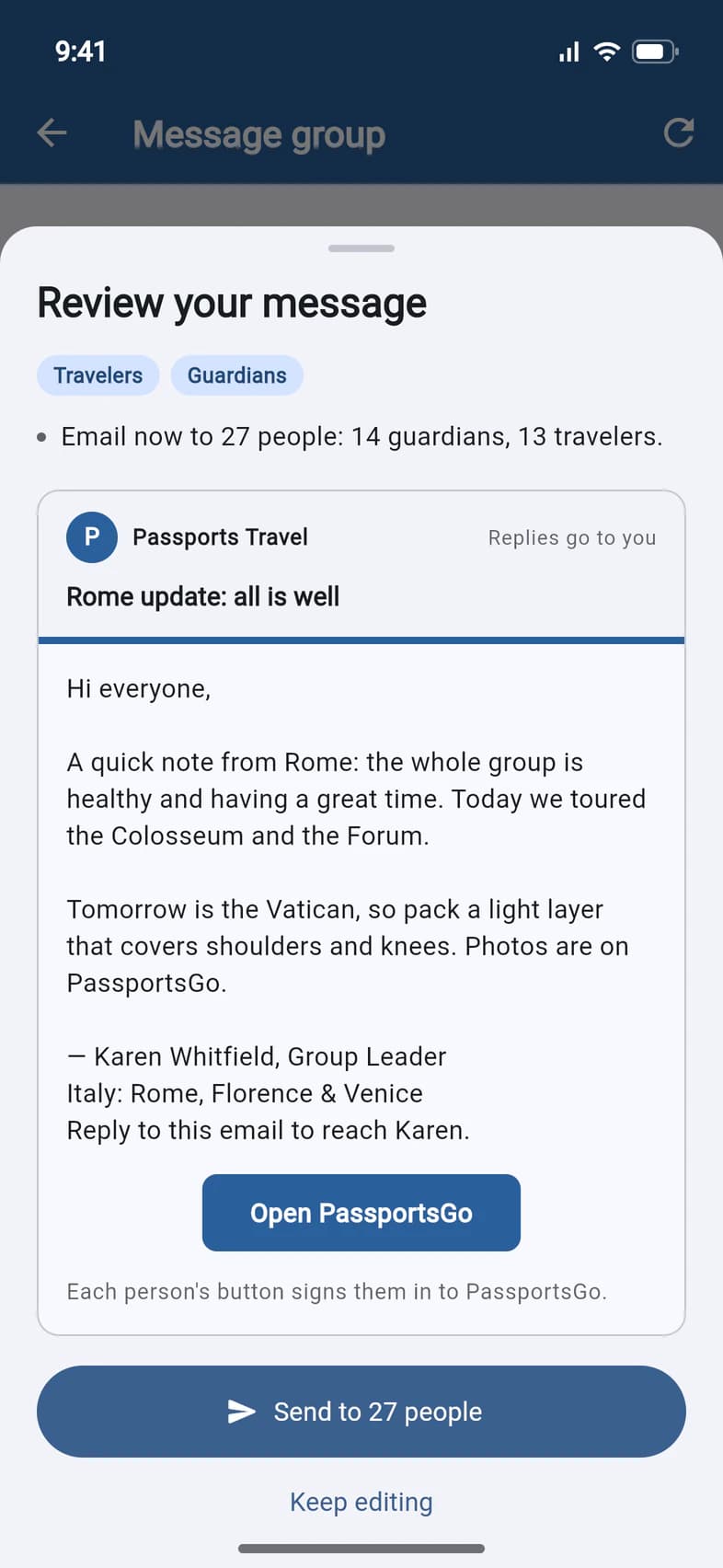
When it's ready, tap Review and send at the bottom of the screen. Review your message shows who it's going to 1 and the email once more.
Tap Send to 27 people 2 to send it, or Keep editing to go back.
The email goes out as soon as you tap Send to 27 people: it can't be scheduled, called back or edited. You can send up to 5 messages a day. Tests don't count.
- Step 7
You're done
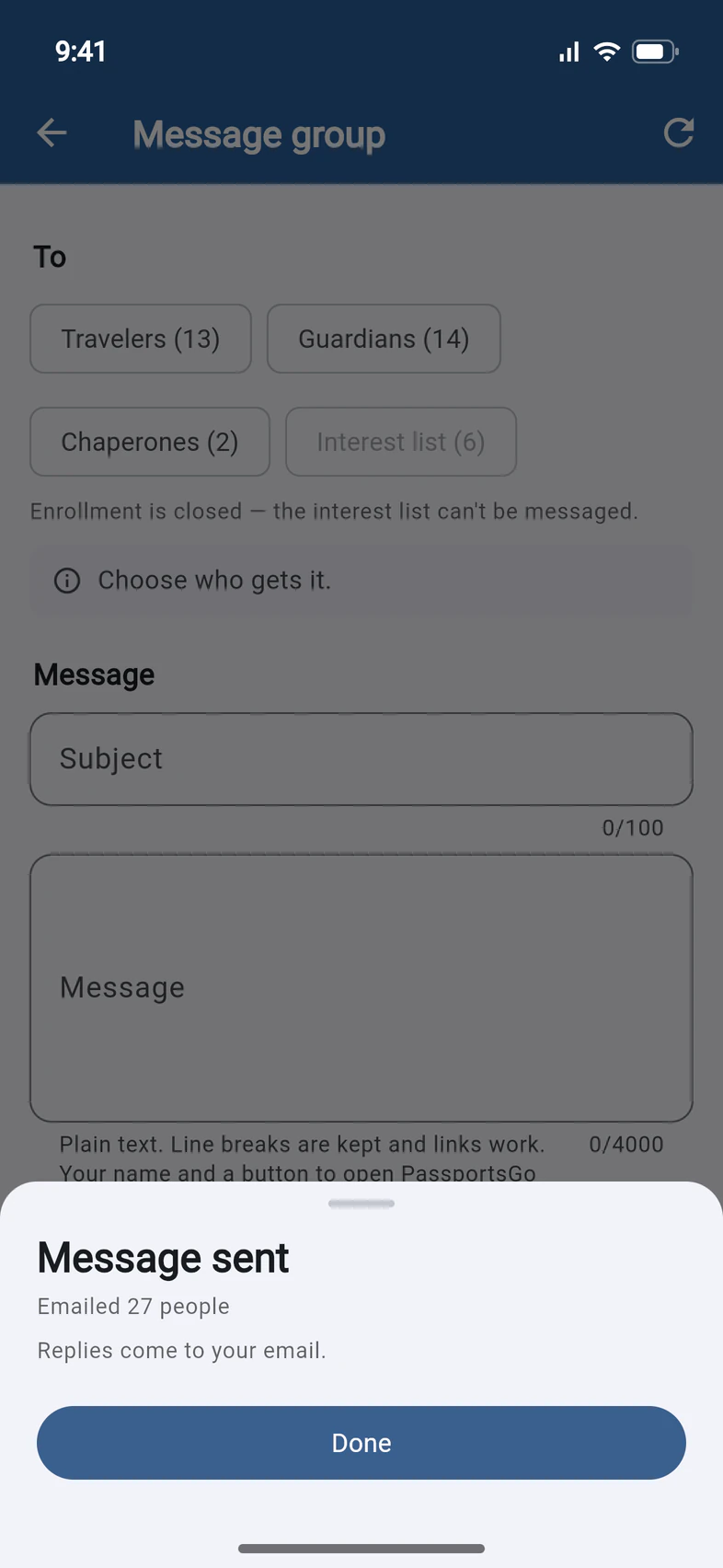
Message sent confirms it, with how many people were emailed 1. Replies come to your own email, not to the app.
Tap Done 2, and the message you just sent opens.
- Step 8
See who got it
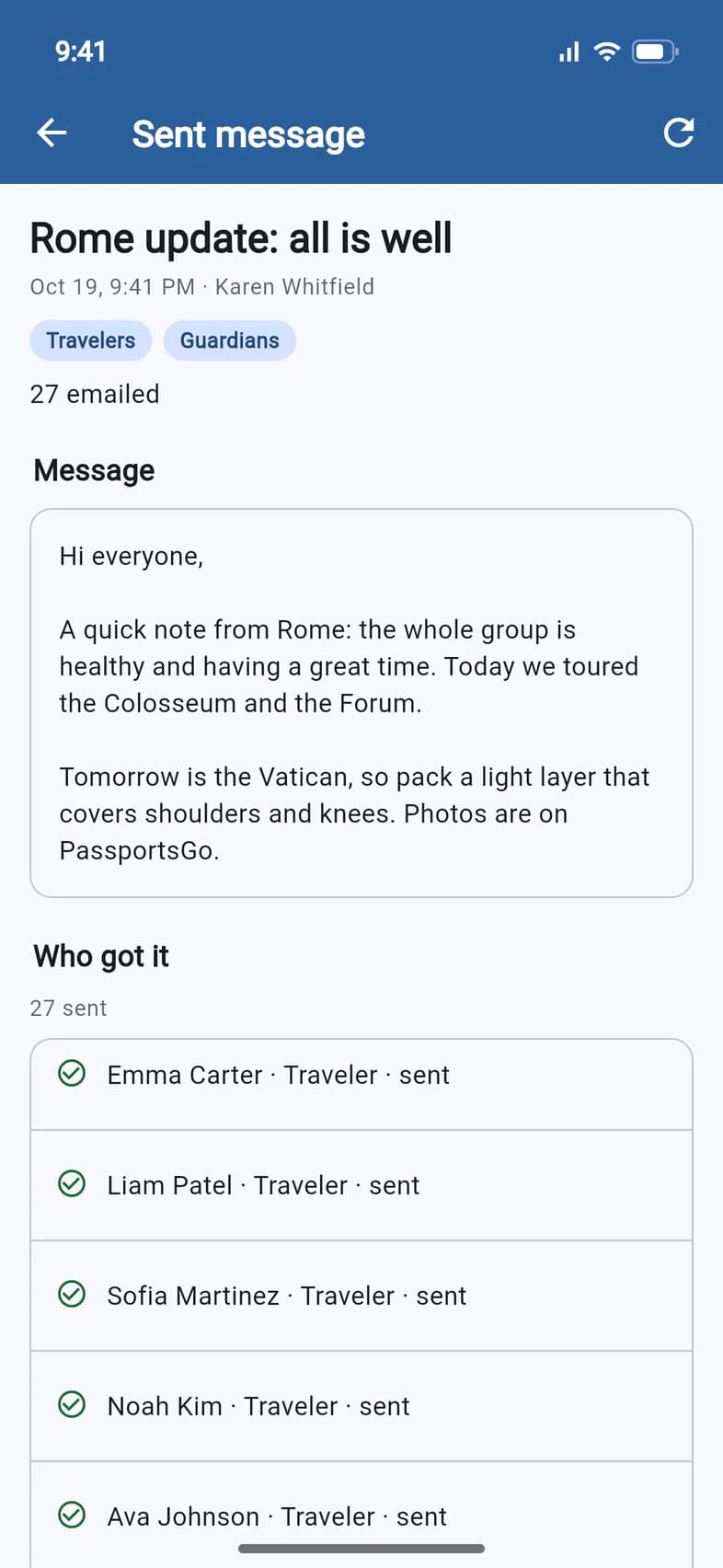
Each message shows who you sent it to and how many were emailed 1. Under Who got it 2, every person has a line: sent, no email (there's no address on file), or failed, with the reason, like a full mailbox.
To find a message later, open Message group and scroll down to Sent messages, below the form. At the bottom of each message, Use again copies its To, subject and message into a new one.
A sent line means the email was handed to the mail server. PassportsGo doesn't record whether anyone opened it.
Good to know
Where do replies go?
To your own email. The message comes from Passports Travel, but it's signed with your name and ends with a line asking people to reply to reach you, so a reply goes straight to your inbox.
Can families see each other's email addresses?
No. Everyone gets their own copy of the email, so nobody sees anyone else's address, and each person's Open PassportsGo button signs in only them.
Is there a limit?
Up to 5 messages a day; tests don't count. Your interest list has its own limits: 200 people a message, and 500 interest-list emails a day, counting what you send from the Recruitment tab.
Someone didn't get my message.
Open the message under Sent messages. no email means Passports has no address for that person, and failed gives the reason. Only Passports can change an email address: the family can tap Ask Passports in PassportsGo, or call 1-800-332-7277.
I'd rather write from my own email.
Tap Copy emails in the Traveler List's Reports row. Tick the lists you want, choose commas or semicolons for your email program, then tap Copy and paste the addresses into the Bcc line.
I don't see Message group.
Only the group leader can send group messages: chaperones don't see the button, even ones you've made admins. It also goes away once a group is read-only after the trip. If you're the group leader and it's missing, call Passports at 1-800-332-7277.
Screens show a sample family and tour — your names, dates and amounts will differ. Checked against the app September 30, 2026.
Call us. A real person in Worcester picks up.
Monday to Friday, 8am to 4pm Eastern — and around the clock once your group is on tour. Or email passportsgo@passports.com.