
Name and invite your chaperones
The Chaperones page: who leads which travelers, naming and inviting a chaperone for an open spot, and following each one through their application.
When Passports adds a chaperone spot to your trip, you choose who fills it. Name them on the Chaperones page, and PassportsGo invites them by email (and by text, if you add their mobile) to sign in and fill out their Chaperone Application.
The same page shows every leader on your trip: how many travelers each one looks after, what's left to pay on their own trip, and how far along each chaperone is. Name your chaperone by the date on the spot, about four months before departure. After that, the name goes to Client Services instead.
Before you start
- PassportsGo on your phone, or passportsgo.com in a browser — signed in as the group leader.
- Your chaperone's first and last name exactly as on their passport, their email address and, if you like, their mobile number.
- Step 1
Open Chaperones
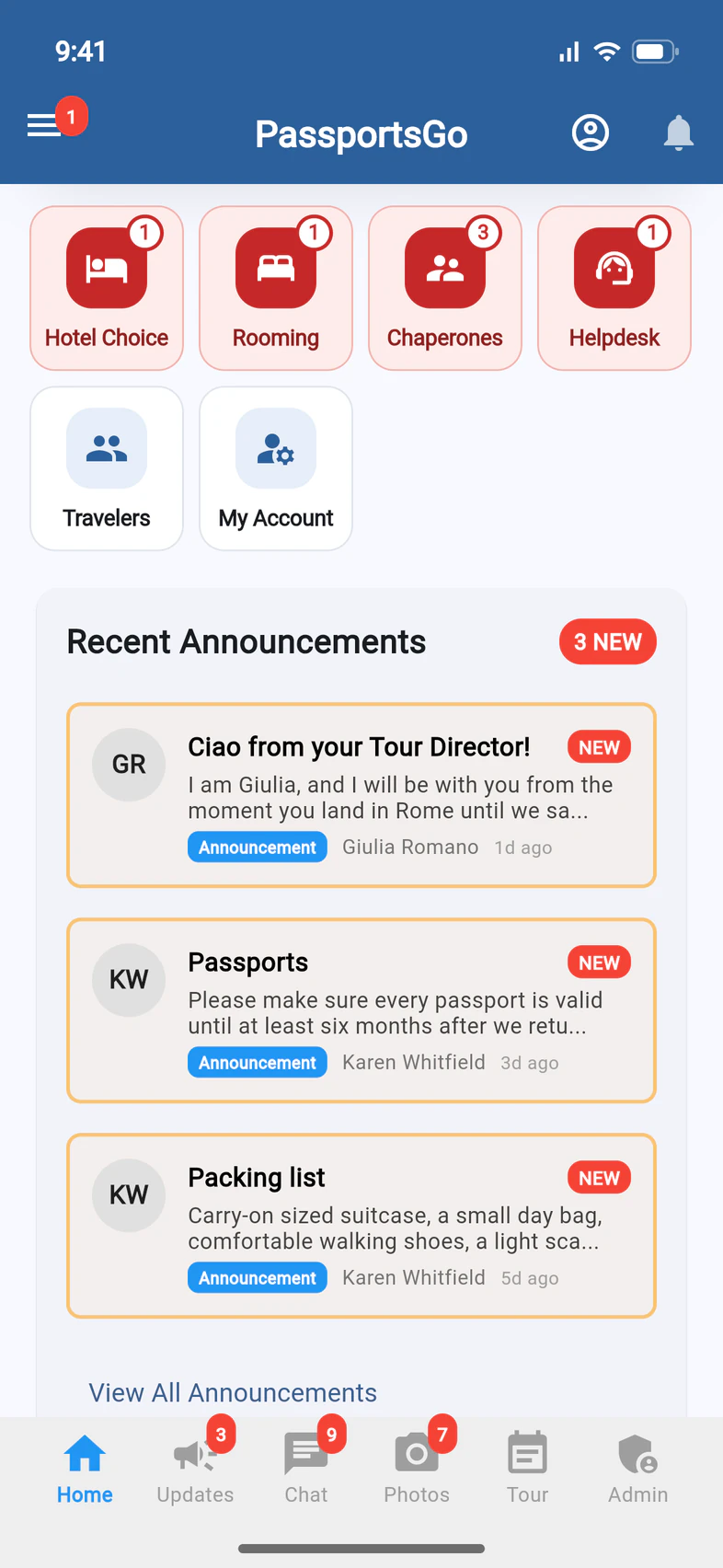
On the Home screen, tap the red Chaperones tile 1.
Its number counts what's waiting for you: an open chaperone spot to name, a chaperone who hasn't filed their application yet, or a chaperone with a balance due.
Chaperones is for the group leader only. Chaperones you've made an admin don't see it.
- Step 2
Or open it from Admin
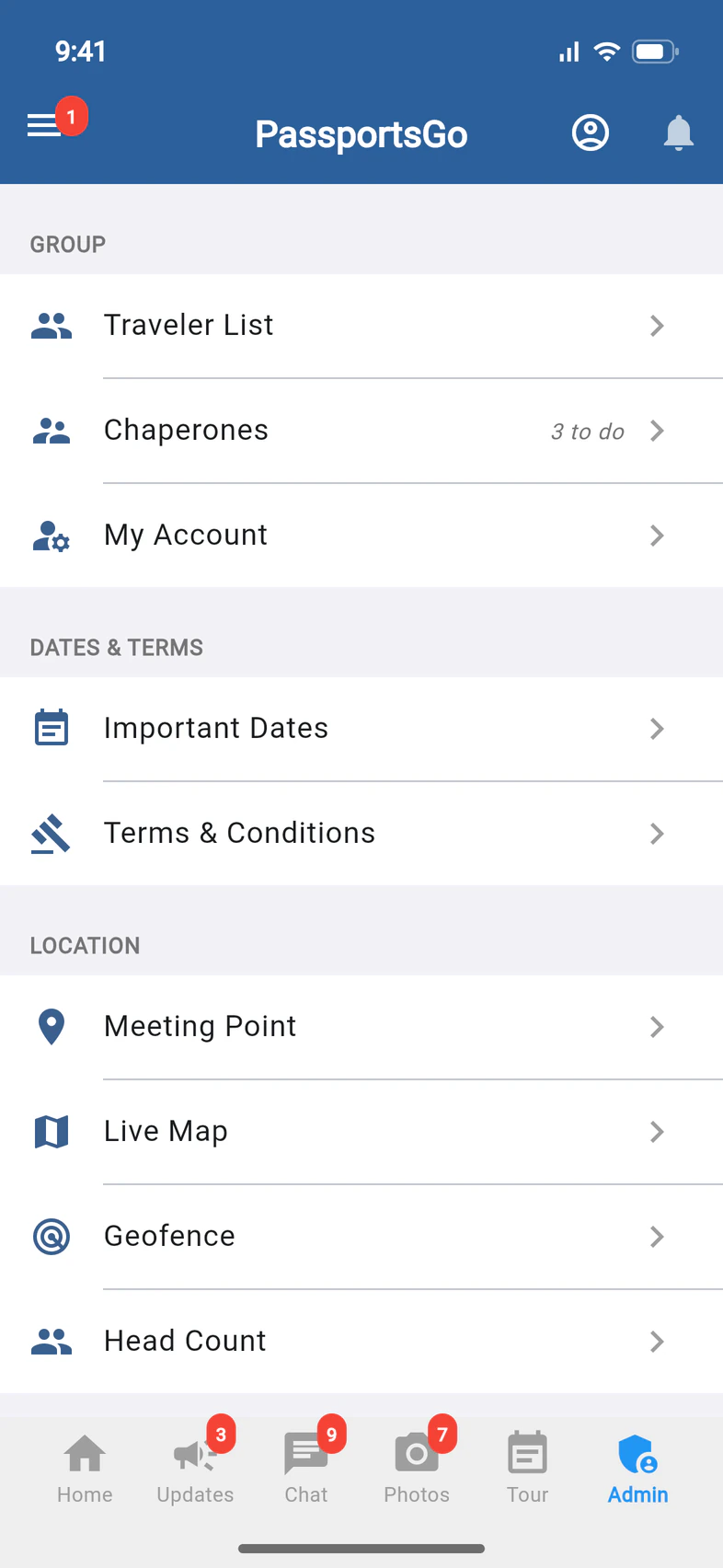
You can also tap Admin 1 at the bottom of the screen, then Chaperones 2 under Group.
This way in stays there even when nothing is waiting for you: then it says GL only instead of 3 to do.
- Step 3
See where everyone stands
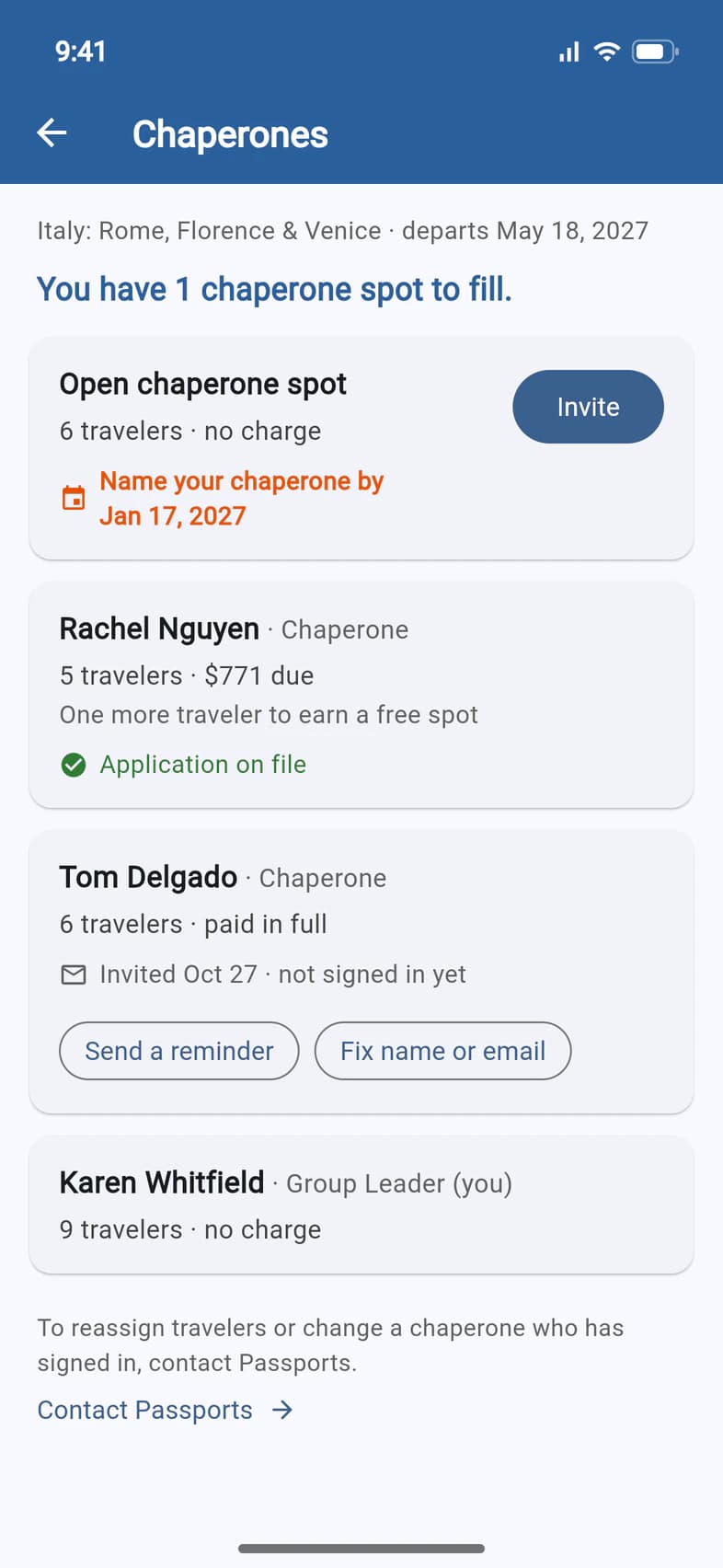
The blue line at the top 1 says how many chaperone spots you still have to fill. Below it is a card for every leader on your trip: open spots first, then your chaperones, then you.
Each card says how many travelers that leader looks after, and what's left to pay on their own trip: an amount due, paid in full or no charge 2.
Under each chaperone, one line says where they stand:
- Application on file 3: they're all set.
- Invited with a date, not signed in yet 4: the invitation went out, but they haven't opened PassportsGo yet.
- Signed in · application not filed yet: they're in, but their Chaperone Application isn't done.
One more traveler to earn a free spot means that chaperone's trip is covered once one more traveler is assigned to them. Passports assigns travelers to leaders: to move travelers, tap Contact Passports at the bottom of the page.
- Step 4
Tap Invite
An open chaperone spot has no name yet. It already shows the travelers Passports has assigned to it, and the last day you can name your chaperone here 1.
Tap Invite 2.
- Step 5
Enter your chaperone's details
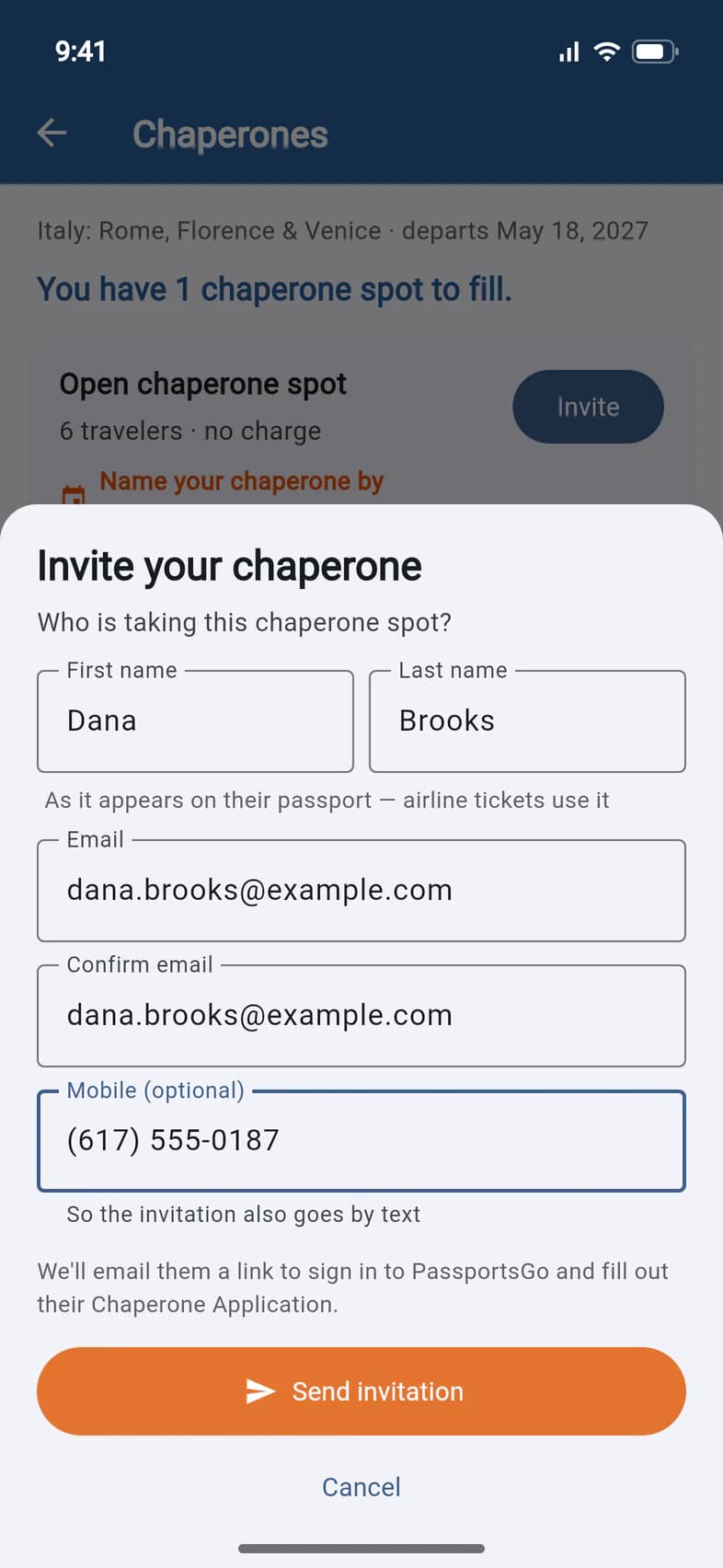
Type their First name and Last name 1 exactly as they appear on their passport: airline tickets use them.
Type their Email twice 2. Add their Mobile (optional) 3 and the invitation goes by text too.
Then tap Send invitation 4.
PassportsGo won't send an invitation to your own email address, another leader's on the trip, or a traveler's: a red message under the fields says why, and nothing is sent. If the address belongs to a parent on the trip, PassportsGo asks you to confirm first: tap Continue if that's right. They'll see both in PassportsGo, as a parent and as a chaperone.
- Step 6
Check the invitation went
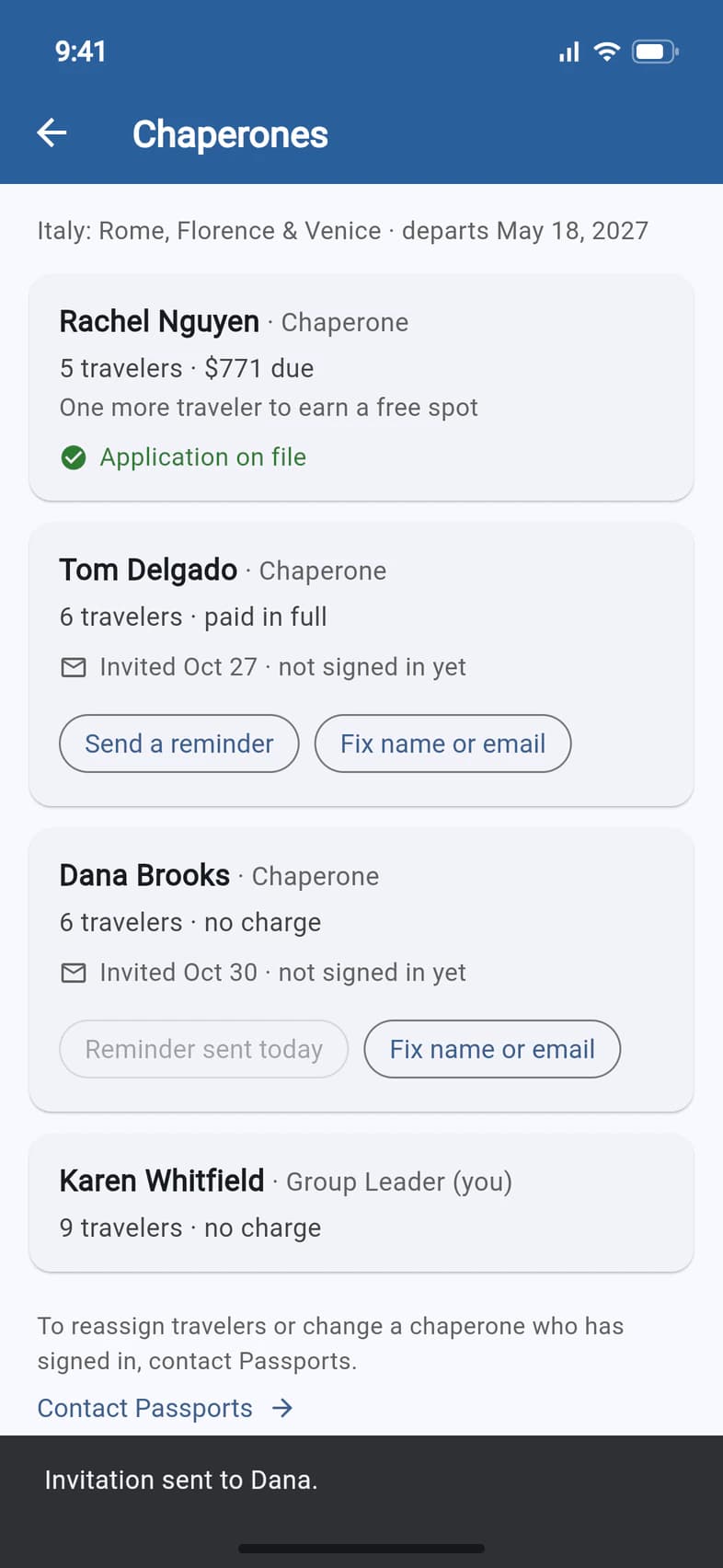
A message at the bottom confirms it: "Invitation sent to Dana." 1 The spot's card now carries your chaperone's name, with Invited and today's date 2.
Your chaperone gets an email from Passports (and a text, if you added their mobile) saying you've named them a chaperone. Its link signs them in to PassportsGo and opens their Chaperone Application, which takes about 5 minutes. See Fill out your Chaperone Application.
- Step 7
Send a reminder
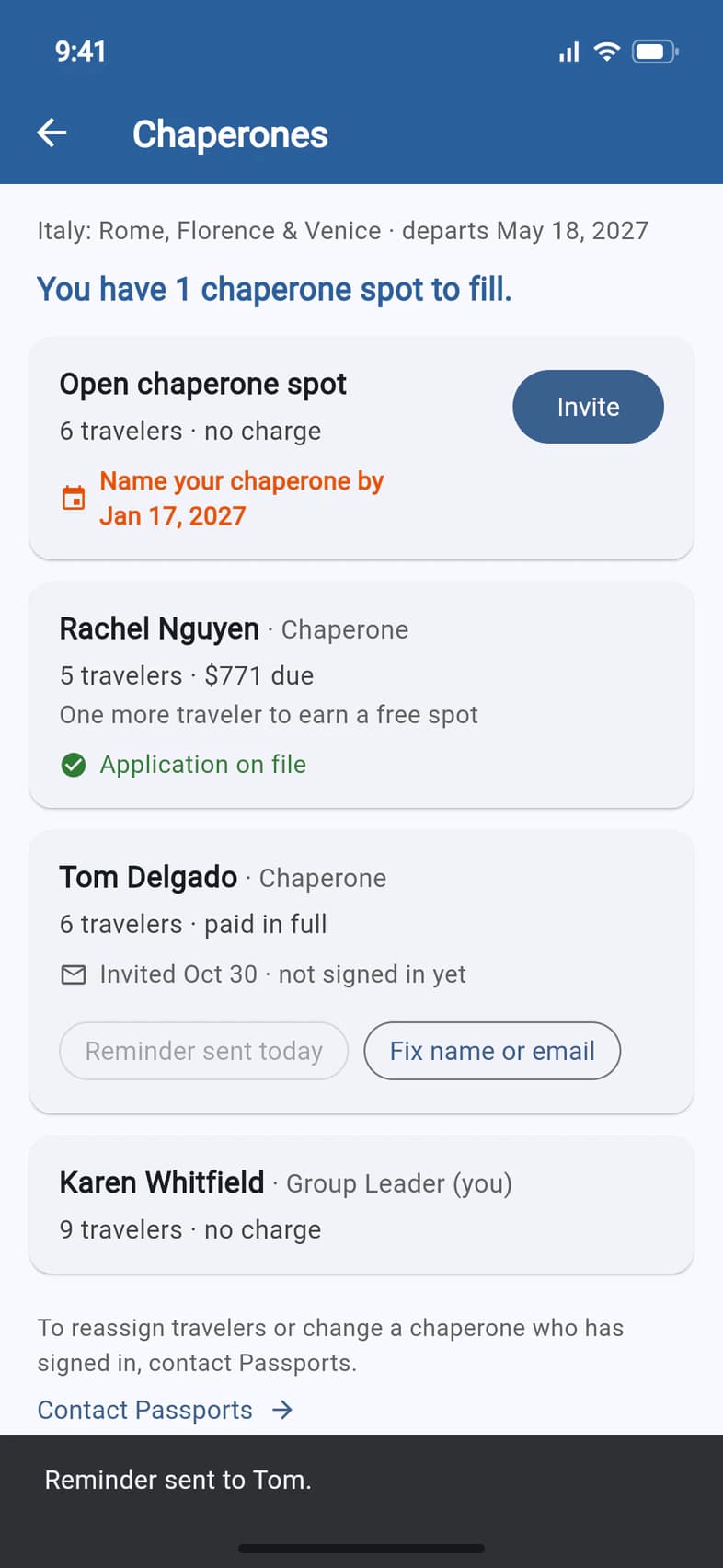
If a chaperone hasn't signed in or filed their application yet, tap Send a reminder on their card. PassportsGo sends it by email (and by text, if you gave their mobile), and a message confirms it 1.
You can send one a day, on five days in all, counting the first invitation. When you can't send one yet, the button stays grey and says why: Reminder sent today 2 or 5 reminders sent.
Made a typo? Until your chaperone signs in, Fix name or email 3 lets you correct their name, email or mobile, and sends a new invitation.
- Step 8
Send it to Client Services
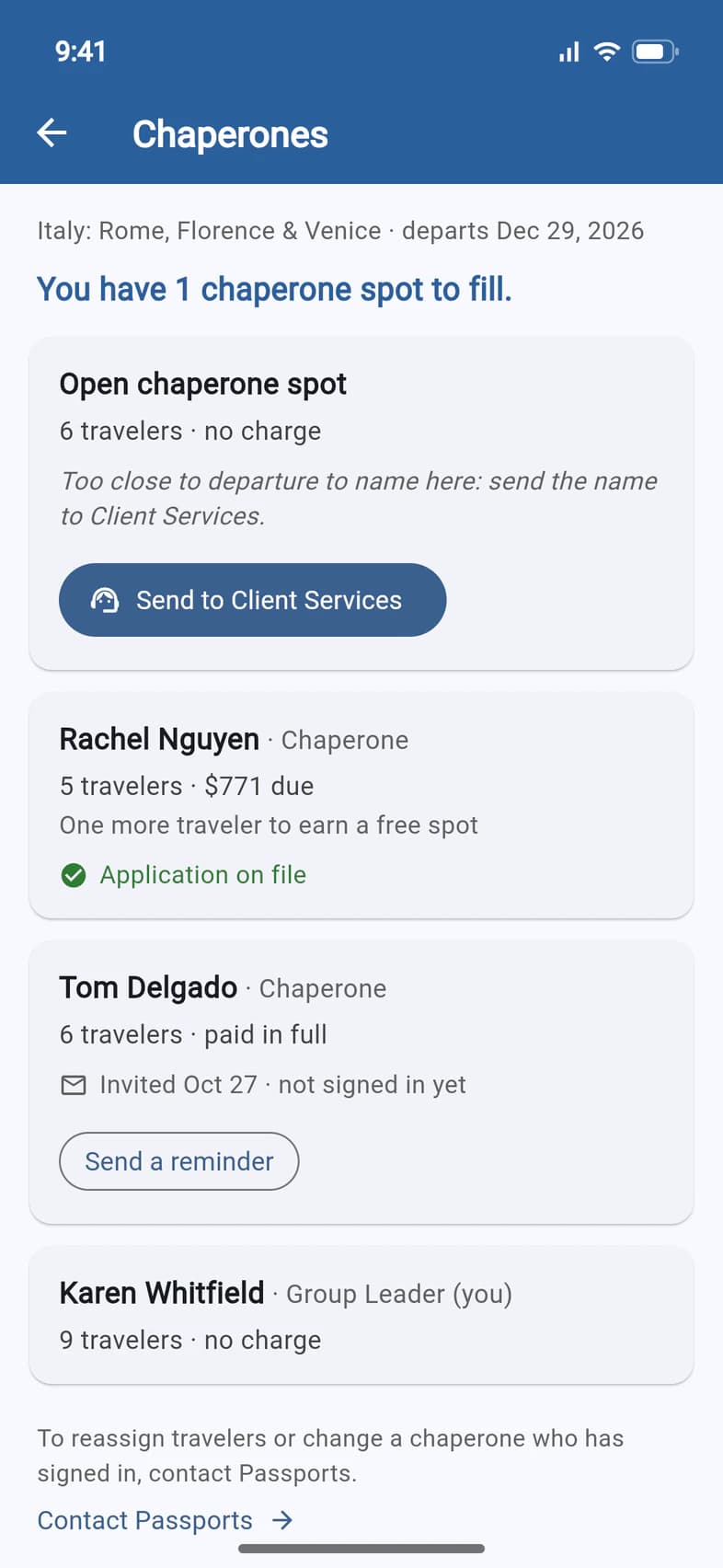
From 120 days before departure, flights may be ticketed, so you can't name a chaperone in the app any more. An open spot then says Too close to departure to name here: send the name to Client Services. 1
Tap Send to Client Services 2, fill in the same details, and tap Send to Client Services again. Client Services adds your chaperone and sends them the invitation, and the card says Sent to Client Services with the date.
From then on, Fix name or email goes away too. To change a chaperone's name or email, contact Passports.
Good to know
Who adds chaperone spots?
Passports does. Client Services adds a chaperone spot when enough travelers have enrolled to earn one, or when you tell them you'll need more chaperones, and assigns travelers to it. You then name the person on the Chaperones page. To ask for a spot, contact Passports.
What's a free spot?
A leader's trip is covered once enough travelers are assigned to them. Until then, their card shows what's left to pay, and a chaperone's card says how many more travelers it takes, like One more traveler to earn a free spot. Passports assigns travelers to leaders.
Can I move travelers, or change a chaperone who has signed in?
Not in the app. Tap Contact Passports at the bottom of the Chaperones page to send Passports a message, or call 1-800-332-7277.
Why can't I send another reminder?
PassportsGo sends a chaperone at most one invitation or reminder a day, on five days in all. Reminder sent today means try again tomorrow. 5 reminders sent means they've had them all: check the address with your chaperone (fix it with Fix name or email if they haven't signed in yet), or contact Passports.
When does Chaperones go away?
The red tile on Home goes away once nothing is waiting for you: every spot is named (or sent to Client Services), every application is on file and nothing is left to pay. Admin › Chaperones stays until your group leaves on the trip.
Can my chaperones see this page?
No. Only the group leader sees Chaperones, even if you've made a chaperone an admin.
Screens show a sample family and tour — your names, dates and amounts will differ. Checked against the app October 12, 2026.
Call us. A real person in Worcester picks up.
Monday to Friday, 8am to 4pm Eastern — and around the clock once your group is on tour. Or email passportsgo@passports.com.