
Let someone help you recruit
Turn on Can use Recruitment for a chaperone or visitor: they can add contacts, message your list and share your tour, even before anyone has enrolled.
Let a chaperone or a visitor help you fill your trip. Turn on Can use Recruitment for them, and they can add contacts to your interest list, message it and share your tour, even before anyone has enrolled.
Only you, the main group leader, can turn it on. It comes with admin access, and they stay a chaperone or a visitor everywhere else in the app.
Before you start
- PassportsGo on your phone, or passportsgo.com in a browser — signed in as the group leader.
- To add someone new: their first name, last name and email address.
- Step 1
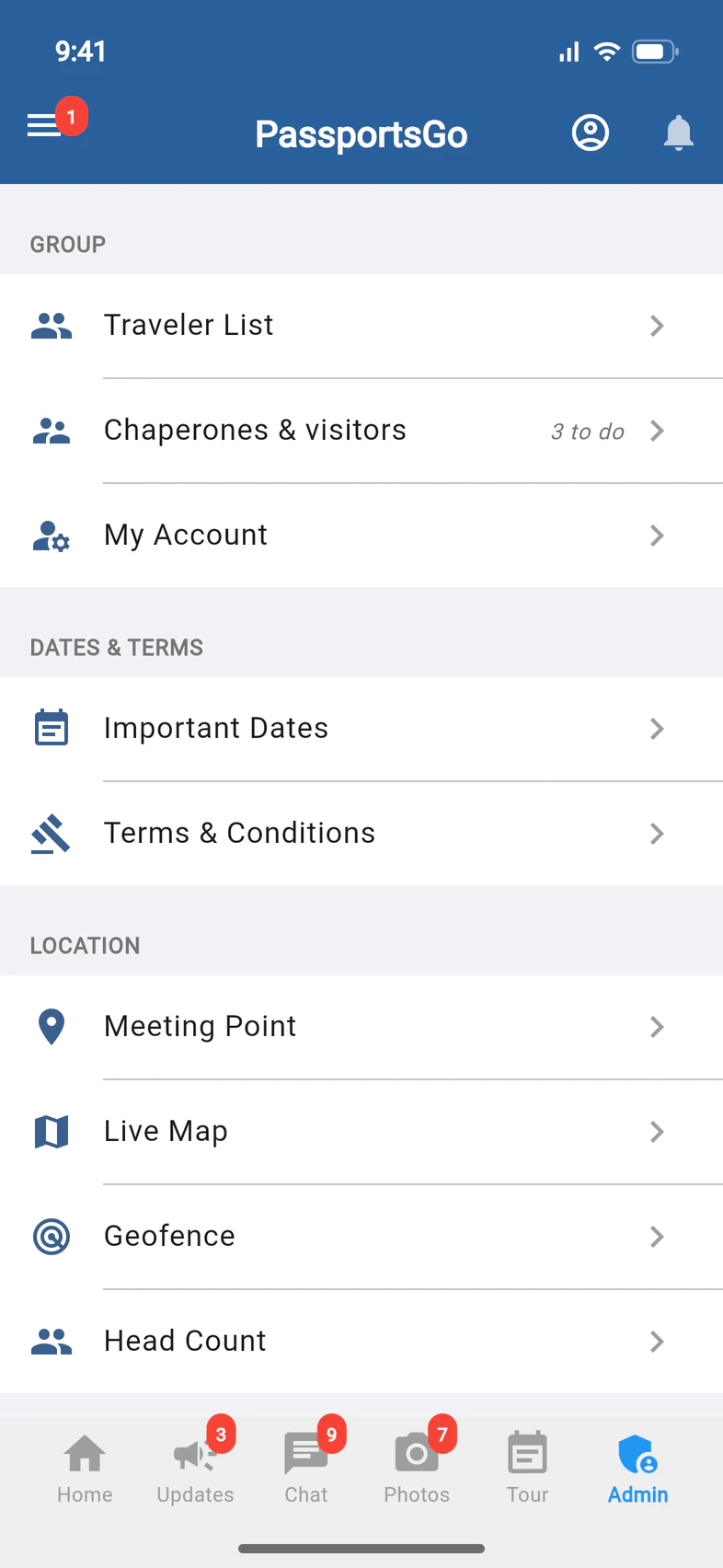
Open Chaperones & visitors
Tap Admin 1 at the bottom of the screen, then Chaperones & visitors 2 under Group. The row is there on every tour: before departure, after departure and on a proposal.
If you have a red Chaperones tile on Home, it opens the same page.
Passports can also do this for you: ask Passports.
- Step 2
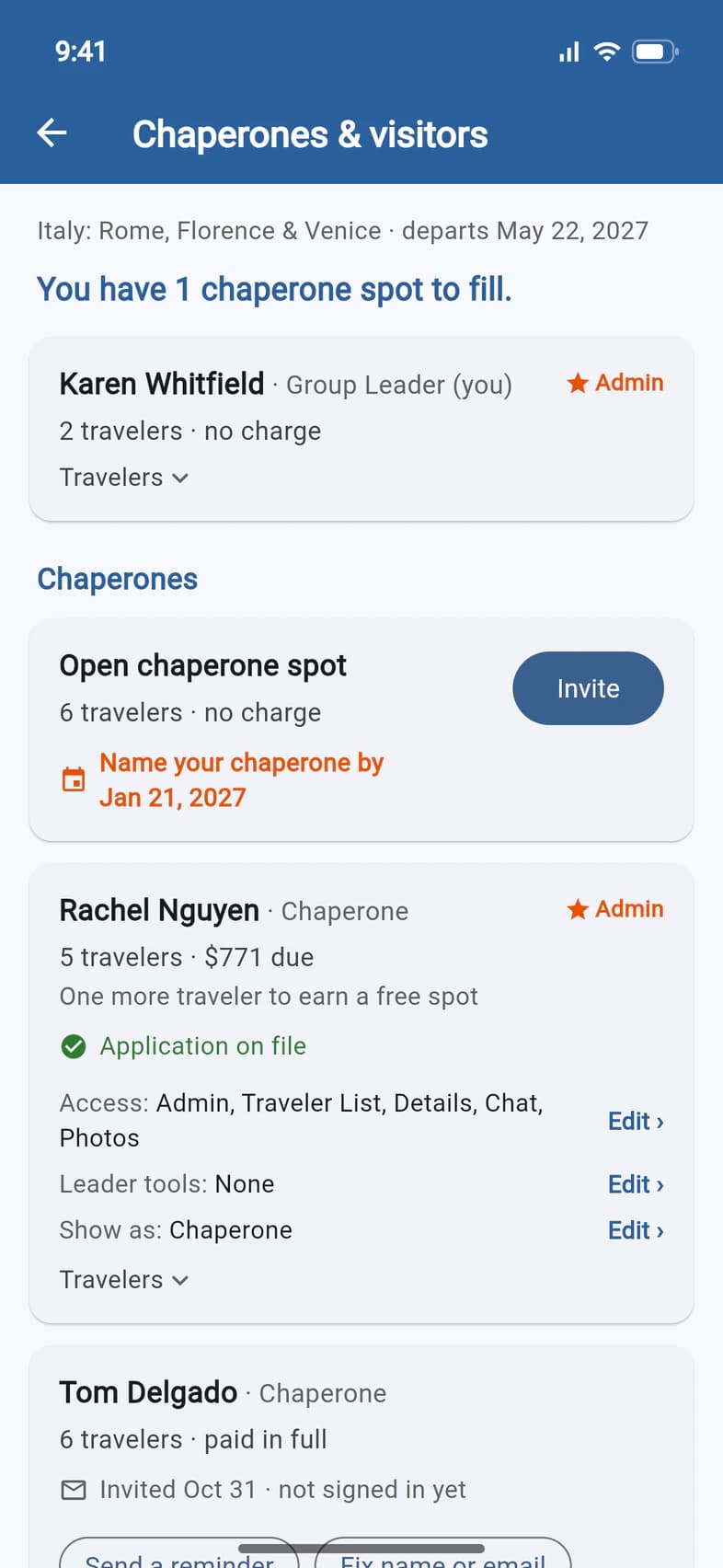
Tap the person's card
The page lists you, then your chaperones, then your visitors. On the card of the person who's helping, tap Leader tools 1. The Access and Show as lines open the same sheet.
A chaperone's card says Not signed in yet until they've signed in. You can set what they can do once they have.
- Step 3
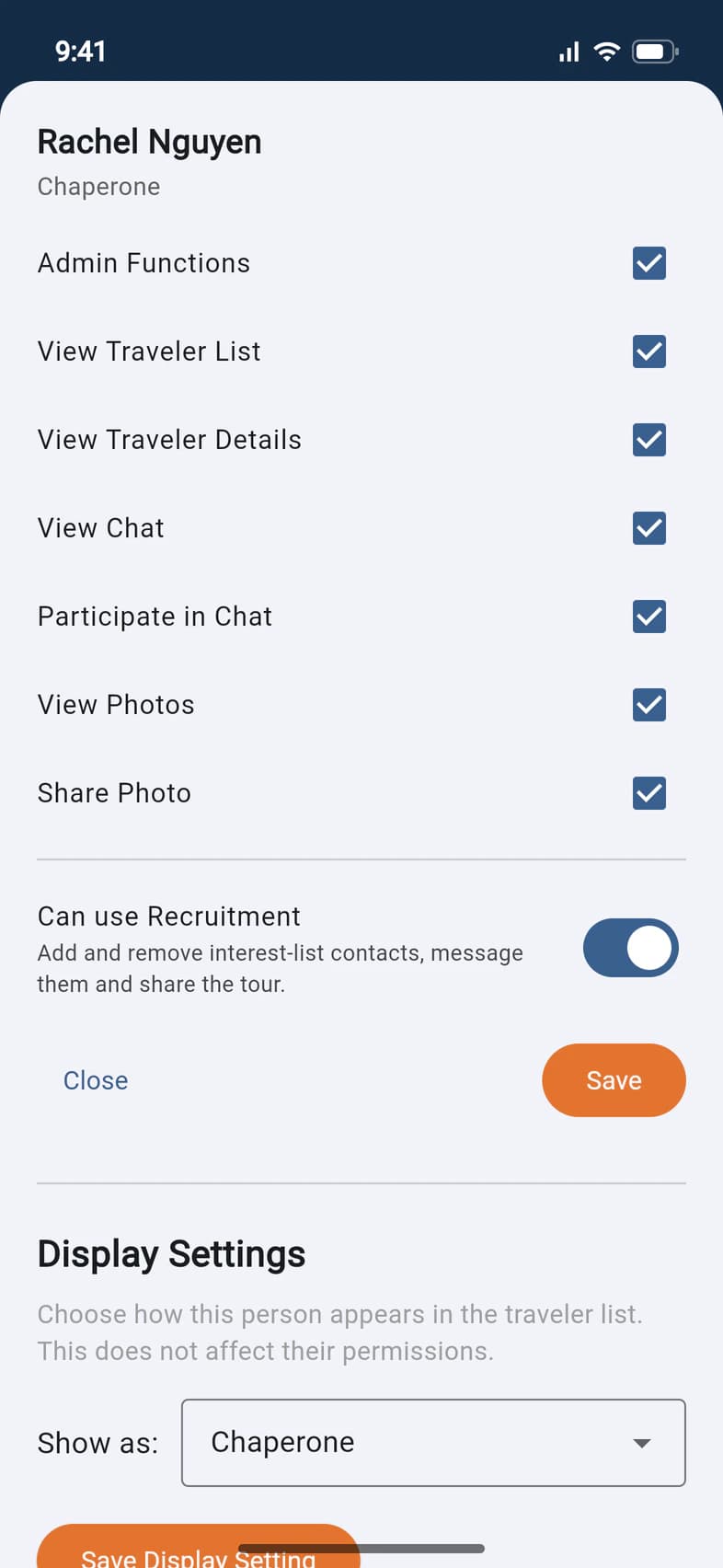
Turn on Can use Recruitment
Check that Admin Functions 1 is ticked: the switch only shows while it is. Then turn on Can use Recruitment 2 and tap Save 3.
Admin Functions gives them more than Recruitment: they can also post announcements, manage the location tools, delete photos and change permissions. See Make someone an admin.
- Step 4
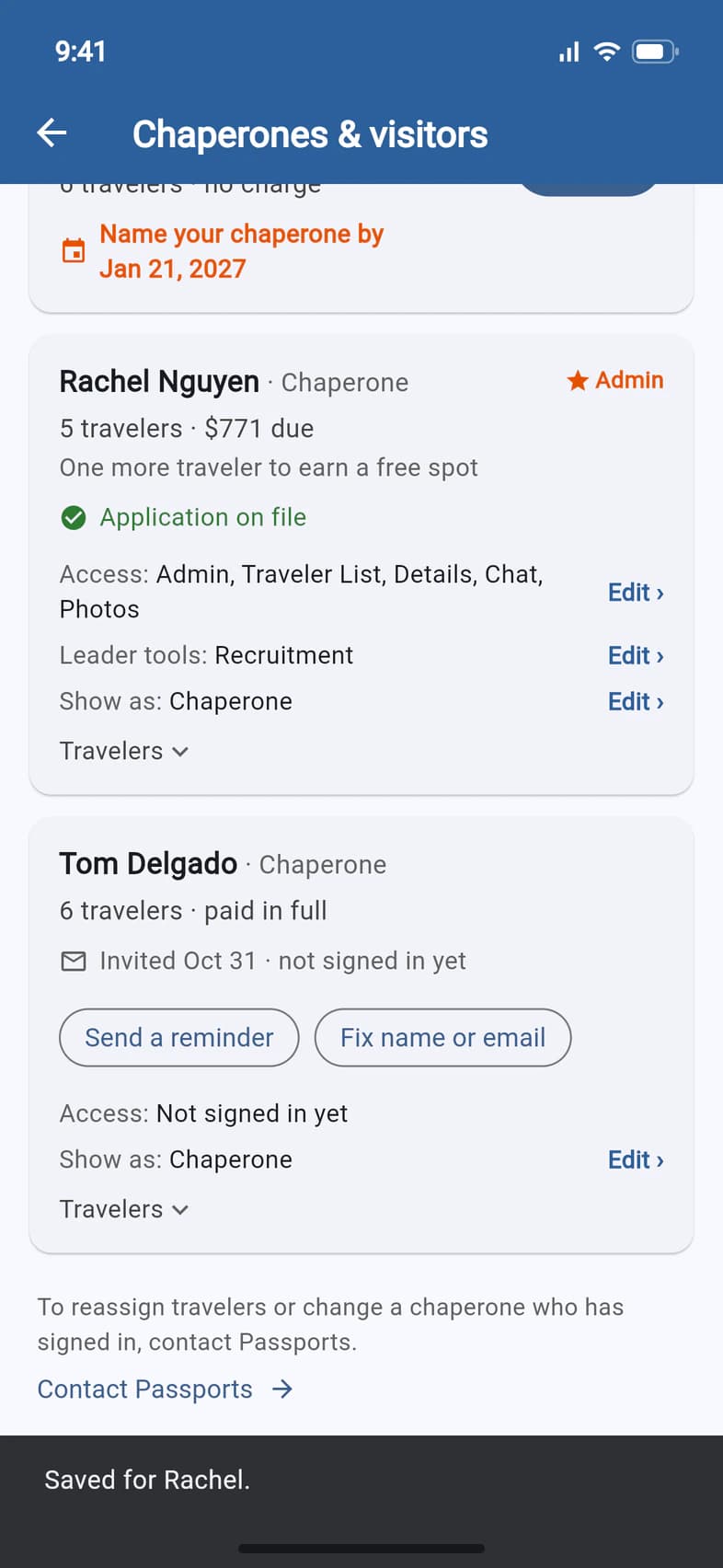
Check that it's on
A message at the bottom confirms it: "Saved for Rachel." 1 Their card now says Leader tools: Recruitment 2.
We email them right away, with the subject "You can now use Recruitment". The button in that email opens PassportsGo in a browser, signed in, and Recruitment is on the tour's Home.
- Step 5
Or add a visitor
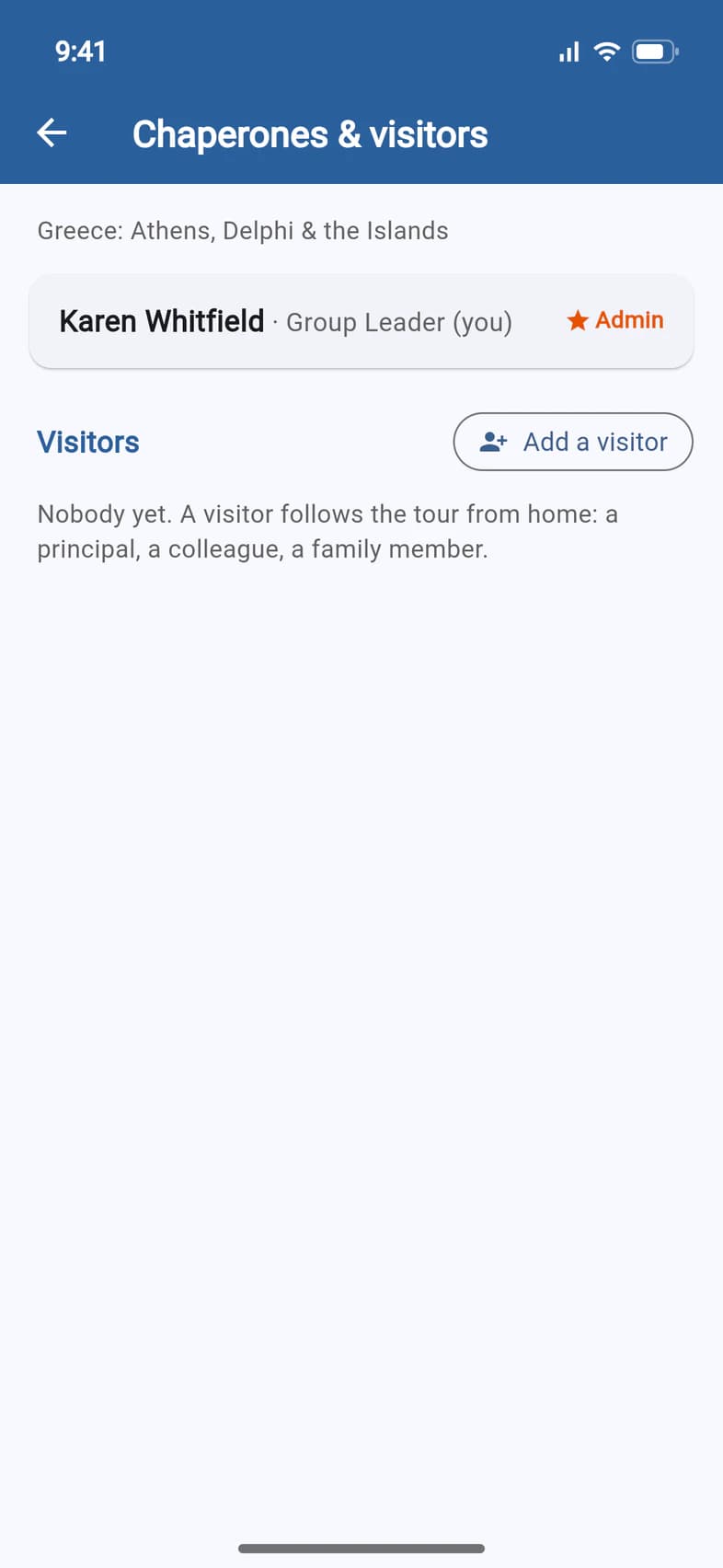
Helping, but not on your tour yet? Add them as a visitor, like a colleague at your school. It's how you get help before anyone has enrolled: on a proposal, this page lists you and Visitors 1.
Tap Add a visitor 2. It's on this page on every tour.
- Step 6
Add them with Recruitment on
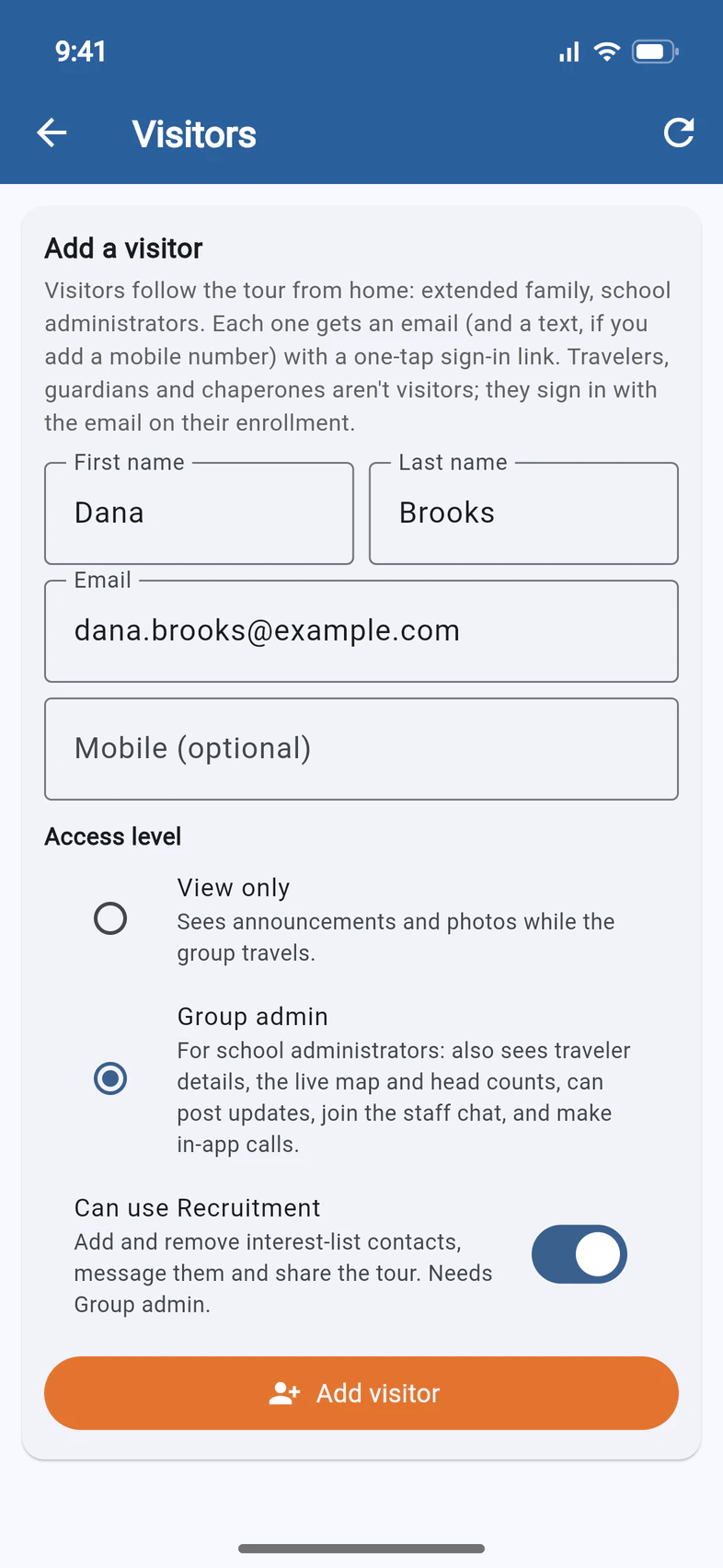
Type their first name, last name and email. Turn on Can use Recruitment 1. That selects Group admin 2 for you, and choosing View only turns it off again. Then tap Add visitor 3.
They get one email: your invitation, worded for helping with the recruiting. Its “Open in PassportsGo” button opens PassportsGo in a browser, signed in, on any device, with Recruitment on the tour's Home. If you added a mobile number, they get a text too.
If they become a chaperone later, invite them with the same email. They show up twice until they sign in as a chaperone. Then they show up once, under Chaperones, and they keep Recruitment.
- Step 7
See what they get
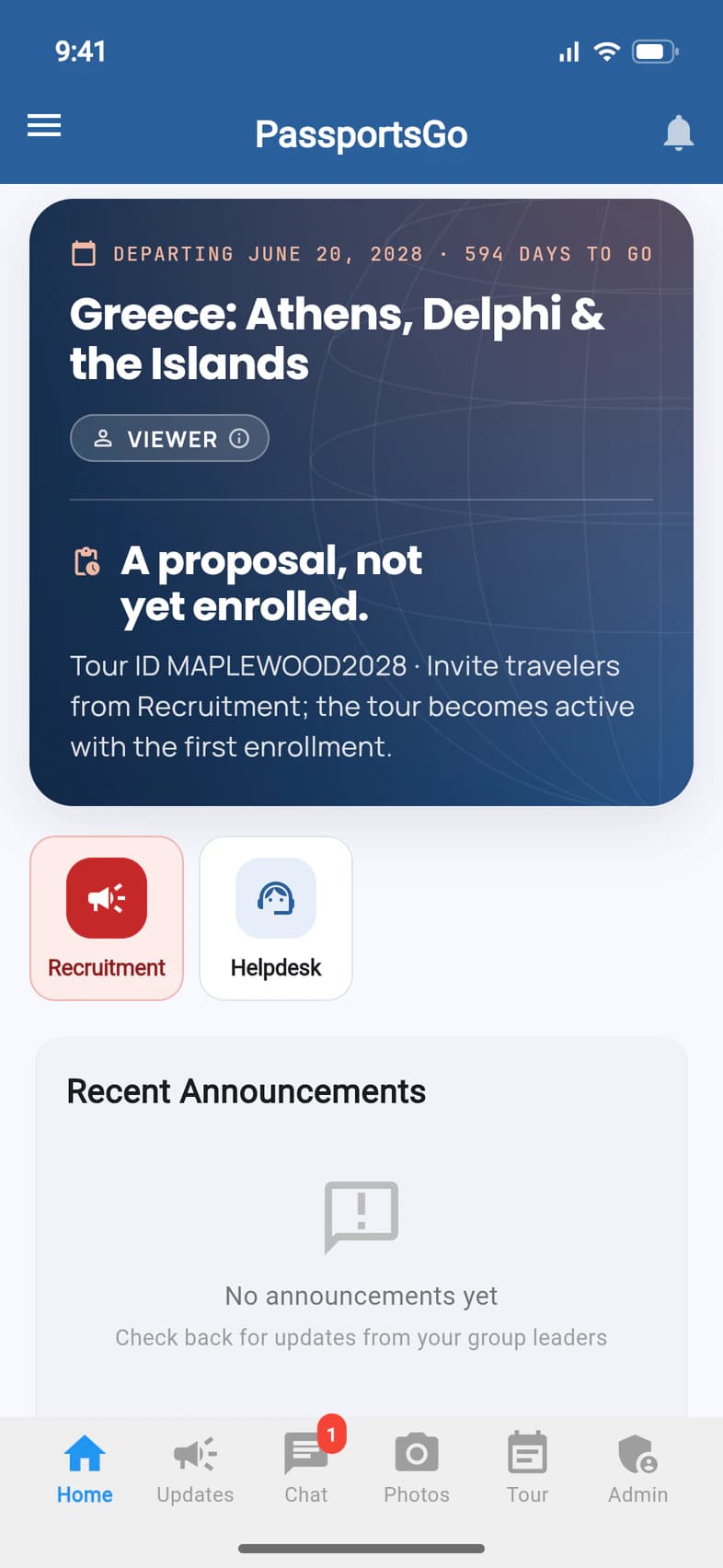
Your helper finds Recruitment 1 on the tour's Home (it's red on a proposal), and Recruitment Hub on Admin. There they can:
- Add contacts to your interest list, and remove them.
- Message the list. Their messages are signed with their own name, and replies go to them.
- Share your tour: Pictures for social media, Enrollment link, Texts to paste, Email me the invitation and Tour flyer.
On a proposal, Home also tells them where the tour stands 2. How the Recruitment tab works shows the rest of the page.
Your helper's Home on a proposal. - Step 8
Take it back
Open their sheet again, turn off Can use Recruitment and tap Save. Recruitment ends for them at once, and the rest of their access stays as it was. We don't email them about it.
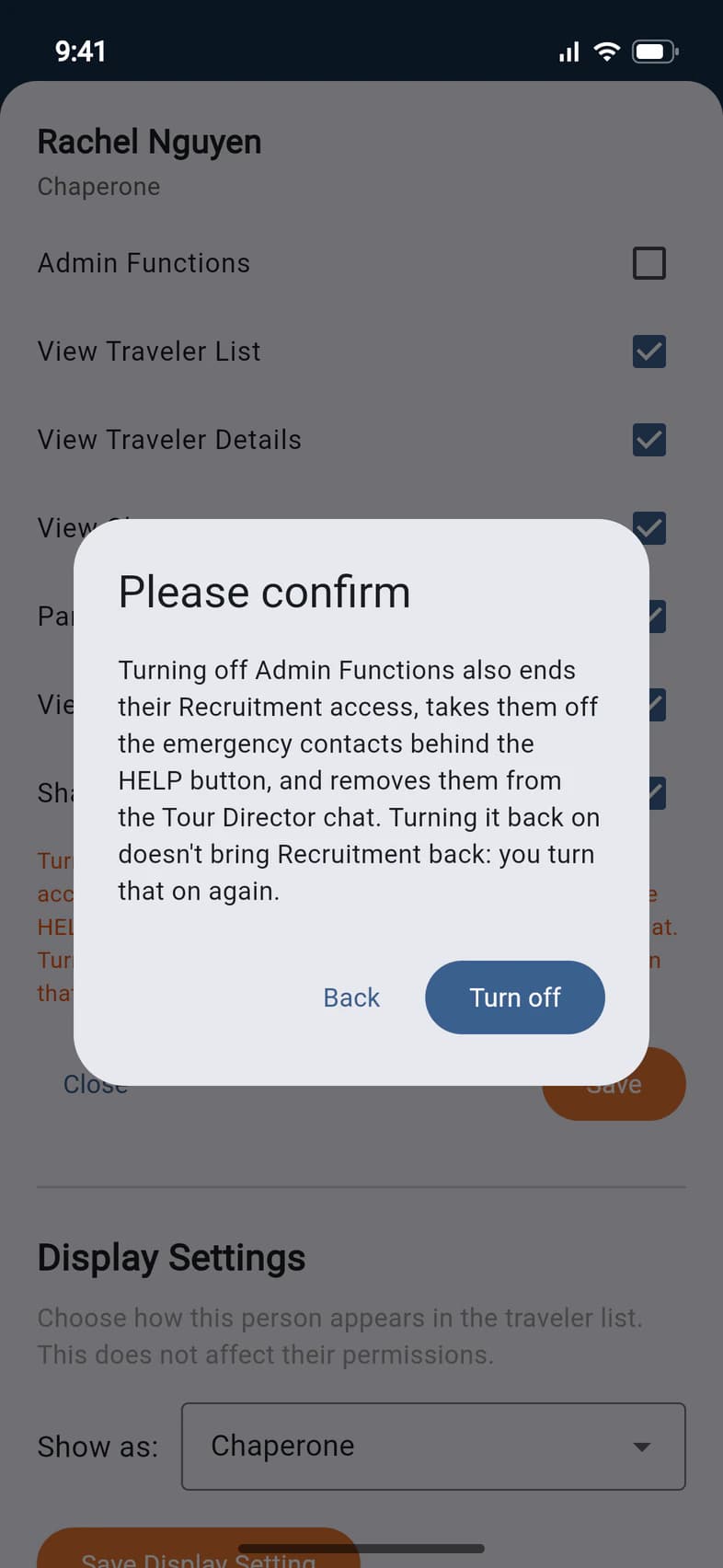
If you untick Admin Functions and tap Save, that ends Recruitment too, so PassportsGo warns you first 1. Tap Turn off 2 to go ahead, or Back to change your mind.
Good to know
What can't my helper do?
They can't order Printed materials or plan an info night, and everything else only a group leader can do stays with you, like turning on Recruitment for someone else. A contact taken off the list stays off if they add it again, and the result sheet says so. Only you can put it back.
Whose name is on their messages?
Their own, and replies go to them. You both work from the same Interest list, and what they send shows under Messages sent on your Recruitment page.
Can a traveler's parent help?
Only a chaperone or a visitor can have Recruitment. The Add a visitor form won't take an email that's already on your tour, like a traveler's or a parent's.
Do they show as a leader on the Traveler List?
No. Recruitment doesn't change how anyone is listed. To list a chaperone with the group leaders, pick Co-Leader under Show as on the same sheet: see Use the Traveler List.
Why don't I see Can use Recruitment?
It only shows while Admin Functions is ticked, and a chaperone has to sign in before you can tick that. It isn't offered on a convention, or on a tour that shares its group with another school.
My helper can't find Recruitment.
It's there until 60 days before departure, as it is for you. On a phone they need the latest PassportsGo (update the app), or they can use the button in their email, which opens it in a browser. A visitor who lost the email can get a new one: open Add a visitor again and tap Re-invite next to their name. Still stuck? Ask Passports.
Screens show a sample family and tour — your names, dates and amounts will differ. Checked against the app November 3, 2026.
Call us. A real person in Worcester picks up.
Monday to Friday, 8am to 4pm Eastern — and around the clock once your group is on tour. Or email passportsgo@passports.com.