
Run traveler, dietary and document reports
The Traveler Info, Dietary & Medical and Documents reports — and how to export a PDF.
Three reports at the top of your Traveler List give you your group at a glance: everyone's details, dietary and medical needs, and passports. Each one exports to a PDF you can share or print.
They show everyone on the tour: travelers, chaperones and you.
- Step 1
Open the reports
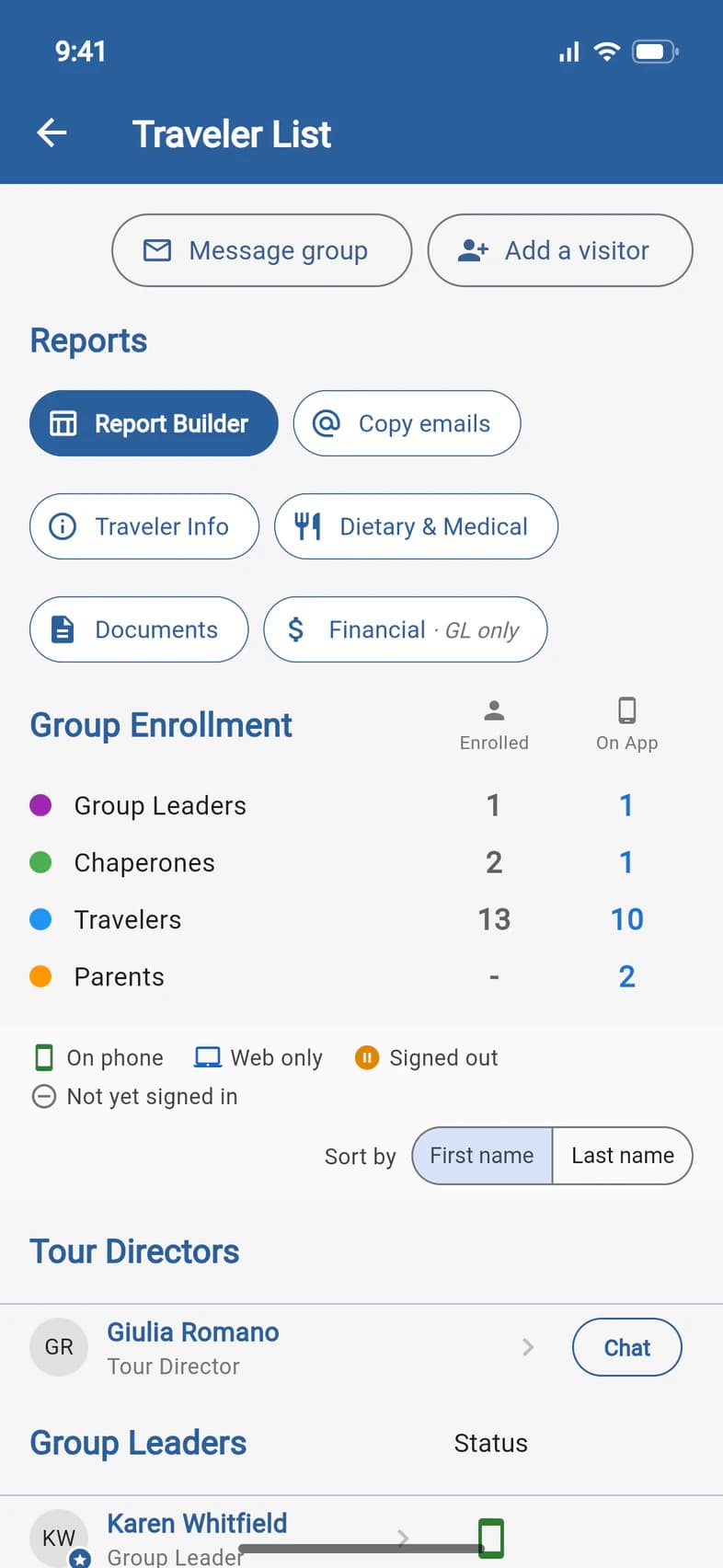
On Home, tap Travelers (or Admin, then Traveler List). At the top of the list, the Reports row 1 has Traveler Info, Dietary & Medical and Documents.
Report Builder, first in the row, makes a report of your own: the columns, filters and order you choose, to Excel, PDF or the clipboard. See Build your own report. Copy emails, next to it, copies your travelers', guardians', chaperones' or tour viewers' email addresses, for the Bcc line of an email you send yourself.
- Step 2
Read Traveler Info
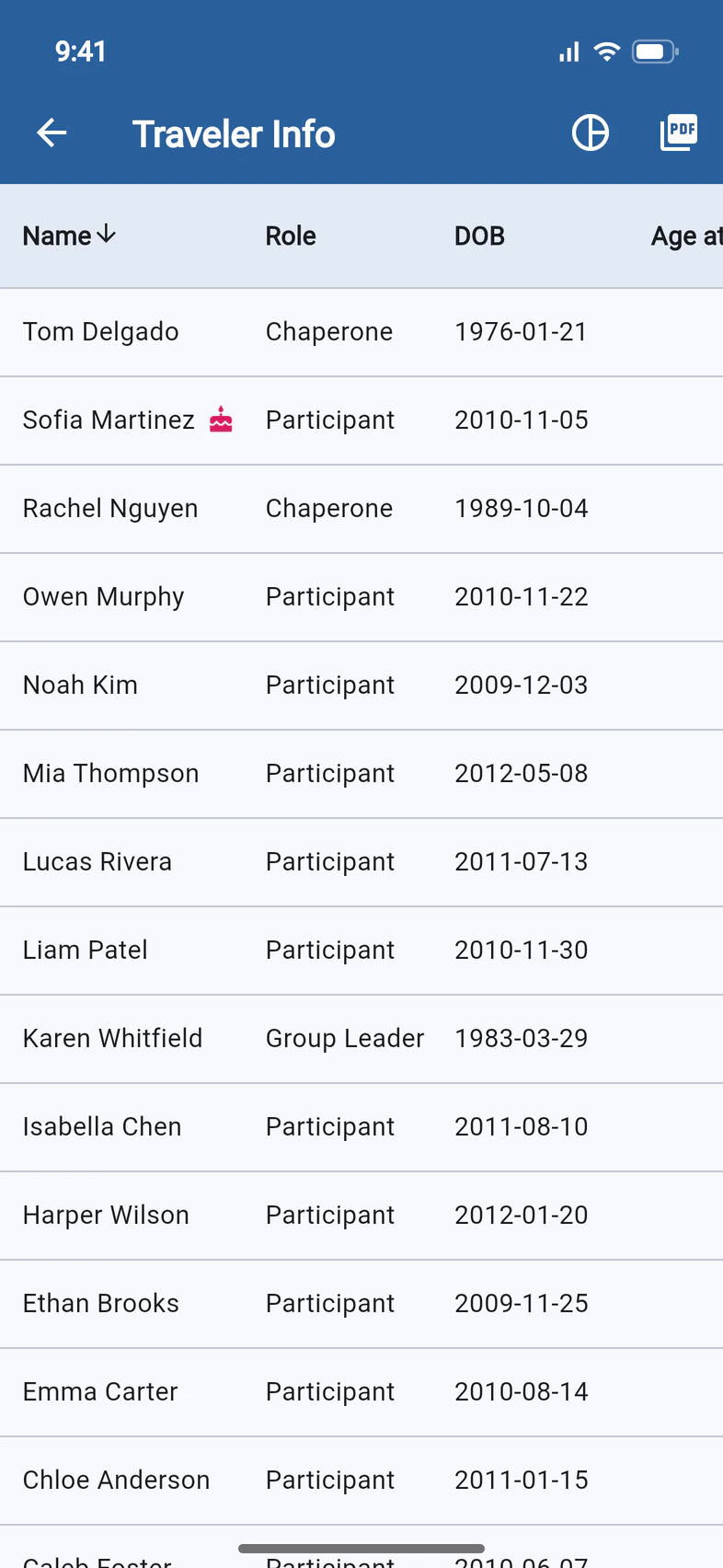
One row per person: role, date of birth, age at departure, departure city and gateway, travel dates, home address and room type (Single, Double, Twin, Triple or Quad). Tap a column title, like DOB 1, to sort by it; tap it again to reverse the order.
A cake 2 marks a birthday during the tour.
On a phone, swipe the table sideways for the other columns. NAF (a check) means the person isn't on the group's flights.
- Step 3
Check ages
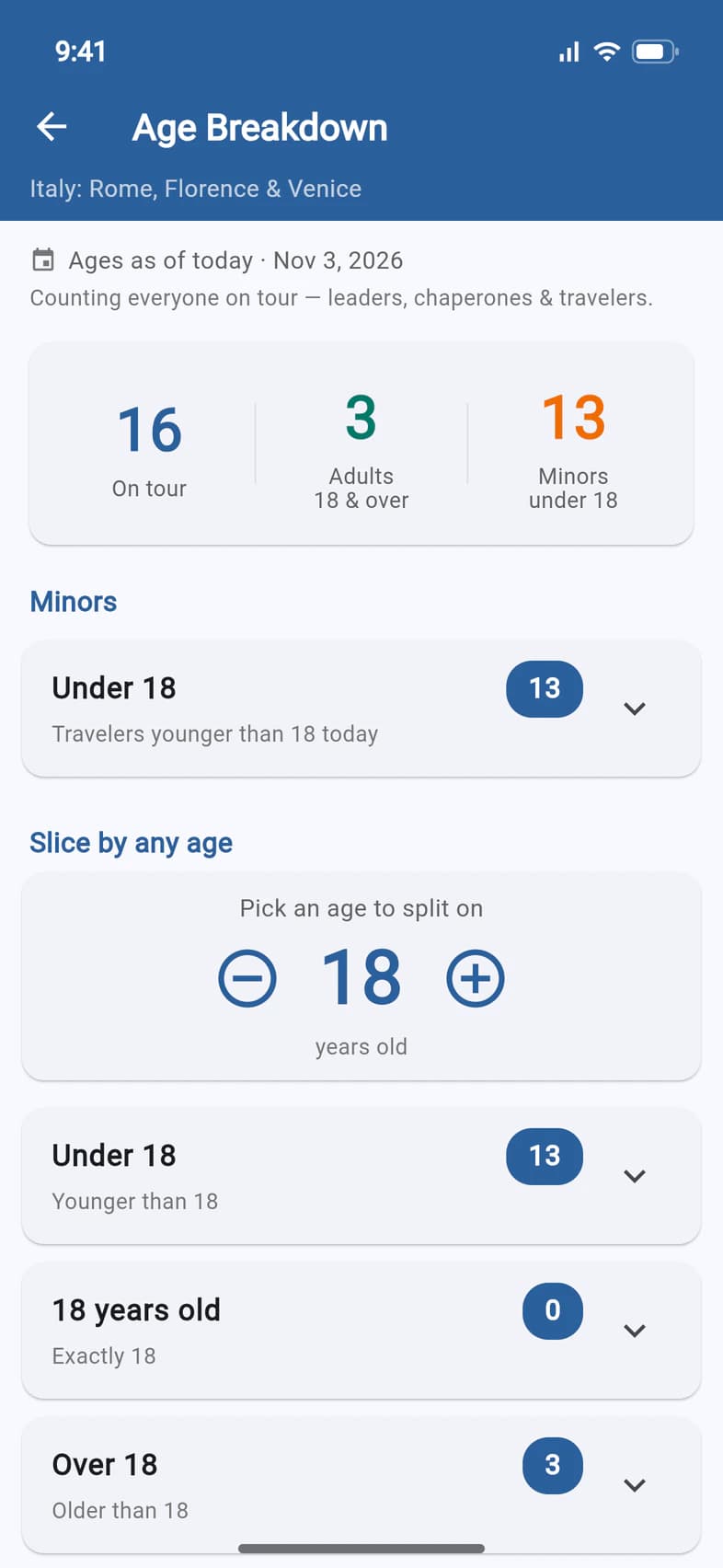
On Traveler Info, the chart button at the top opens Age Breakdown: everyone on the tour, split into adults and minors as of today 1. Under Slice by any age, set another age with − and + 2 to split the group on it. Tap a group to see who's in it.
A chaperone who hasn't given a date of birth shows no date or age on Traveler Info (listed last when you sort by DOB). Age Breakdown counts them on their own line, without a birth date (not counted as adult or minor).
- Step 4
See dietary and medical needs
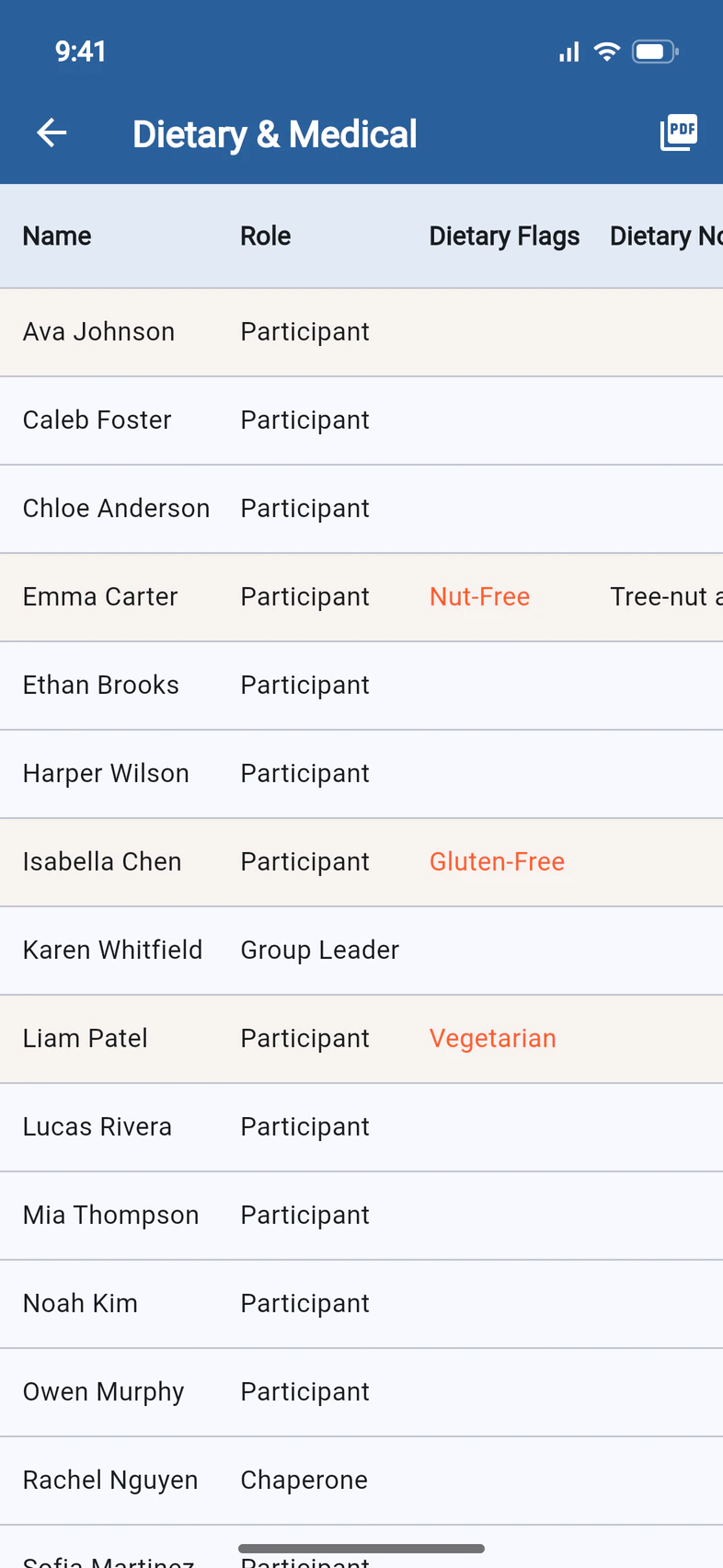
Dietary & Medical lists each person's dietary flags 1, with anyone who has something to report highlighted. Swipe sideways for their notes, Diet Confirmed (a red ✗ means the family hasn't sent the form yet) and medical notes.
Families fill this in under My Account, and it locks 30 days before departure. After that, changes go through Passports.
- Step 5
Check passports
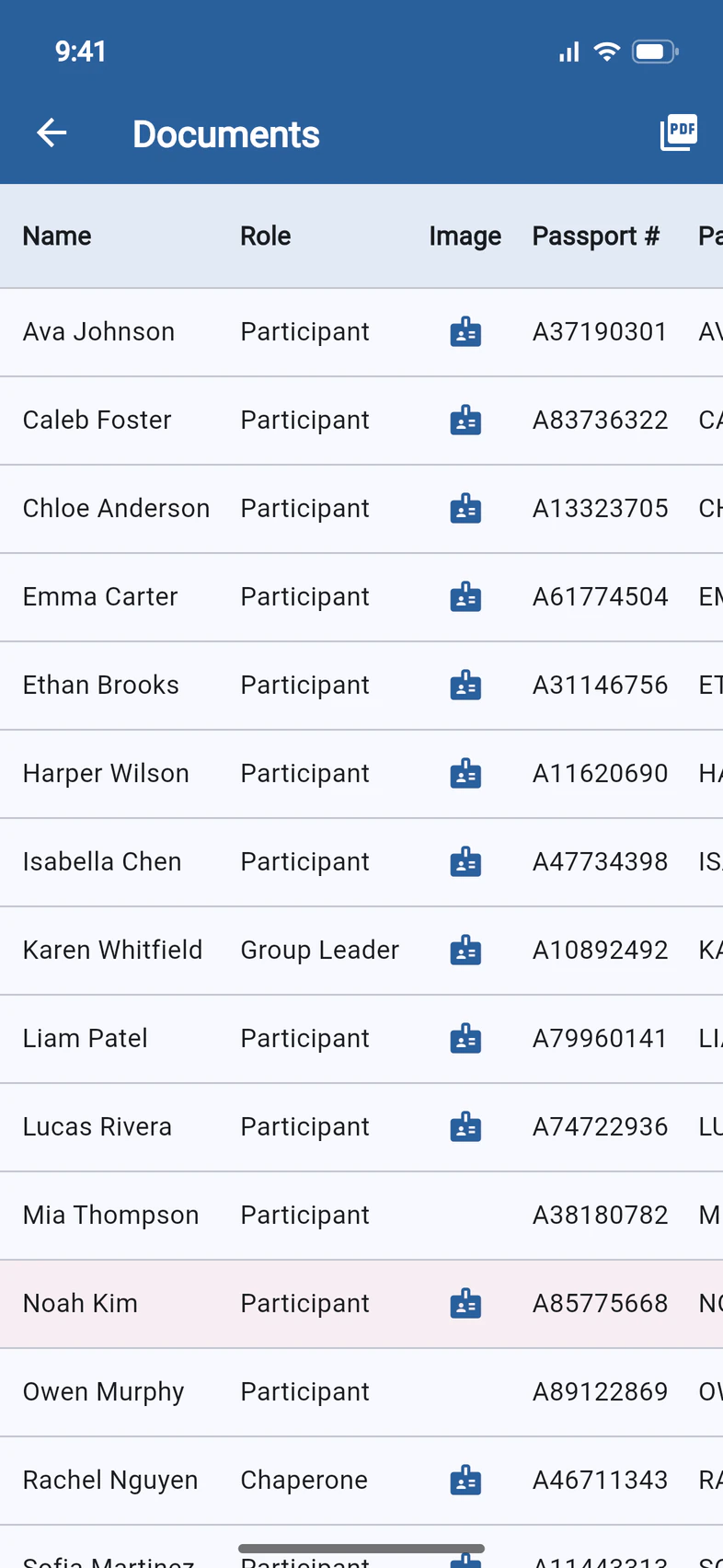
Documents shows each passport on file: number, name, birthplace, nationality, dates. A passport that runs out within 6 months is shown in red 1: ask the family to look at it.
From a week before departure until the tour ends, the card icon 2 opens the photo of someone's passport page, when the family has added one.
Swipe sideways for the expiry dates and the checks: the passport details and the luggage policy. On a tour that needs a UK ETA, a UK ETA check sits between them, once the first family on the tour has confirmed theirs. A red ✗ means the family hasn't confirmed that one yet.
- Step 6
Export a PDF
At the top of any of these reports, tap the PDF button 1. On a phone you can then save, email or print it; on a computer it downloads.
Good to know
Who can see these reports?
You and anyone you've made an admin, like chaperones with Admin Functions (see Make someone an admin). Only you see Financial.
Someone's details are wrong or missing.
Families update most of them under My Account: contacts, dietary needs, passport details, and the date of birth until 120 days before departure. For anything else, like a departure city, ask Passports.
A traveler is missing from the reports.
Waitlisted travelers aren't in them. They're listed under Waitlisted on the Traveler List, and join the reports once Passports adds them to the tour. See Use the Traveler List.
Why can't I open a passport photo?
The photos open only from a week before departure until the tour ends, and only when the family has added one.
Screens show a sample family and tour — your names, dates and amounts will differ. Checked against the app October 30, 2026.
Call us. A real person in Worcester picks up.
Monday to Friday, 8am to 4pm Eastern — and around the clock once your group is on tour. Or email passportsgo@passports.com.