
Build your own report
Start from a template or from scratch, choose the columns and who's in it, then download Excel or PDF, copy it, or save it for next time.
Make a list of your group with exactly the columns you need: phone numbers and emails, guardians, flights, rooms, dietary needs, passports and more. Start from a ready-made template, choose who's in it, then download it as an Excel file or a PDF, or copy the email addresses straight into a message.
You and anyone you've made an admin can build reports. The money columns are for group leaders only.
Before you start
- PassportsGo on your phone, or passportsgo.com on a computer — signed in as the group leader, or as someone you've made an admin.
- Step 1
Open the Report Builder
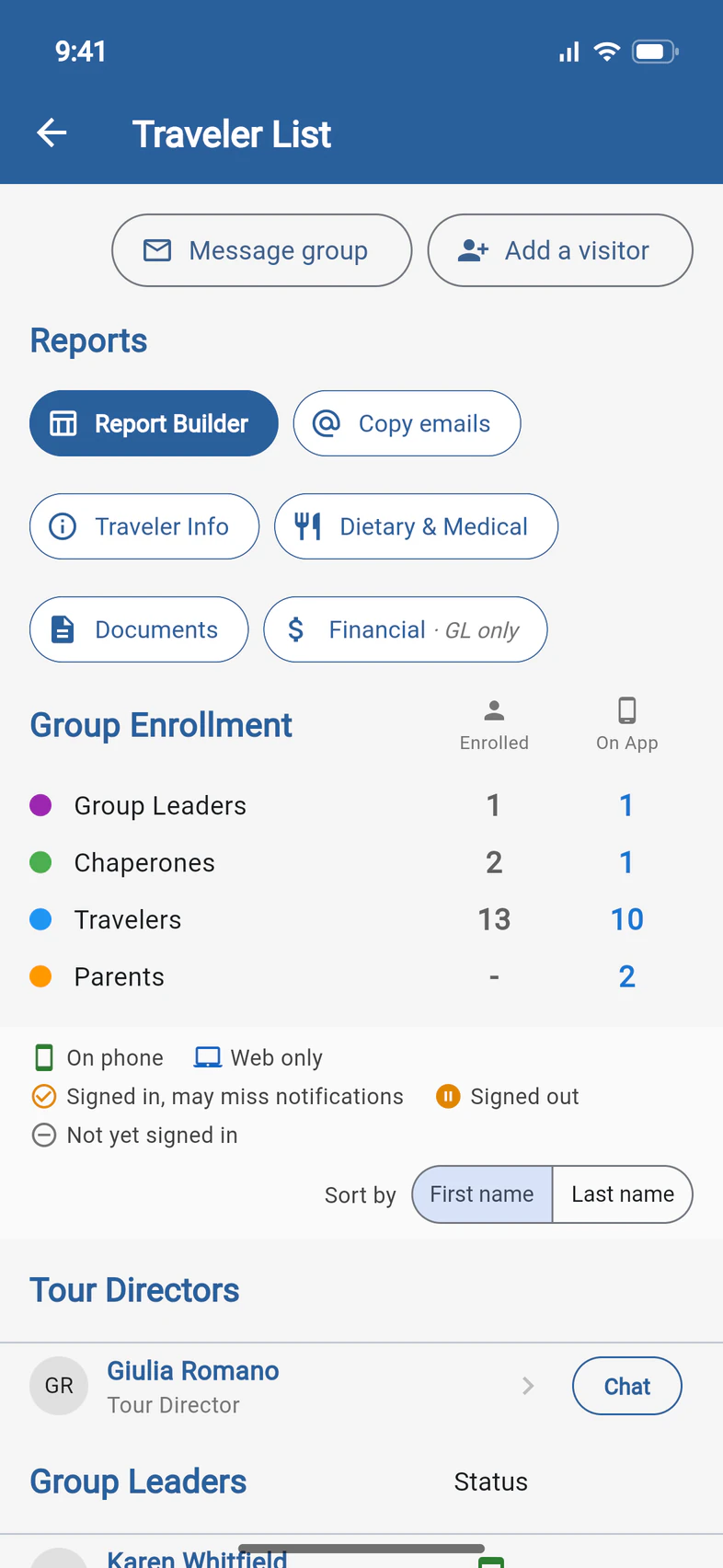
On Home, tap Travelers. At the top of the Traveler List, under Reports, tap Report Builder 1.
You can also get there from Admin › Traveler List.
- Step 2
Pick a starting point
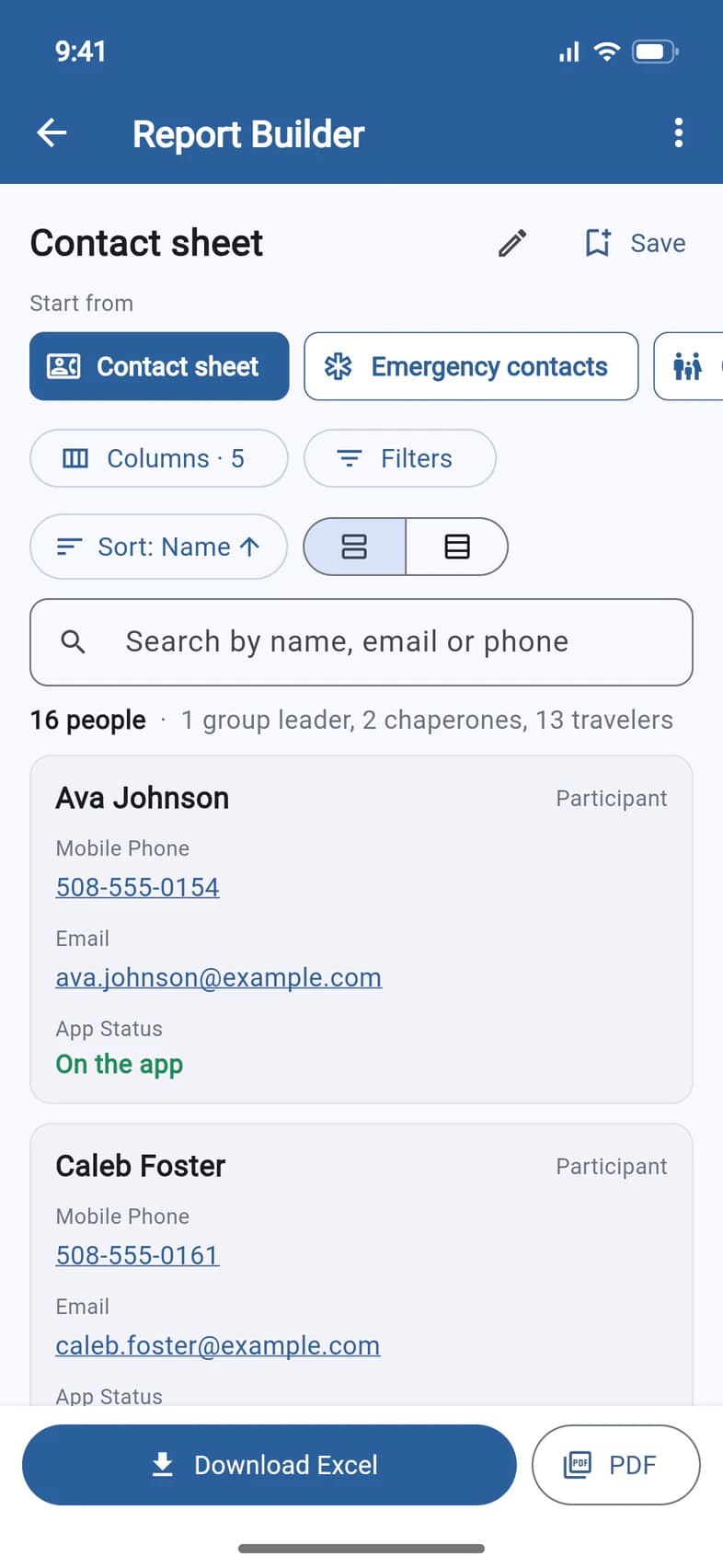
The builder opens on the Contact sheet: everyone's mobile phone, email and whether they're on the app, one card per person. After that, it reopens on the last report you had open on that phone or computer.
To start from something else, swipe along the row under Start from 1 and tap a template, like Emergency contacts, Guardian contacts, Dietary & medical, Passports, Mailing list or Sign-in sheet. Start from scratch gives you just the names.
- Step 3
Choose the columns
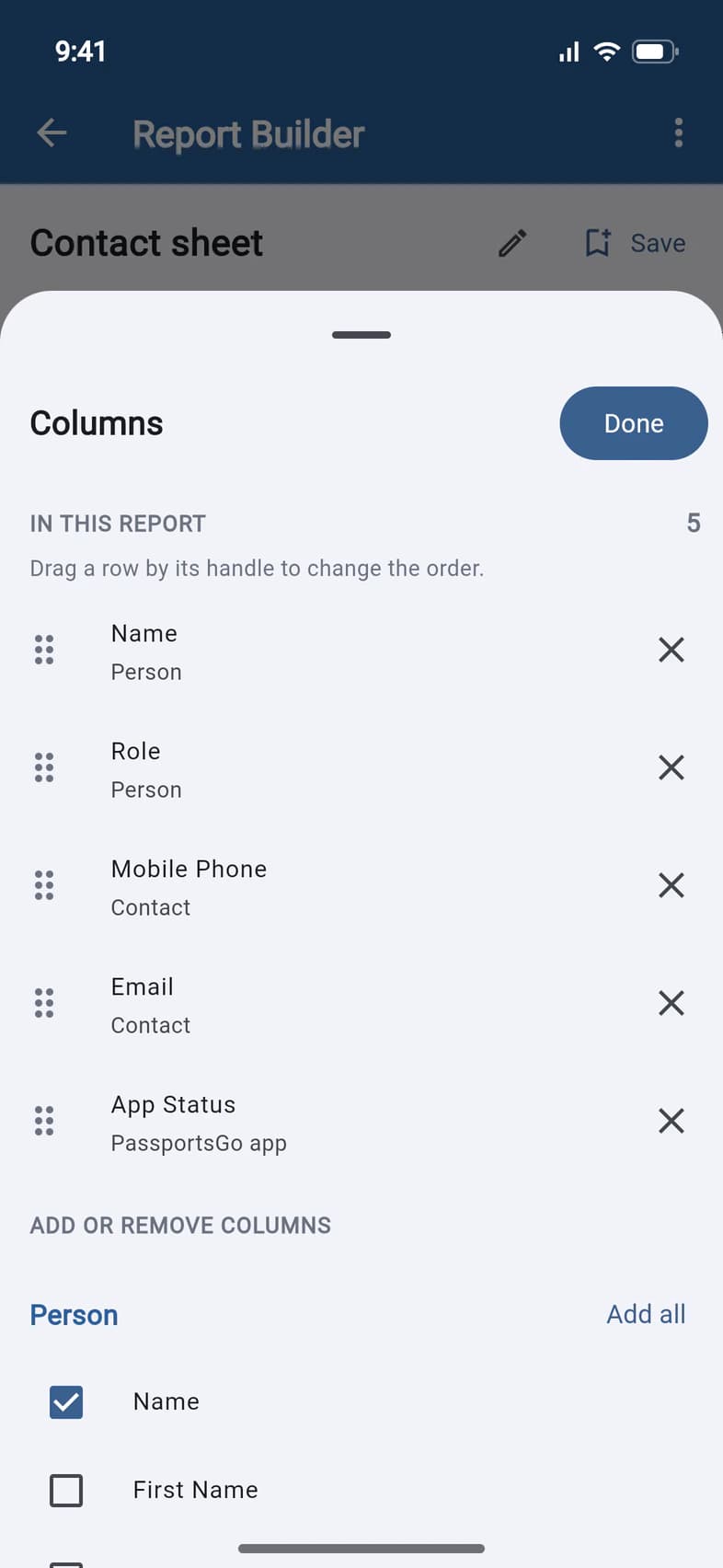
Tap Columns · 5. IN THIS REPORT lists the report's columns in order: drag a row by the dots on its left to move it, or tap × 1 to take it out.
Under ADD OR REMOVE COLUMNS, tick any column to add it 2. They're grouped by topic, from Person and Contact through guardians, travel, rooms, dietary needs, passports, forms, the app and Finance to Printable extras. Add all adds a whole group. Finance, for group leaders only, includes Travel Protection: the plan each traveler and chaperone bought, or None. Tap Done 3 when you're finished.
Printable extras add a row number, a box to tick and space for notes: handy on a printed sign-in sheet.
- Step 4
Choose who's in it
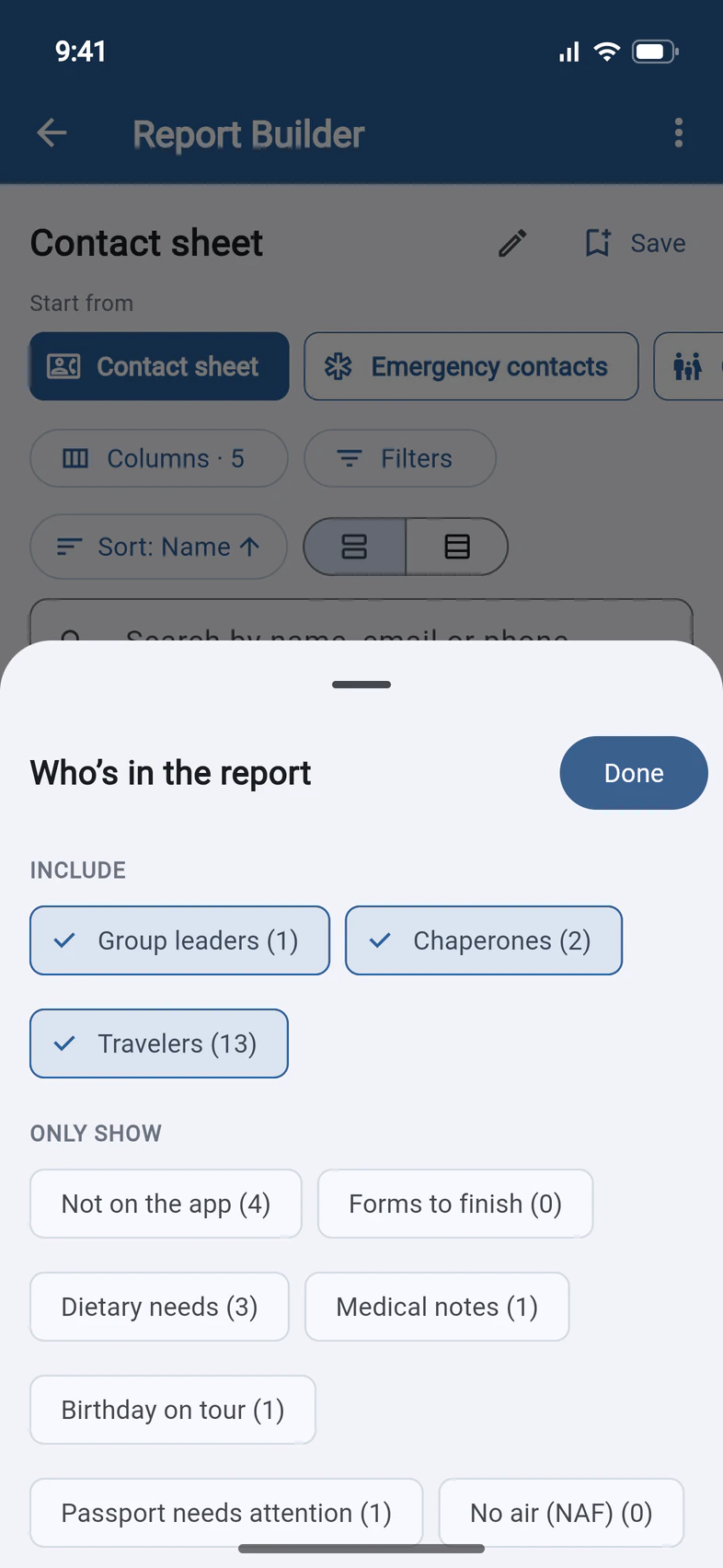
Tap Filters. Under INCLUDE, choose whose rows are in the report 1: Group leaders, Chaperones and Travelers.
Under ONLY SHOW, tap a filter 2 to keep just the people it names, like Dietary needs, Passport needs attention or Not on the app. The number on each filter is how many people it would leave. With more than one on, a person has to match them all.
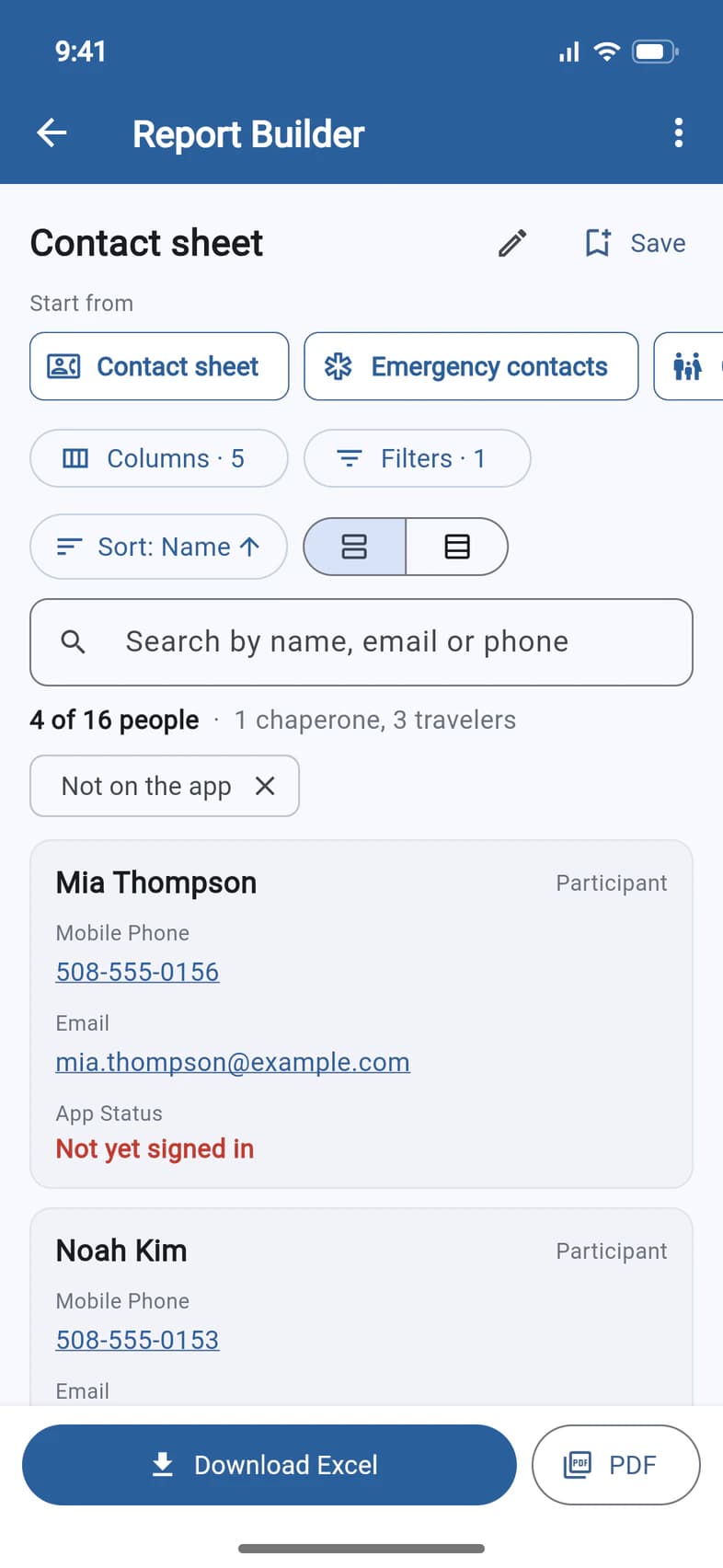
Here, Not on the app keeps the 4 people who aren't signed in. Tap Done 3.
The Not on the app yet template does this in one tap, and adds each traveler's Guardian 1 with their phone and email.
- Step 5
Check it, then download it
The report now shows 4 of 16 people 1, with a chip for each filter: tap its × to take the filter off. To find someone, search by name, email or phone. Sort puts the rows in order by any column, and the two buttons beside it switch between cards and a table. Tap a phone number or an email address to call or write.
When it looks right, tap Download Excel 2 for a spreadsheet, or PDF 3 for pages to print. On a phone, the share sheet opens so you can save the file, email it or send it to another app. On a computer, it downloads.
A report with more than 14 columns prints small in the PDF. The Excel file keeps every column easy to read.
- Step 6
Or copy it
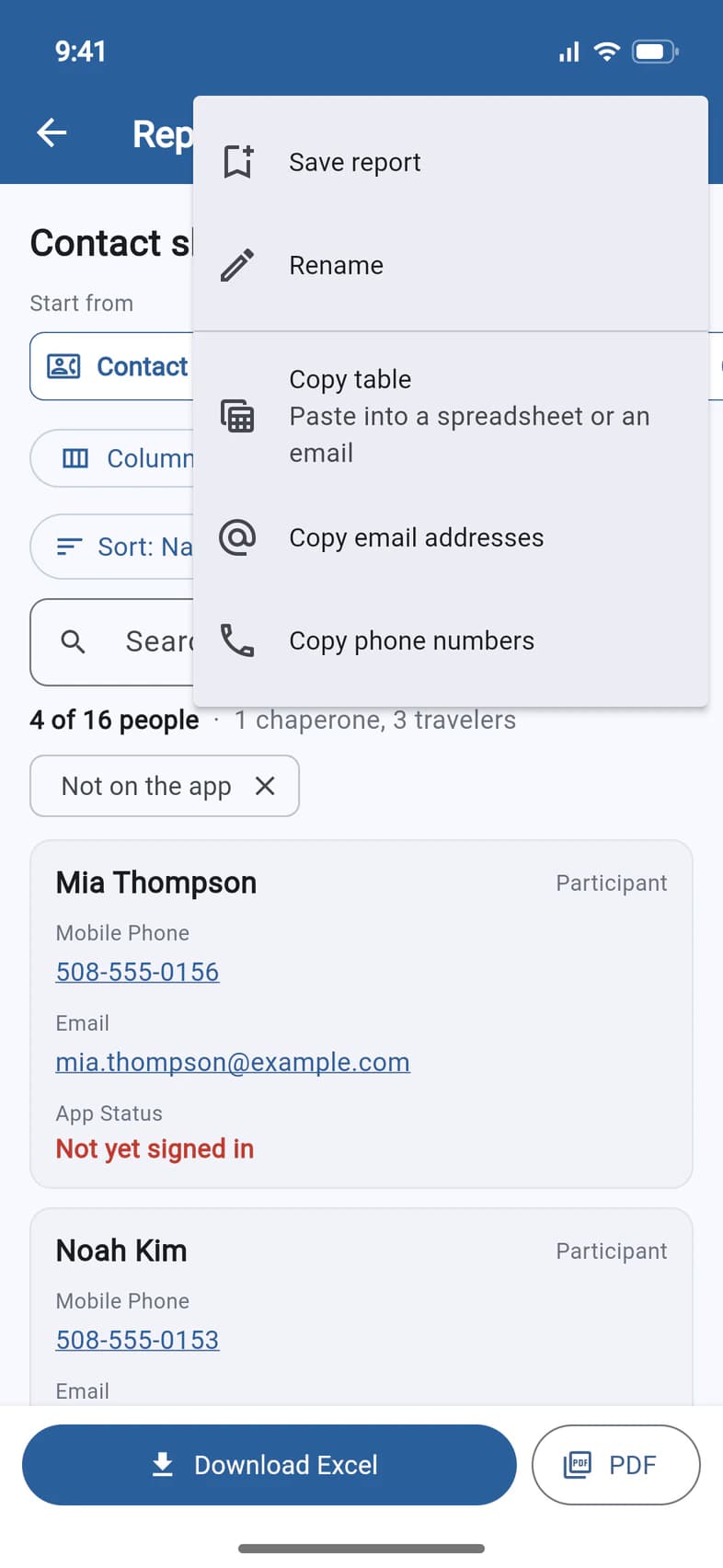
Tap the ⋮ menu at the top right, then choose what to copy 1:
- Copy table: the whole report, ready to paste into a spreadsheet or an email.
- Copy email addresses: every address in the report, each once, for the To or Bcc line of your email.
- Copy phone numbers: every phone number in the report, each once.
To reach the parents too, add the guardians' email or phone columns first. Their addresses and numbers are copied with the rest.
Only need email addresses? Copy emails, next to Report Builder on the Traveler List, copies your travelers', guardians', chaperones' or tour viewers' addresses without building a report: each address once, separated by commas or semicolons, ready for the Bcc line. Waitlisted families and your own address are left out.
- Step 7
Save it for next time
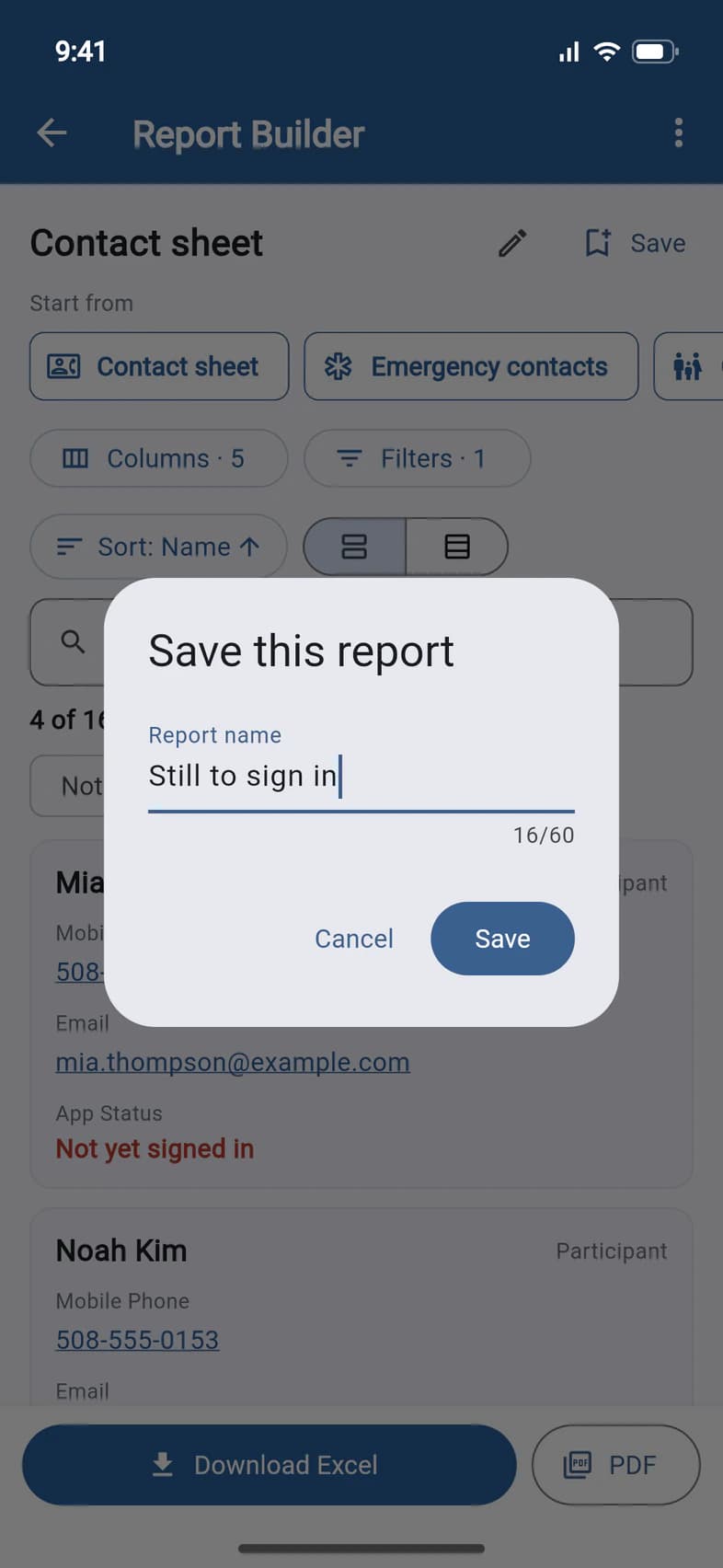
Tap Save beside the report's name. Give it a name you'll recognize 1, then tap Save 2.
It's now the first button under Start from, with a bookmark: tap it any time. A saved report keeps your choices, not a copy of the list, so it always shows the latest information. If you change it later, tap Save changes. The ⋮ menu also has Save as a new report, Rename and Delete saved report.
- Step 8
Or use a computer
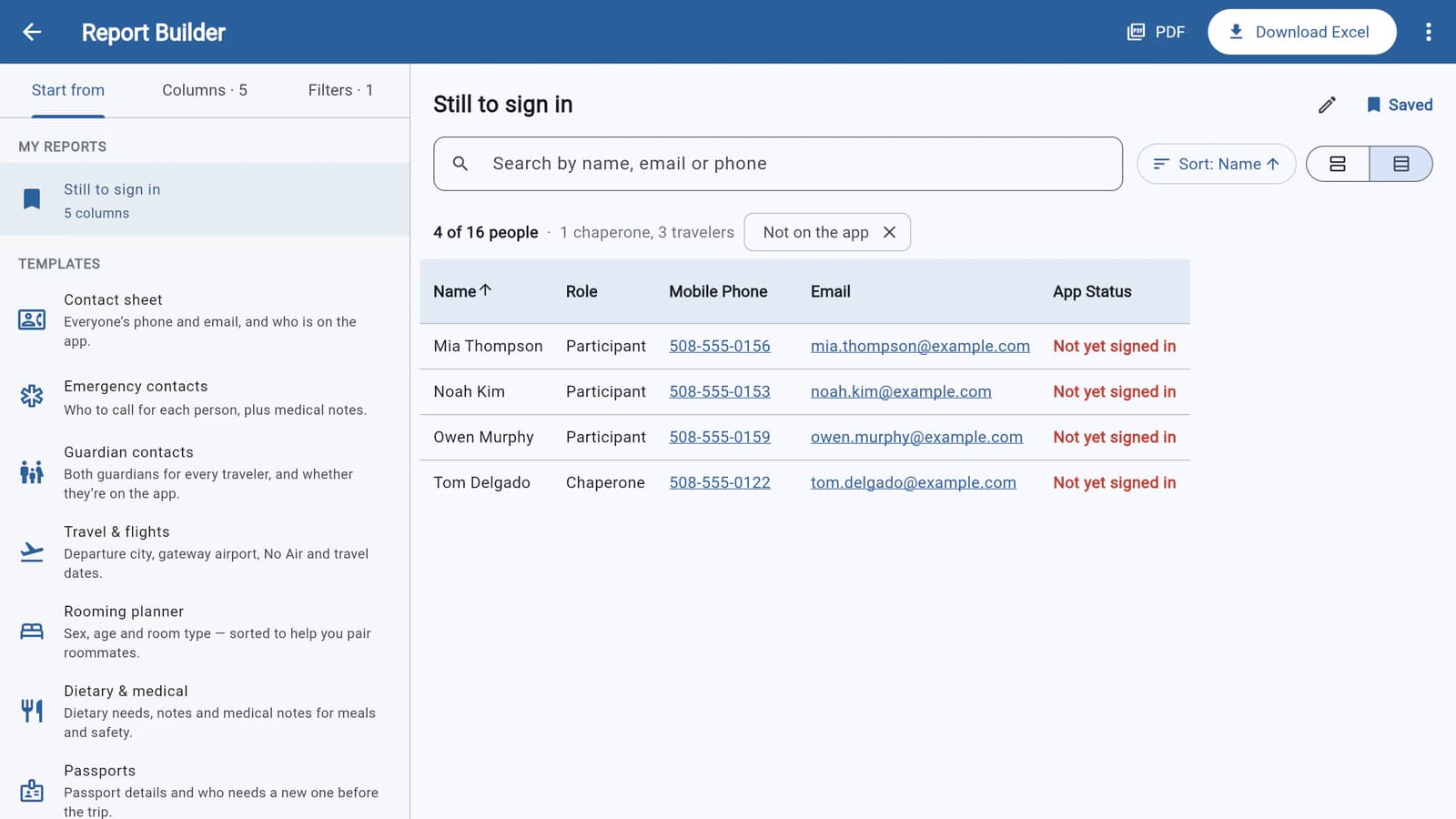
At passportsgo.com, the Report Builder spreads out. Start from, Columns and Filters are tabs on the left 1. Your saved reports are at the top of Start from, under MY REPORTS, on every phone and computer you sign in on.
The report is a table: click a column title 2 to sort by it, and again to reverse the order. Download Excel and PDF are at the top right 3.
Good to know
Who can use the Report Builder?
You, and anyone you've made an admin, such as chaperones with Admin Functions (see Make someone an admin). The money columns (Program Cost, Total Charges, Total Payments, Balance and Paid in Full), the Balances template and the Owes a balance filter are for group leaders only.
Who's in the report?
The people on the tour: group leaders, chaperones and travelers. Parents and guardians aren't rows of their own. Add them as columns instead (Guardian 1, Guardian 1 Email and so on), and Guardians on App counts how many of each traveler's guardians are signed in. Visitors and your Tour Director aren't included, and neither is a waitlisted traveler, until Passports adds them to the tour.
What does App Status mean?
- On the app: signed in to your tour right now.
- Signed out: has used the app, but isn't signed in now.
- Not yet signed in: has never signed in.
To help someone get started, send them Sign in to PassportsGo.
Does a saved report keep a copy of the list?
No. It keeps your choices (the columns, filters and sort), so it shows the latest information every time you open it. Saved reports follow your sign-in to any phone or computer, and work on every tour you lead. The builder keeps your 30 most recent. Deleting one (⋮, then Delete saved report) doesn't touch anyone's information.
Which templates are there?
- Contact sheet: everyone's phone and email, and who's on the app.
- Emergency contacts: who to call for each person, plus medical notes.
- Guardian contacts: both guardians for every traveler, and whether they're on the app.
- Travel & flights: departure city, gateway airport, No Air and travel dates.
- Rooming planner: sex, age and room type, to help you pair roommates.
- Dietary & medical: dietary needs, notes and medical notes.
- Passports: passport details, and who needs a new passport before the trip.
- Forms checklist: which forms each person has confirmed, and what's left.
- Not on the app yet: everyone who isn't signed in, with a way to reach them.
- Birthdays & ages: dates of birth, age at departure and birthdays on tour.
- Mailing list: home addresses, ready for labels or a mail merge.
- Sign-in sheet: a numbered list with a box to tick, to print for head counts.
- Balances (group leaders only): what each traveler has paid and still owes, and who pays.
- Everything: every column there is, to trim down.
- Start from scratch: just the names.
Screens show a sample family and tour — your names, dates and amounts will differ. Checked against the app October 19, 2026.
Call us. A real person in Worcester picks up.
Monday to Friday, 8am to 4pm Eastern — and around the clock once your group is on tour. Or email passportsgo@passports.com.