
Plan an info night or parent meeting
Plan it in three steps, invite families or your interest list, and share a link or QR code. Families answer without signing in.
Invite families to a parent meeting, an info night or a fundraiser in three short steps. PassportsGo sends the invitations by email, text and the app, counts who's coming and how many, and sends the reminders by itself.
Families answer from their own link, with no sign-in and no app needed. Only the group leader plans meetings.
The whole meeting, from invitation to the door
Plan an info night or parent meeting, invite families with a link they answer without signing in, see who's coming, and check people in at the door.
Real app screens, sample tour · narration generated with AI
Before you start
- PassportsGo on your phone, or passportsgo.com in a browser — signed in as the group leader.
- When and where: the date, the start time and the place, or the video-call link for an online meeting.
- Step 1
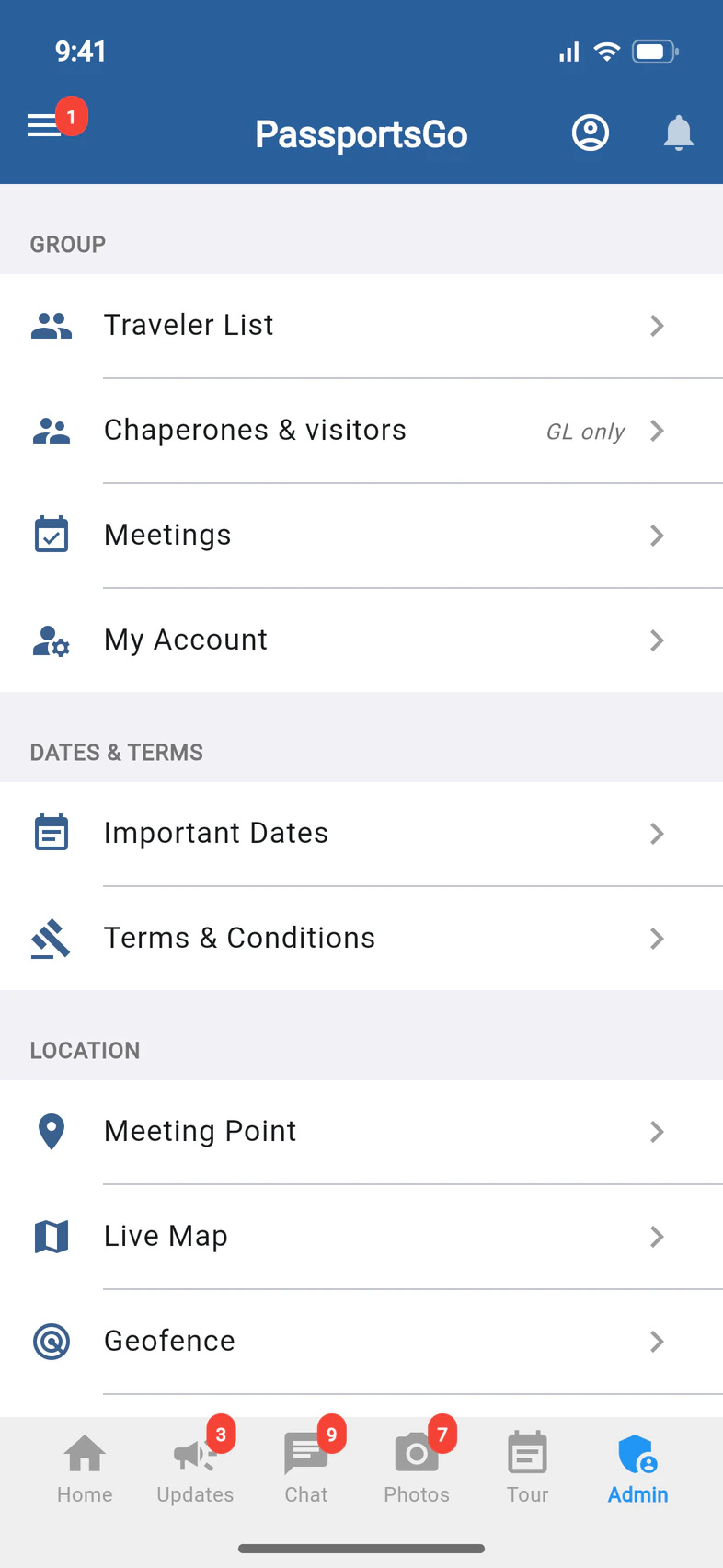
Open Meetings
Tap Admin 1 at the bottom of the screen, then Meetings 2 under GROUP.
Recruiting? Until 60 days before departure, you can also start an info night from Recruitment on Home: tap the Info night tile under Share your tour, or Plan an info night when Your next step suggests it. Once it's planned, it shows there as Your next meeting, and an info night anyone can come to gets its own post and story in Pictures for social media. See How the Recruitment tab works.
- Step 2
Tap Plan a meeting
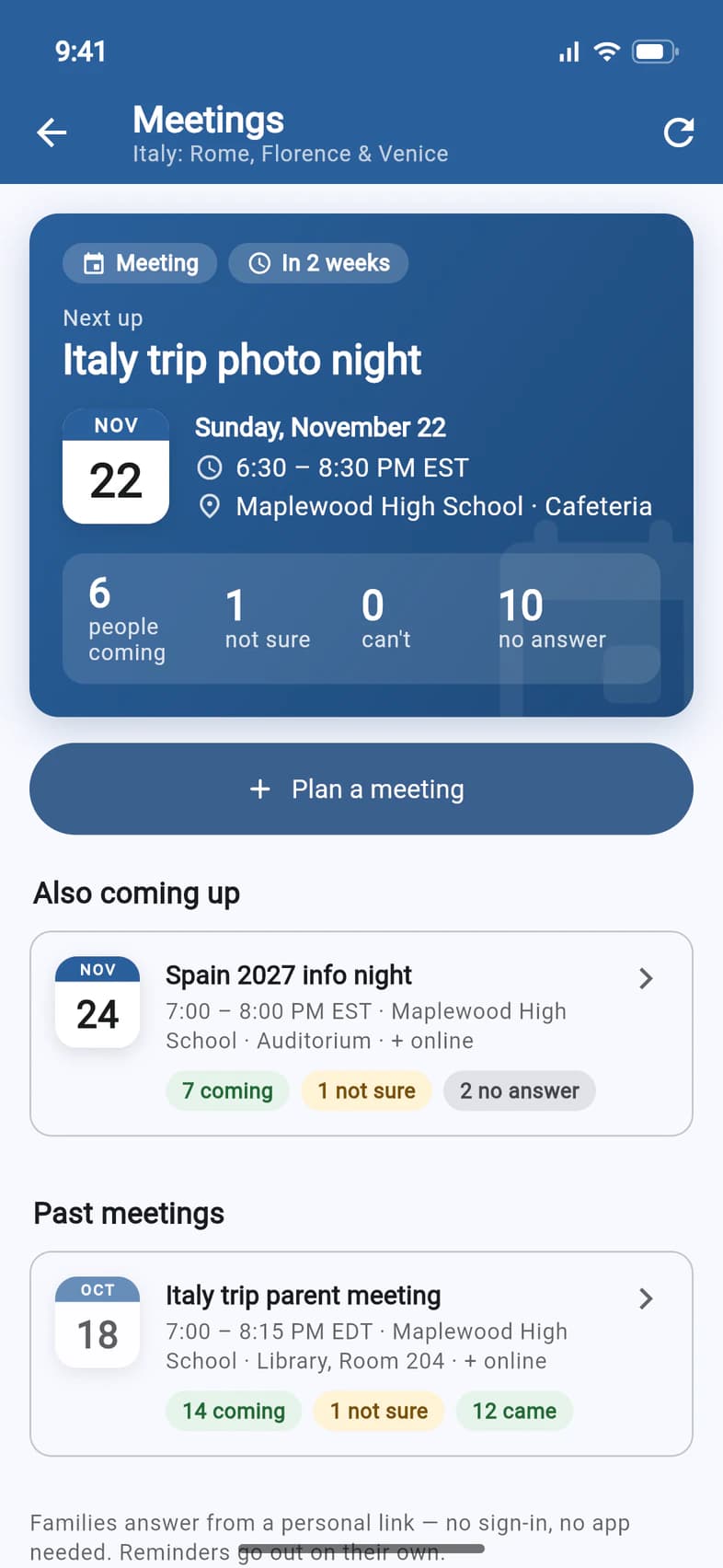
Meetings shows your next meeting on top, with how many are coming, then everything else coming up and your past meetings. Tap a meeting to see its answers.
To start a new one, tap Plan a meeting 1.
- Step 3
Choose the kind and the time
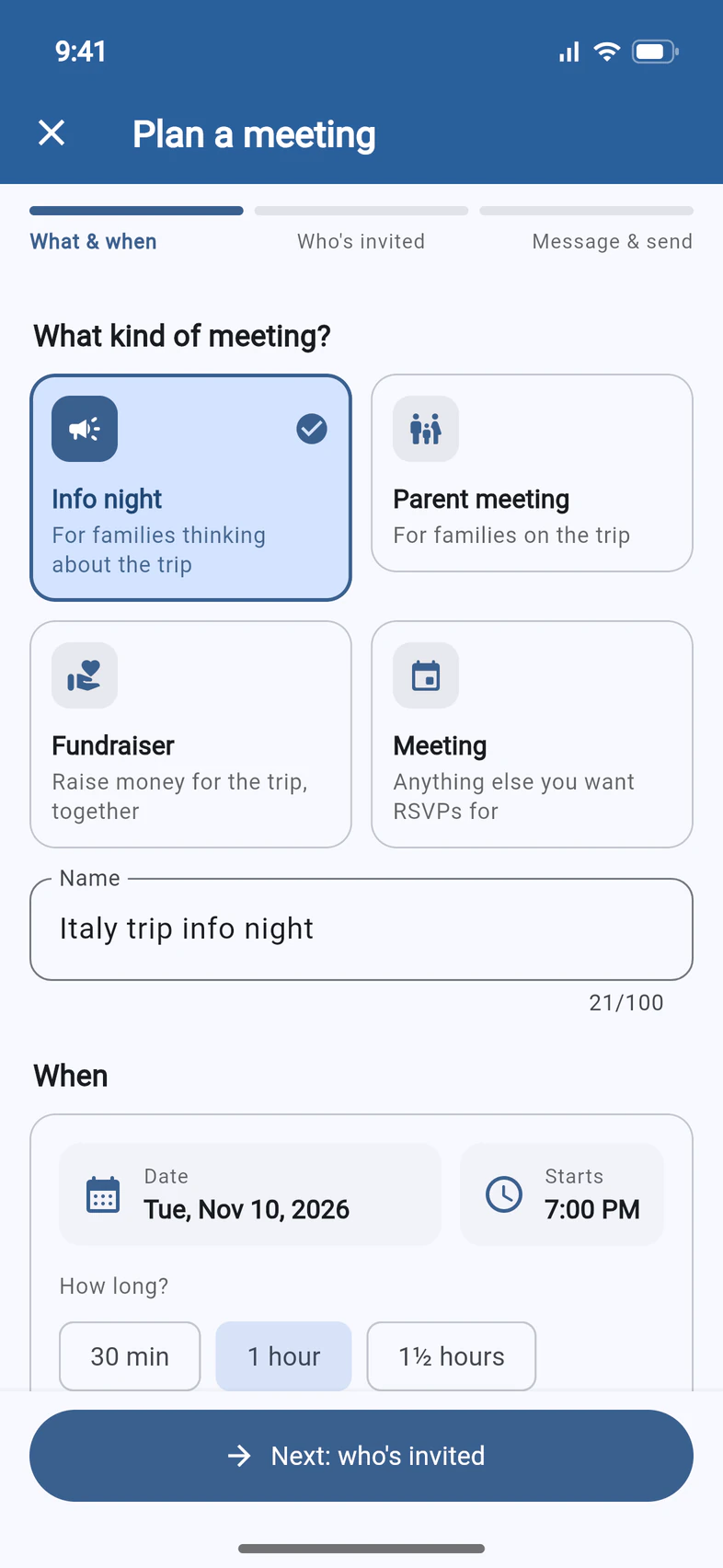
Pick the kind of meeting 1: an Info night for families thinking about the trip, a Parent meeting for families on the trip, a Fundraiser, or any other Meeting you want answers for. The kind fills in a name, a short note and who to invite. You can change them all.
Check the Name 2, then tap Date and Starts 3 to set when it is. Under How long?, pick anything from 30 minutes to 3 hours.
Times are in your group's home time zone. For a meeting in another zone, tap Change next to it, under How long?.
- Step 4
Say where it is
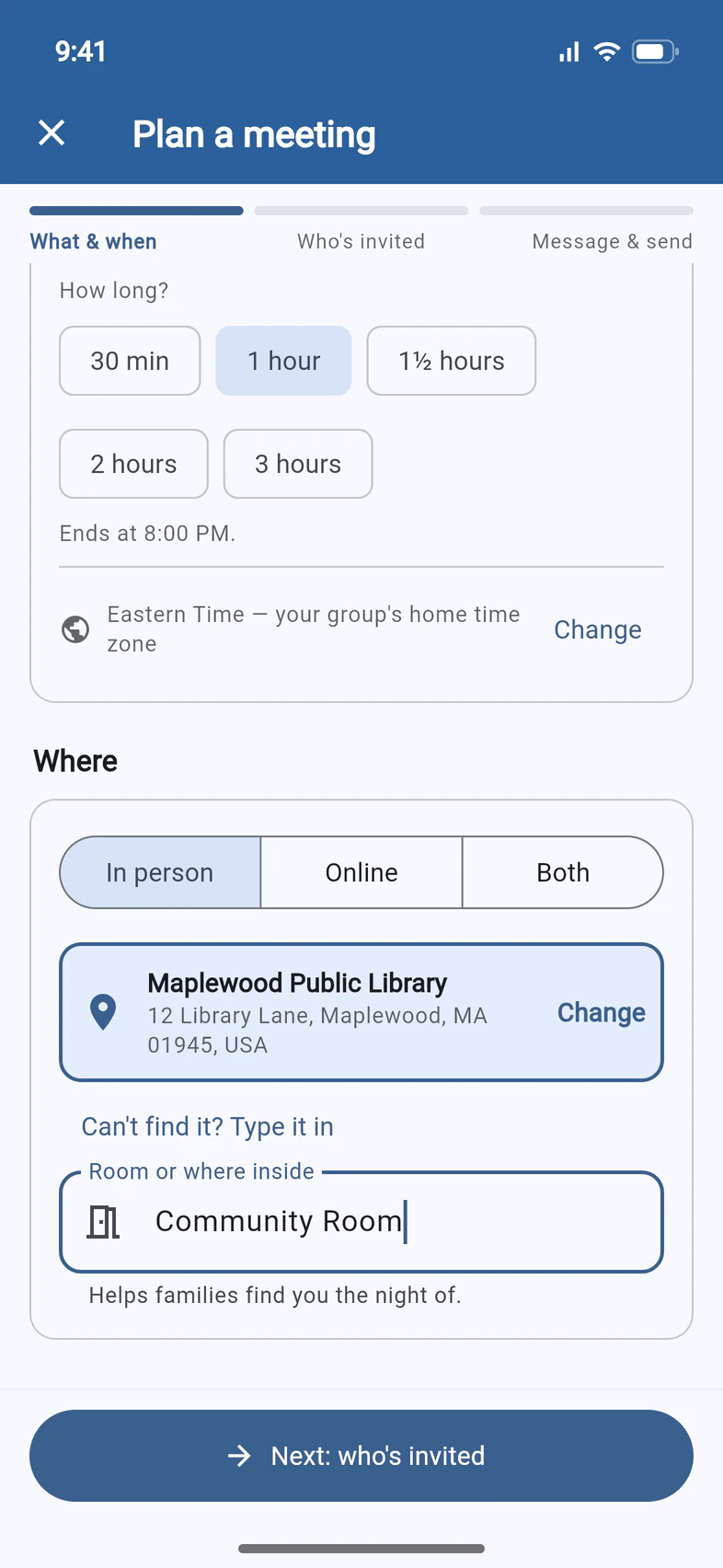
Under Where, choose In person, Online or Both 1.
For a meeting in person, tap Search for the place and type part of its name or address: "maple lib" finds the Maplewood Public Library. Tap it in the list, and it shows here 2. Then add the room 3, so families can find you.
Online or both? Paste the Join link from Zoom, Google Meet or Teams. Families see it once they answer that they're coming or not sure yet.
Not in the search? Tap Can't find it? Type it in and enter the name and address yourself.
- Step 5
Choose who's invited
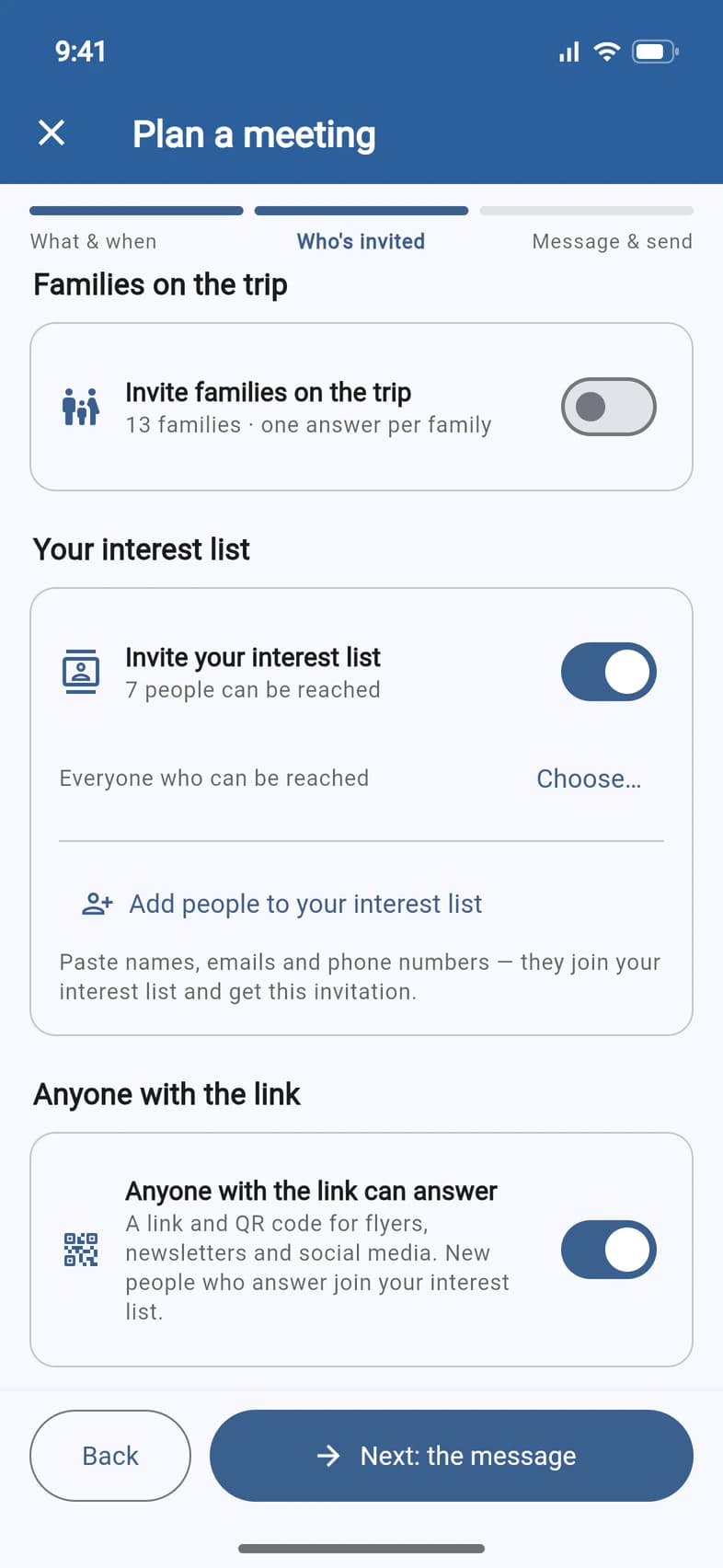
Tap Next: who's invited. The kind has already chosen who gets the invitation, and you can change it:
- Invite families on the trip 1: everyone enrolled, one answer per family. Choose Parents & guardians, Travelers or both; Post it on Updates shows the invitation in the app too. A parent meeting starts with this on.
- Invite your interest list 2: families interested in the trip. Choose… picks who on it, and Add people to your interest list 3 takes names, emails and phone numbers you paste. An info night starts with this on.
- Anyone with the link can answer 4: a link and a QR code for flyers, newsletters and social media. New people who answer join your interest list. Not offered for a parent meeting.
Further down, Texts sends the invitation and the last reminders by text as well. The green line at the bottom sums up who gets the invitation.
It's the same interest list as on the Recruitment tab. See Build your interest list.
- Step 6
Write the invitation
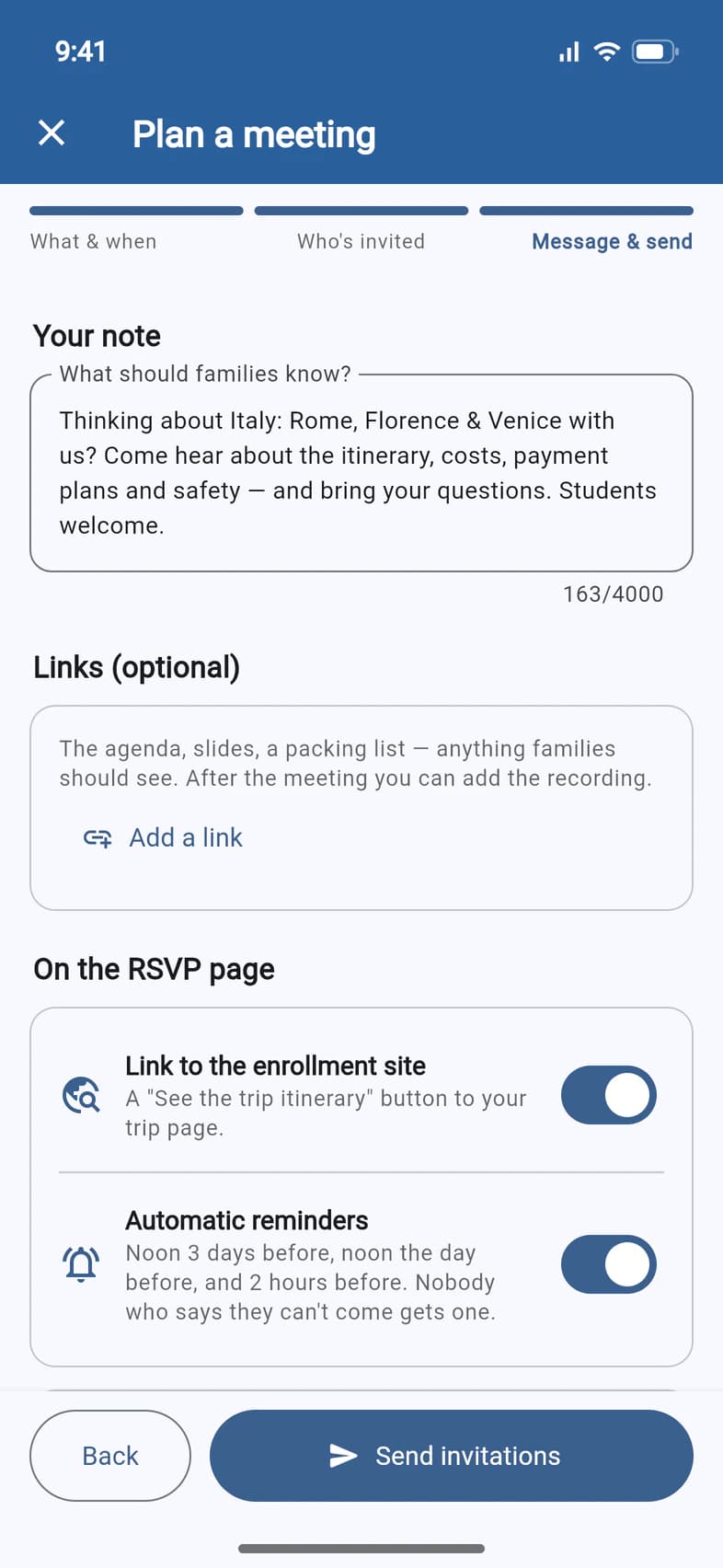
Tap Next: the message. Your note 1 starts with a few lines for the kind of meeting: make it yours, with what you'll cover, what to bring and who should come. Add a link 2 for an agenda, slides or a packing list.
Link to the enrollment site 3 adds a button to your trip page, where families can see the itinerary (and enroll, while enrollment is open). Automatic reminders 4 go out at noon 3 days before, at noon the day before and 2 hours before. Nobody who says they can't come gets one.
- Step 7
Preview, test and send
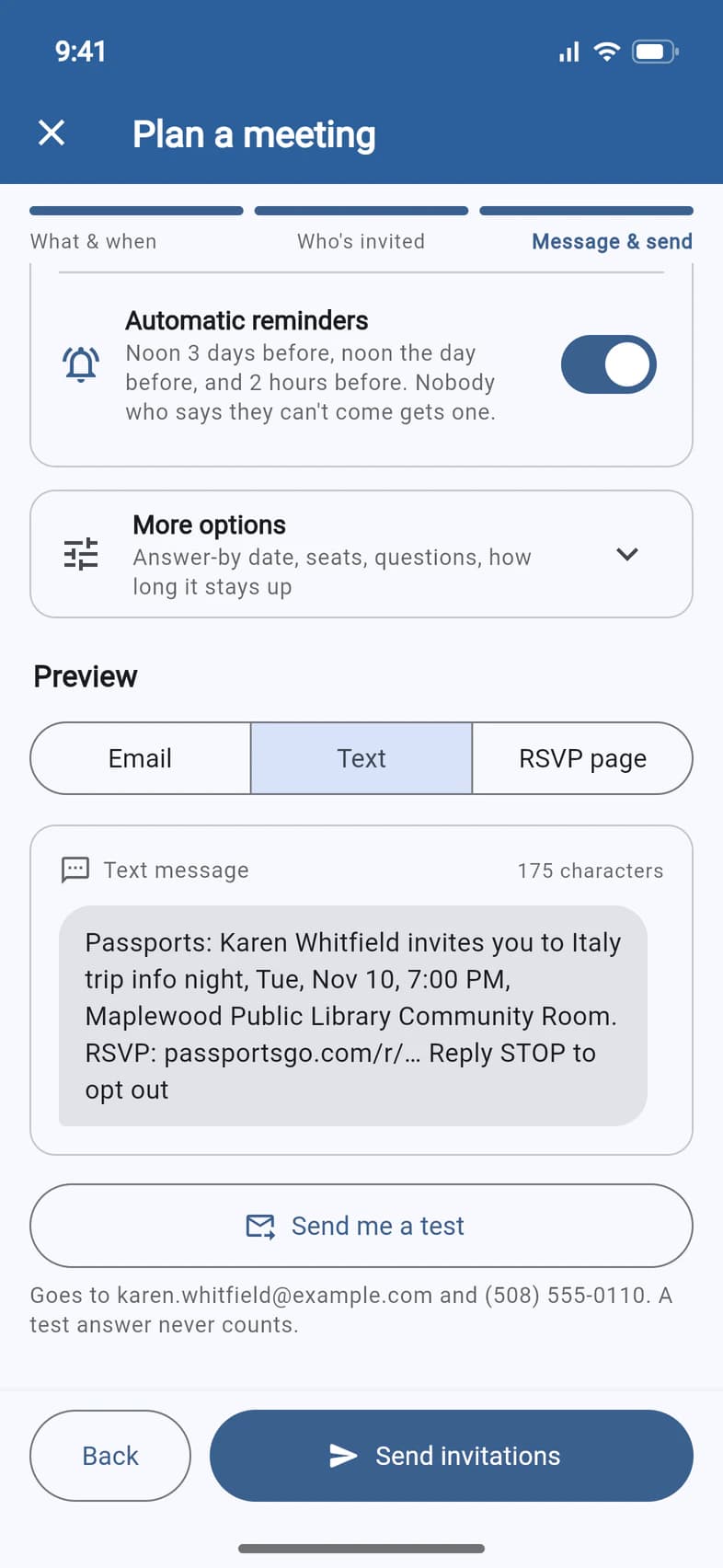
More options 1 has an answer-by date, a number of seats, how long the page stays up afterwards, a "not sponsored by the school district" line and, for an info night, questions about how interested they are and the student's name.
Under Preview 2, see the email, the text and the RSVP page the way families will. Send me a test 3 sends the invitation to your own email and phone; a test answer never counts.
When it looks right, tap Send invitations 4.
Send me a test saves the meeting. Close the planner before sending, and it waits on Meetings, marked Not sent yet: open it and tap Send invitations when you're ready.
- Step 8
Share the link or QR code
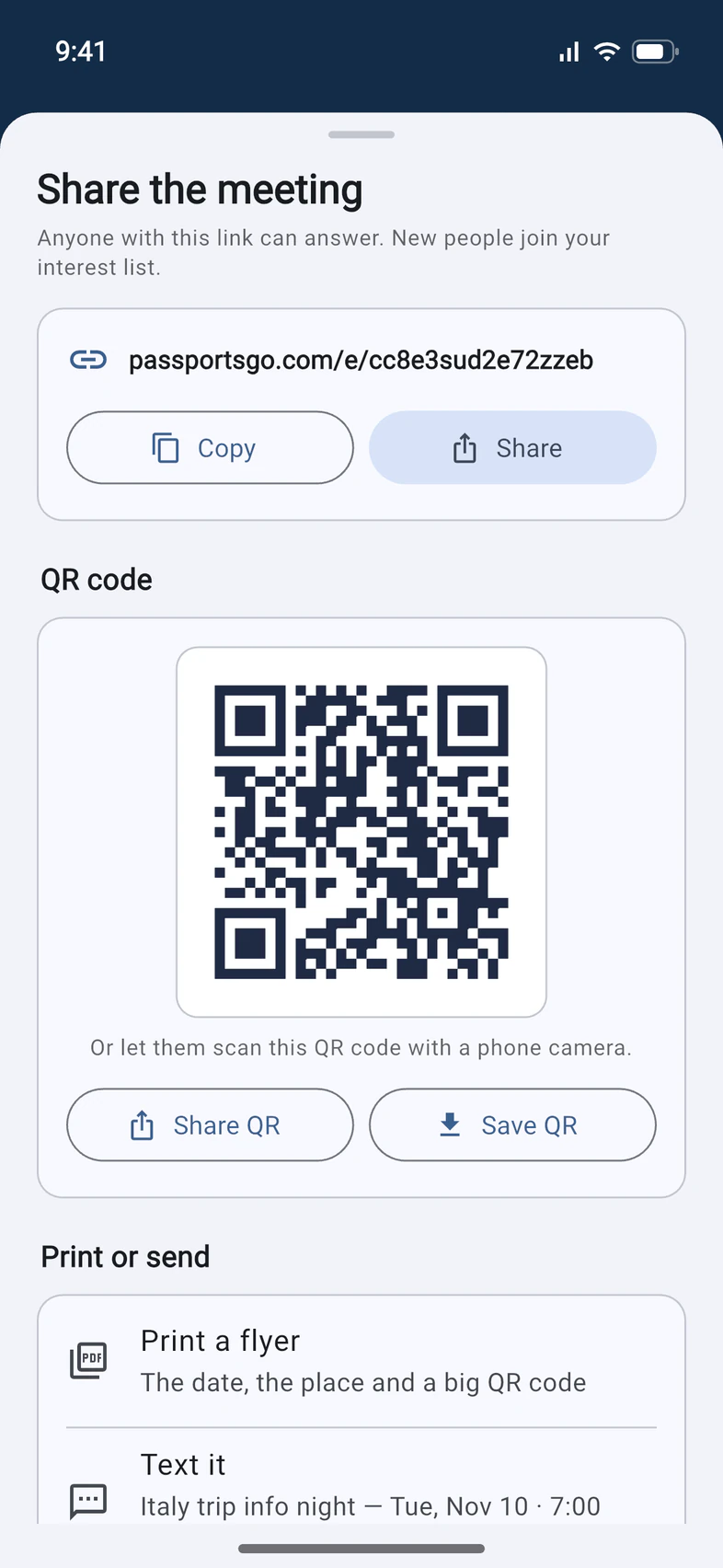
The meeting's page opens, with a green note that the invitations are on their way. When anyone with the link can answer, tap Share in that note, or the share button at the top. (A meeting by invitation, like a parent meeting, has no link to share: everyone invited has their own.)
Copy or Share the meeting's link 1. Show its QR code 2 on a slide or a poster, or send and keep it with Share QR and Save QR 3. Print a flyer 4 makes a page with the date, the place and a big QR code, and Text it and Copy for a newsletter give you words ready to send.
On a computer, Share copies the link, the QR button reads Download QR code, and the flyer downloads as a PDF. To see who's coming and remind people, see See who's coming and send reminders.
Good to know
Do families need the app or a password to answer?
No. Everyone you invite gets their own link in the email and text, and it opens their RSVP page with no sign-in. Families who use PassportsGo can also answer from the RSVP tile on Home. Answer a meeting invitation shows what they see.
When do the reminders go out?
At noon 3 days before and at noon the day before, to everyone except people who said they can't come, and 2 hours before, by text and app notification, to everyone coming. To send none, turn off Automatic reminders in the last step.
Can I change the time or place after sending?
Yes. Open the meeting on Meetings, tap the pencil at the top, make the change and tap Save changes on the last step. After a new time or place, PassportsGo asks Tell everyone?: Send the update gives everyone invited the new details, a fresh calendar link and a way to change their answer. The reminders move to the new time by themselves.
How do I cancel, or hold the same meeting again?
On the meeting's page, tap the ⋮ menu at the top. Cancel the meeting stops the reminders and can tell everyone who was invited; their answers stay for your records. Hold another session copies the meeting a week later, ready for you to adjust and send.
Who is the invitation from?
From Passports Travel, with your name in it, and replies to the email come to you.
Can my chaperones plan meetings?
No, only the group leader plans meetings and sends invitations. Chaperones you've made an admin see Meetings too, with who's coming, and can check people in at the door.
Screens show a sample family and tour — your names, dates and amounts will differ. Checked against the app November 3, 2026.
Call us. A real person in Worcester picks up.
Monday to Friday, 8am to 4pm Eastern — and around the clock once your group is on tour. Or email passportsgo@passports.com.