
Share your tour on social media
Ready-made Instagram and Facebook pictures of your tour, with captions, your enrollment link and QR code, plus a Reel made from your tour video.
Ready-made pictures of your tour for Instagram and Facebook: a carousel, one all-in-one picture, a story and three captions, each with your enrollment link. Passports draws them from your tour's own photos and details, so all you do is post them.
They're on Recruitment for the group leader while enrollment is open online and your tour has its Tour ID. Planned an info night? It gets a post and a story of its own. And if your tour has a tour video, you can make a Reel from it.
Before you start
- PassportsGo on your phone, to share straight to Instagram or Facebook, or passportsgo.com on a computer, to download the pictures — signed in as the group leader.
- Step 1
Open Pictures for social media
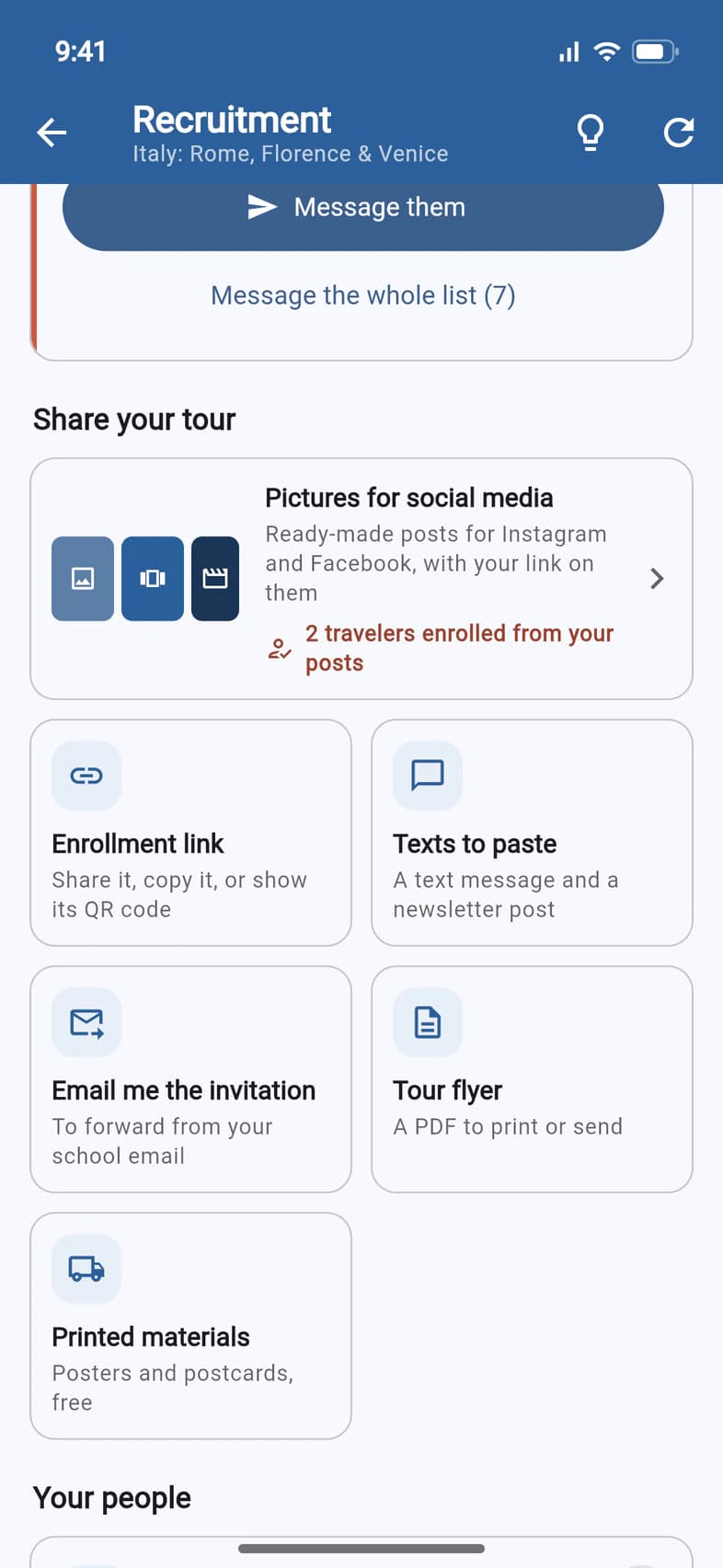
On Home, tap Recruitment (or on Admin, tap Recruitment Hub). Under Share your tour, tap Pictures for social media 1.
Once families enroll through your posts, the tile counts them 2: 2 travelers enrolled from your posts.
The first time you open it, your pictures take a moment to draw (Making your pictures…, up to a minute). After that they open right away.
- Step 2
Choose the email on them
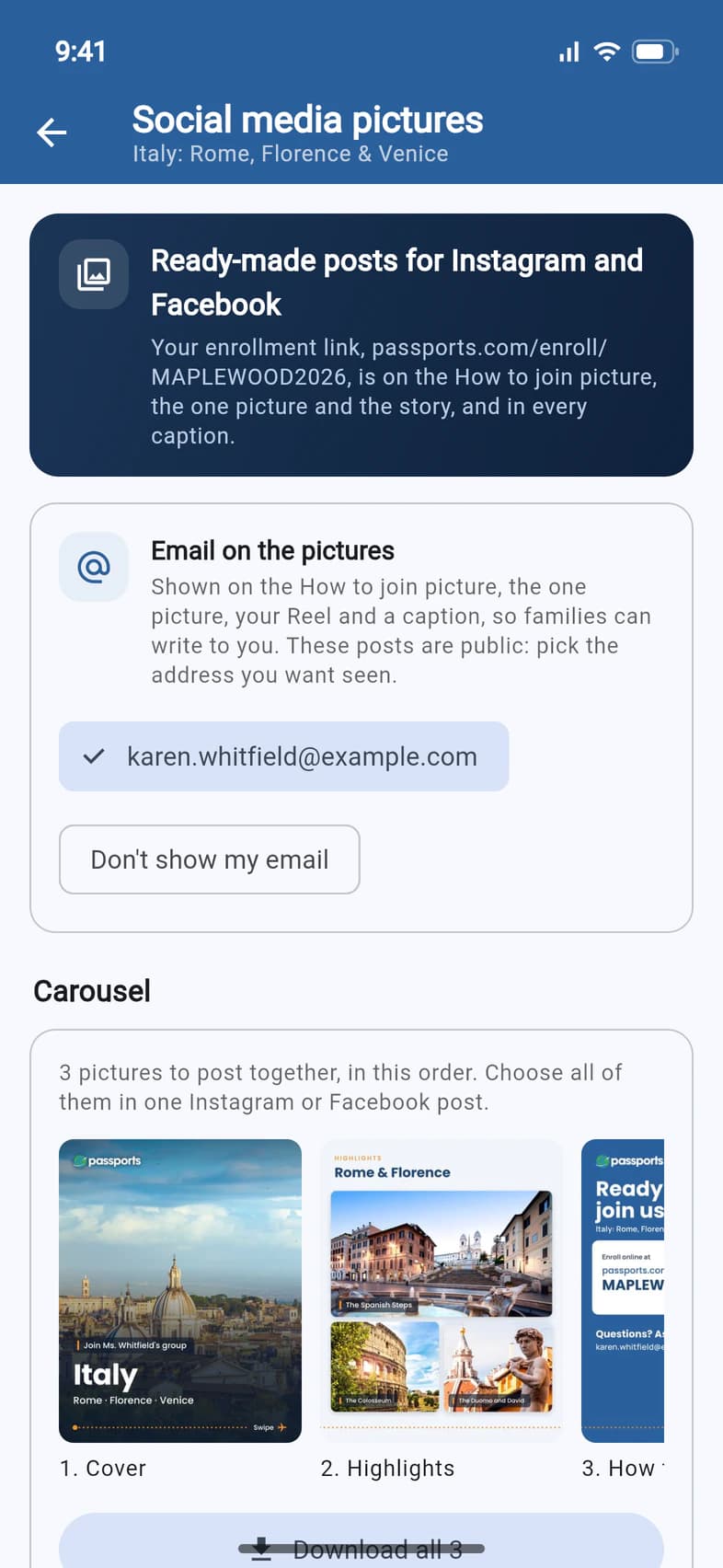
The box at the top says where your enrollment link is: on the How to join picture, the one picture and the story, and in every caption.
Under Email on the pictures, pick the address families should see 1, or Don't show my email 2. These posts are public, so choose one you're happy to share. The pictures redraw with that address, which can take a moment the first time.
PassportsGo starts with a school or work address over a personal one, like Gmail, when you have both on file. Your choice also shows on your Reel and in one caption.
- Step 3
Post the carousel
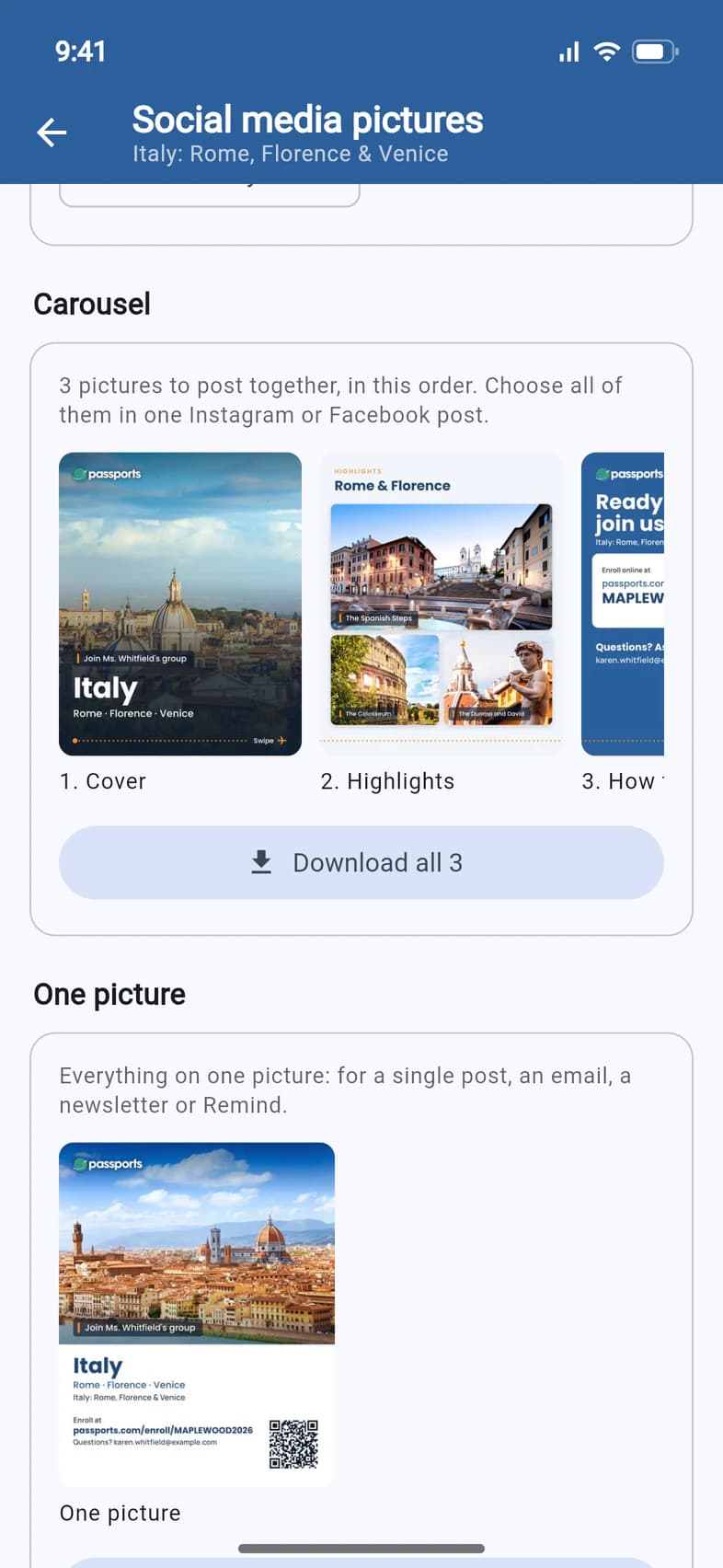
The Carousel 1 is your tour in a few pictures, posted together in order: a cover, the route when there's a map of it, highlights, and How to join with your link and a QR code. Tap any picture to see it full size and swipe through them all.
On a phone, tap Share all 3 2 (the number is how many pictures your carousel has) and pick Instagram or Facebook: the pictures go in together, in order, as one post. On a computer, the button says Download all 3: it saves each picture, ready to add to one post.
- Step 4
Post one picture or a story
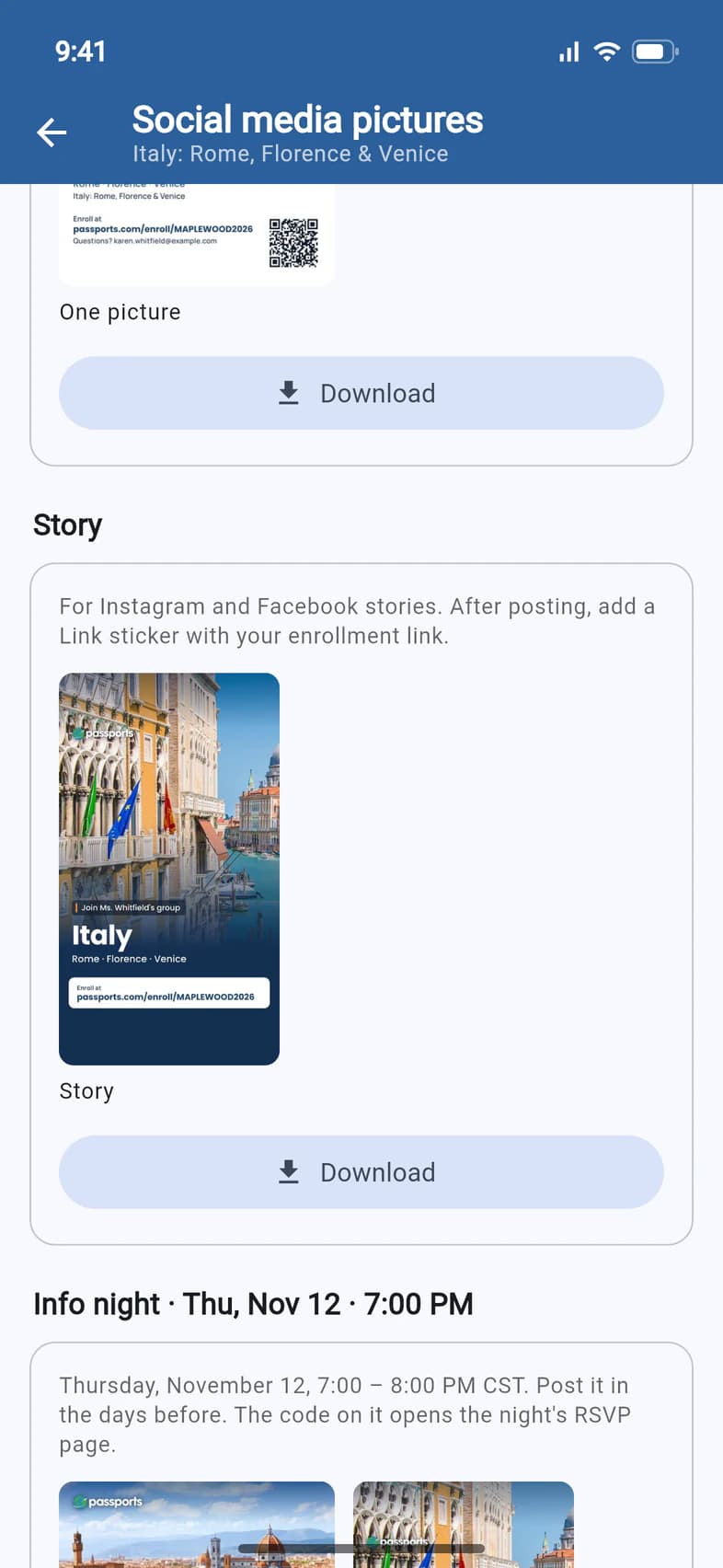
One picture puts everything on a single picture: the photo, your cities, your link and a QR code. It works for a single post, an email, a newsletter or Remind. Tap its Share 1 (on a computer, Download).
The Story is the tall version for Instagram and Facebook stories. Tap its Share 2.
In Instagram or Facebook, add a Link sticker to the story with your enrollment link, so people can tap straight through to it.
- Step 5
Copy a caption
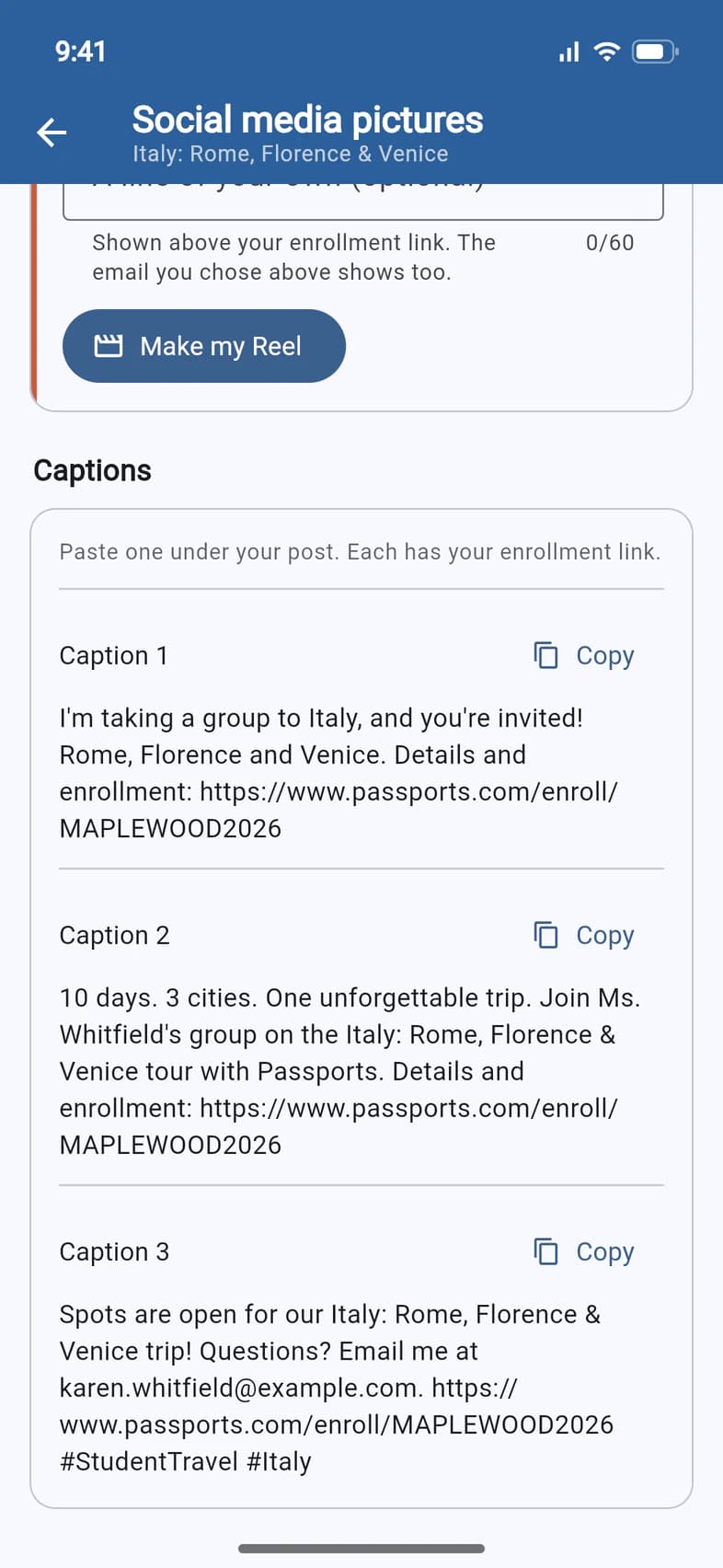
Scroll down to Captions. There are three, written in your voice, each with your enrollment link inside. Tap Copy 1 next to the one you like (Caption copied confirms it), and paste it under your post.
- Step 6
Share your info night
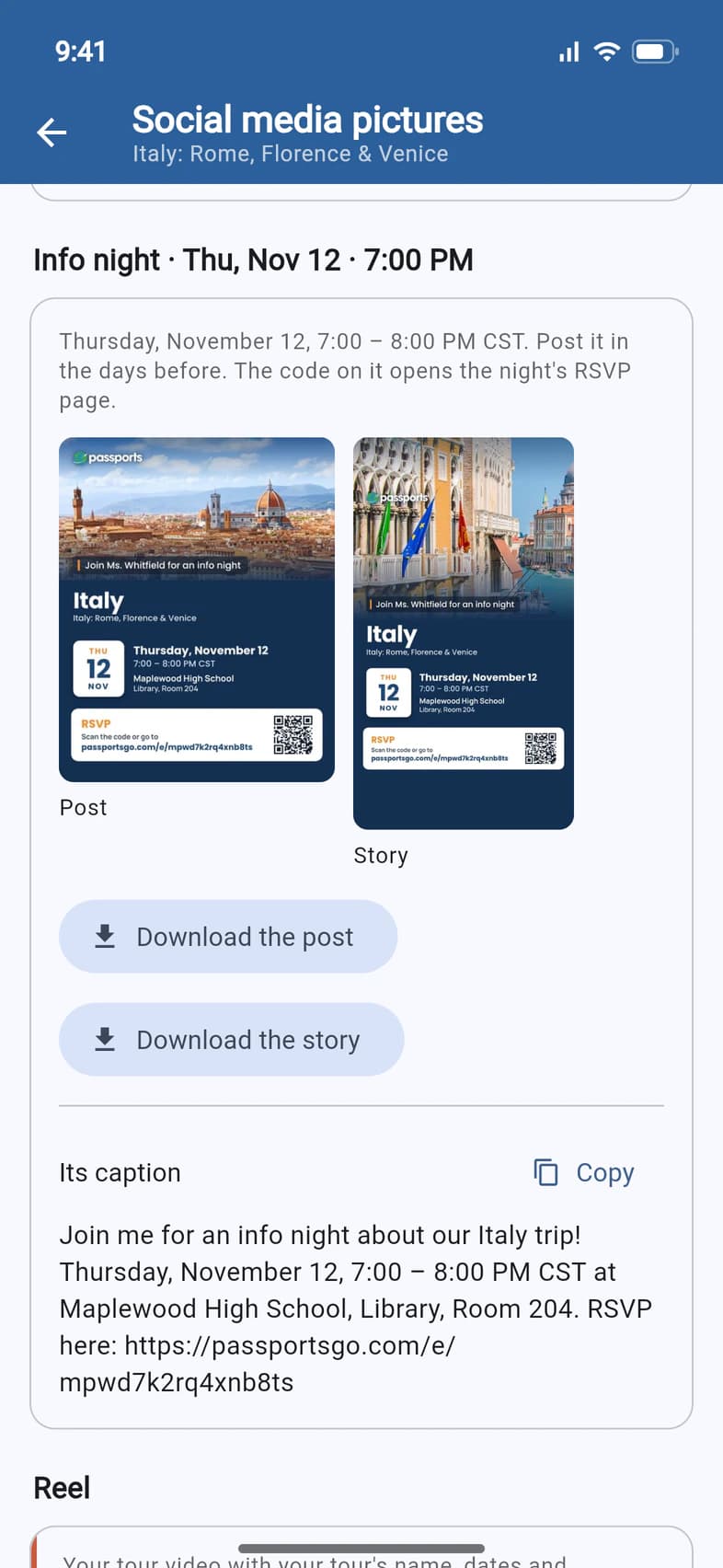
Planned an info night in Meetings with Anyone with the link can answer on? Each of the next two coming up gets a section of its own 1, with a post and a story. The QR code on them opens the night's RSVP page.
Tap Share the post or Share the story 2 (on a computer, they say Download instead). Its caption has the date, the place and the RSVP link: tap Copy 3.
A parent meeting, a fundraiser or an info night by invitation only gets no pictures: they aren't public. To plan an info night, see Plan an info night or parent meeting.
- Step 7
Make a Reel
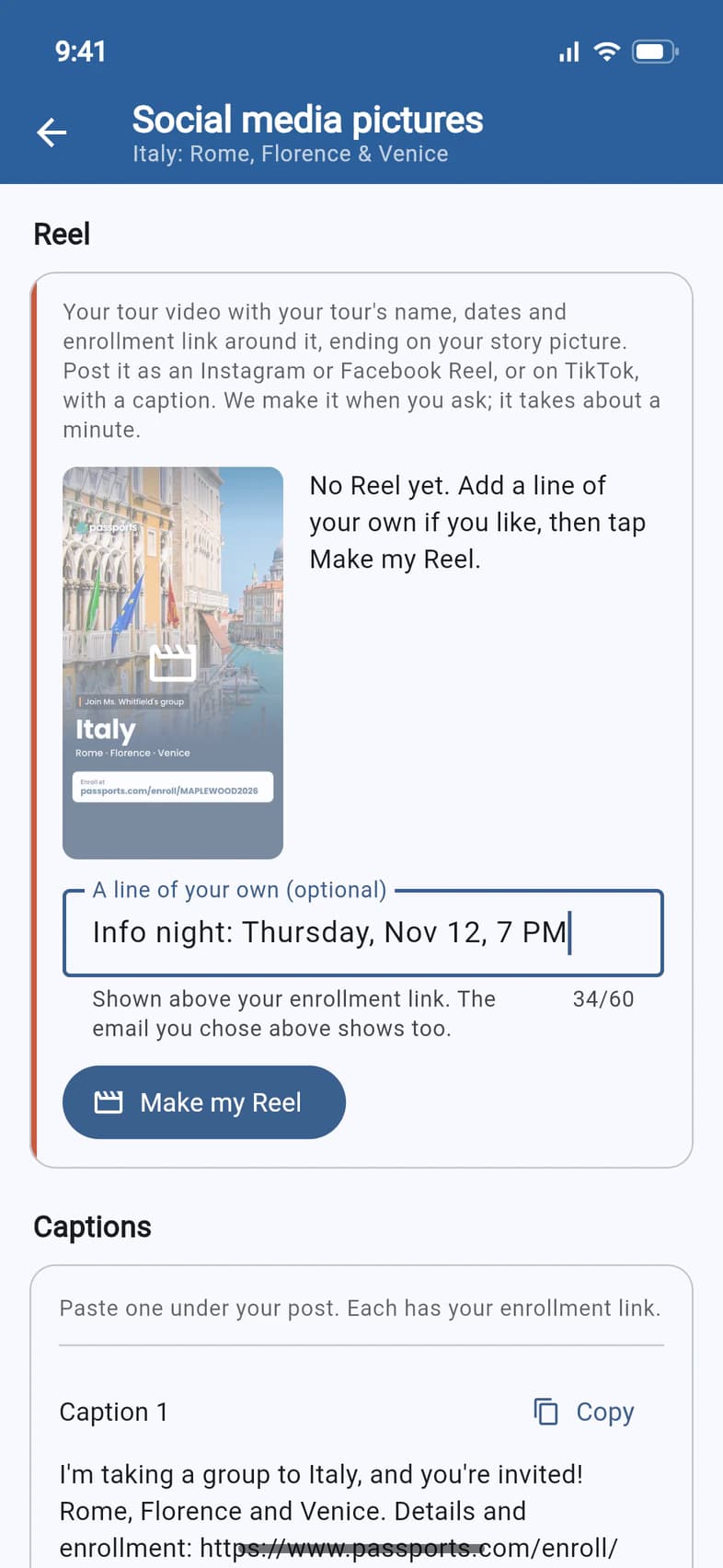
When your tour has a tour video, the Reel card turns it into a Reel for Instagram, Facebook or TikTok: your tour video with your tour's name, dates and enrollment link around it, ending on your story picture.
Add A line of your own (optional) 1 if you like, up to 60 characters, such as your info night's date. Then tap Make my Reel 2. It takes about a minute, and you can keep using the page. Nothing is made until you tap.
When it's ready, tap the picture to watch it, then Share it. On a computer, Download opens it in a new tab: save it from there with your browser's download button. Make it again makes a fresh one, with a new line or after your tour's details change.
Good to know
Why does the page take a while the first time?
Passports draws your pictures from your tour's details and photos the first time you open it, which can take up to a minute. After that they open right away, until something on your tour changes.
Do the pictures change?
They follow your tour. When its details change, they're redrawn the next time you open the page. In the last two weeks of your Early Enrollment Discount, if your tour has one, they count down the days left, and once your group is about three-quarters full they say “Spots are filling up”. Post the new ones when they do.
How are travelers “enrolled from your posts” counted?
The tile counts travelers who enrolled online through a QR code or a caption link from these pictures, and are still enrolled. Someone who types the link from a picture isn't counted, and visits aren't counted, only enrollments.
Can I choose different photos?
No. The photos come from your tour and are picked for you. If one looks wrong, or the page says there are no photos for your tour yet, ask Passports.
I don't see Pictures for social media.
It shows on Recruitment for the group leader while enrollment is open online and your tour has its Tour ID. Recruitment itself is there until 60 days before departure. Still missing? Call Passports at 1-800-332-7277.
Screens show a sample family and tour — your names, dates and amounts will differ. Checked against the app October 28, 2026.
Call us. A real person in Worcester picks up.
Monday to Friday, 8am to 4pm Eastern — and around the clock once your group is on tour. Or email passportsgo@passports.com.