
Check people in at a meeting
Check people in as they arrive, add walk-ins, show the sign-in QR code, then follow up with who came and who missed it.
Take attendance on your phone as people arrive: tap their names, add walk-ins, or put a QR code on the screen so people sign themselves in.
Afterwards, the meeting's page shows who came, and has follow-ups ready to send: one to everyone who came, and one to everyone who missed it.
Before you start
- PassportsGo on your phone, or passportsgo.com in a browser — signed in as the group leader, or as a chaperone you've made an admin.
- A meeting that's about to start. Check-in opens an hour before the start time.
- Step 1
Open the meeting
Tap Admin, then Meetings under GROUP, and open the meeting.
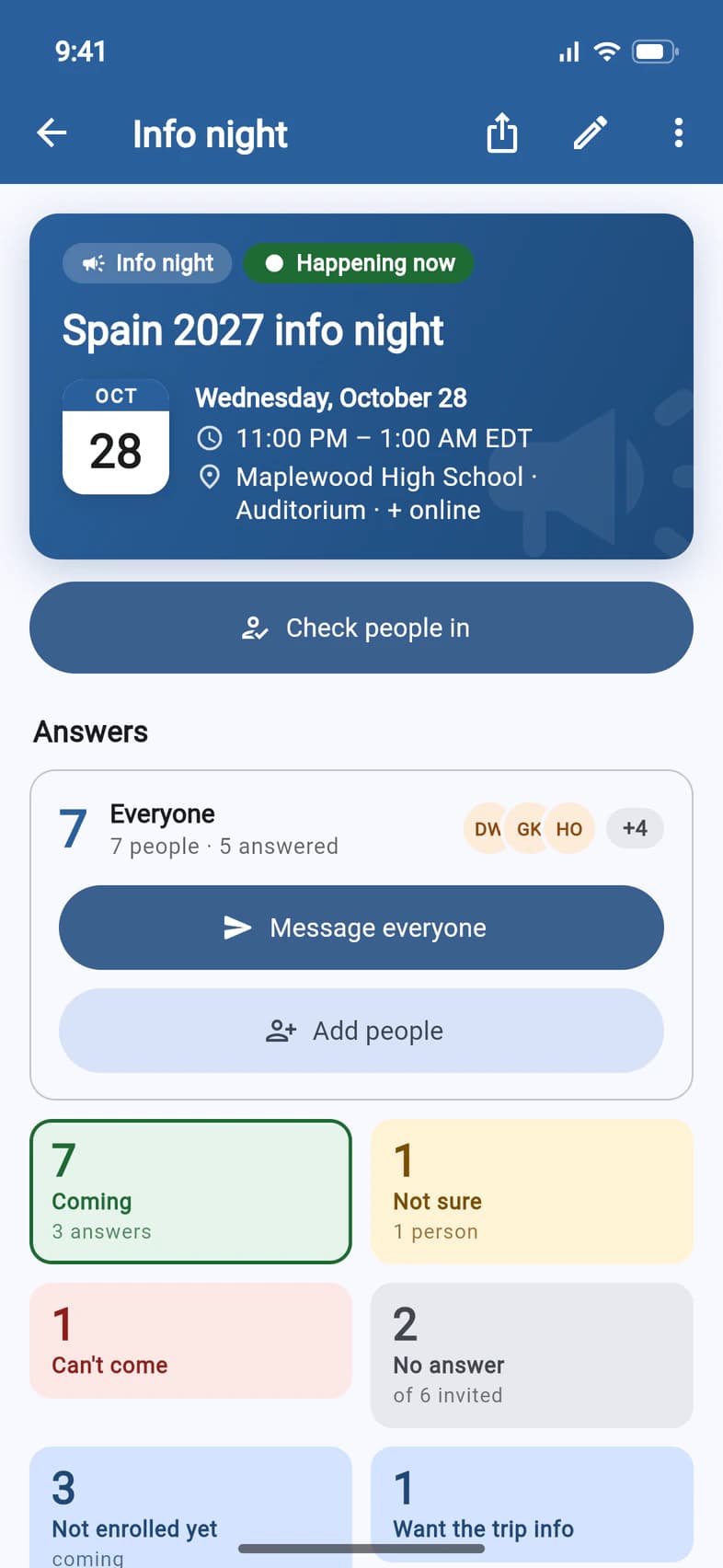
From an hour before it starts until an hour after it ends, the meeting's page shows Check people in 1. Once it has started, the card says Happening now 2. Tap Check people in.
- Step 2
Tap names as people arrive
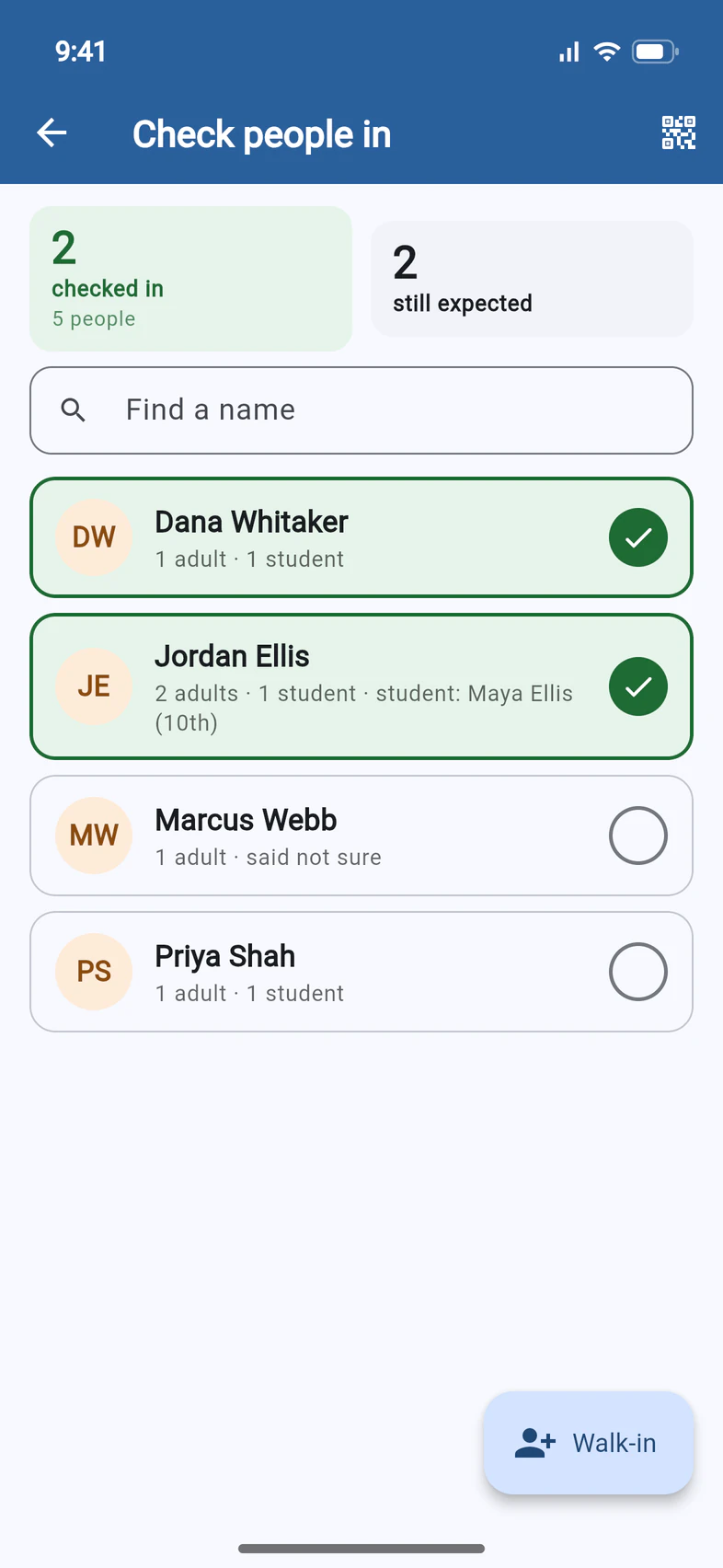
Everyone who said they're coming, or weren't sure, is on the list. Tap a name 1 as people arrive: it turns green with a check. Tapped the wrong one? Tap it again.
The tiles at the top 2 keep count: how many have checked in, how many people that is, and how many are still expected. To find someone fast, type part of their name in Find a name 3.
- Step 3
Add a walk-in
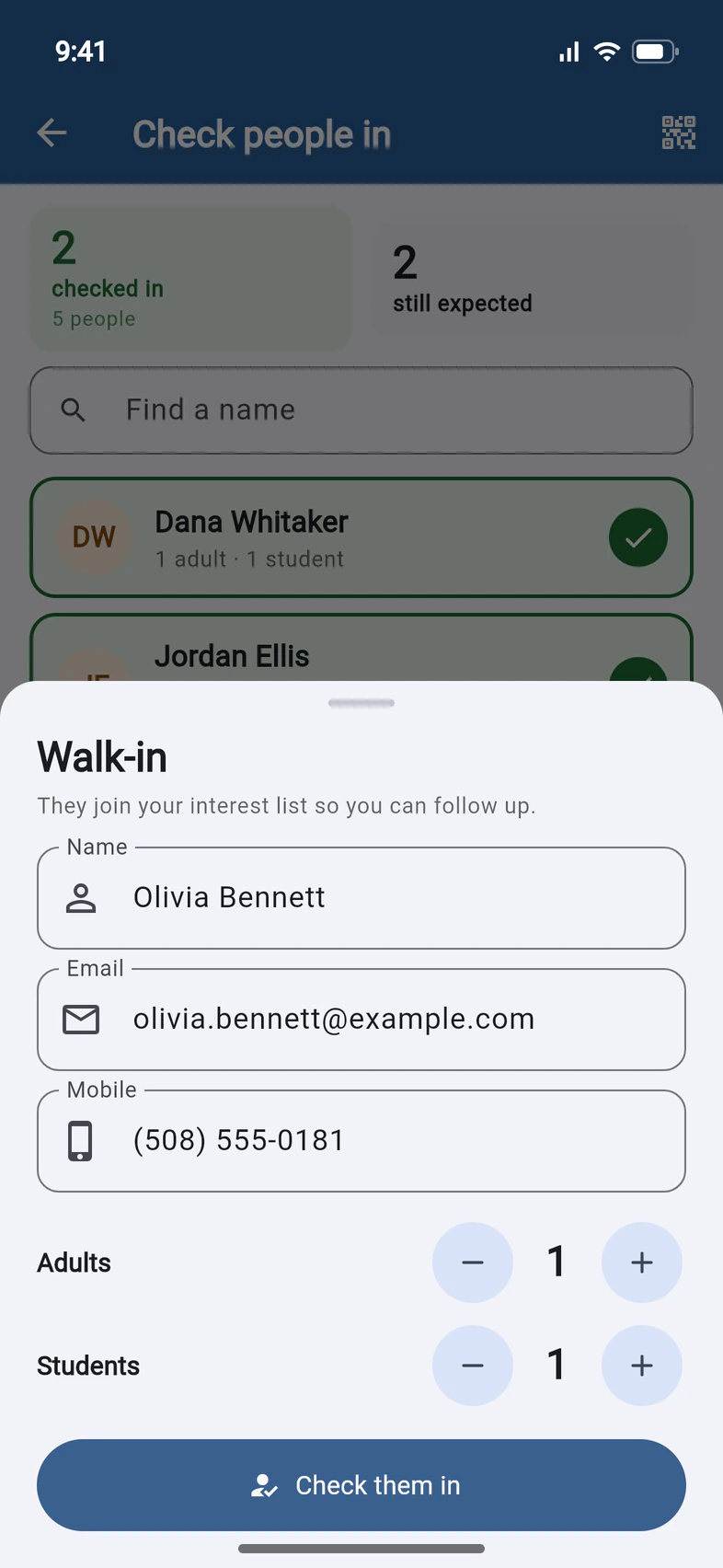
Someone who didn't answer turns up? Tap Walk-in at the bottom right.
Type their name and an email or mobile number 1, so you can follow up. Set how many Adults and Students are with them 2, then tap Check them in 3.
If the walk-in's family is already on the trip, PassportsGo checks in that family. Anyone else joins your interest list, so they get your follow-up after the meeting.
- Step 4
Let people sign themselves in
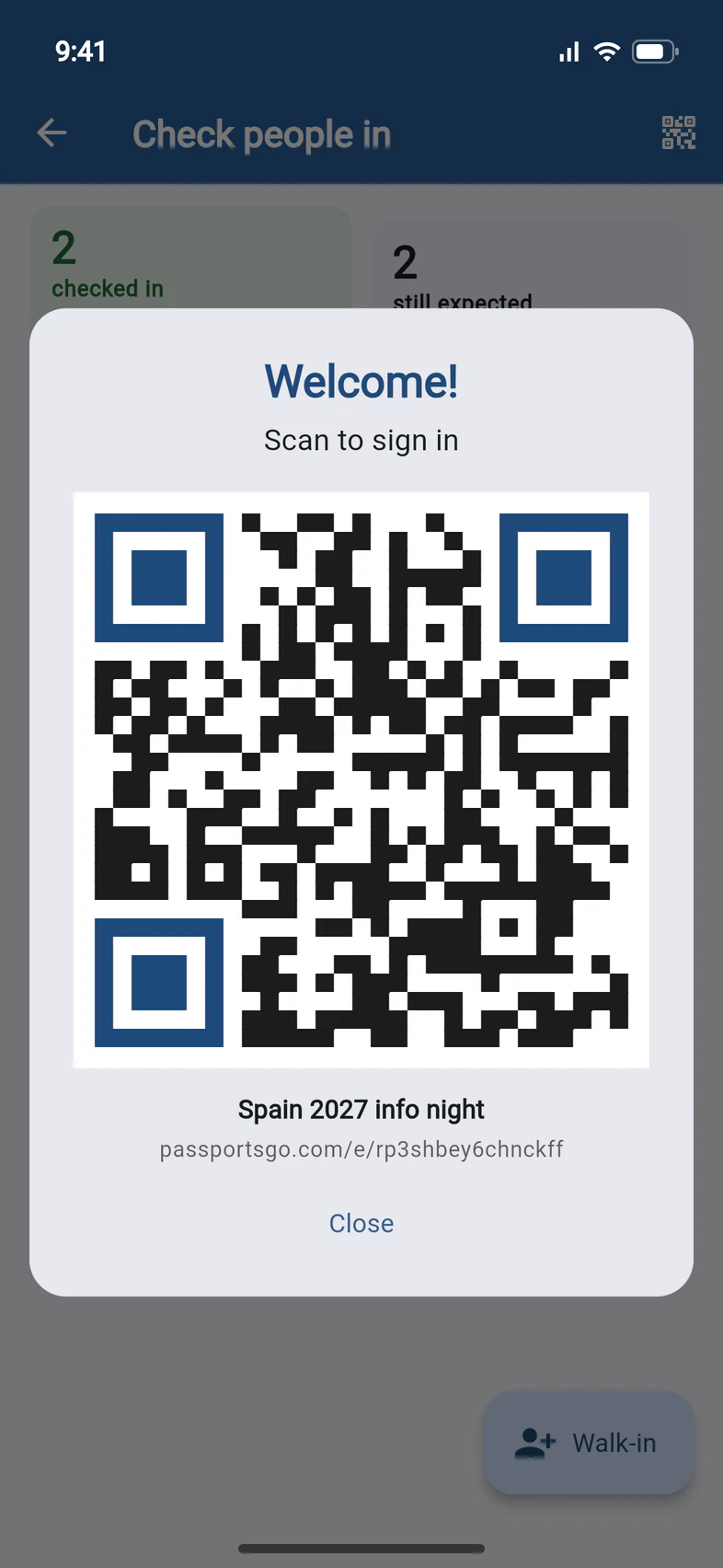
On a meeting that anyone can answer from its link, like an info night, tap the QR code button at the top right of Check people in.
Show the code 1 on a big screen, or hold up your phone. People scan it with their phone's camera and sign in on the meeting's page on passportsgo.com, at the address under the code 2: their name, an email or mobile number, and how many of them are there. No app and no account needed. Everyone who signs in is checked in.
The QR code button is only there when the meeting was planned with Anyone with the link can answer turned on. Parent meetings never have it: check families in from the list.
- Step 5
See who came
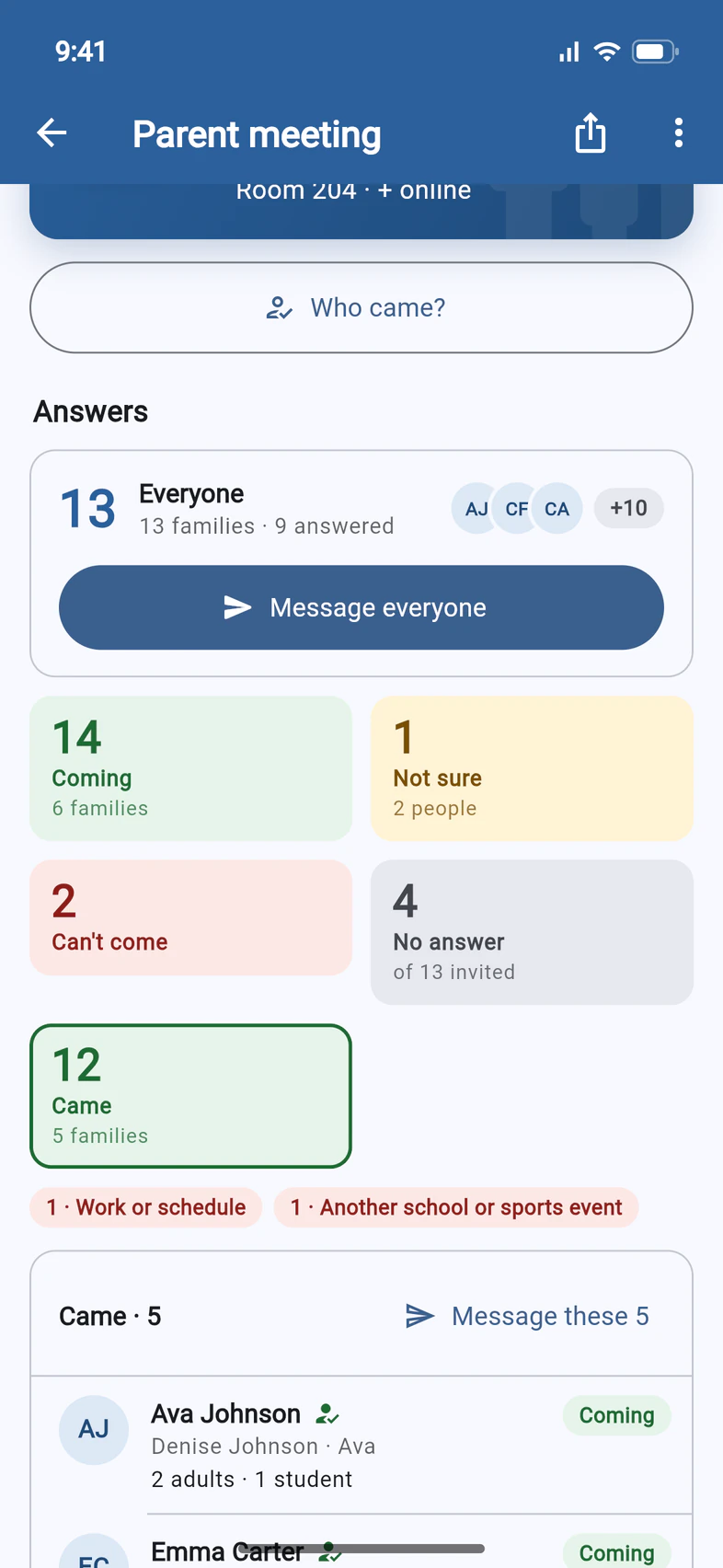
Back on the meeting's page, the Came tile 1 counts the people you checked in, and how many families they were. The list below it shows who came, each with a check mark.
Missed someone at the door? After the meeting, Who came? 2 opens the check-in list again, so you can fix it.
- Step 6
Send the follow-ups
Under Follow up:
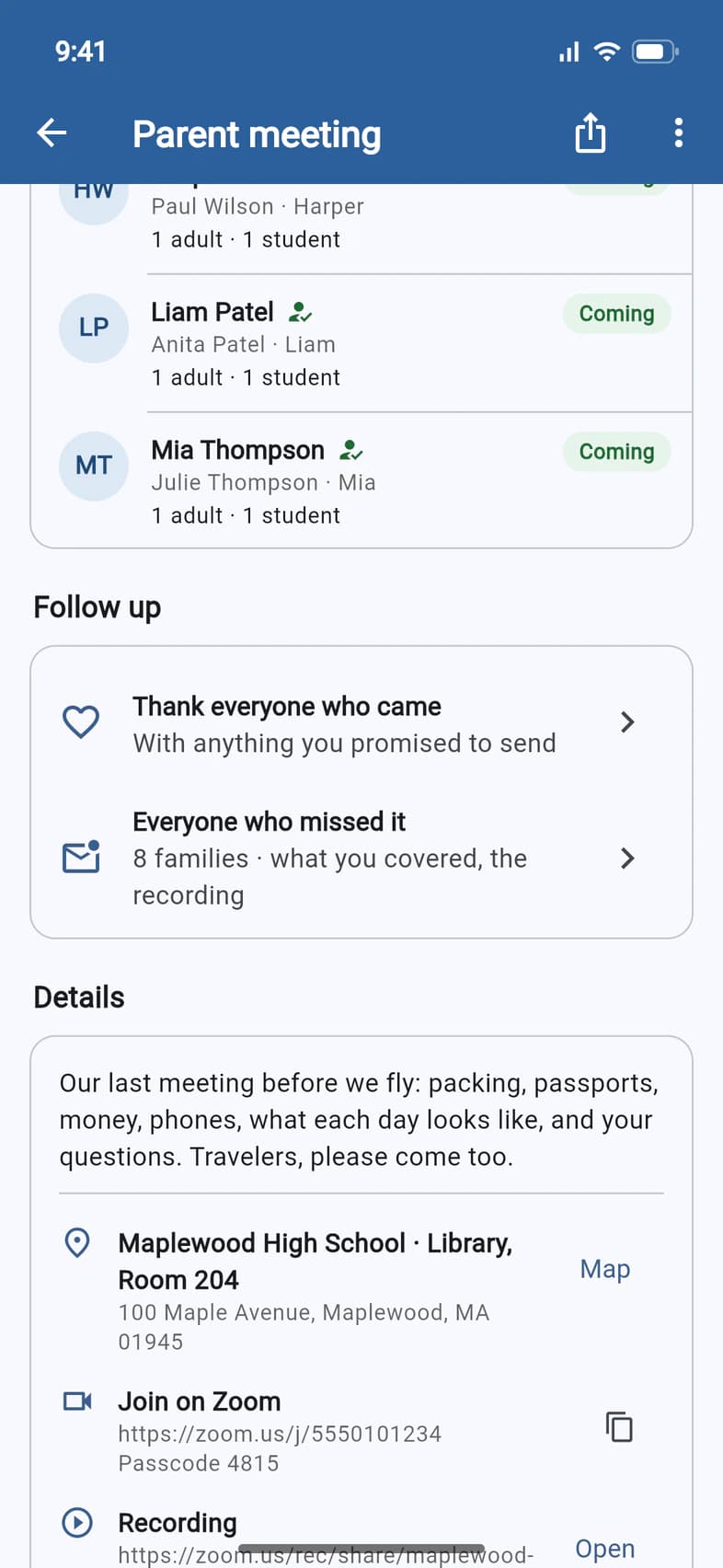
- Thank everyone who came 1 writes to everyone you checked in.
- Everyone who missed it 2 writes to everyone invited who didn't come.
Each one opens with a message ready to go, with the recording's link once you've added it. Change the words, send yourself a test, then send it.
- Step 7
Add the recording
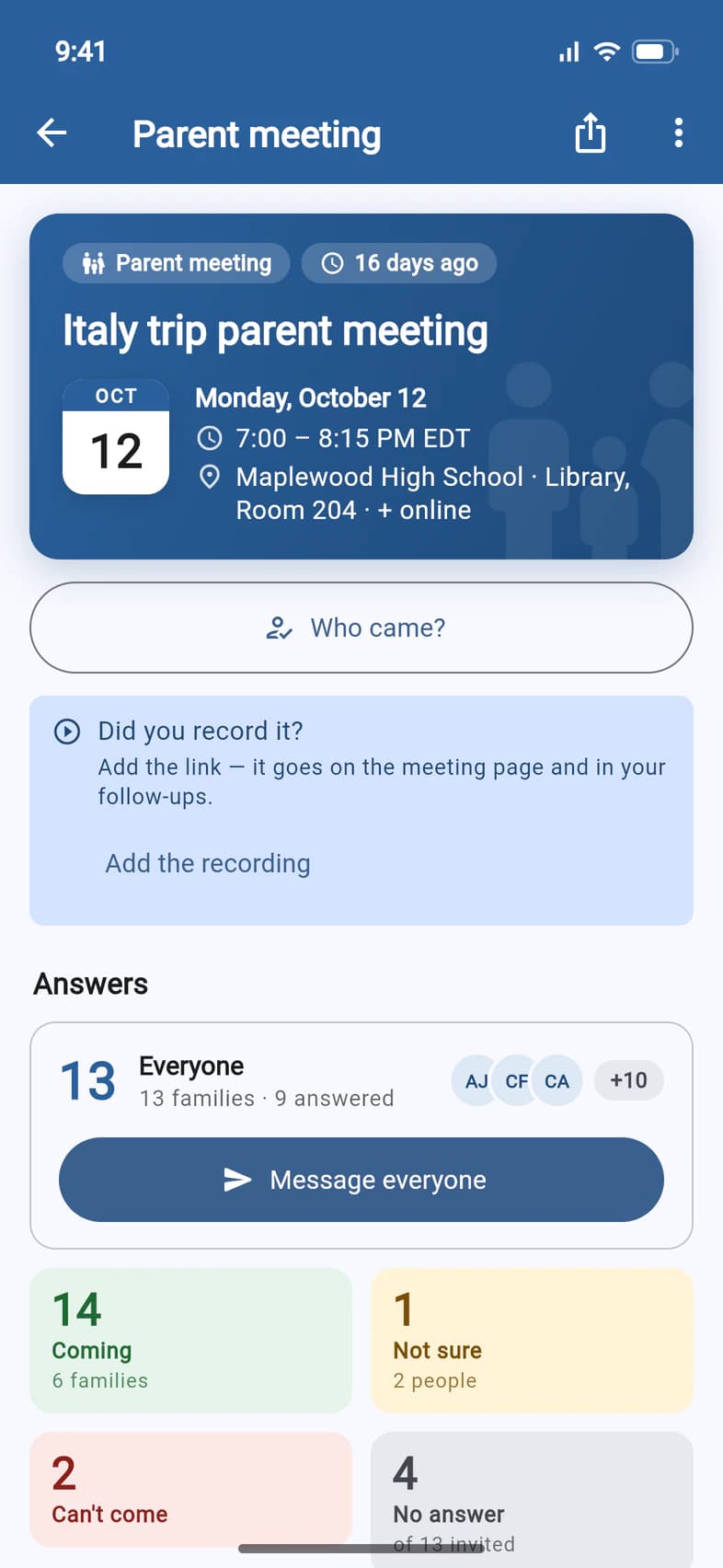
Recorded the meeting? After it, the page asks Did you record it? 1 until you add the video.
Tap Add the recording 2 (it's also in the ⋮ menu at the top right), paste the link and tap Save. The link must start with https://. It goes on the meeting's page and into your follow-ups.
Good to know
When does check-in open?
An hour before the meeting starts, and it stays open until an hour after it ends. After that, Who came? on the meeting's page still lets you fix the list for as long as the page is up: 30 days after the meeting, unless you chose otherwise when you planned it.
What do people see when they scan the QR code?
The meeting's own web page, which turns into a “Welcome — sign in” form while the meeting is on: their name, an email or mobile number (one is enough) and how many of them are there. Someone from a family on the trip is checked in with that family; anyone new joins your interest list.
Can my chaperones check people in?
Yes. Chaperones you've made an admin see Meetings under Admin, and can check people in and add walk-ins on their own phones. Only you can plan the meeting and send messages.
Who can watch the recording?
Everyone who was invited, from their own link, and families see it on the meeting in PassportsGo too. On a meeting anyone can answer from its link, anyone with that link can watch it, so use a passcode-protected link if the video shows families.
Does checking in send anything?
No. Nobody gets a message when you check them in or when they sign themselves in. Your follow-ups after the meeting are the only messages.
Screens show a sample family and tour — your names, dates and amounts will differ. Checked against the app October 23, 2026.
Call us. A real person in Worcester picks up.
Monday to Friday, 8am to 4pm Eastern — and around the clock once your group is on tour. Or email passportsgo@passports.com.