
See what families see
Their own RSVP page in the browser, answering in a few taps, the RSVP tile in PassportsGo, the meeting's open link, the sign-in at the door, and a canceled meeting.
When you send meeting invitations, each family gets its own link: by email, by text if you turned texts on, and as a notification in PassportsGo. The link opens a page in their browser where they answer in a few taps, with nothing to sign in to and no app needed.
Here is what they see, from the invitation to the night itself, so you know what you're sending.
- Step 1
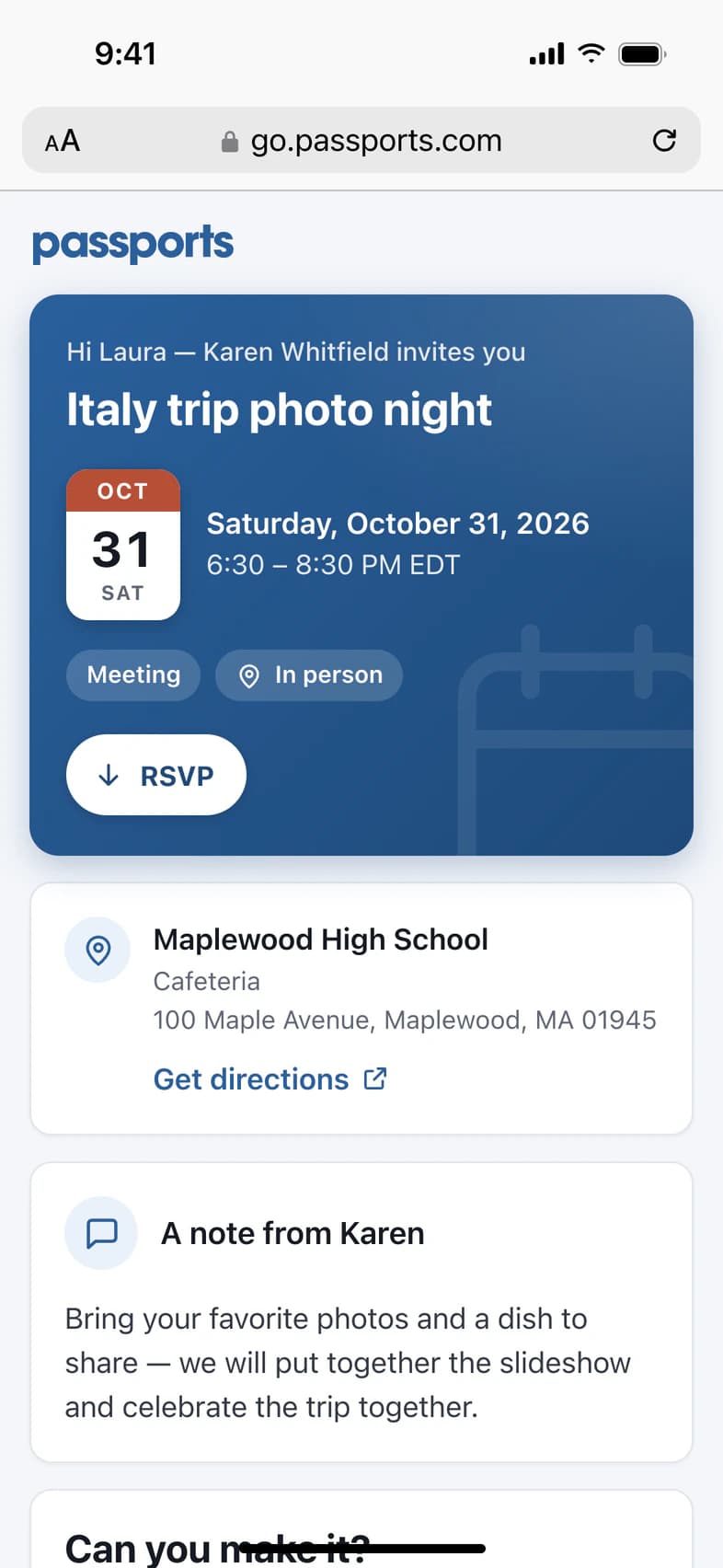
Their own RSVP page
The email comes from Passports Travel, with your name in it. If they reply, it goes to you. Its RSVP button opens the family's own page, and a text carries the same link.
The page greets them by name 1 and shows when and where 2. RSVP 3 jumps down to the answers. Below it are the address with Get directions, and your note.
The page is theirs alone. It says This link is just for you — please don't forward it., because whoever opens it answers for that family. For people you didn't invite, share the meeting's own link (step 6).
- Step 2
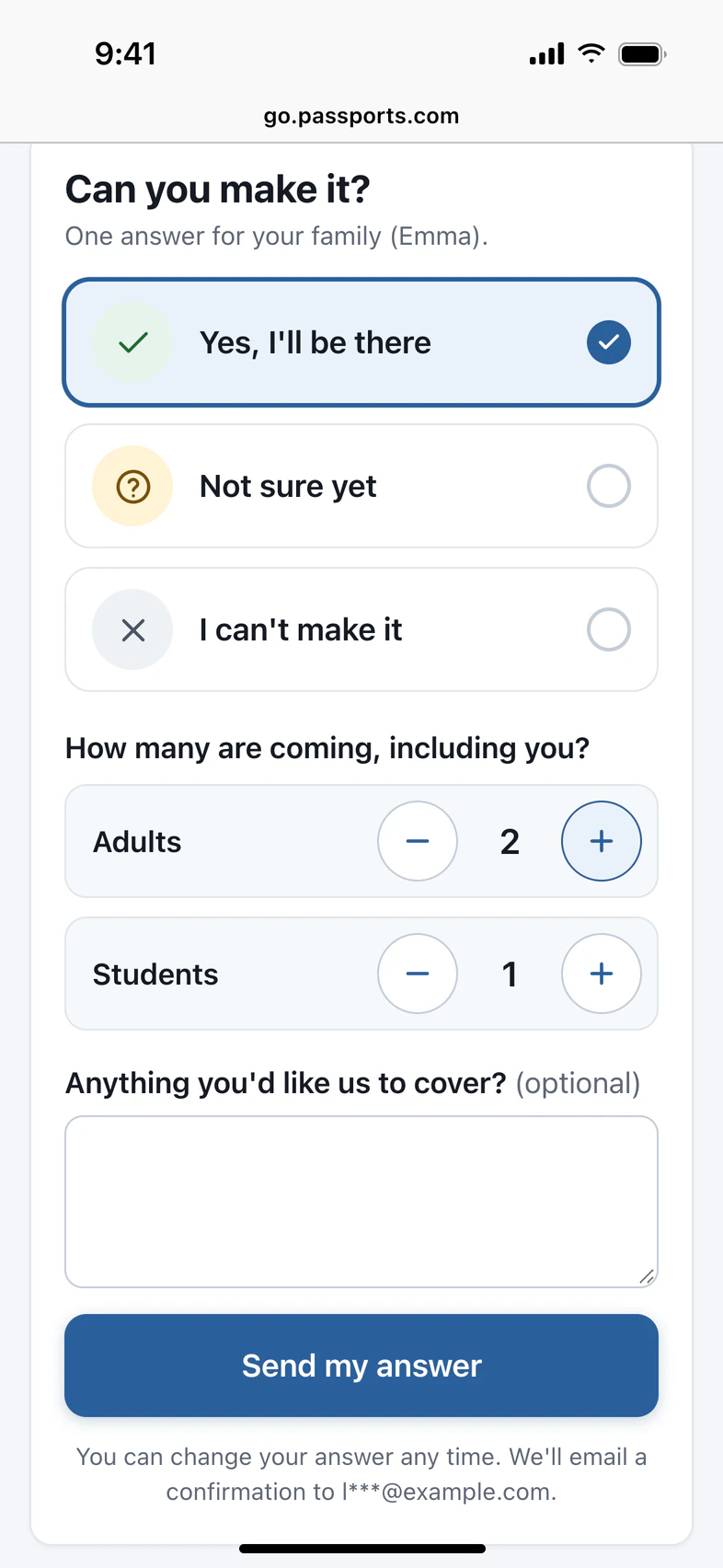
How they answer
They pick Yes, I'll be there, Not sure yet or I can't make it 1. It's one answer for the whole family, and the page names the travelers it covers. Coming? They set how many Adults and Students 2. Can't come? They can tell you why.
Send my answer 3 saves it, and the line under it tells them a confirmation email is on its way.
- Step 3
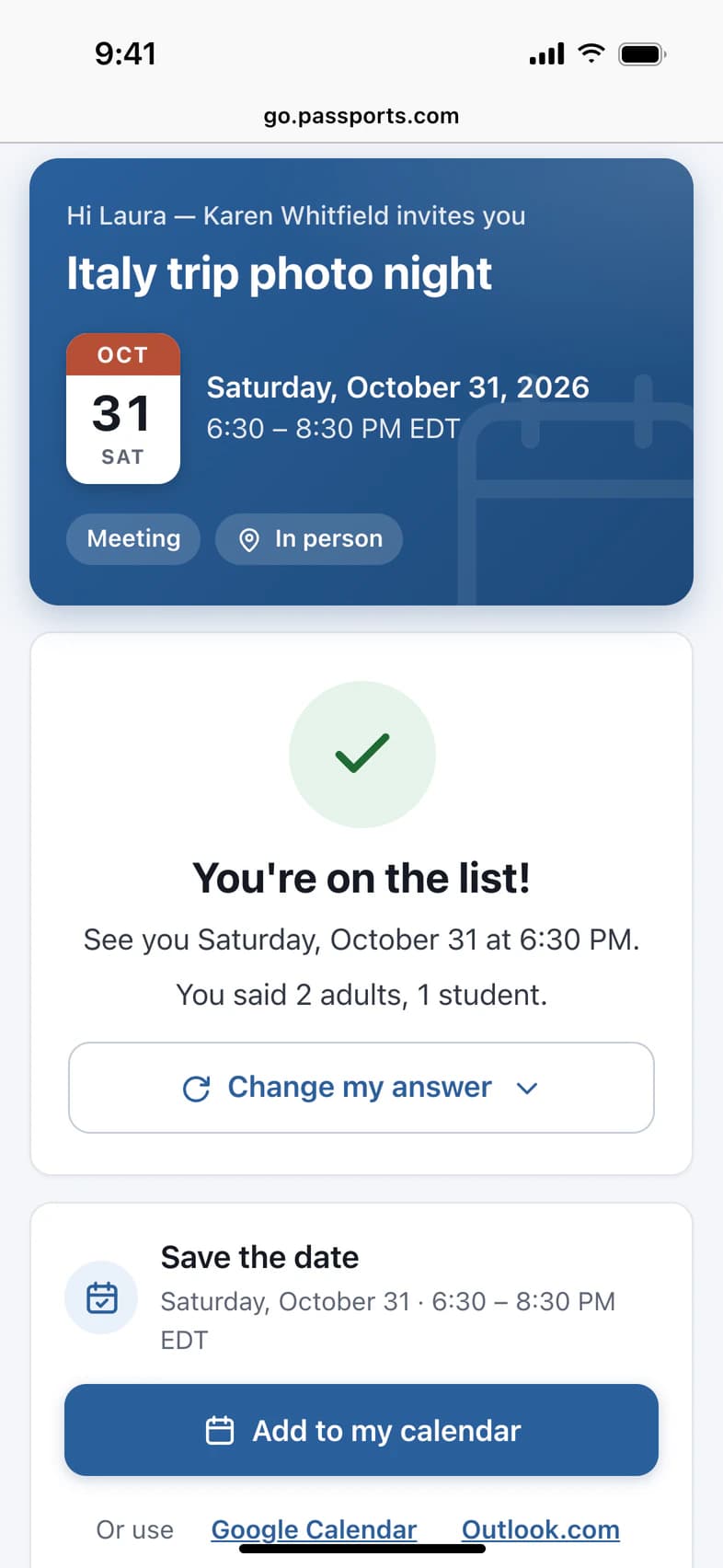
After they answer
The page says You're on the list! 1, repeating what they told you. A confirmation email follows, with a calendar file attached when they're coming or not sure.
Change my answer 2 opens the answers again, any time before the meeting. Add to my calendar 3 puts the meeting on their phone: an iPhone gets a calendar file, and Android opens Google Calendar. Their link keeps working: next time it shows You're going and how many.
- Step 4
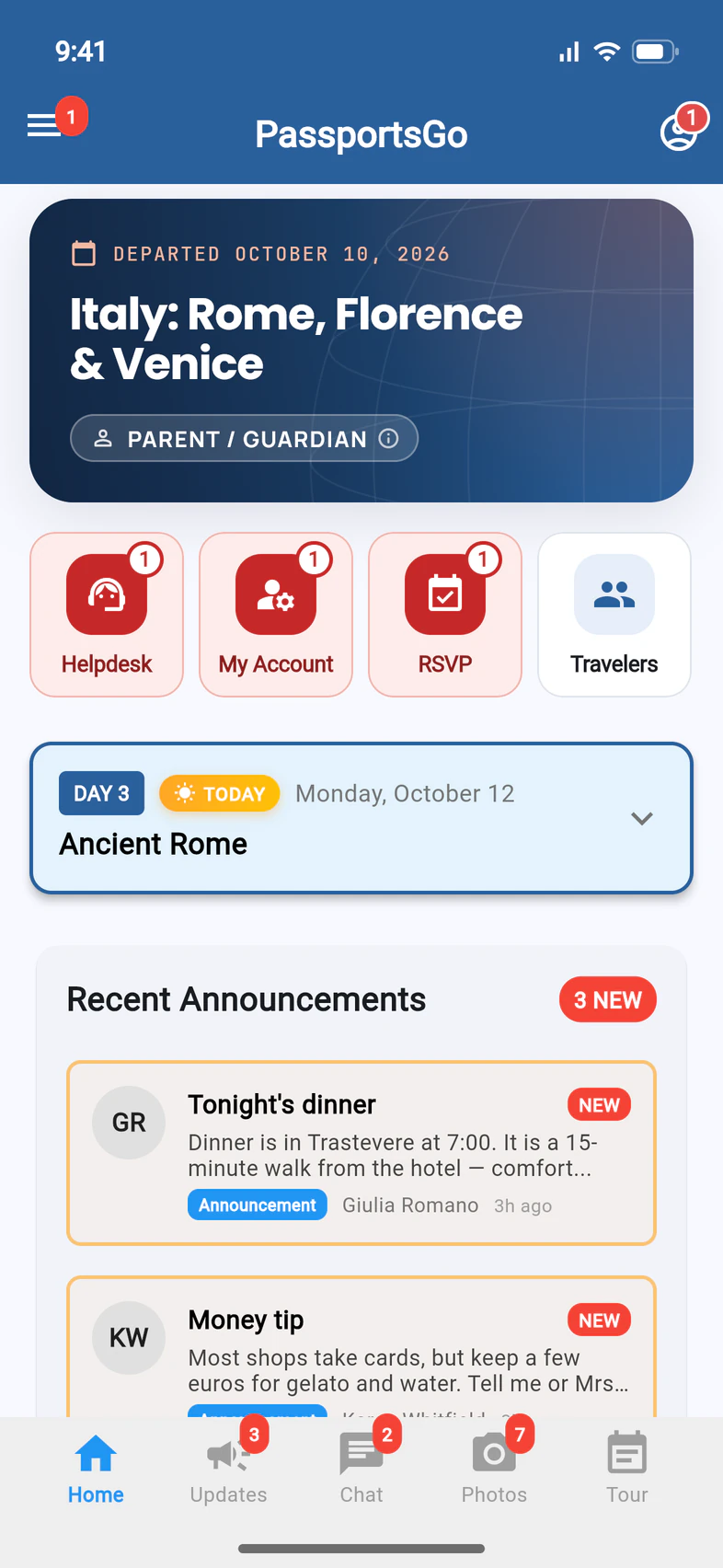
In the PassportsGo app
Families on the trip who use PassportsGo also get a notification, You're invited. Until they answer, a red RSVP tile 1 sits on their Home.
With Post it on Updates on, the meeting is on their Updates tab too.
- Step 5
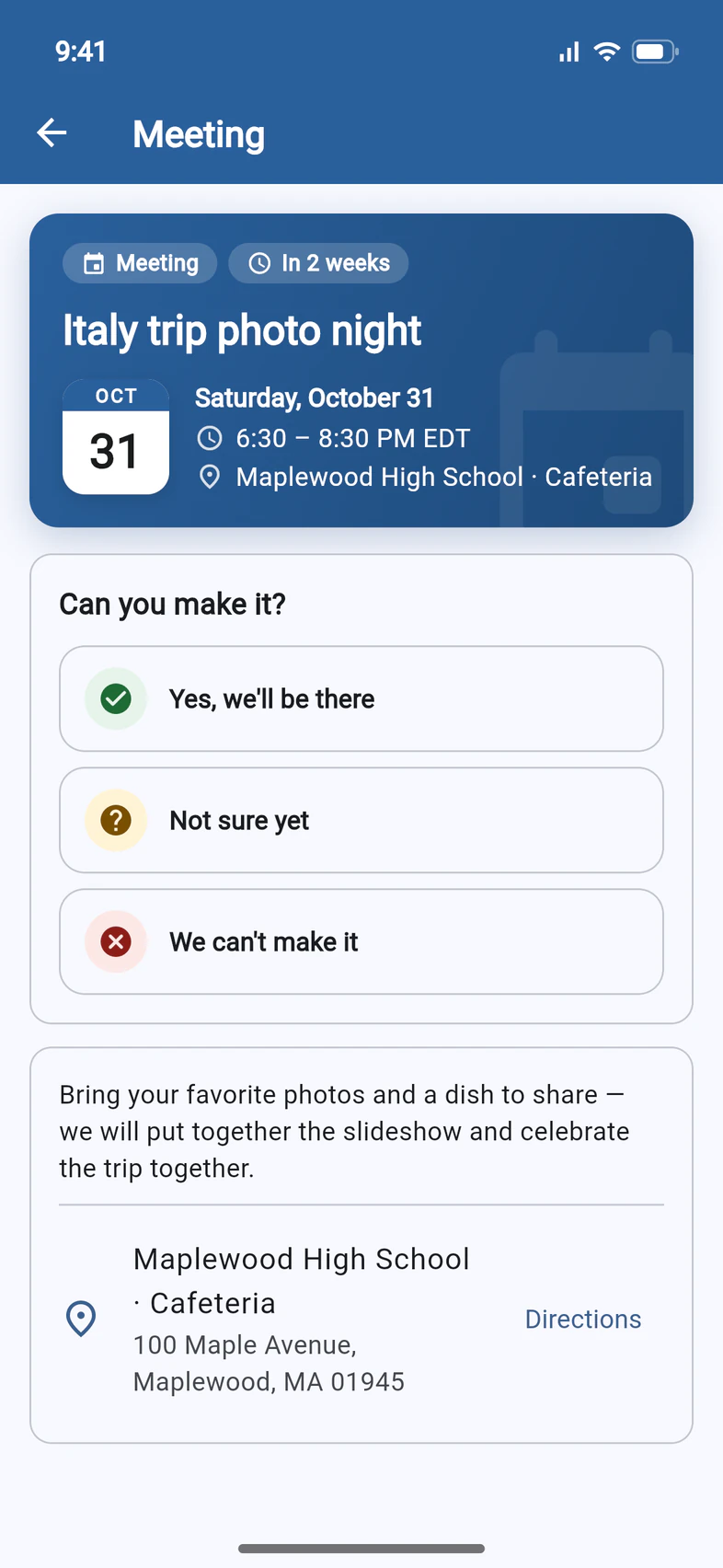
The meeting in the app
The tile opens the meeting: when and where 1, then Yes, we'll be there 2, Not sure yet 3 and We can't make it 4. Your note and Directions are below.
It's the same answer as on the page: whichever a family uses, you see one answer.
Families ask how to answer? Send them Answer a meeting invitation, their own guide.
- Step 6
Anyone with the link
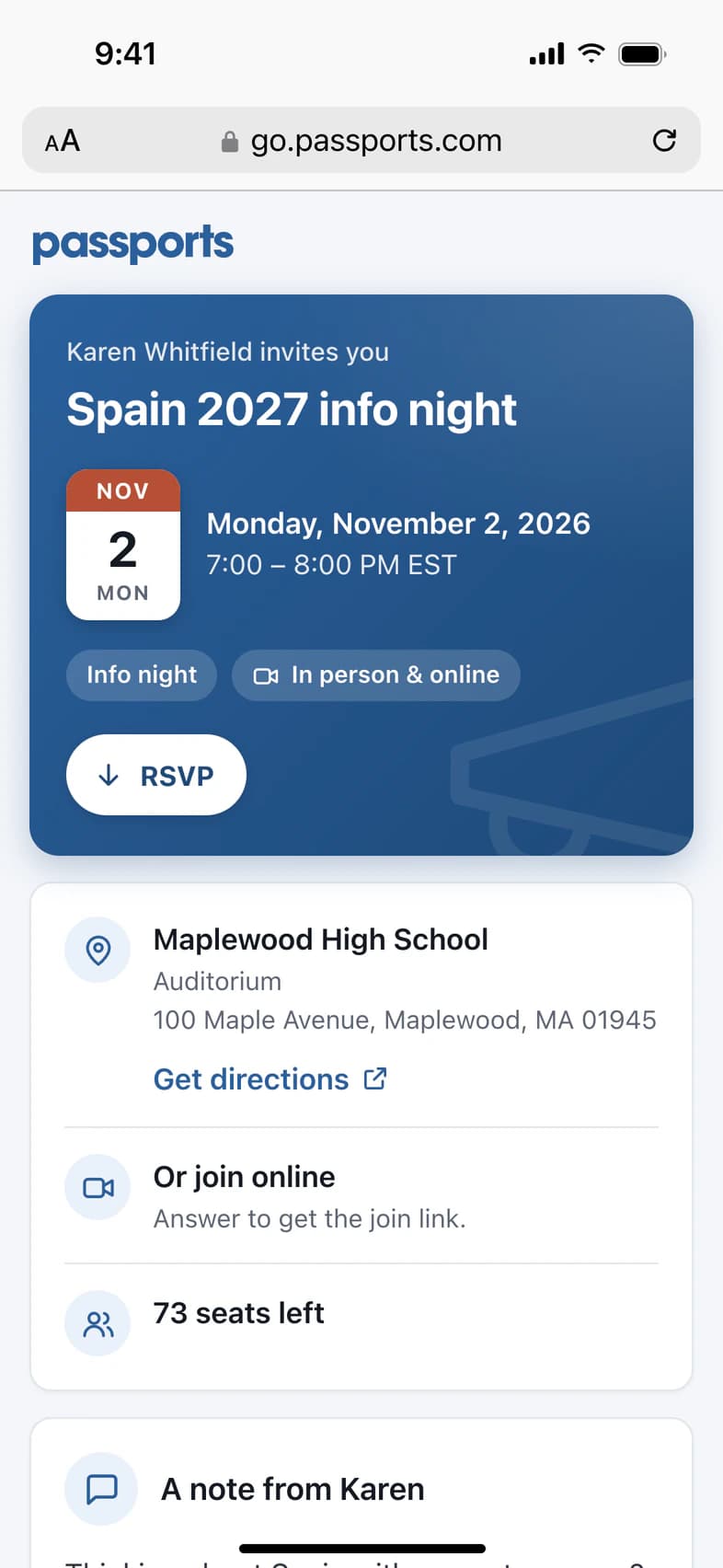
With Anyone with the link can answer on, the meeting also has its own link. It's the one you share, print on the flyer or put in the QR code. It's the page for everyone you didn't invite, whether or not they have PassportsGo, and it needs no sign-in. It looks like a family's page, but the greeting names no one 1.
For an online meeting, the join link appears once they answer 2. If you set a number of seats, they see how many are left 3. They answer the same way from RSVP, and About you then asks for their name and an email for the confirmation, plus a mobile number and the student's name if they like.
A family already on your trip is matched by their email or mobile number, so their answer lands on their own row. Anyone else also joins your interest list. The page tells them their answer and details go to you and Passports.
- Step 7
At the door
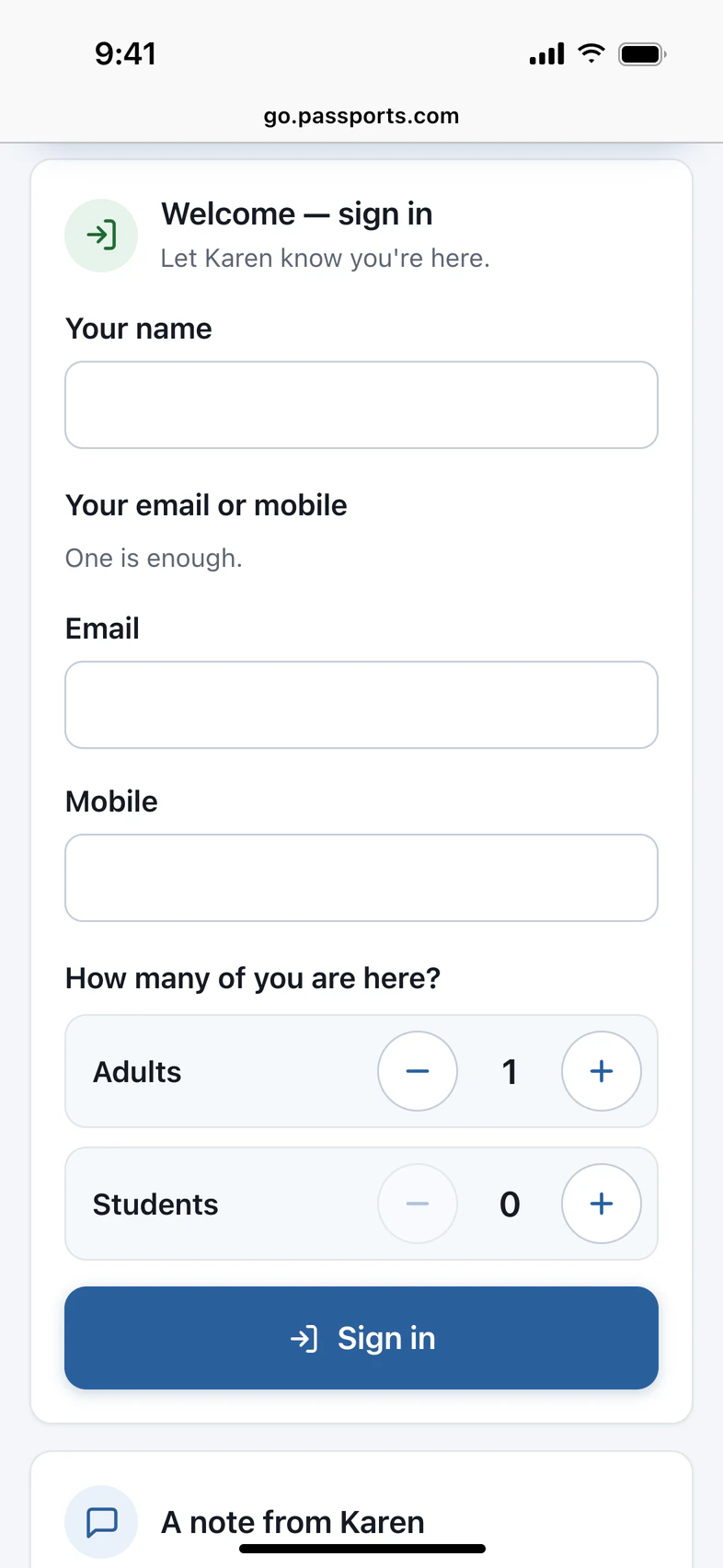
From an hour before the start until an hour after the end, the meeting's link turns into a sign-in page. It's what the QR code on your check-in screen opens.
People see Welcome — sign in 1. They enter their name, an email or mobile number (one is enough) and how many of them are there. Sign in 2 checks them in on your list.
- Step 8
If you cancel
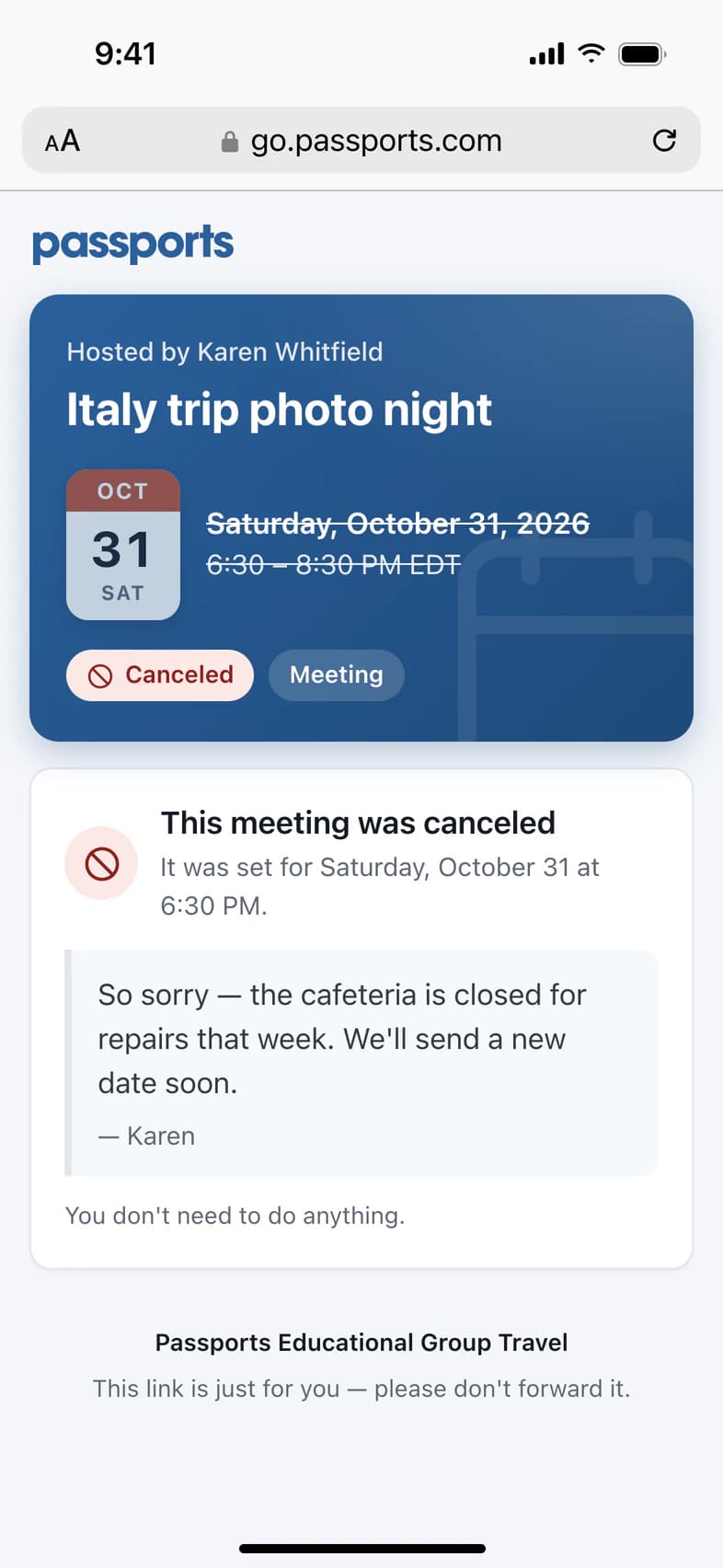
Everyone invited gets a message, and every link to the meeting now shows This meeting was canceled 1 with your note 2. There's nothing to fill in: the page tells them they don't need to do anything.
Change the time or place instead, and they get a message about it. Their page then shows the new details, and their answers are kept.
Good to know
Do families need PassportsGo or a password?
No. The link in the email or text opens their page in any browser, with nothing to sign in to. Families on the trip who use PassportsGo can answer in the app instead. Either way, it's the same answer.
What do the email and text say?
The email's subject is "You're invited:" with the meeting's name and day. It comes from Passports Travel with your name in it and has an RSVP button, and replies go to you. The text reads "Passports: Karen Whitfield invites you to…" with the day, time and place, and their link. People on your interest list also get "Reply STOP to opt out". To see them for yourself, tap Send me a test before you send. A test answer never counts.
Can families see who else is coming?
No. Each family sees only its own answer. If you set a number of seats, the meeting's link shows how many are left.
Where do online guests find the join link?
Once they answer Yes, I'll be there or Not sure yet, their page shows the join button. The link is also in their confirmation and reminders. Until then, the page says to answer to get the join link.
What reminders do they get?
With Automatic reminders on, they go out at noon three days before and at noon the day before, to everyone who said yes, isn't sure or hasn't answered. Families who said yes get one more 2 hours before the start. They come by email, text or app notification, and never to anyone who can't make it.
What do they see after the meeting?
Their link keeps working for a while: 30 days, unless you pick another length under Keep the page up after the meeting in More options. Add the recording, and a Watch the recording link appears for the families you invited. It also appears for anyone with the link, when the meeting was open to them.
Screens show a sample family and tour — your names, dates and amounts will differ. Checked against the app September 28, 2026.
Call us. A real person in Worcester picks up.
Monday to Friday, 8am to 4pm Eastern — and around the clock once your group is on tour. Or email passportsgo@passports.com.