
Review and remove photos
Turn on photo review, approve or reject what travelers post, and delete a photo.
Want to see travelers' photos before the whole group does? Turn on photo review, then approve or reject each one. You can also delete any photo.
- Step 1
Turn on photo review
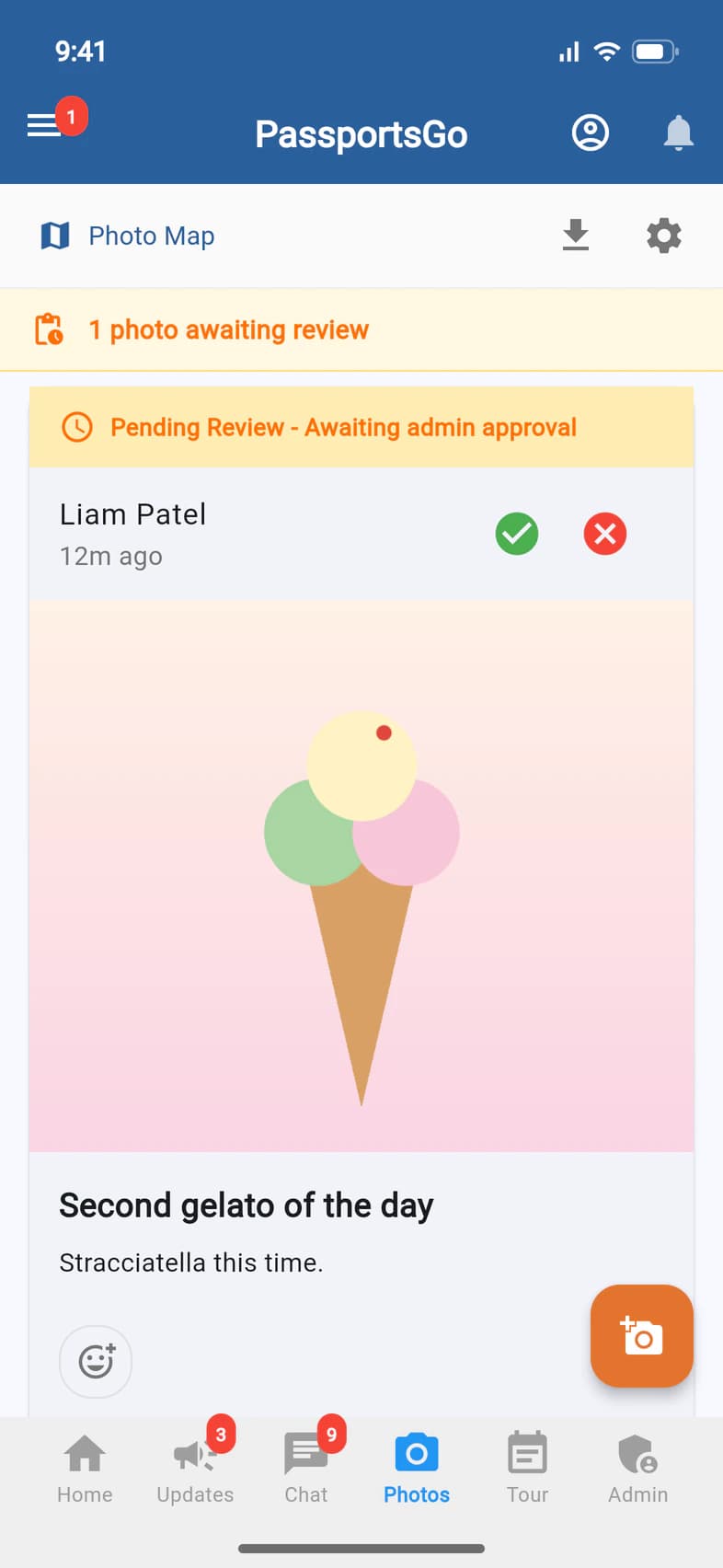
On Photos, tap the gear at the top 1. Under Photo Feed, turn on Require Photo Review. From then on, new photos wait for an admin to approve them. Enable Photo Comments is there too.
- Step 2
Approve or reject
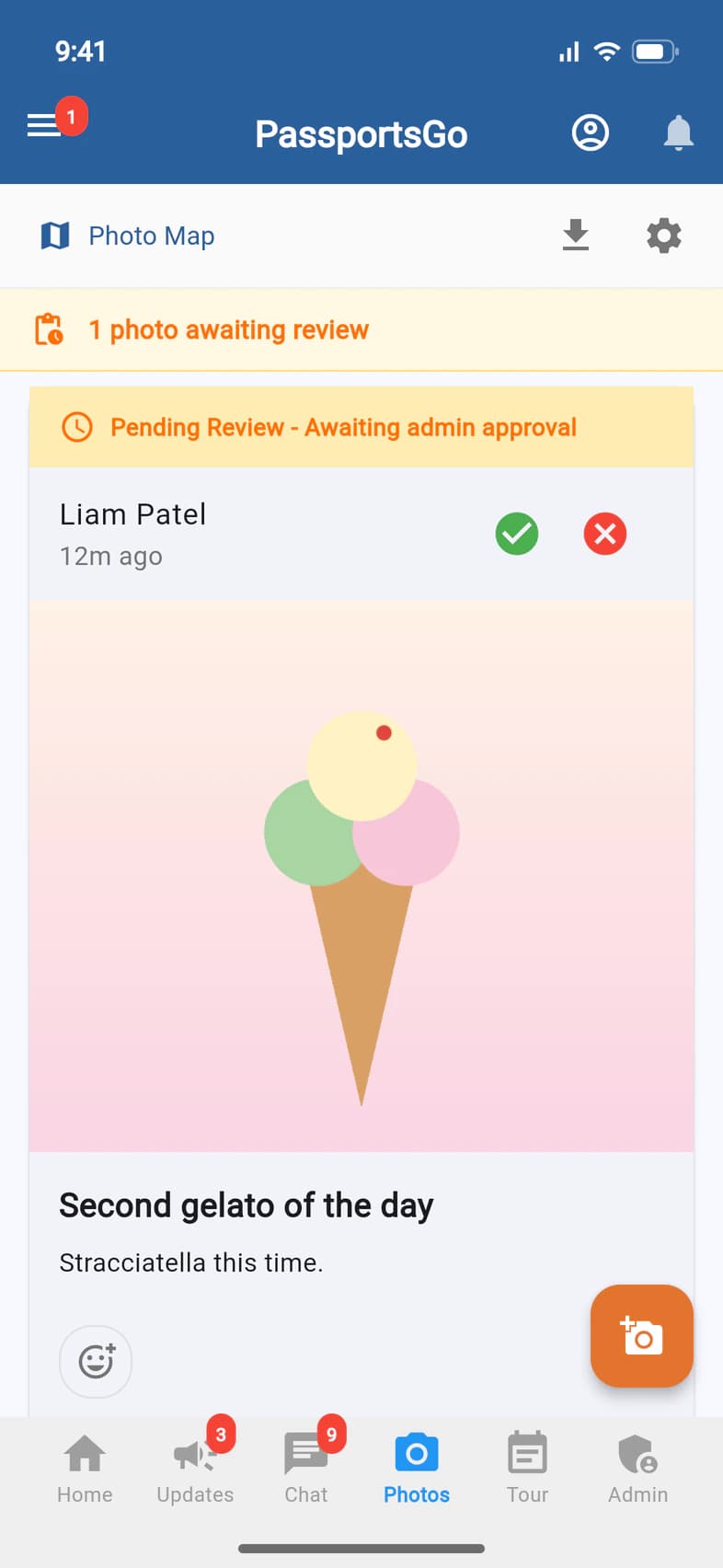
When photos are waiting, Photos says how many 1. Each waiting photo is marked Pending Review: tap the check 2 to approve it, or the cross 3 to reject it.
Until you approve it, a photo shows only to you, your admins and the person who posted it. Travelers, parents and visitors see it on Photos, on Home and on the Photo Map once it's approved. On your Home, Recent Photos marks a waiting photo PENDING.
- Step 3
Delete a photo
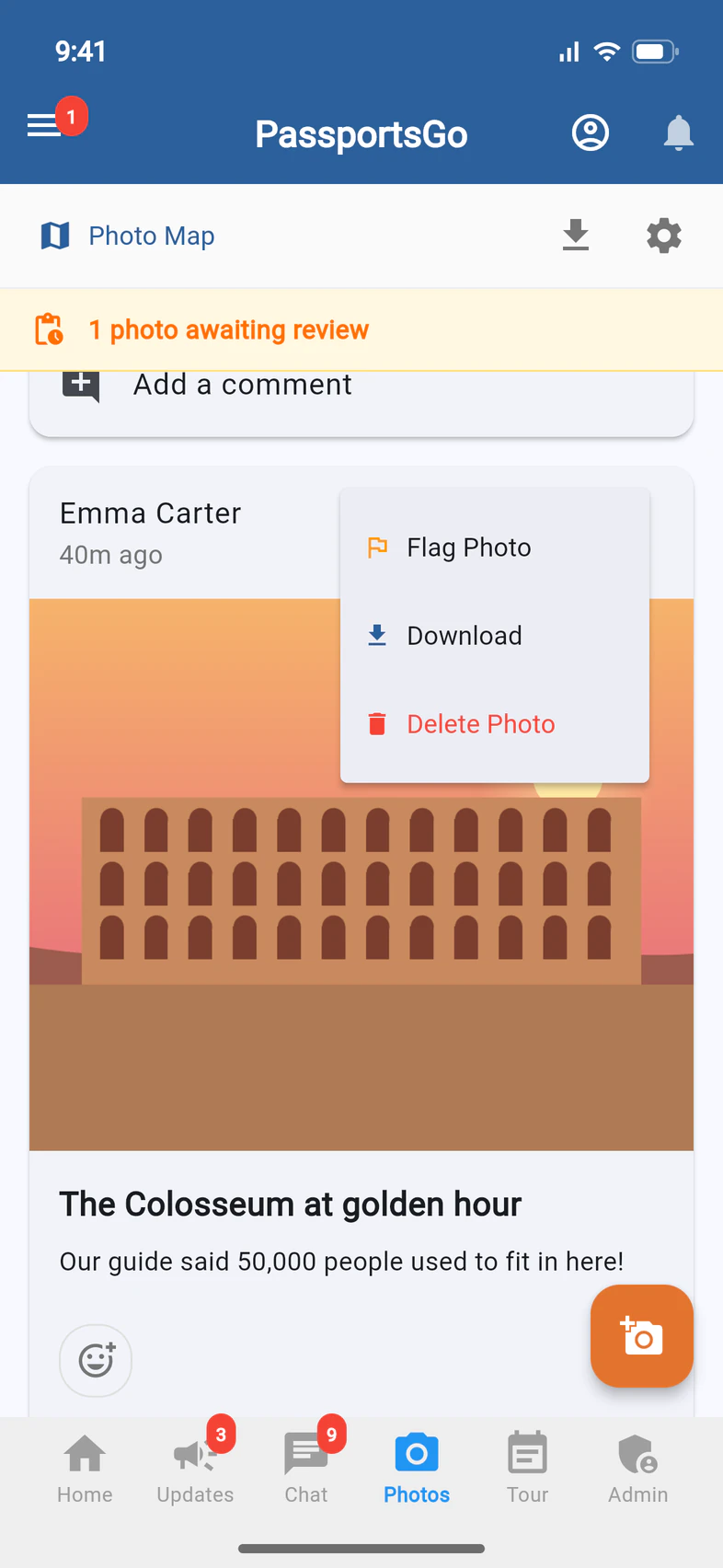
Tap ⋮ on any photo and Delete Photo 1.
Good to know
Who can approve photos?
You and your admins, like chaperones with Admin Functions.
Do my own photos wait for approval?
No. Photos from you and your admins post right away. Review applies to everyone else's.
Someone flagged a photo.
Flagged photos are sent to the group leaders. Open the photo and delete it if it shouldn't be there.
Screens show a sample family and tour — your names, dates and amounts will differ. Checked against the app September 28, 2026.
Call us. A real person in Worcester picks up.
Monday to Friday, 8am to 4pm Eastern — and around the clock once your group is on tour. Or email passportsgo@passports.com.