
See who's coming and send reminders
A meeting's answers at a glance, reminders to anyone who hasn't answered, and more people to invite.
Every meeting you plan has its own page in PassportsGo, with the answers as they come in: who's coming and how many, who isn't sure, who can't make it, and who hasn't answered yet.
From there you can call, text or email one family, remind everyone who hasn't answered, message everyone at once, or invite more people. Families answer from their own link, with no sign-in and no app needed.
Before you start
- PassportsGo on your phone, or passportsgo.com in a browser — signed in as the group leader.
- A meeting whose invitations have gone out. To plan one, see Plan an info night or parent meeting.
- Step 1
Open the meeting
Tap Admin at the bottom of the screen, then Meetings under GROUP.
Your next meeting is at the top 1, with its answers so far 2: people coming, not sure, can't come and no answer. Tap a meeting to open its page.

- Step 2
See who's coming
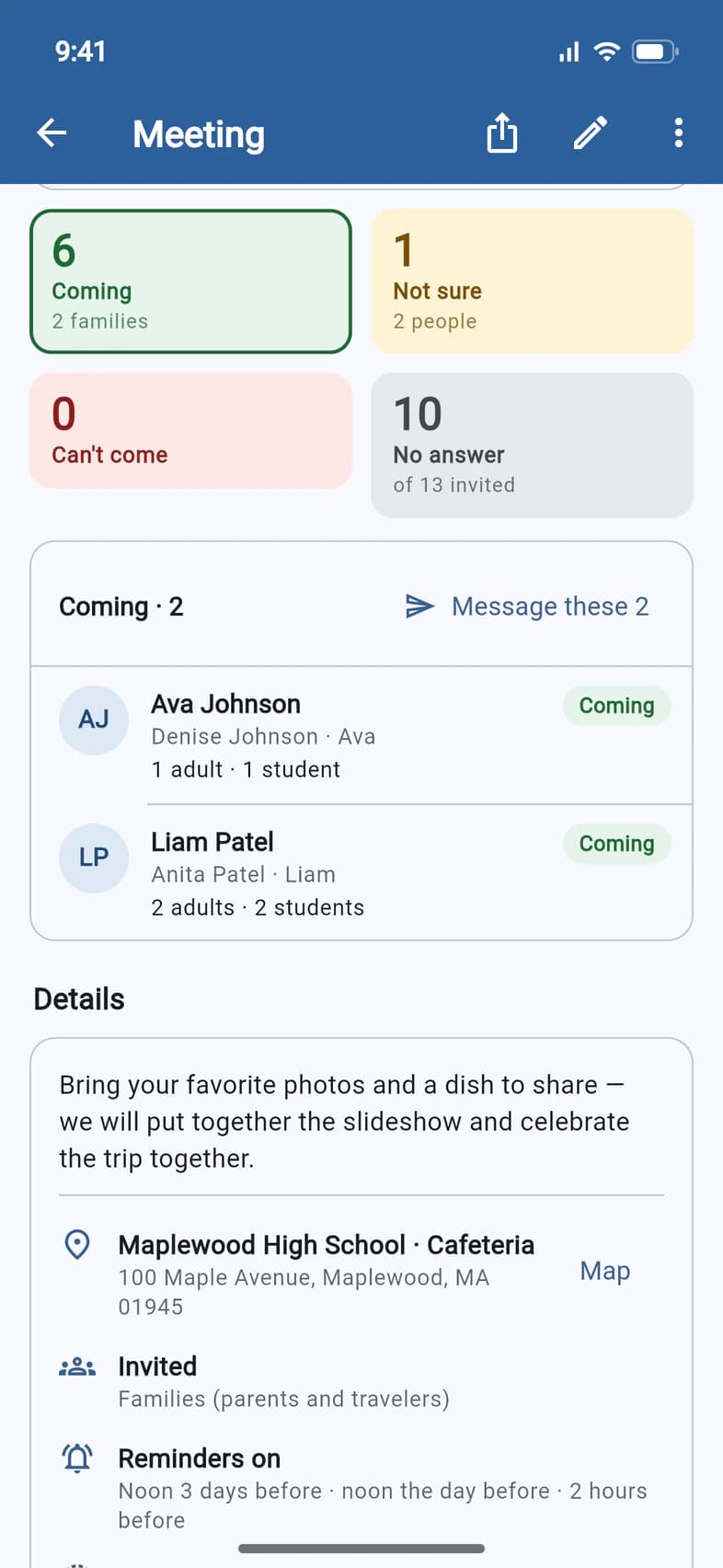
The tiles 1 add up the answers:
- Coming: how many people, with how many families under it.
- Not sure and Can't come: how many families said so.
- No answer: the families who haven't answered yet, out of everyone invited.
Tap a tile to list those families below it 2: who they are, how many adults and students are coming, and any note they left.
New answers show up each time you open the meeting. While it's open, pull the page down, or tap ⋮ at the top right and Refresh.
- Step 3
Contact a family
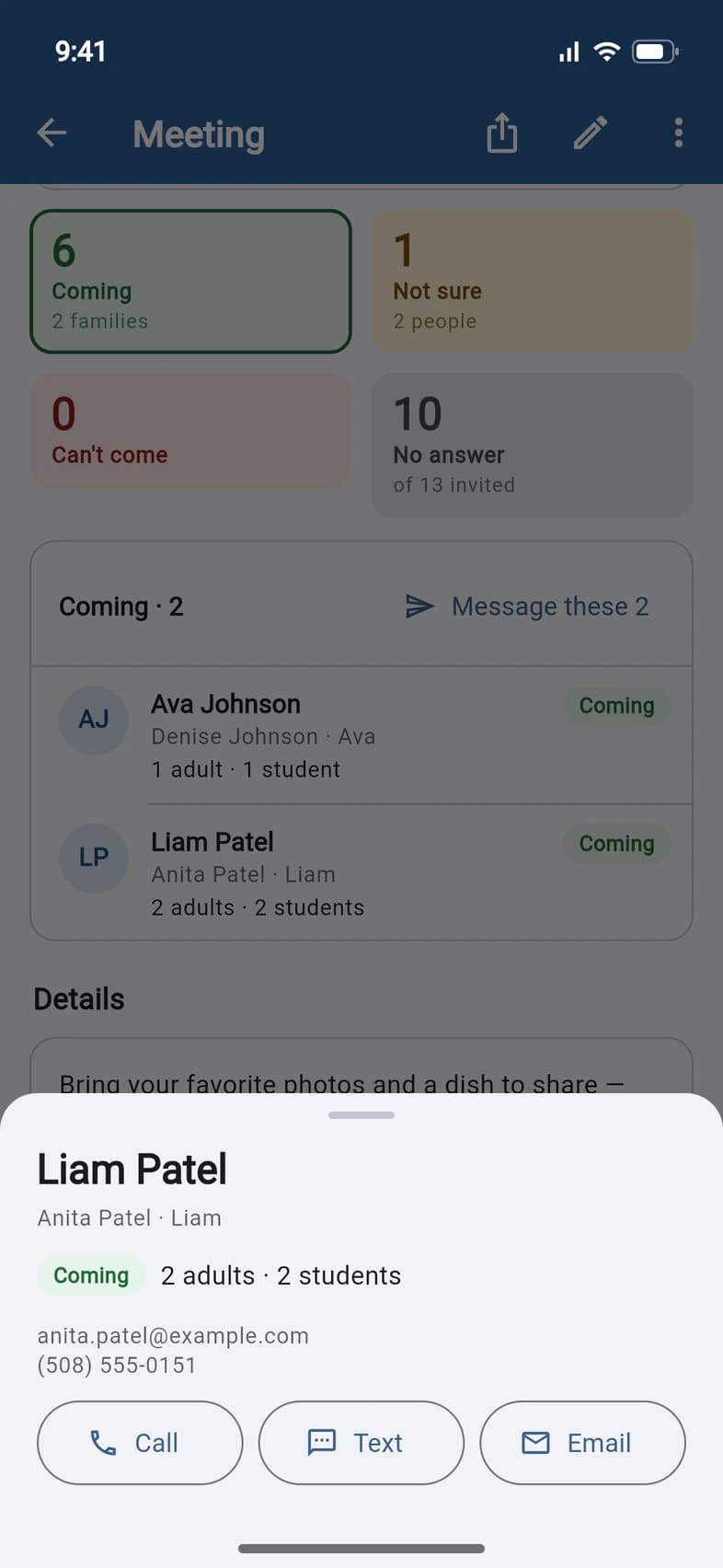
Tap a name to see that family's answer 1, with the email and phone number on file.
Call, Text and Email 2 open your phone's own apps, ready to go. An email already has the meeting's name as its subject.
- Step 4
Remind who hasn't answered
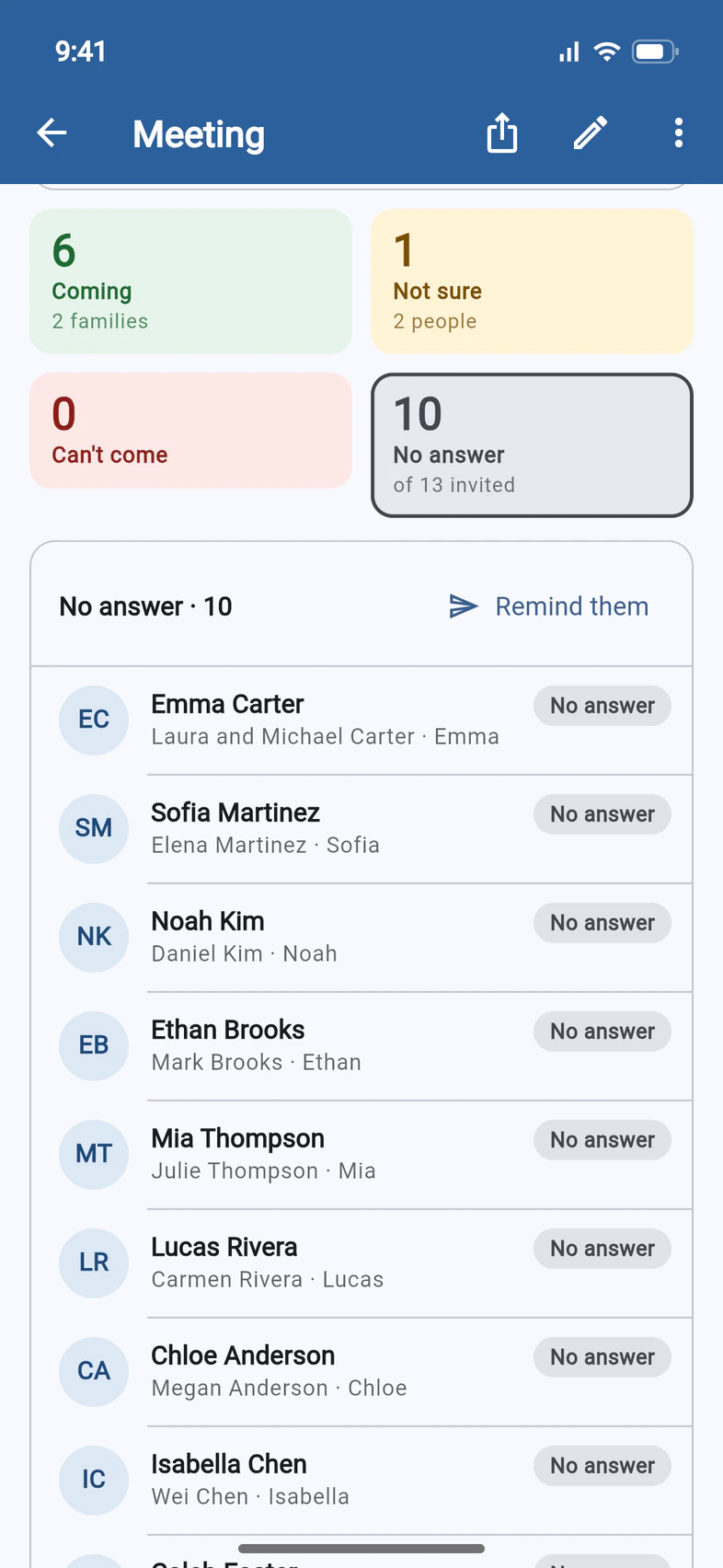
Tap No answer 1 to list the families who haven't answered yet, then tap Remind them 2.
Every list has a button like this: Message these 2 on the Coming list writes to just those families, for example.
You can remind the No answer list once every 24 hours.
- Step 5
Send the reminder
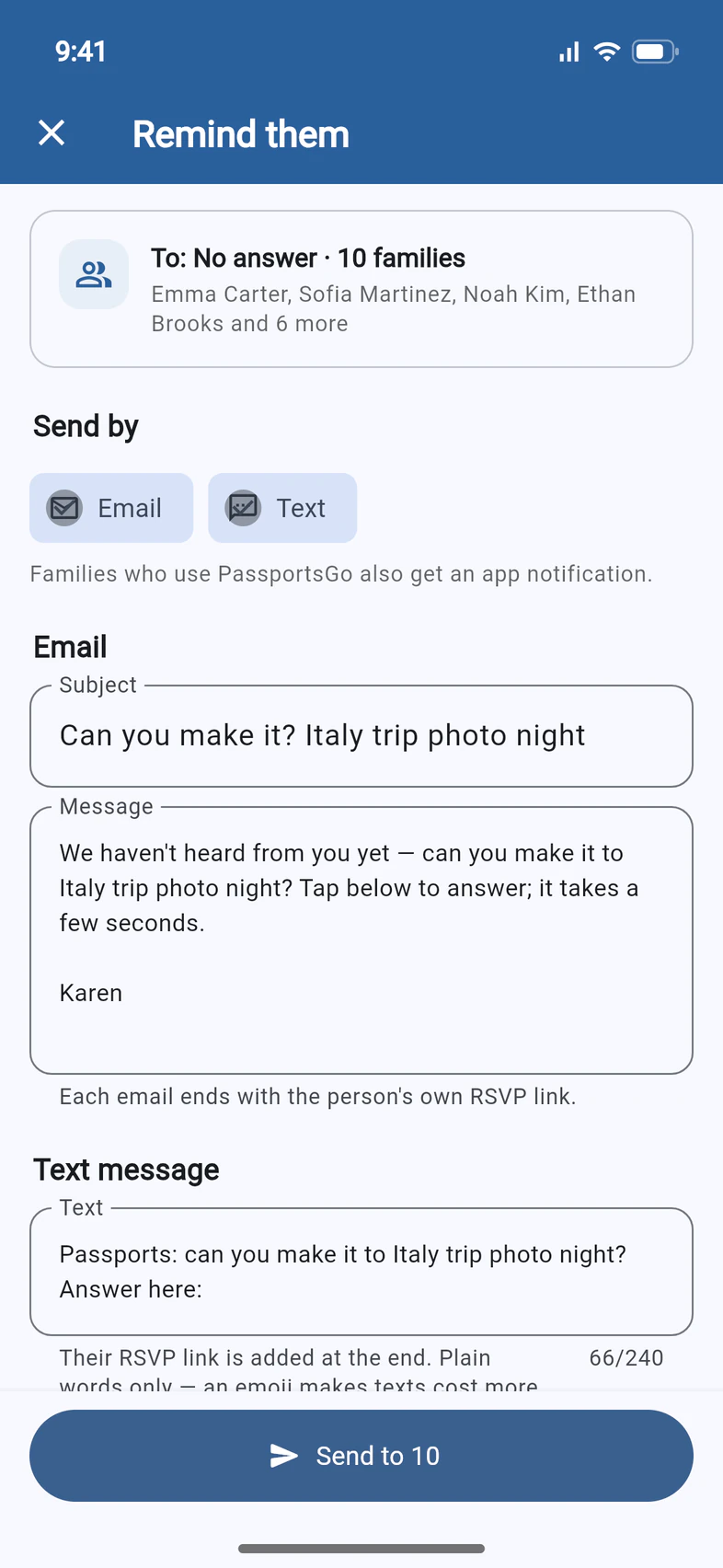
The reminder comes with a message ready to go. To 1 shows who gets it. Under Send by 2, choose Email, Text or both. Families who use PassportsGo also get an app notification.
Change the words if you like: every email and text ends with the family's own RSVP link, so they can answer in a tap. Scroll down for Preview and Send me a test, then tap Send to 10 3.
Everything that has gone out is listed under Sent at the bottom of the meeting's page: the invitations, each automatic reminder and your own messages, with how many emails, texts and app notifications each one sent.
- Step 6
Message everyone, or invite more
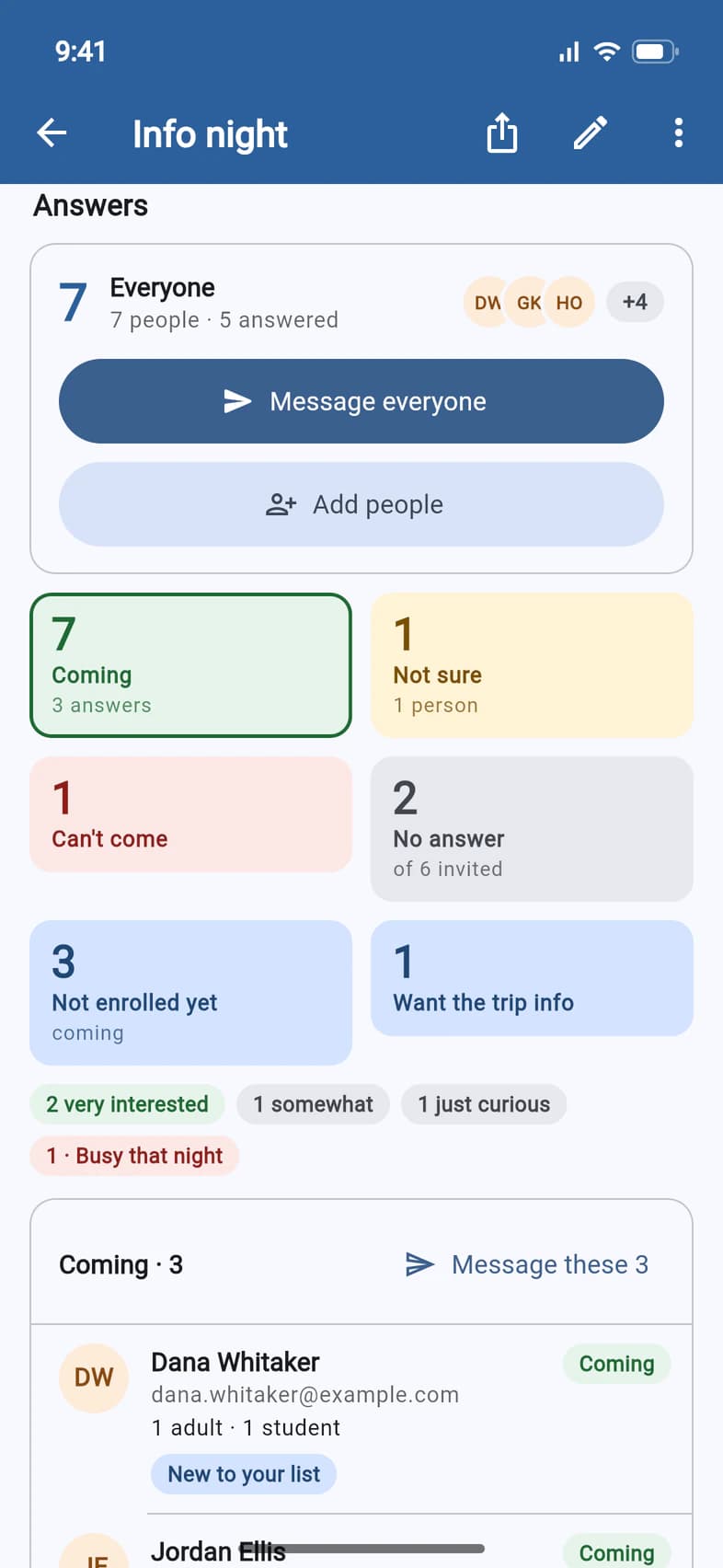
The Answers on a meeting's page start with Everyone 1: everyone on the meeting's list, whatever they answered. Message everyone 2 writes to all of them at once, the same way as a reminder.
Add people 3 invites more people after the invitations have gone out. It's on meetings that invite your interest list, like this info night, and on every meeting while your trip is open for enrollment.
An info night has two more tiles: Not enrolled yet counts the people coming who aren't on the trip yet, and Want the trip info the people who asked for the trip details or a call.
- Step 7
Paste who to invite
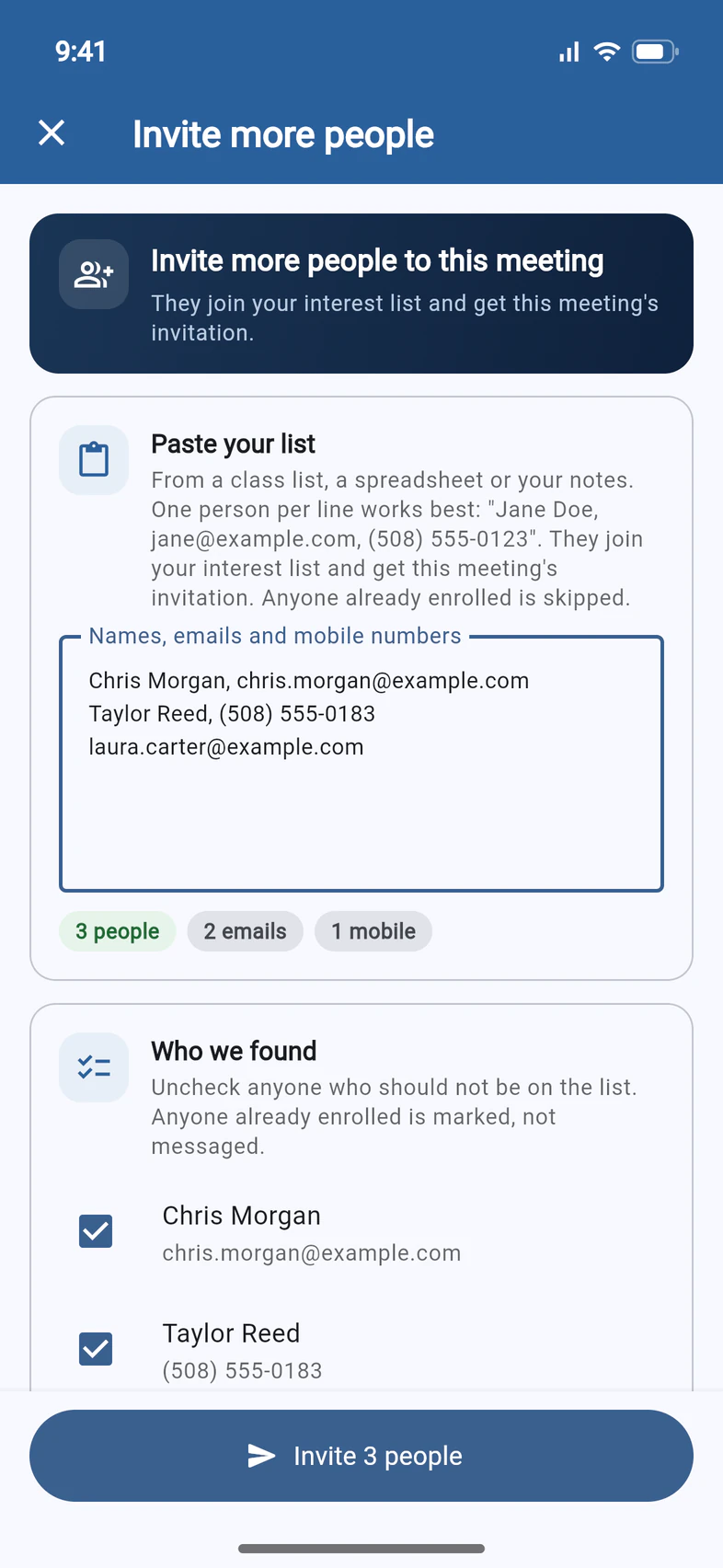
Invite more people opens. The people you add join your interest list and get this meeting's invitation. Paste their names, emails and mobile numbers into the box 1, one person per line: from a class list, a spreadsheet or your notes.
PassportsGo shows Who we found 2; uncheck anyone who shouldn't be invited. Then tap Invite 3 people 3.
It's safe to paste a whole list: anyone already on your trip is skipped, and anyone who said no or opted out stays off it. Everyone new joins your interest list.
- Step 8
See who was invited
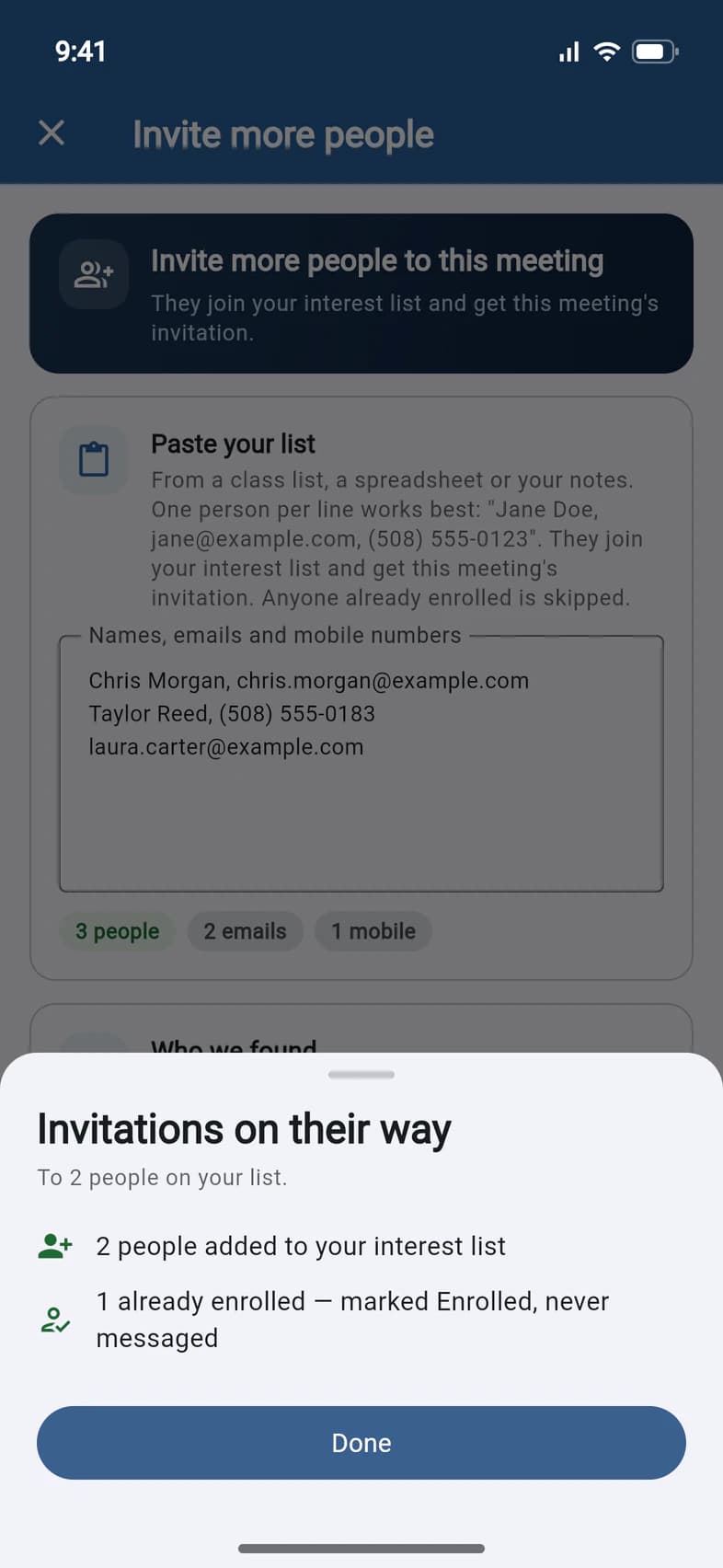
Invitations on their way 1 says how many people were invited. Below it, anyone who was already enrolled 2 is marked Enrolled and never messaged. Tap Done.
The people you added are now on the meeting's Everyone list.
Good to know
Do families need the app to answer?
No. Each family gets its own link by email (and by text, if texts are on for the meeting), and answers without signing in. Families who use PassportsGo can also answer from the red RSVP tile on their Home screen. It's one answer per family: anyone in it can change it. See Answer a meeting invitation.
Do reminders go out on their own?
Yes, unless you turned them off when you planned the meeting: at noon three days before, at noon the day before and two hours before it starts. Nobody who said they can't come gets one. The meeting's Details say whether they're on.
How many people should I plan for?
Once eight or more people have said yes, a line under the tiles suggests a number: “Plan for about …”. Free meetings usually see about 7 in 10 of the yes answers.
I sent a message late at night. When does it arrive?
Emails go right away. Texts go out between 9 AM and 8 PM, and app notifications between 8 AM and 9 PM, in the meeting's time zone. Anything sent later waits until the morning.
Can my chaperones see the answers?
Chaperones you've made an admin see Meetings under Admin too: the answers and the lists. They can also check people in at the door. Only you can plan a meeting, send messages or add people.
Screens show a sample family and tour — your names, dates and amounts will differ. Checked against the app October 28, 2026.
Call us. A real person in Worcester picks up.
Monday to Friday, 8am to 4pm Eastern — and around the clock once your group is on tour. Or email passportsgo@passports.com.