
Find your way around
Red tiles need you, blue tiles are shortcuts — plus the Updates, Chat, Photos, Tour and Admin tabs.
A quick tour of PassportsGo for group leaders: what's on Home, what the tabs hold, and where the menu is.
- Step 1
Home at a glance
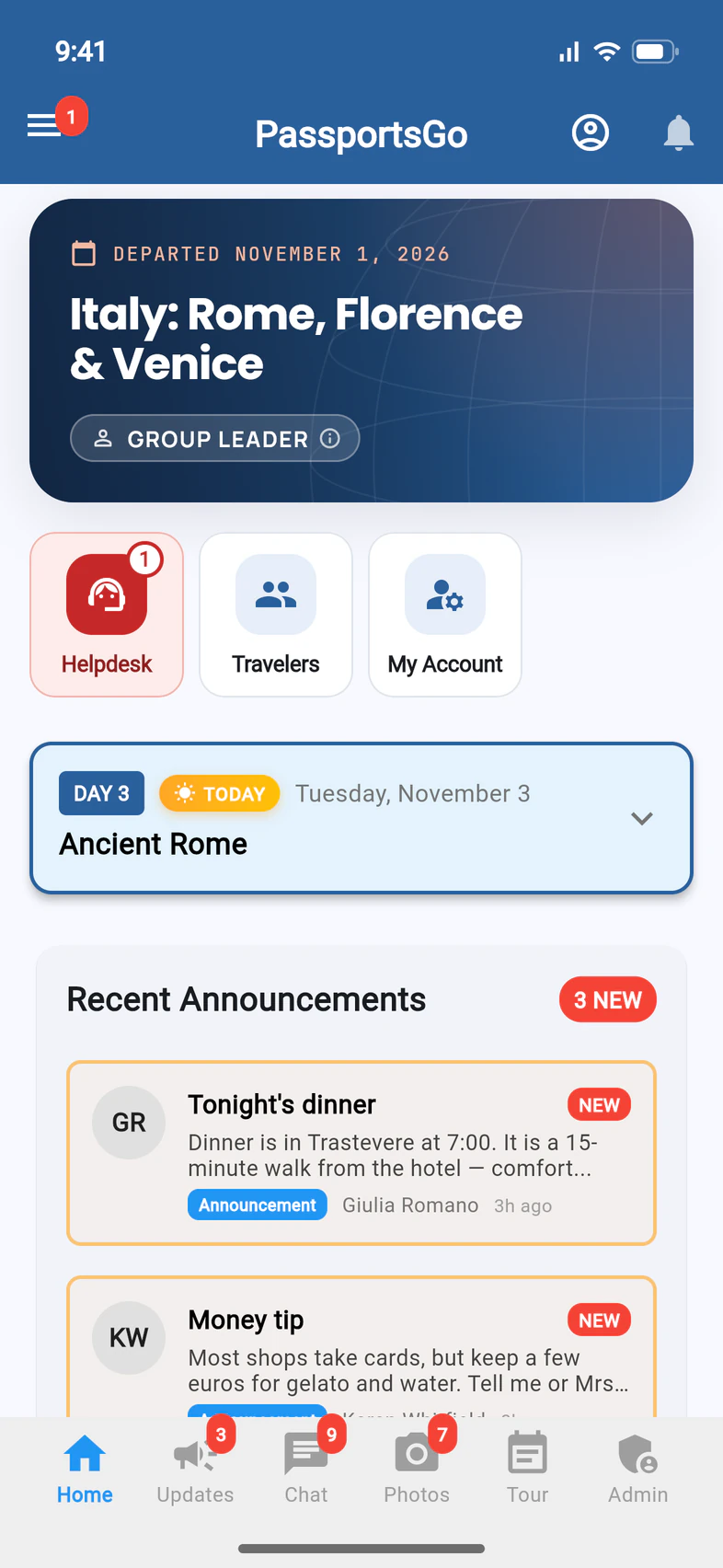
The card at the top 1 shows your tour, its dates and your role. Under it are tiles 2: a red tile needs you and shows how many things are waiting, a blue one is a shortcut. Travelers 3, the first blue tile, opens the Traveler List.
On tour, today's plan 4 comes next: tap it to open the day. Recent announcements, chat and photos follow. A post you pin to the top of Updates shows above today's plan, marked PINNED: see Post an announcement.
Travelers on your group's waitlist? The Travelers tile shows how many. While you can ask Passports to add some of them (until 120 days before departure, and until you've sent a request), it turns red and shows that number instead: see Use the Traveler List.
- Step 2
The tabs
The tabs at the bottom 1 are:
- Updates: announcements. You and your admins post them.
- Chat: the group chats.
- Photos: the group's photos.
- Tour: the itinerary, day by day.
- Admin: your tools. It starts with the Traveler List, Chaperones & visitors, the Recruitment Hub (until 60 days before departure) and My Account. Under Dates & Terms, Important Dates lists the tour's deadlines for families and for you, each with what it means, and Terms & Conditions shows the terms in force for your tour. Each has Download PDF: one printout of the dates for families, to hand out, and one for leaders, and a PDF of each set of terms. Then come the location tools, hotel choices and Group Settings. The reports are on the Traveler List: see Run traveler, dietary and document reports.
- Step 3
The top bar
Along the top: the ☰ menu 1, your account 2, and Alerts 3 for group alerts.
Looking for the Traveler List? It's the Travelers tile on Home.
- Step 4
The menu
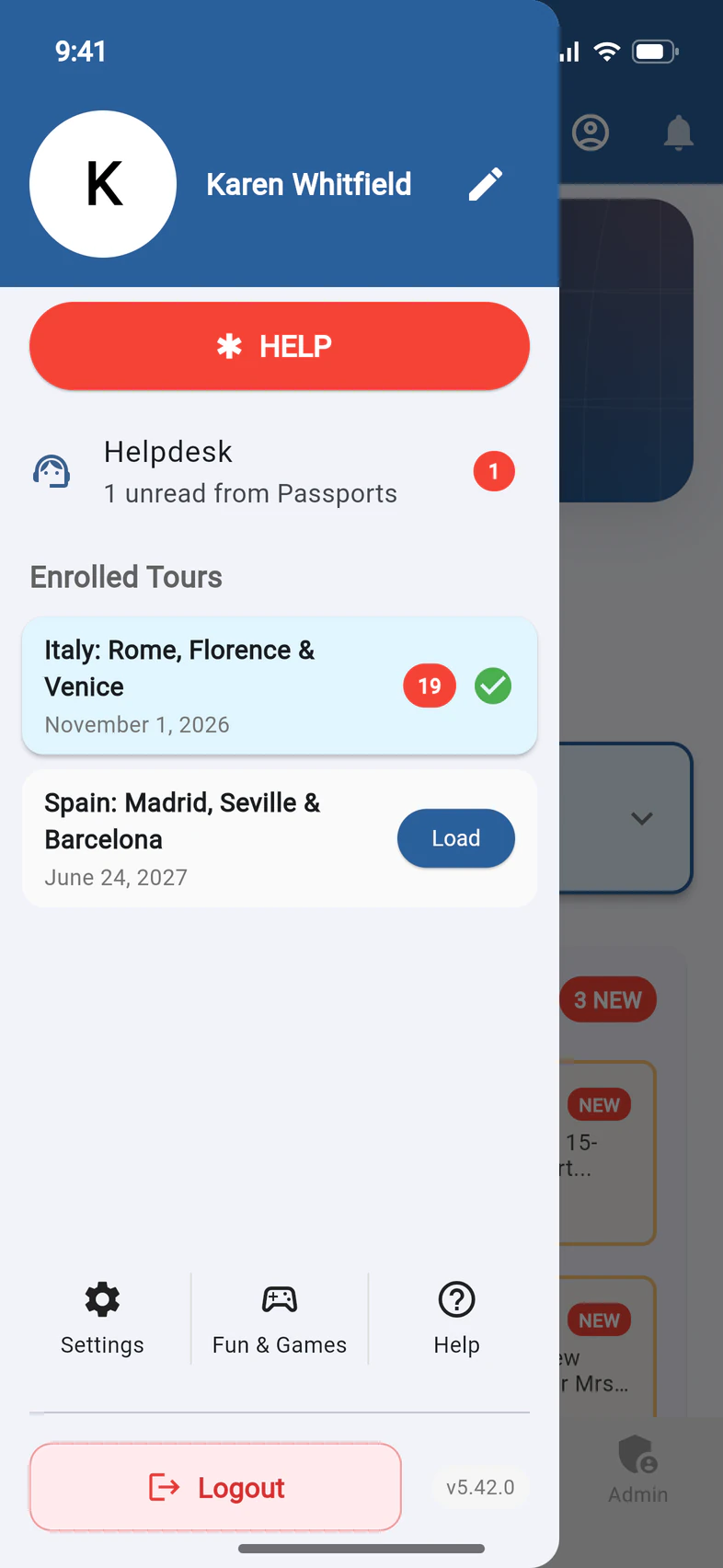
The ☰ menu has your name 1 (tap the pencil to edit your profile), the Helpdesk 2 for questions to Passports, Settings 3, Fun & Games (City Quest: The Game and Carry-On Quest) and Help 4. If you lead more than one tour, Enrolled Tours switches between them, and a notification from another of your tours switches to that tour and opens what it's about.
The red HELP button is for emergencies on the tour.
Good to know
My Home has different tiles.
Tiles come and go with what needs you: Hotel Choice or Rooming while a choice or a list is waiting, Chaperones while a chaperone spot needs a name or a chaperone still has something to do, Recruitment while you're enrolling, and so on. Travelers, your Traveler List, is always there, and turns red while there are waitlisted travelers you can ask Passports to add. For the Chaperones tile, see Name and invite your chaperones.
Home says We can't email you.
Someone marked one of our emails to your address as spam, so our emails can't reach you: no updates, sign-in codes or Helpdesk replies. Tap Get our emails again, then Yes, email me, and the red strip goes. This works once per address: if it happens again, the strip asks you to contact us, and Contact us opens the Helpdesk.
Can I use PassportsGo on a computer?
Screens show a sample family and tour — your names, dates and amounts will differ. Checked against the app November 3, 2026.
Call us. A real person in Worcester picks up.
Monday to Friday, 8am to 4pm Eastern — and around the clock once your group is on tour. Or email passportsgo@passports.com.