
After you enroll
Your welcome email, your PassportsGo sign-in, and enrolling a brother or sister.
When the enrollment goes through, the page says so, shows what was paid or when it will be, and tells you what to do next: mostly, open PassportsGo.
- Step 1
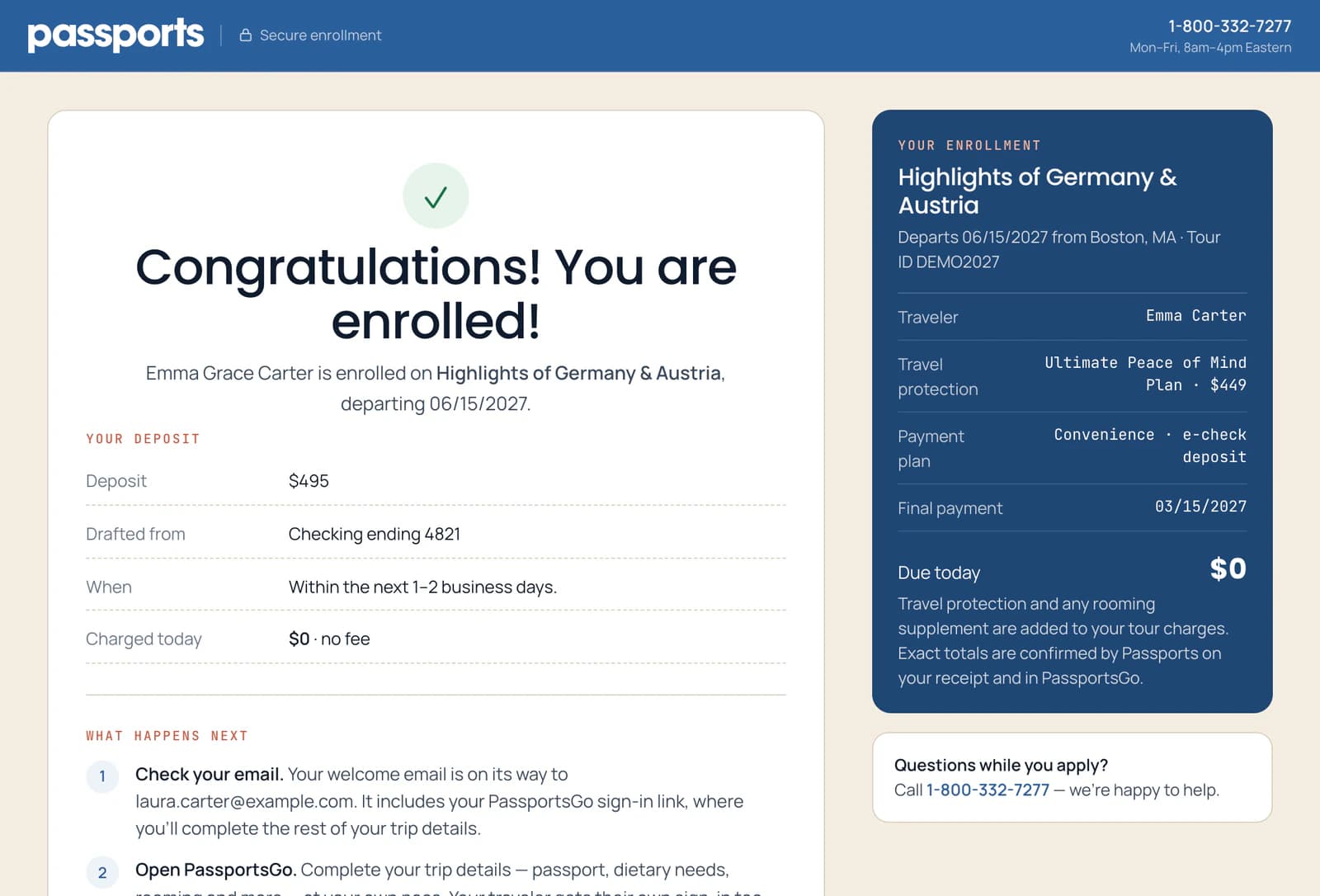
You're enrolled
The confirmation 1 names your traveler and the tour. Below it 2 is what you paid today, or when a deposit will be drafted. With E-Z Pay, this is your payment schedule.
- Step 2
Check your email, then open PassportsGo
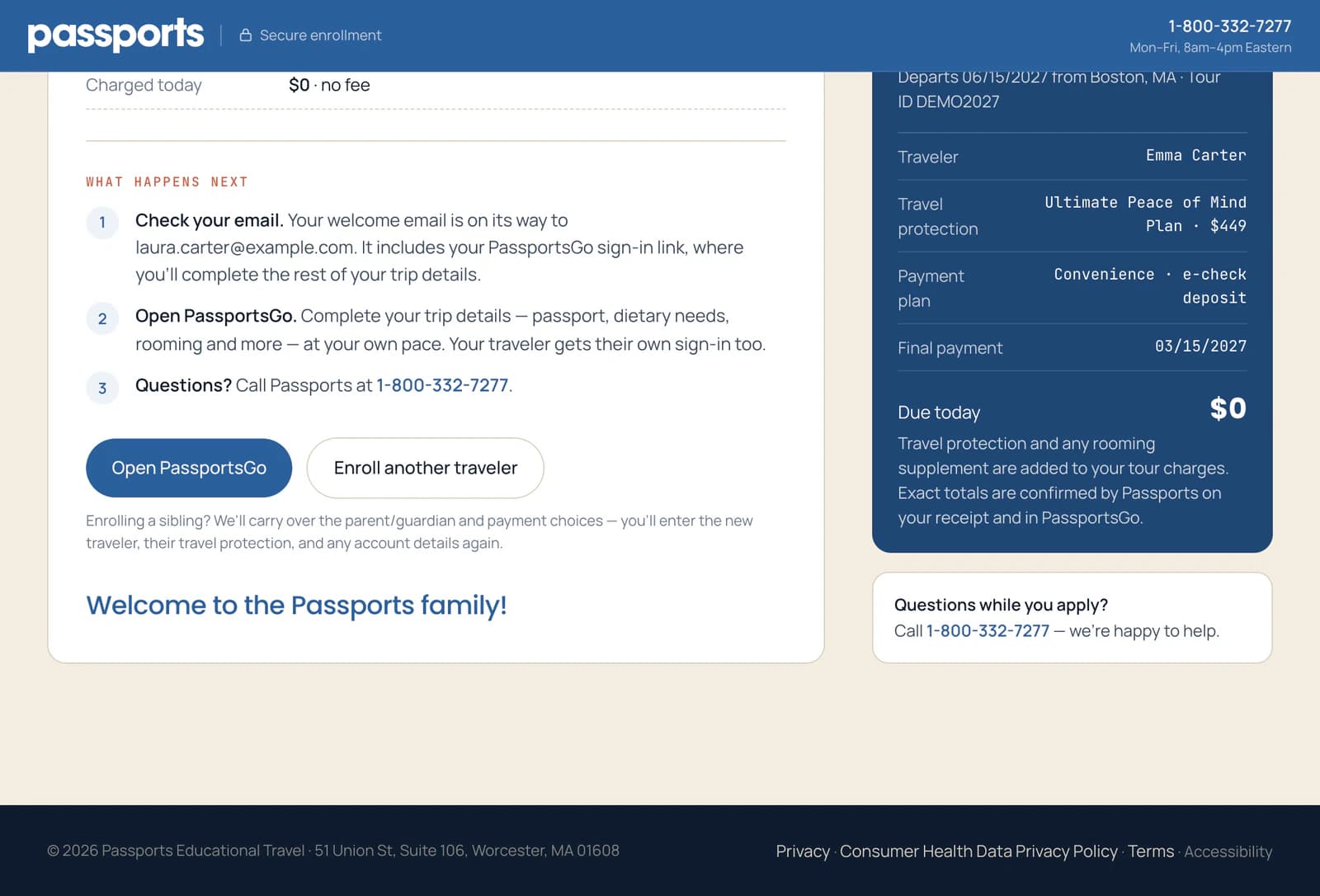
Your welcome email 1 goes to the parent or guardian's address. It has your PassportsGo sign-in link, which works for up to 30 days. Or click Open PassportsGo 2 right away.
In PassportsGo you finish the trip details at your own pace: passport, dietary needs, rooming and more.
Enrolling a brother or sister? Click Enroll another traveler 3. The parent or guardian and your payment choices carry over; you enter the new traveler, their travel protection and any account details again.
Good to know
I didn't get the welcome email.
Check your spam or junk folder. You don't need the email to get in: sign in with a code sent to your email or phone. See Sign in to PassportsGo.
The sign-in link says it's no longer valid.
Sign-in links work for up to 30 days. Sign in with a code sent to your email or phone instead: see Sign in to PassportsGo.
Where do I see my payments later?
On your traveler's Finance page in PassportsGo: Your Finance page.
Screens show a sample family and tour — your names, dates and amounts will differ. Checked against the app October 7, 2026.
Call us. A real person in Worcester picks up.
Monday to Friday, 8am to 4pm Eastern — and around the clock once your group is on tour. Or email passportsgo@passports.com.