
Sign someone out remotely
Force a sign-out from their details page — for a lost phone or a shared device.
If a traveler loses their phone, or signed in on a phone or computer that isn't theirs, you can sign them out of PassportsGo on every device at once.
It isn't a block: they can sign in again with a new code whenever they need to.
- Step 1
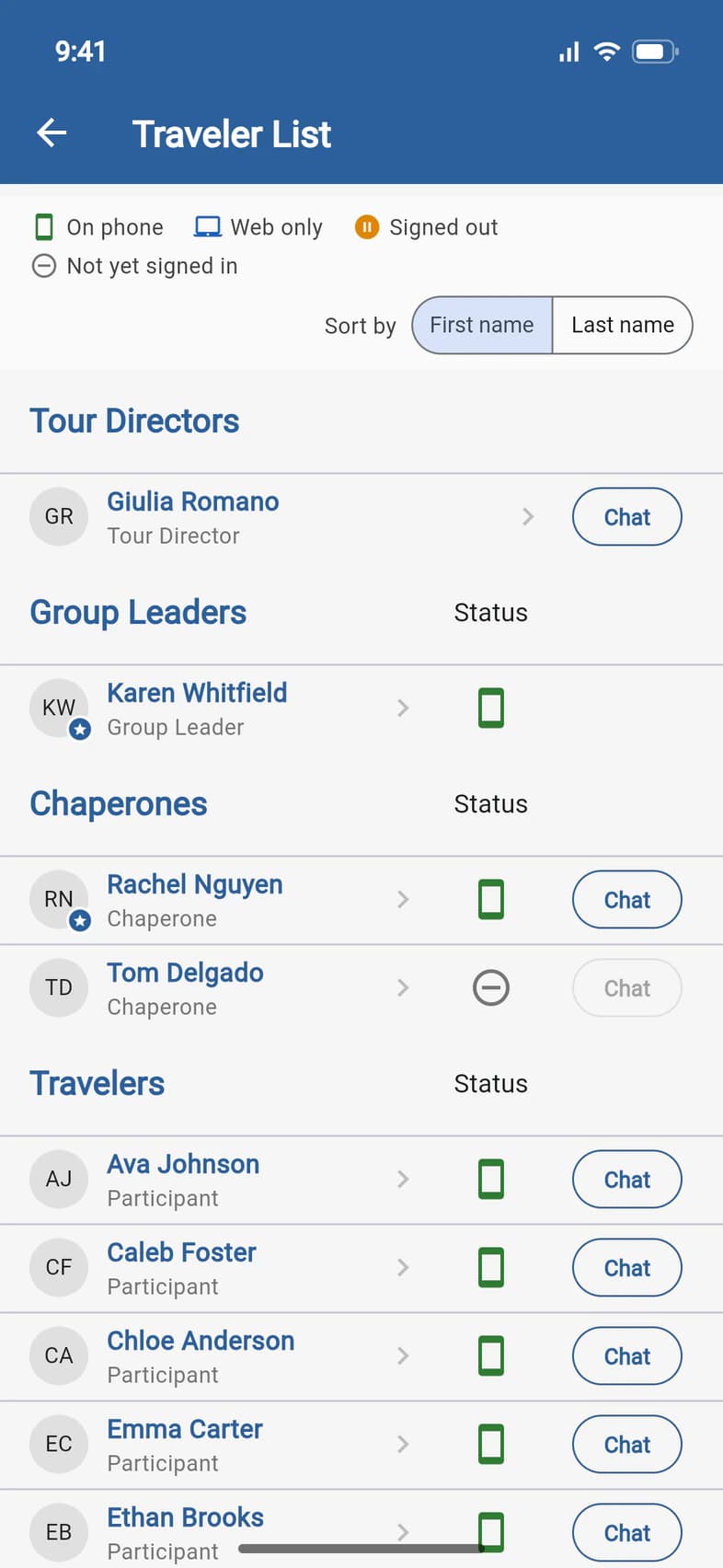
Open their details
On the Traveler List (Travelers on Home), tap the person 1.
- Step 2
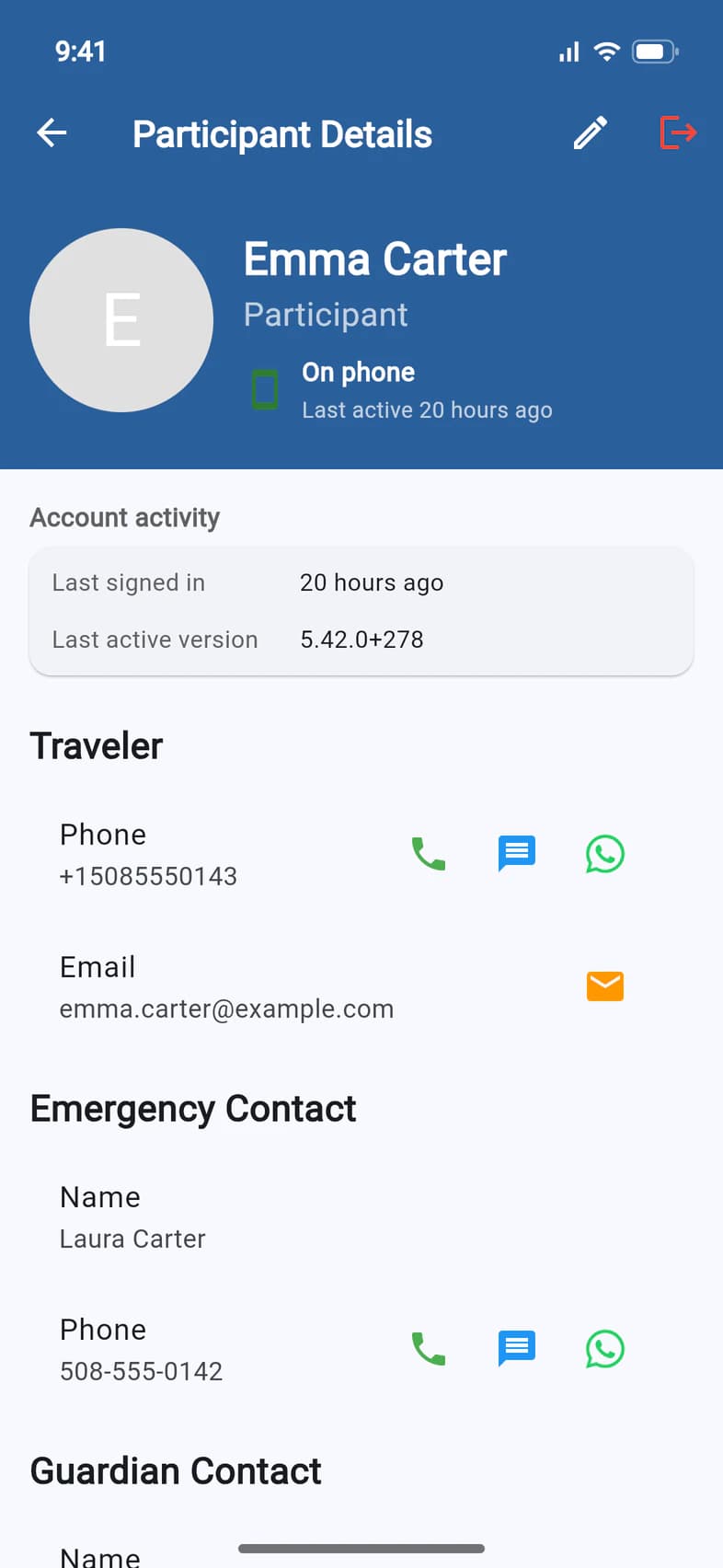
Tap the red button
At the top of Participant Details, tap the red sign-out button 1.
It's there only for people who have signed in to the app.
- Step 3
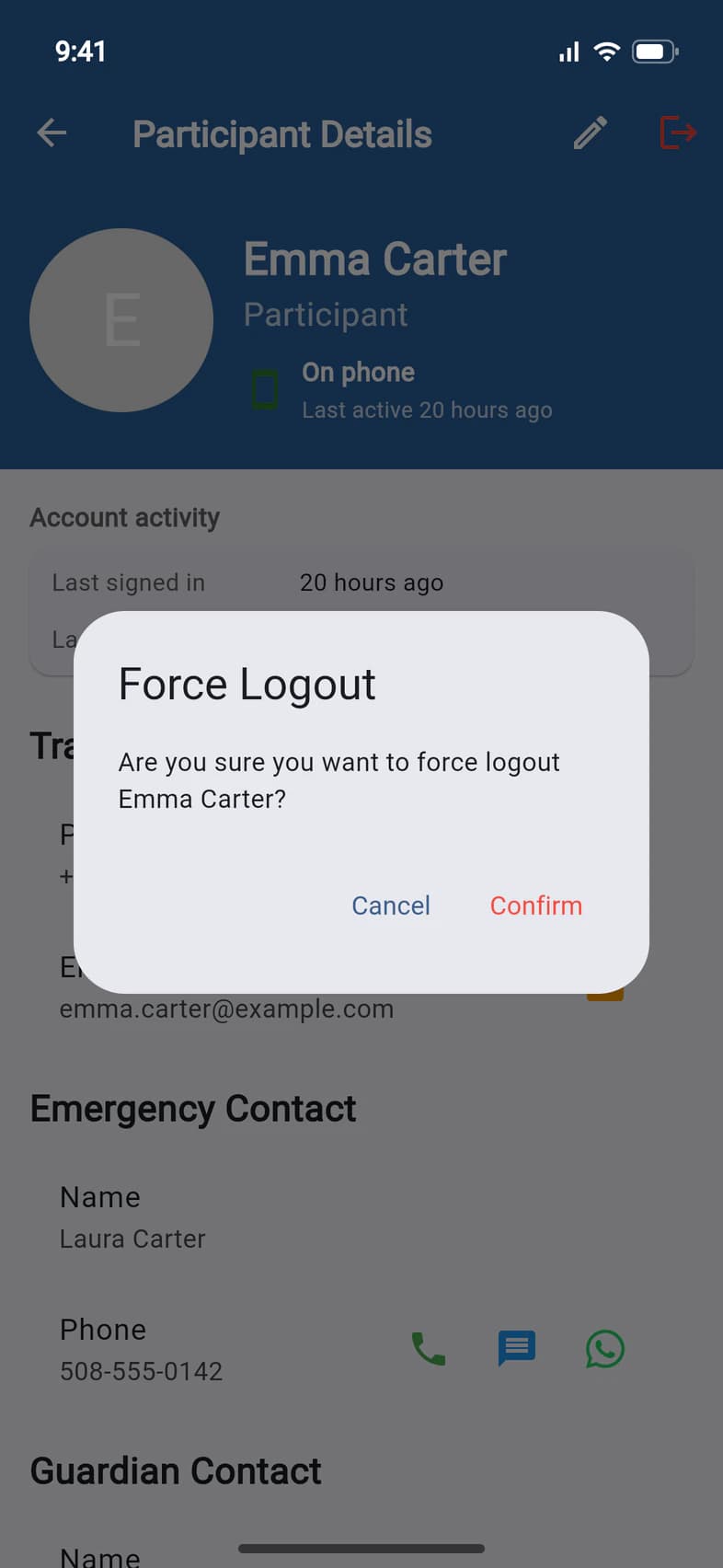
Confirm
The app asks whether you're sure. Tap Confirm 1.
- Step 4
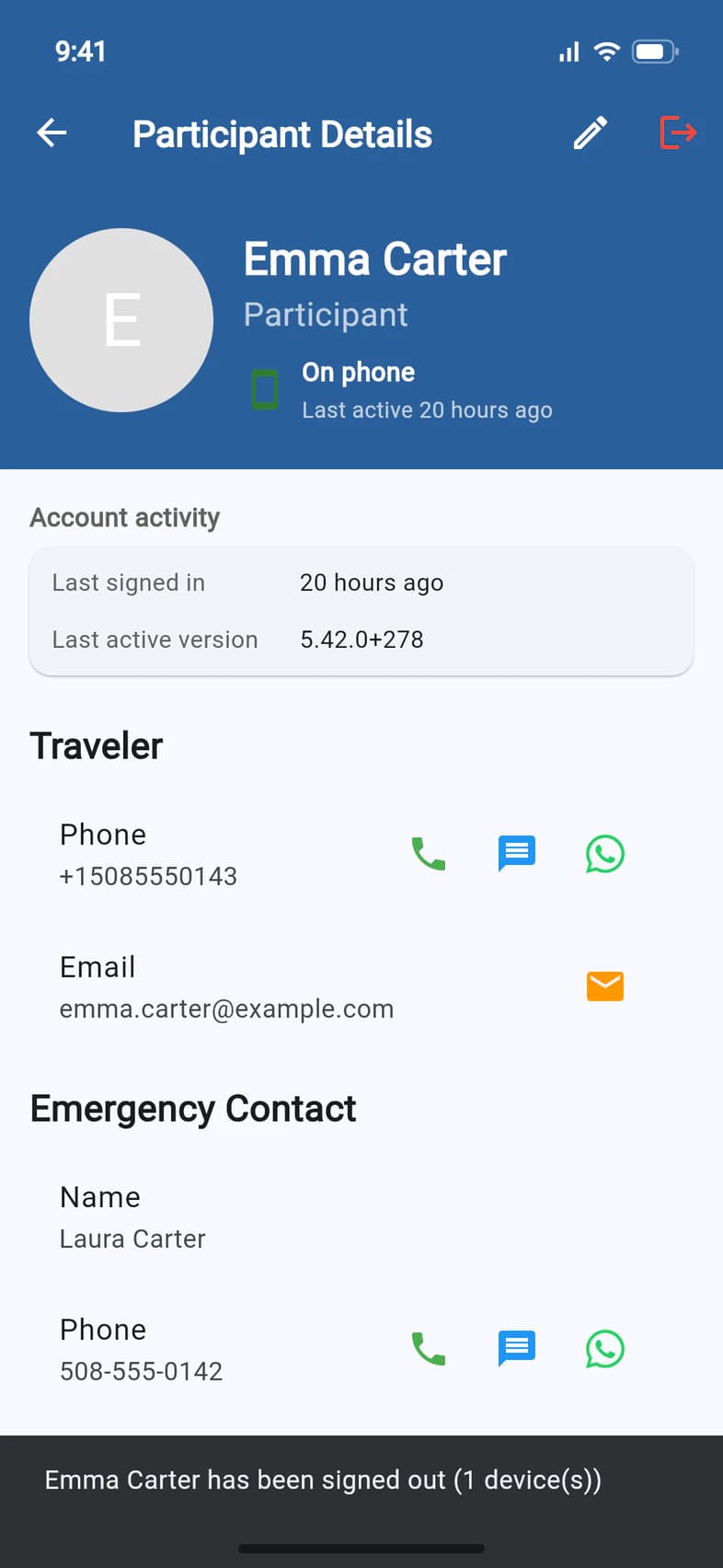
They're signed out
The app confirms it 1, with how many devices it signed out. A device with PassportsGo open signs out right away; any other device, the next time it's opened.
Good to know
Can they sign back in?
Yes, any time, with the code PassportsGo sends to their email or phone. If someone shouldn't have access at all, call Passports.
Who can sign people out?
You and anyone you've made an admin, like chaperones with Admin Functions. Tour Directors and Passports staff can't be signed out from here.
Why isn't there a red button?
The person hasn't signed in to the app yet (Not yet signed in on the Traveler List), so there's nothing to sign out.
Screens show a sample family and tour — your names, dates and amounts will differ. Checked against the app September 26, 2026.
Call us. A real person in Worcester picks up.
Monday to Friday, 8am to 4pm Eastern — and around the clock once your group is on tour. Or email passportsgo@passports.com.