
Check everyone in
A roll call you tick yourself, for the whole group or one bus: see who's still missing, reach them, and start a new round at each stop.
Check-in is a roll call you tick yourself: tap each name as people get back on the bus, and the app shows who's still missing. Start a new one at every stop. Each one is kept, so you can look back at the day's check-ins.
Because you do the ticking, it works for everyone, with or without the app. Nobody gets a notification, and travelers never see it. Check in the whole group, or one bus at a time.
Before you start
- PassportsGo on your phone, or passportsgo.com in a browser — signed in as the group leader, or as a chaperone you've made an admin. On your phone you can also see where someone missing was last seen.
- Step 1
Open Check-in
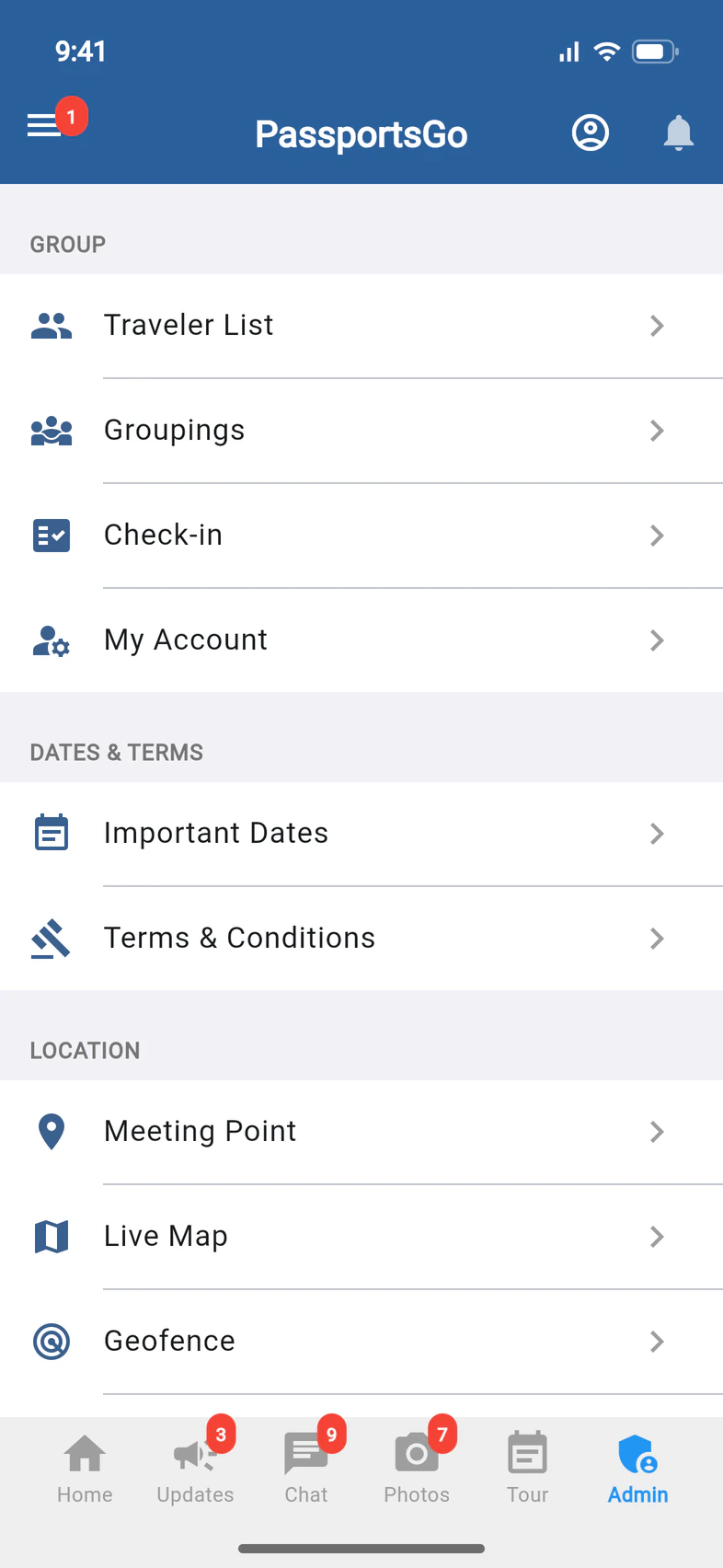
Tap Admin 1, then Check-in 2 under GROUP.
Check in the whole group, at the top of Groupings, opens the same page. Chaperones you've made an admin see Check-in too, and so does your Tour Director.
- Step 2
Start a check-in
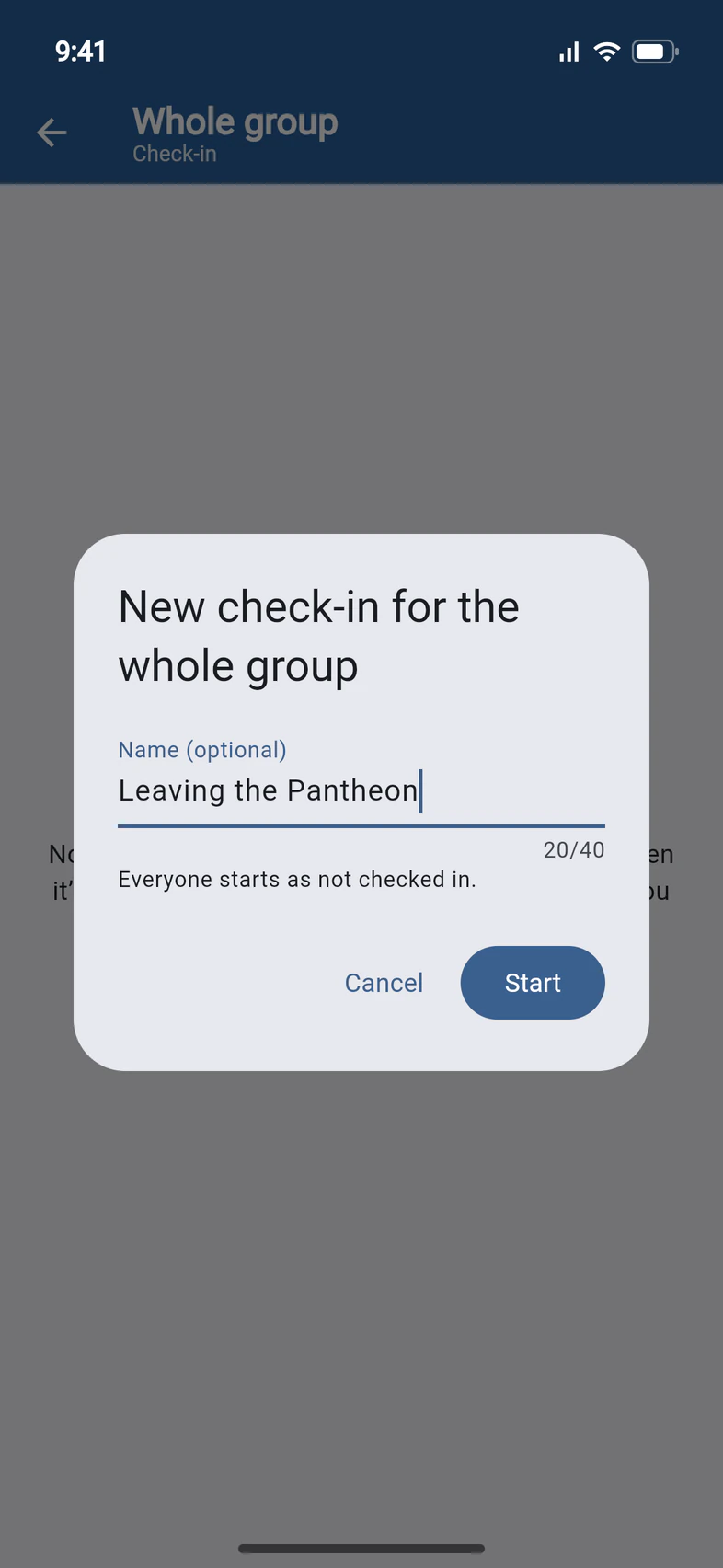
The first time, the page is empty: tap Start a check-in.
Give it a name if you like, such as where you're leaving from 1, then tap Start 2. Left empty, it's named by the time it started, like "Check-in at 4:12 PM". Everyone starts as not checked in.
- Step 3
Tick people as they arrive
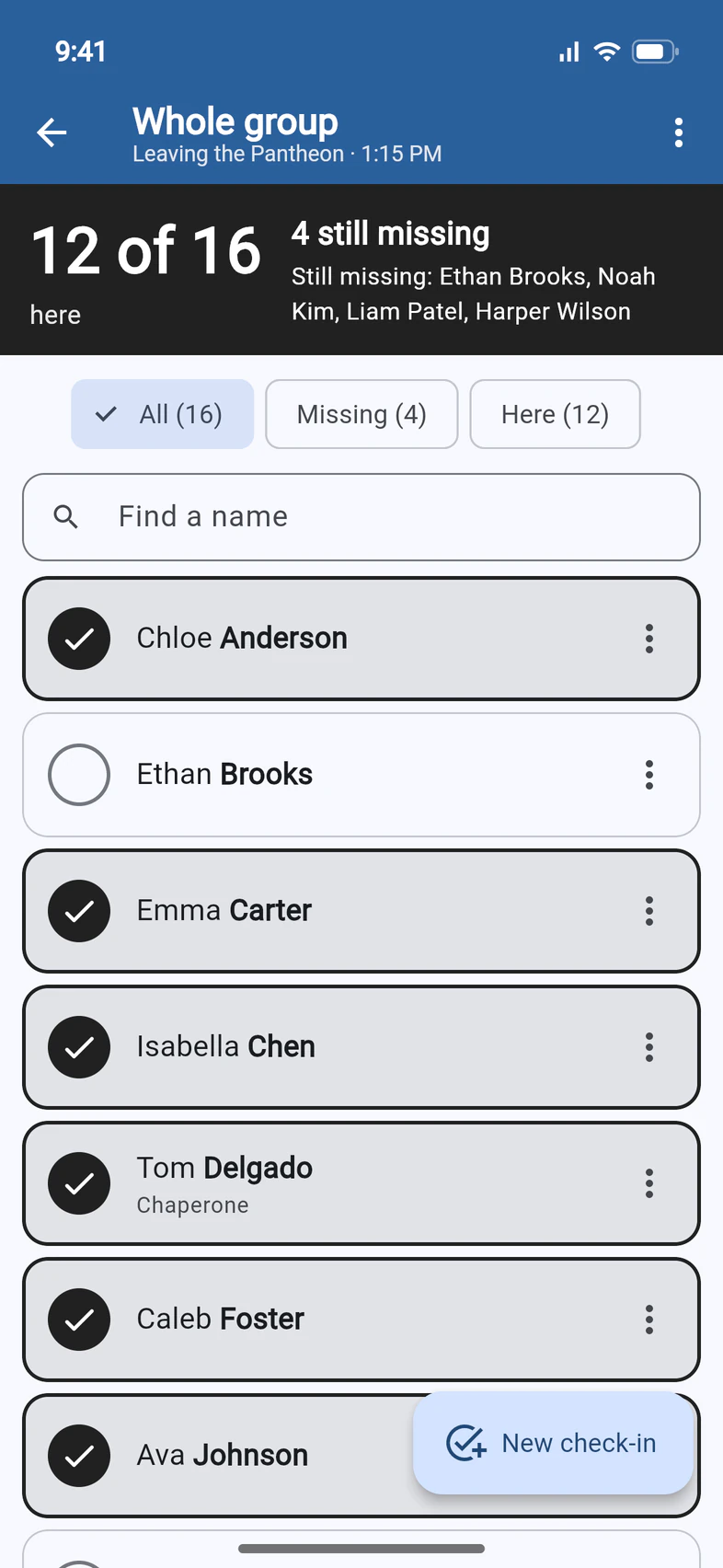
Tap a name as each person gets on the bus, and it's checked in 1. Tapped the wrong one? Tap it again to undo it.
The dark box at the top counts who's here 2 and who's still missing 3, with their names.
The list has your travelers, you and your chaperones. Parents aren't on it, and nor is anyone waitlisted or canceled. Type in Find a name to jump to someone.
- Step 4
See who's still missing
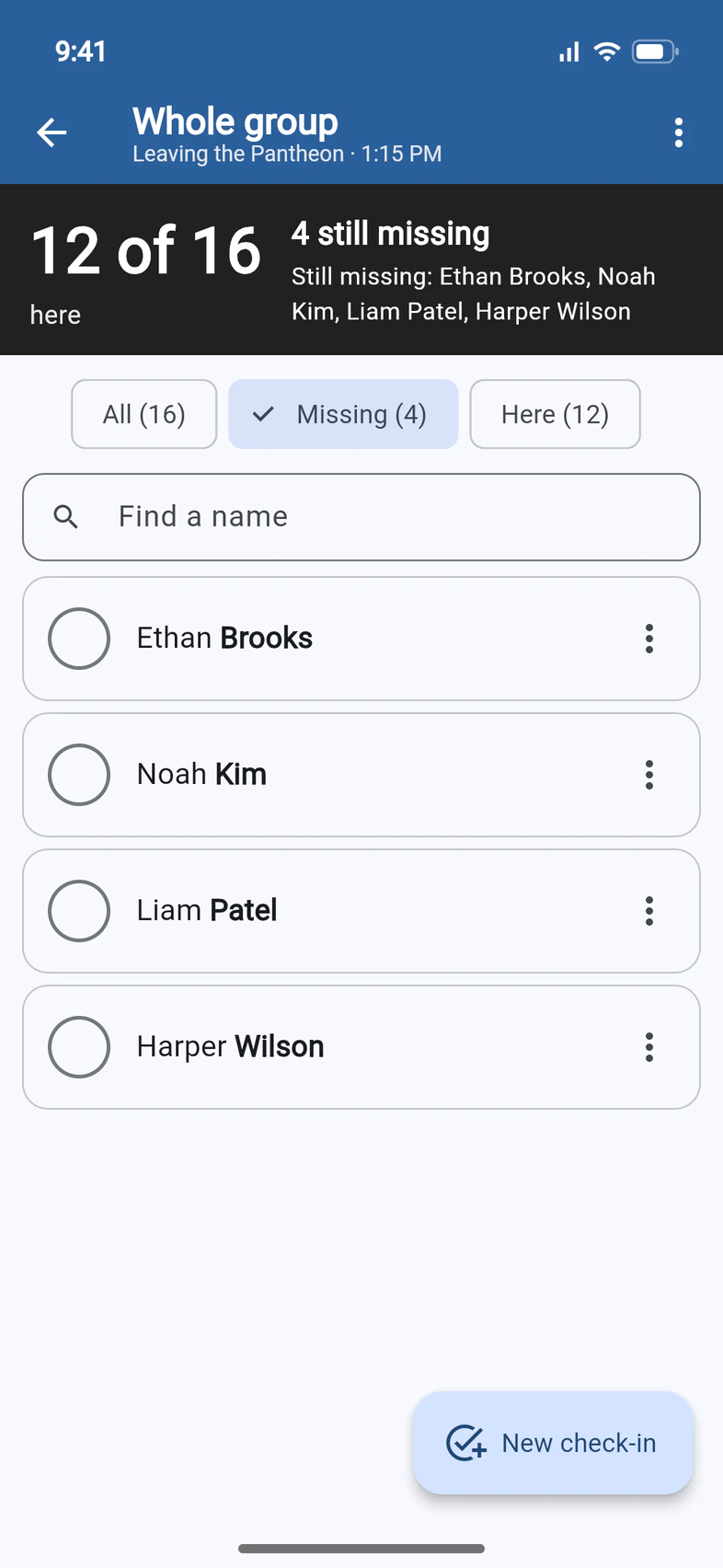
Tap Missing 1 to list only the people you haven't ticked yet. Tapping the dark box at the top does the same. Here lists everyone you've ticked, and All brings everyone back.
To reach someone, tap ⋮ beside their name 2, or press and hold the name.
- Step 5
Reach someone who's missing
Their sheet has Profile, Chat and In-app call 1, to open their details, message them or call them through the app. A button that can't be used is greyed, with the reason underneath. On passportsgo.com, In-app call is always greyed: calls work in the phone app.
In the phone app, when they share their location, a small map under the buttons shows where they were last seen ("Last seen 3 min ago"), and Map it gives you walking directions there.
You can tick someone who doesn't have the app. Their three buttons are greyed, with Not on the app underneath.
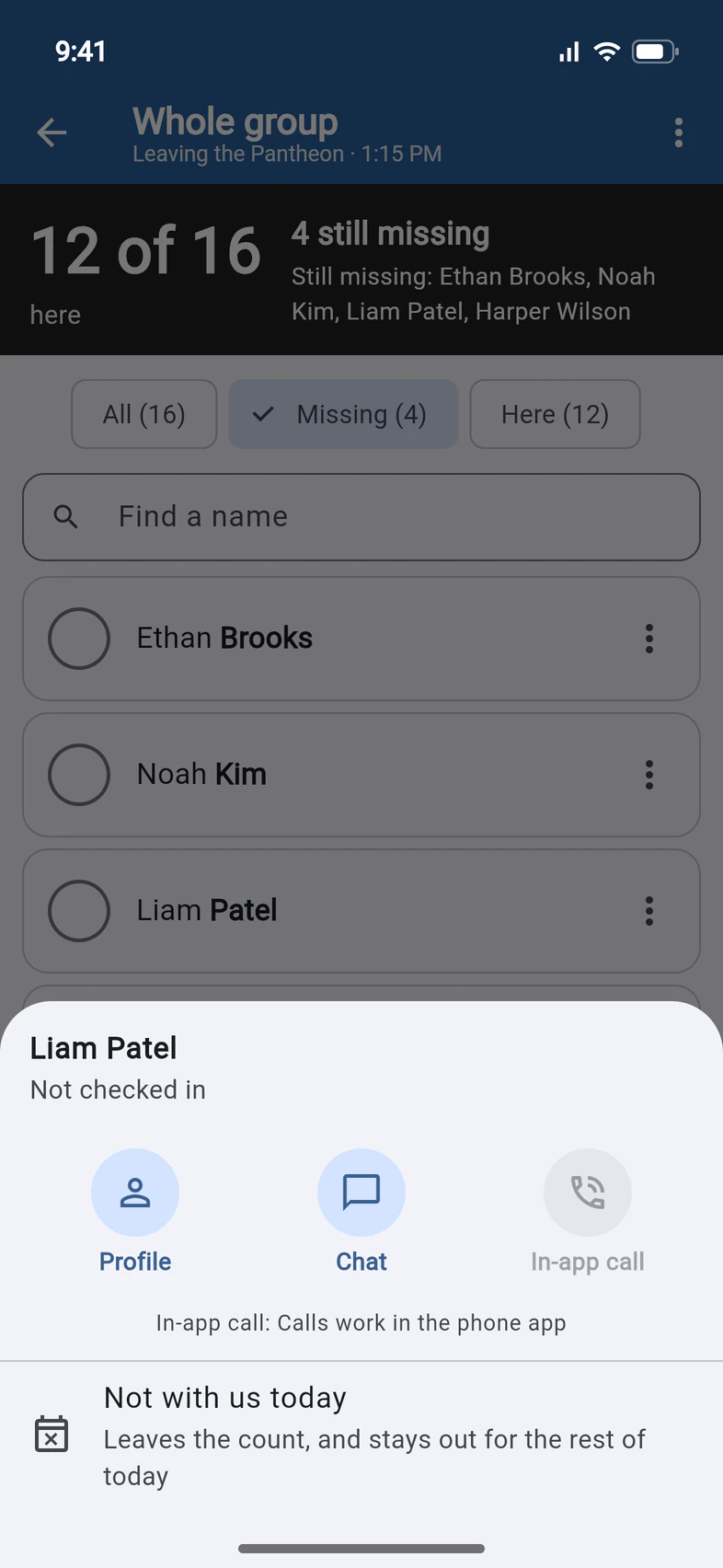
- Step 6
Mark who's not with us today
If someone stayed at the hotel or went home early, open their sheet and tap Not with us today. They leave the count, and their name is struck through 1. The box at the top says how many aren't with you 2.
They stay that way in every new check-in today. To undo it, open their sheet and tap Back with us.
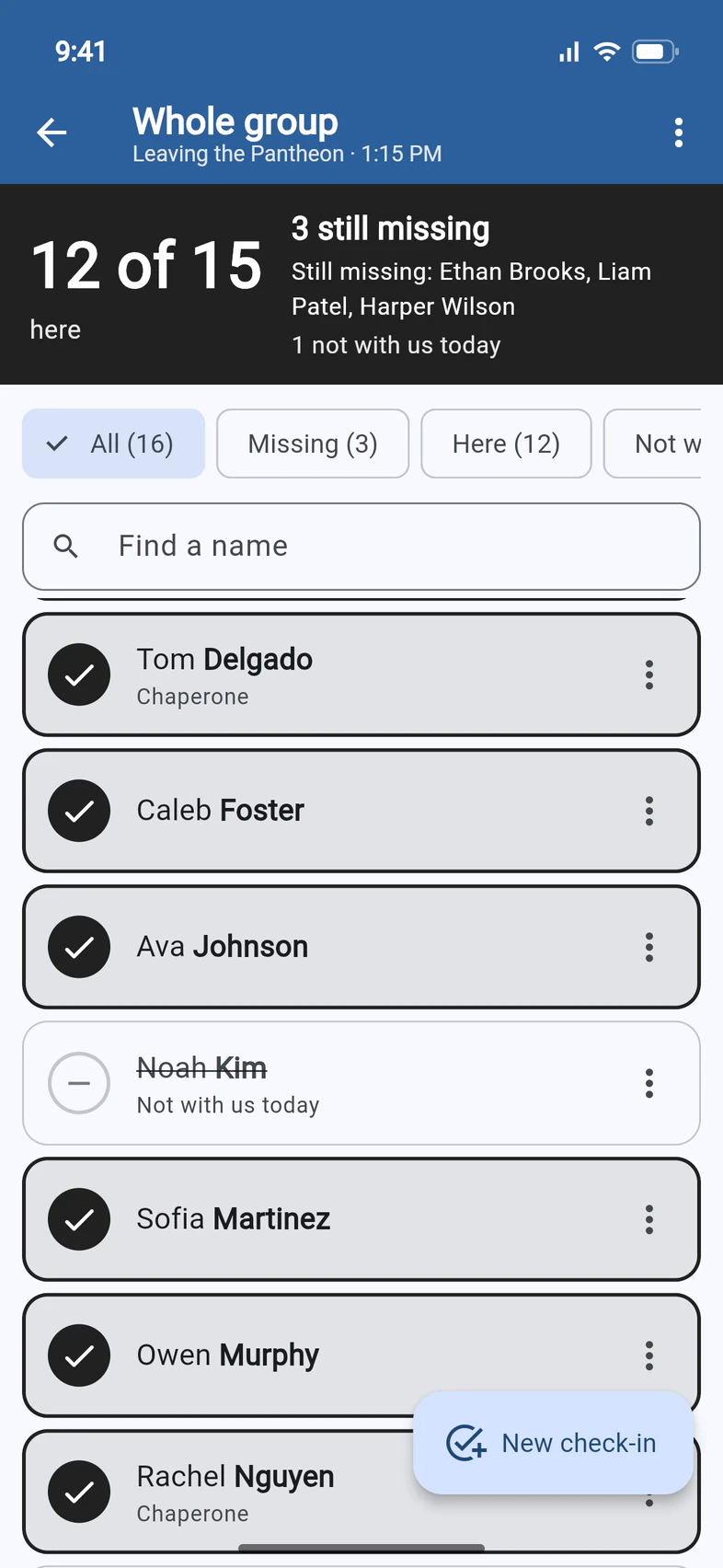
- Step 7
Check in again at the next stop
When it's time to move on again, tap New check-in 1, name it or leave it empty, and tap Start. Everyone starts as not checked in again, except anyone who's not with you today 2.
Every check-in is kept. Tap the clock 3 to open an earlier one, and Go to the latest to come back.
To rename a check-in, or delete one you started by mistake, tap ⋮ at the top right, then Rename or Delete this check-in.
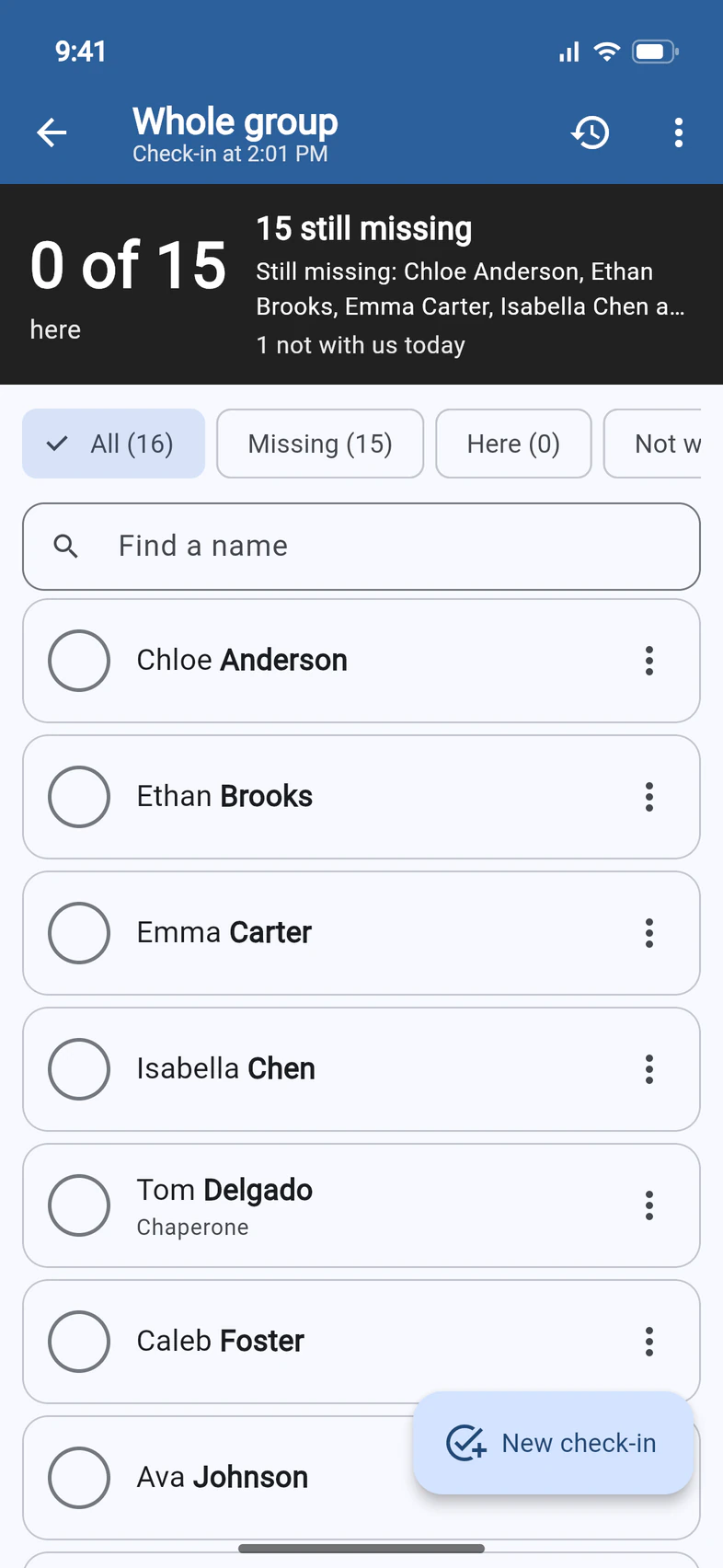
- Step 8
Check in one bus
If you've split your group into buses, each bus has its own check-in, with only the people on that bus. Open Groupings under Admin, then your buses, and tap Check in. Pick a bus 1: each one shows its last check-in.
It works the same way, in the bus's color. To set up buses, see Split your group into buses or groups.
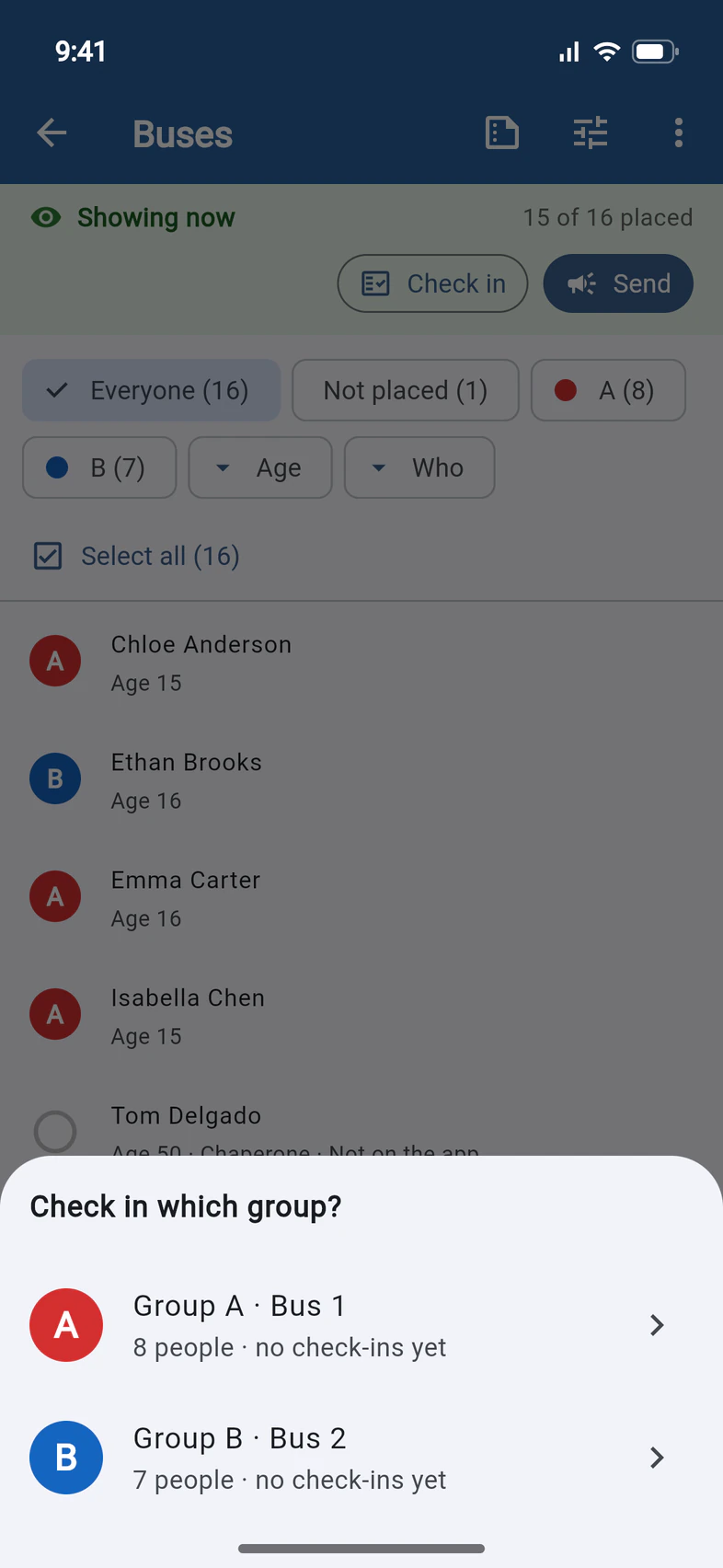
Good to know
How is this different from a head count?
You tick everyone yourself, so Check-in works for people without the app, and nobody gets a notification. A head count asks every traveler's phone instead: they tap to check in, and you watch the answers come in.
Do travelers or parents see it?
No. Nobody is notified, and travelers and parents never see your check-ins. They're for you, the chaperones you've made an admin and your Tour Director.
Can a chaperone check people in with me?
Yes. Chaperones you've made an admin and your Tour Director see the same check-ins, and two people ticking at once never undo each other's ticks. When someone else starts a new check-in, you see a note saying so, and your page moves to it.
What if I lose signal?
In the phone app, keep ticking. Each tap shows at once and is saved when your phone is back online.
Can I see where the missing people are?
In the phone app, yes. A person's sheet shows where they were last seen, or says why it can't: Not sharing their location, or No location in the last 24 hours. The person-and-magnifier button at the top, Show missing on the map, opens the Live Map on just the people still missing. Neither is on passportsgo.com.
Is this how I check people in at an info night?
No. That's part of Meetings: see Check people in at a meeting.
Screens show a sample family and tour — your names, dates and amounts will differ. Checked against the app November 10, 2026.
Call us. A real person in Worcester picks up.
Monday to Friday, 8am to 4pm Eastern — and around the clock once your group is on tour. Or email passportsgo@passports.com.