
Take a head count
Start a head count and watch the answers — and the map — fill in.
Check that everyone's there with one tap. Travelers and chaperones get a HEAD COUNT! screen and tap to check in; you watch the count and the map fill in.
Only people who have the app are in the count, and parents are never asked. Count anyone without the app yourself.
The whole head count, start to finish
Start a head count, watch travelers check in on the map, see who's missing, and finish when everyone's in.
Real app screens, sample tour · narration generated with AI
Before you start
- PassportsGo on your phone, with location allowed. Head counts can't be taken on passportsgo.com.
- Your tour under way: head counts switch on when the tour starts.
- Step 1
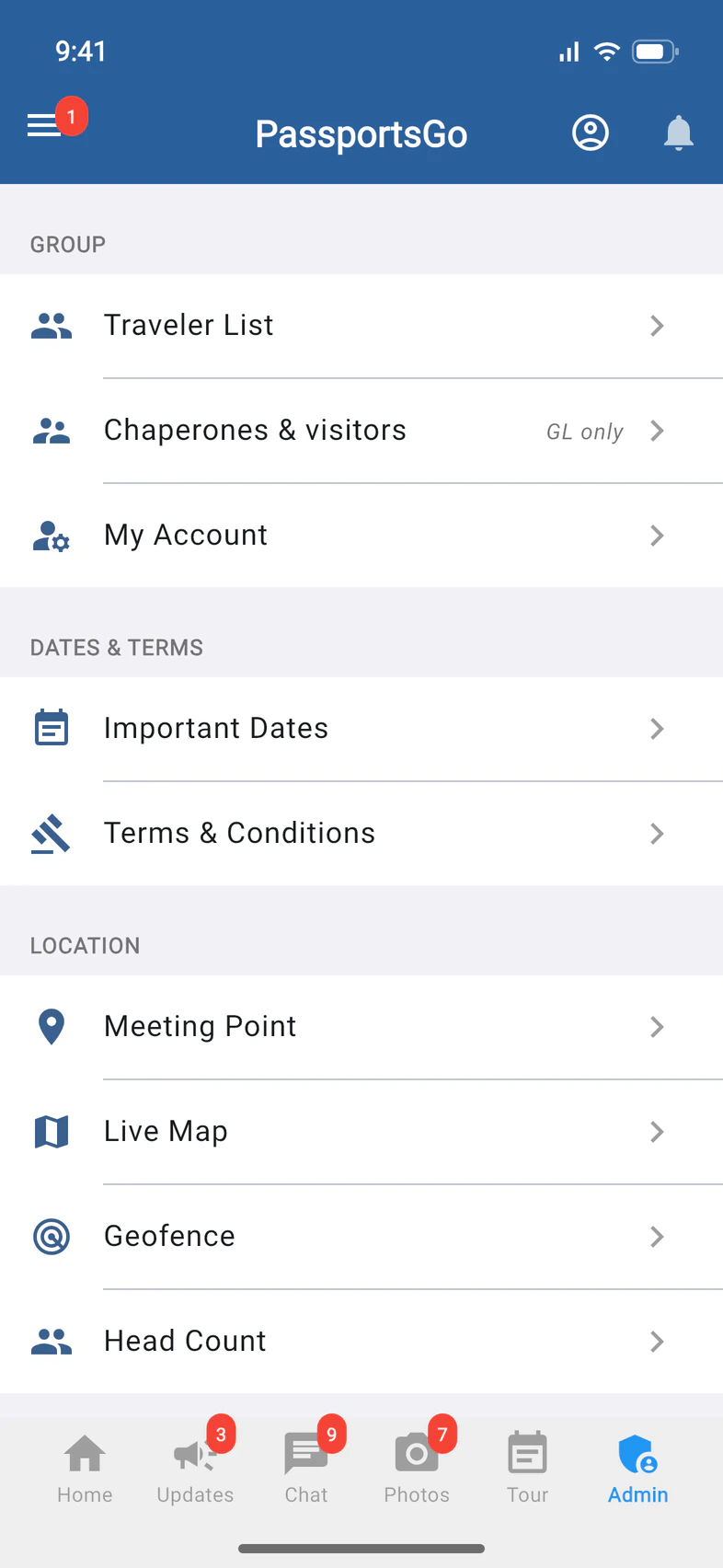
Open Head Count
Tap Admin 1, then Head Count 2 under LOCATION.
- Step 2
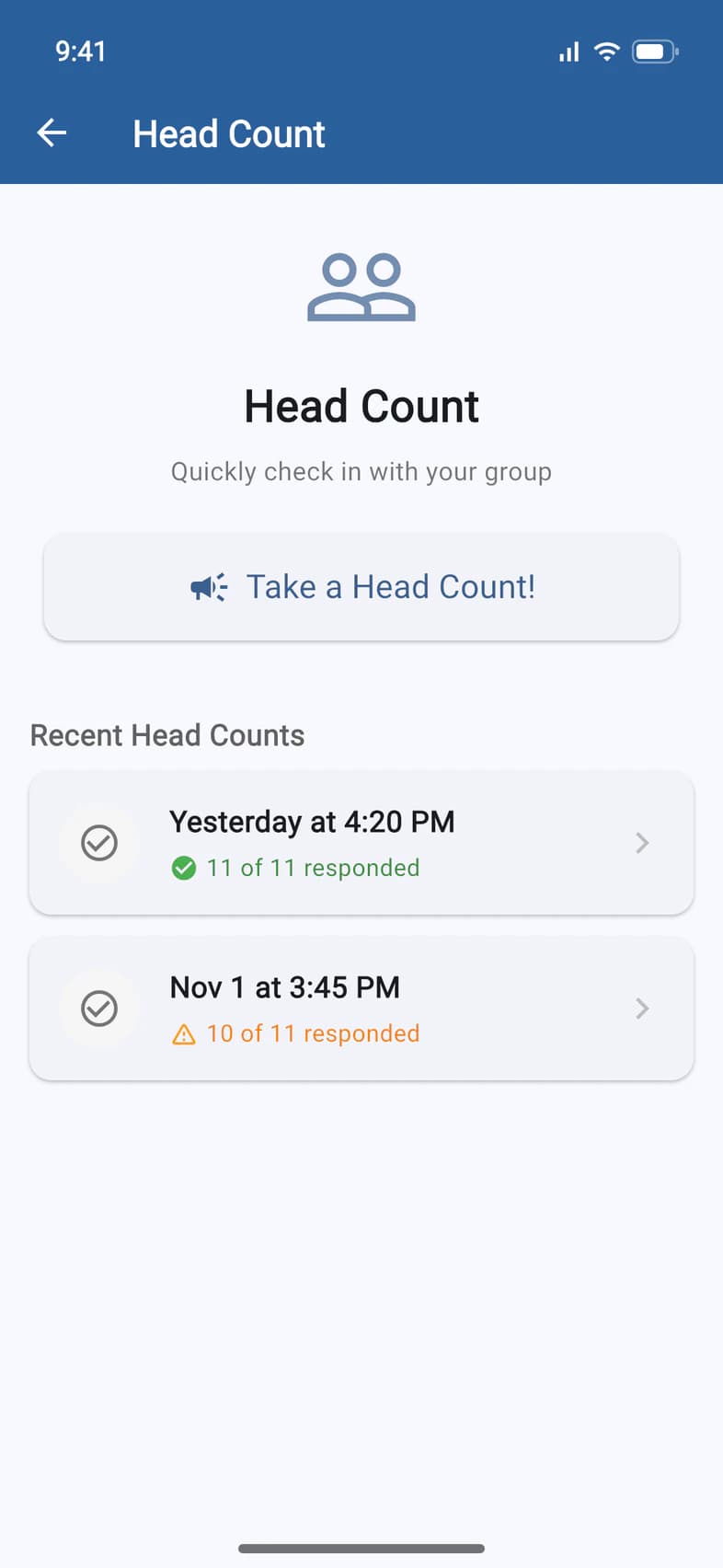
Start the head count
Tap Take a Head Count! 1. Your travelers and chaperones who have the app get a notification, and the HEAD COUNT! screen opens on their phones.
Earlier head counts are listed below 2.
- Step 3
Watch the check-ins
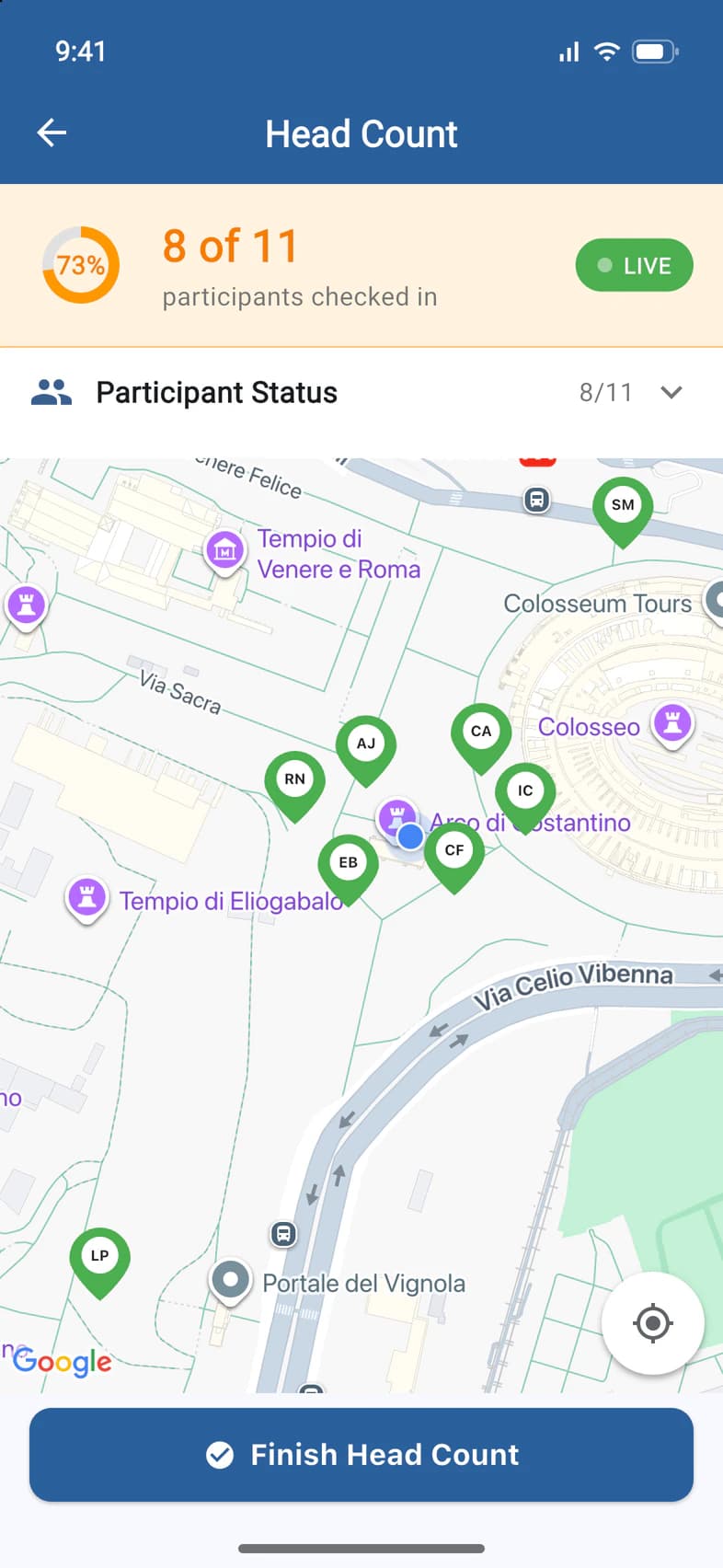
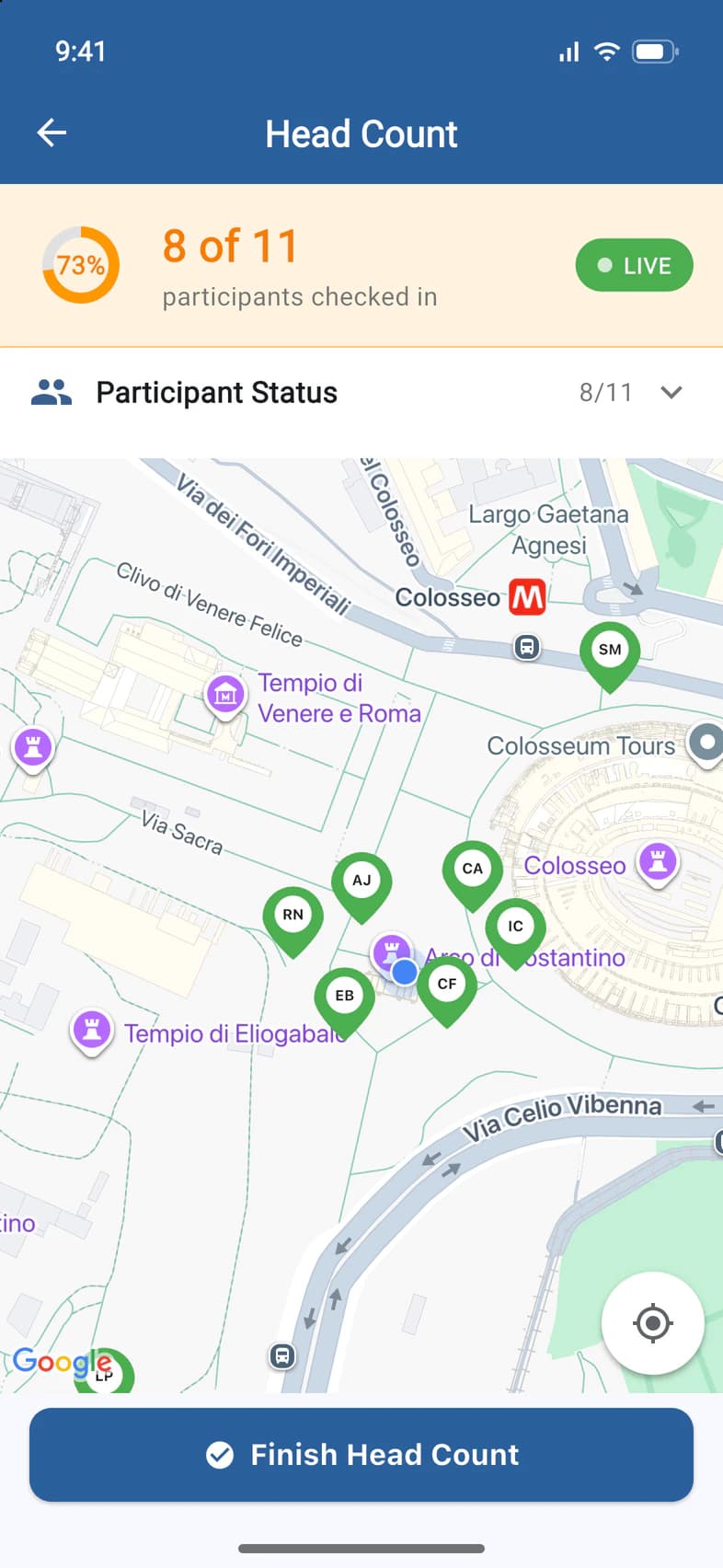
The count fills in as people answer 1. LIVE 2 means the head count is still open. The map shows where each person was when they checked in.
It opens framed on all the check-ins and keeps new ones in view. Once you move the map yourself, it stays where you put it.
- Step 4
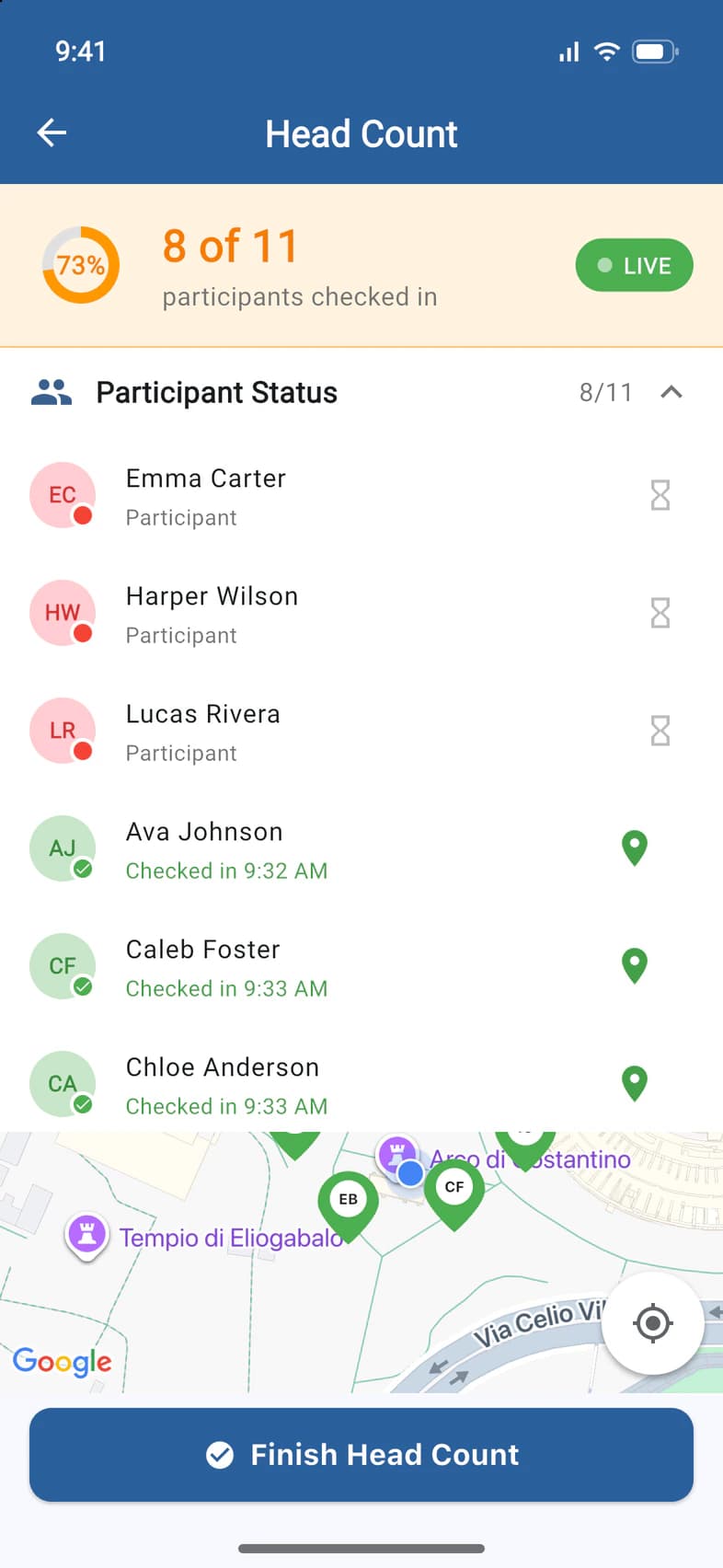
See who's missing
Tap Participant Status to see everyone. People who haven't checked in come first 1; below them, everyone who has, and when 2. Tap the pin beside a name 3 to find that person on the map.
- Step 5
See where someone checked in
The map zooms in on that check-in 1. Everyone else who checked in nearby shows with their initials.
The pins show where each phone was at the moment its owner checked in, not where people are now. For that, use Live Map on the Admin tab.
- Step 6
Leave it running
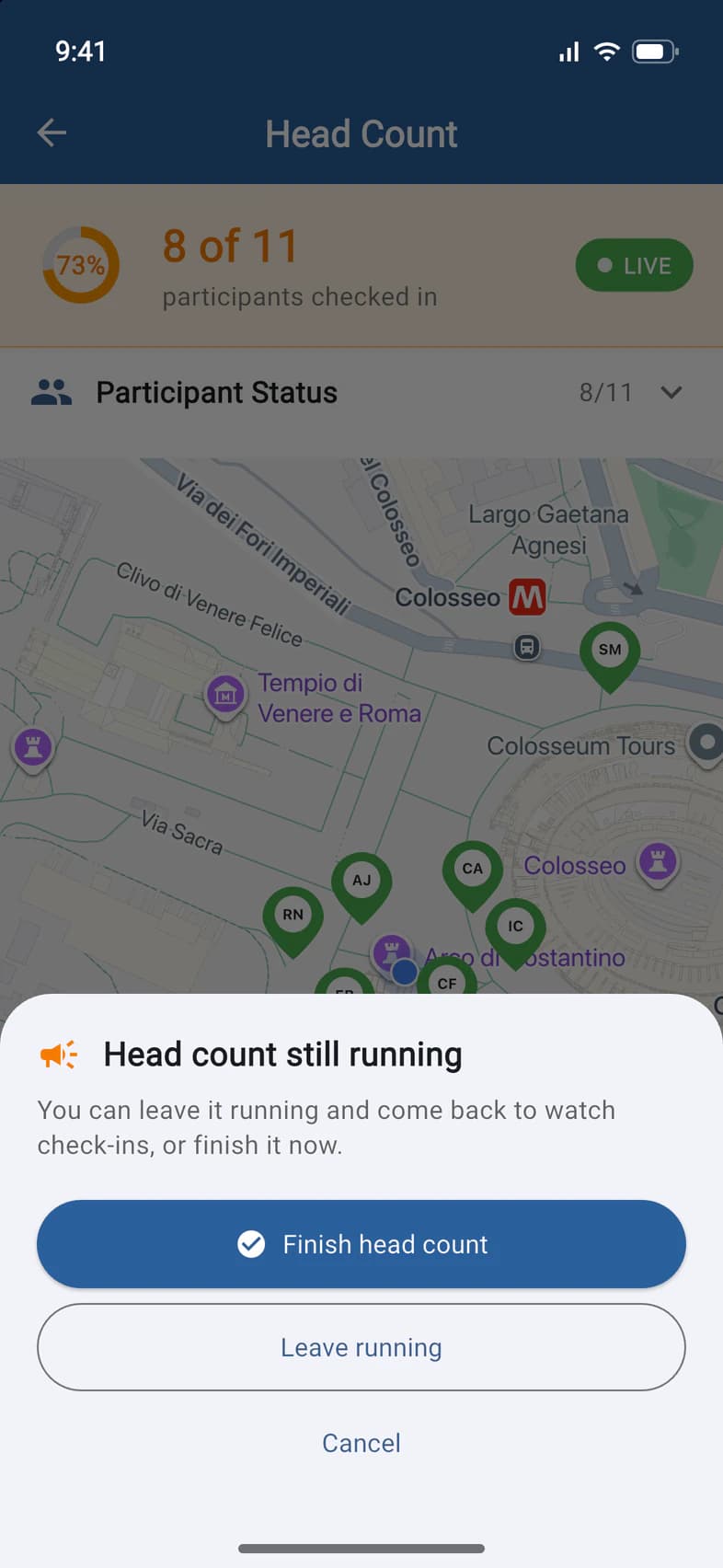
If you go back while the head count is open, the app asks: Finish head count 1 now, or Leave running 2 to keep collecting check-ins.
- Step 7
Come back to it
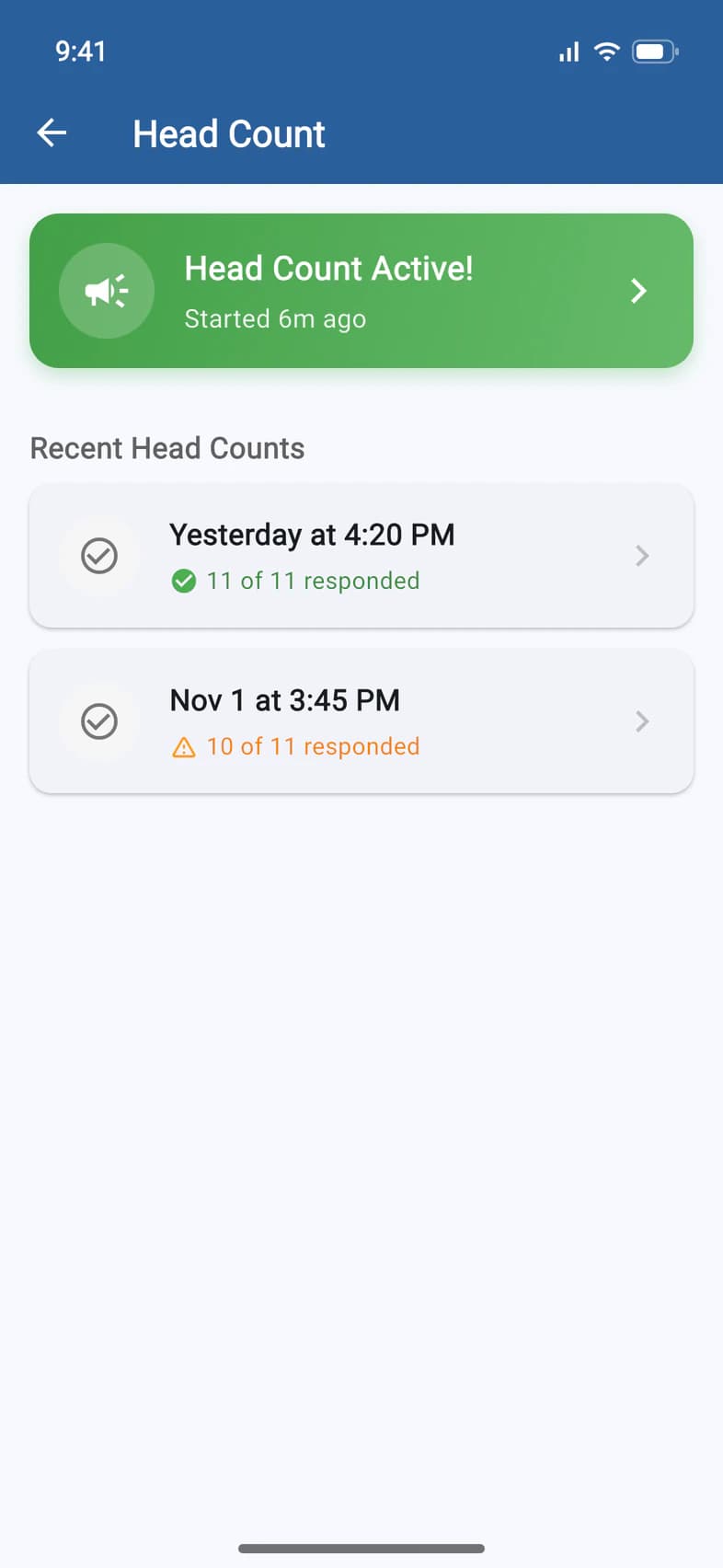
A running head count sits at the top of Head Count. Tap Head Count Active! 1 to go back to it.
Under Recent Head Counts, green means everyone checked in; orange means someone didn't.
- Step 8
Finish the head count
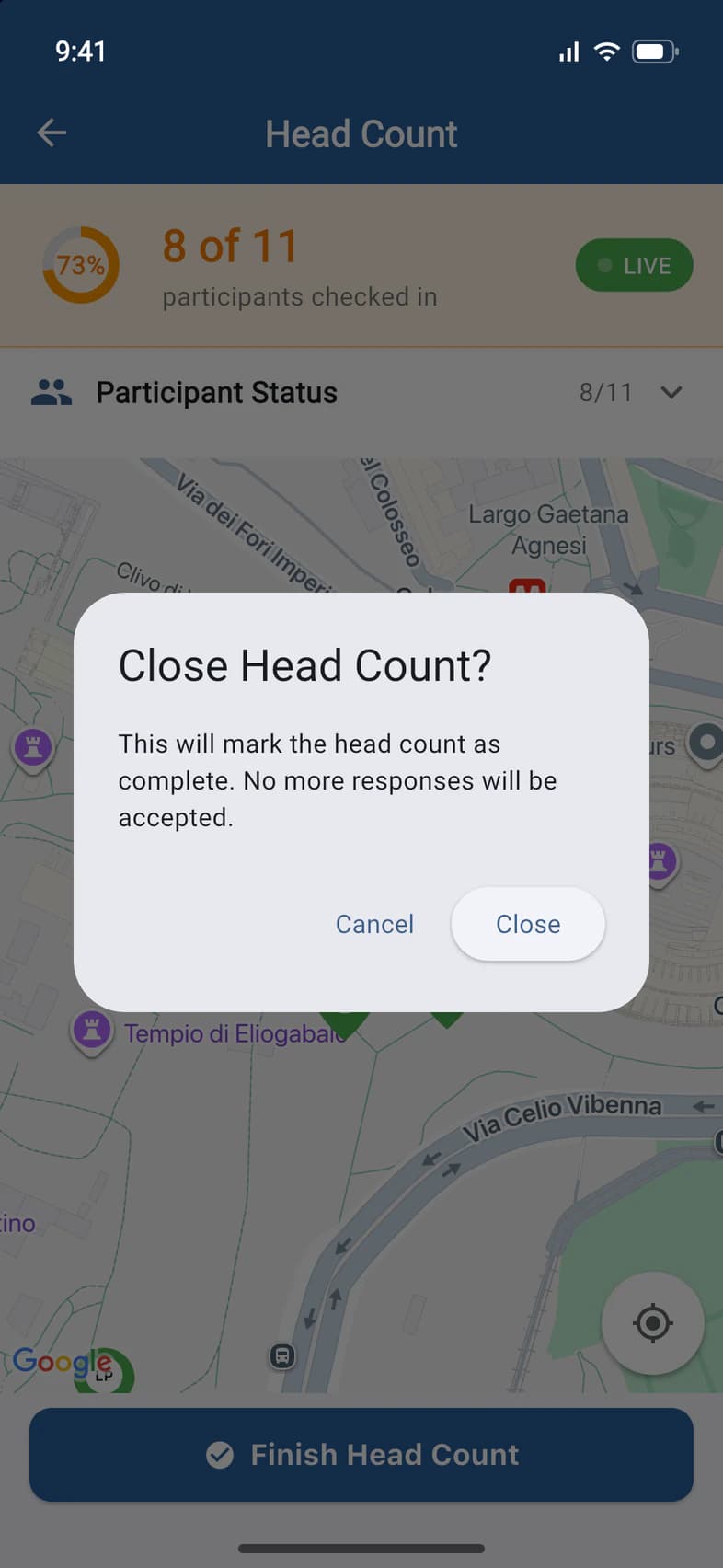
Tap Finish Head Count at the bottom, then Close 1. No more check-ins are taken, and the count moves to Recent Head Counts.
Once everyone has checked in, the button turns green and says Finish — Everyone's In.
Good to know
Who is asked to check in?
Everyone on the tour who has the app: travelers and chaperones, but not you and never parents. Travelers who haven't joined the app aren't in the count, so count them yourself.
What if someone's phone can't find its location?
They can still check in. They count, but don't get a pin on the map.
Can I take two head counts at once?
No. Finish the running one first.
Can a chaperone or my Tour Director take a head count?
Yes. Admins you've chosen can (see Make someone an admin), and so can your Tour Director; then travelers read "Your tour director is doing a head count".
It says "Location Permission Required" or "Location Features Unavailable".
Allow PassportsGo to use your location in your phone's settings. "Unavailable" means the tour hasn't started or is over, or Enable Location Tracking is off in Admin › Group Settings. On passportsgo.com, head counts don't work at all.
Screens show a sample family and tour — your names, dates and amounts will differ. Checked against the app November 3, 2026.
Call us. A real person in Worcester picks up.
Monday to Friday, 8am to 4pm Eastern — and around the clock once your group is on tour. Or email passportsgo@passports.com.