
See your group on the live map
Live locations during the tour, and a nudge to refresh everyone's position.
During the tour, Live Map shows where everyone who shares their location was last seen, and lets you remind the people whose positions aren't coming in.
Travelers and chaperones share their location from the app; parents are never on the map.
Every pin, how fresh it is, and a nudge for whoever’s missing
Open Live Map, read each pin's color and the list of how everyone shares, find anyone in a tap, and remind the people whose location isn't coming in.
Real app screens, sample tour · narration generated with AI
Before you start
- PassportsGo on your phone, with location allowed. Live Map doesn't work on passportsgo.com.
- Your tour under way: location sharing runs only during the tour dates.
- Step 1
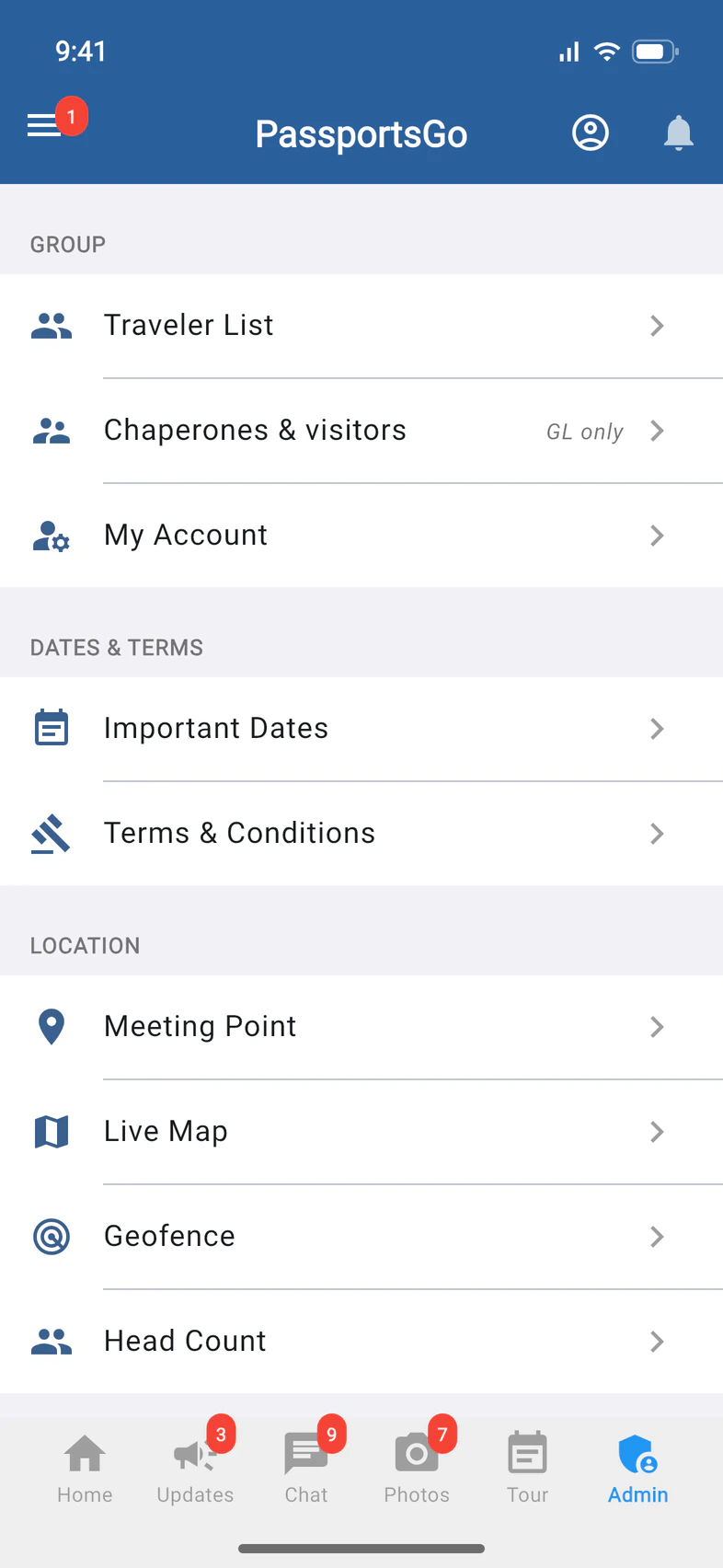
Open Live Map
Tap Admin 1, then Live Map 2.
- Step 2
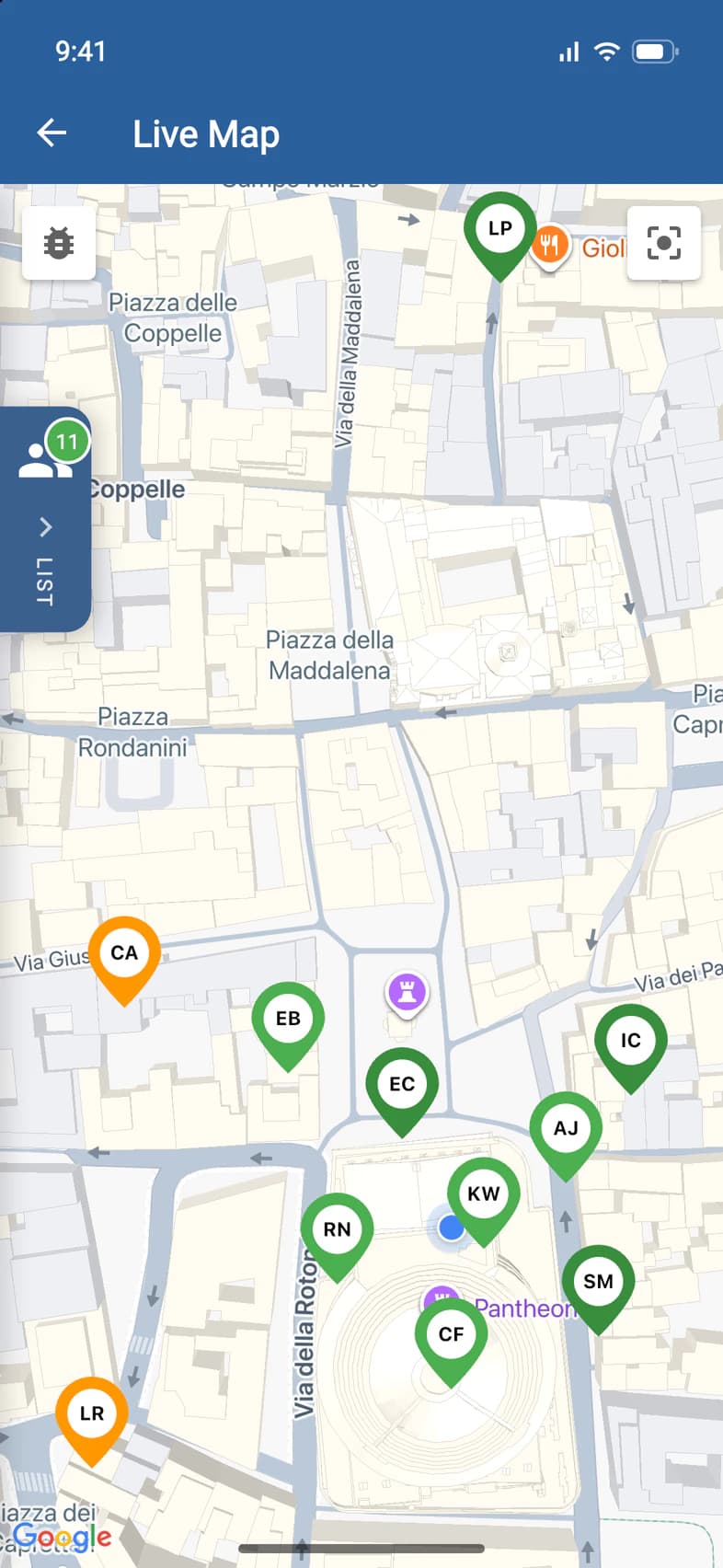
See where everyone is
Each pin is one person, with their initials. Its color shows how recent the position is: green if it's from the last 10 minutes, orange from the last hour, red if it's older.
Tap LIST 1 to see everyone by name.
- Step 3
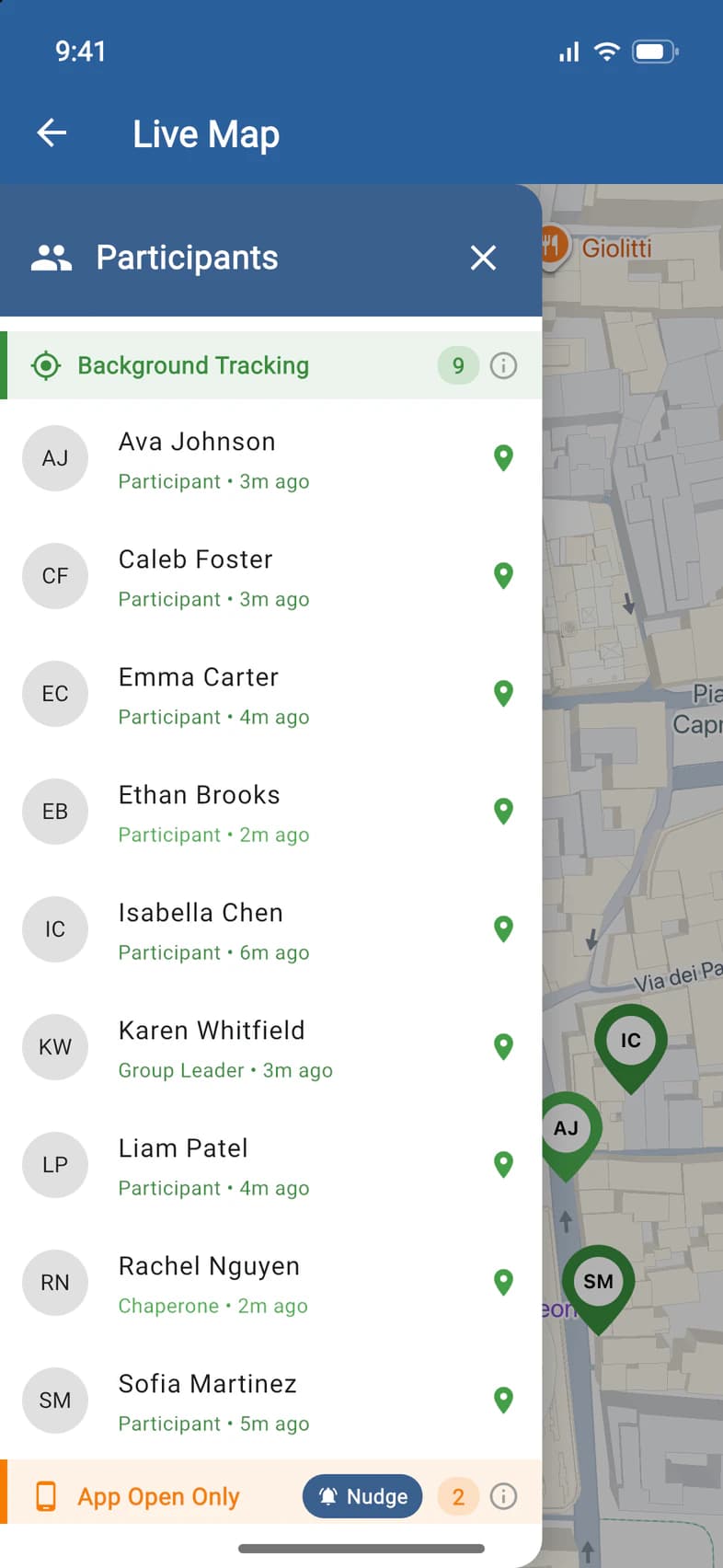
Read the list
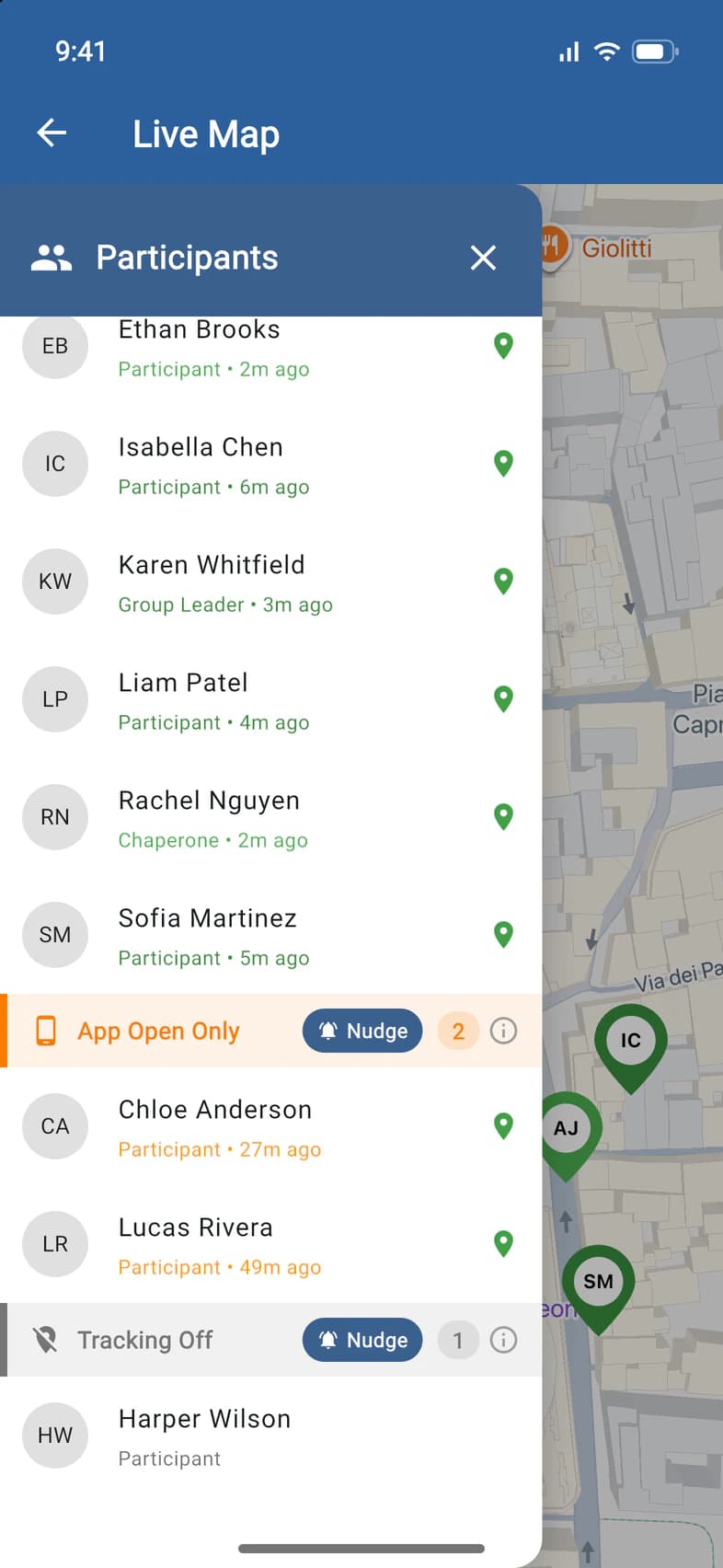
People are grouped by how they share their location 1, and each row says how long ago their position is from. Tap a name 2 to find that person.
The ⓘ beside each group explains it.
- Step 4
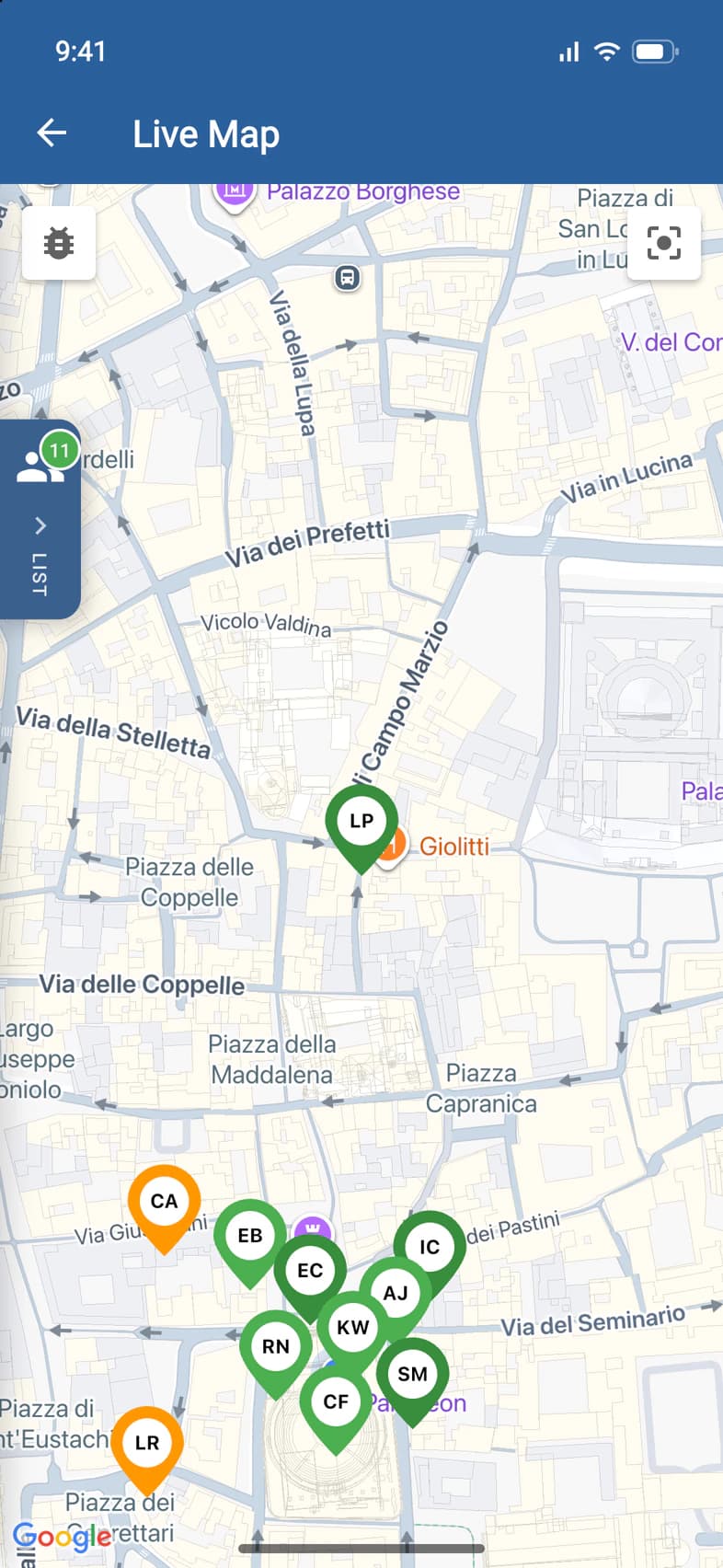
Find someone
The list closes and the map centers on that person 1. Here, Liam is at the gelato shop around the corner from the group.
- Step 5
Check who isn't updating
Further down the list: App Open Only 1, whose positions update only while they have the app open, and Tracking Off 2, whose sharing is switched off in PassportsGo, so they have no pin.
Anyone whose sharing is on but whose phone isn't sharing yet is listed between the two, under Needs Setup, with the reason in red under their name, such as Blocked in phone settings.
To remind the people in one group, tap its Nudge 3. It reaches only that group.
- Step 6
Send a reminder
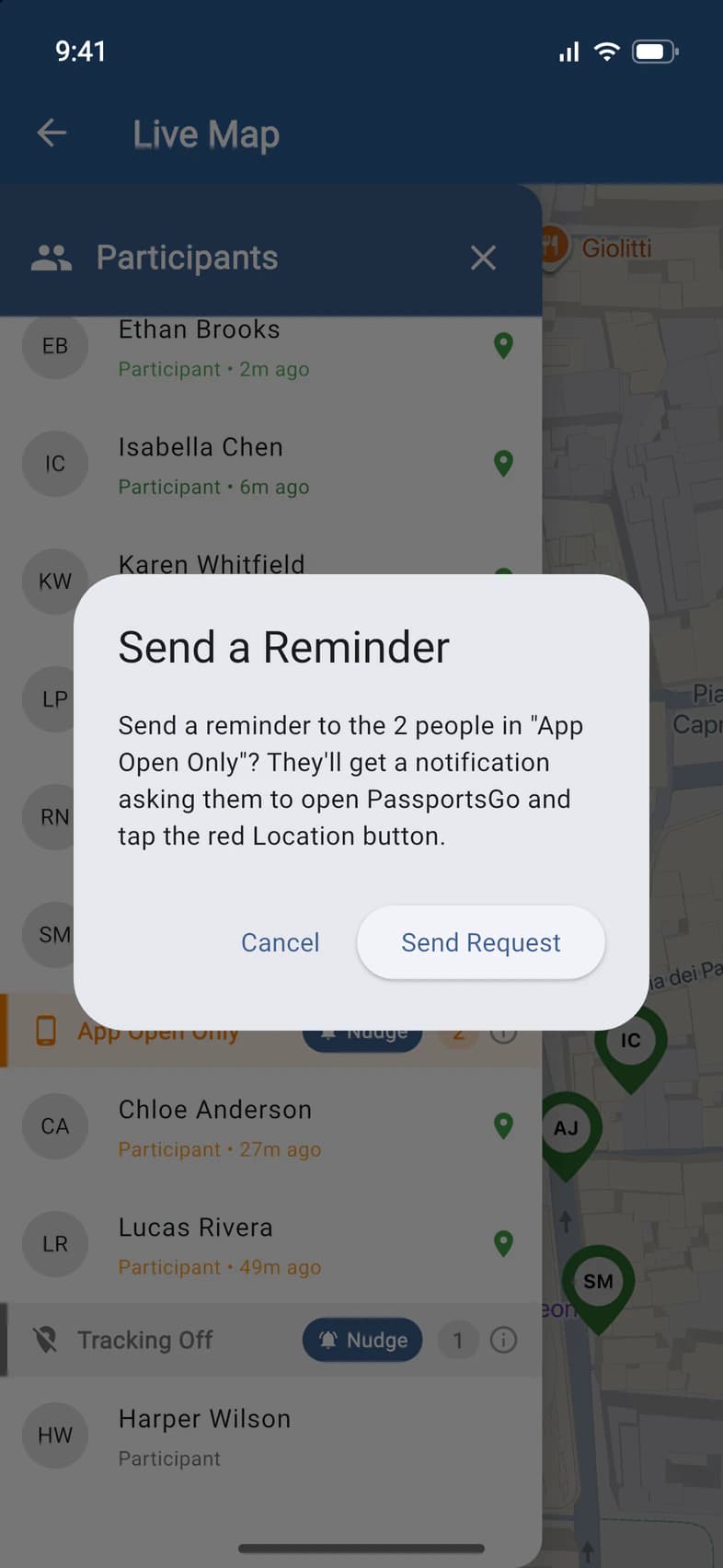
Tap Send Request 1. Only the people in that group get a notification, asking them to open PassportsGo and tap the red Location button.
Then every Nudge counts down a minute before you can send another reminder.
Good to know
Who else can see this map?
Your admins (such as chaperones with Admin Functions), your Tour Director if you turn on Can See Location Tools, and Passports staff. Travelers never see each other's locations.
Does PassportsGo keep a history of where people went?
The map shows each person's latest position from the last 24 hours. PassportsGo also keeps the positions recorded with head-count check-ins, while a geofence alert is open, and some readings used to fix location problems.
Someone isn't on the map.
They may be under Tracking Off, which never shows a pin, or under Needs Setup, where their phone isn't sharing yet (the reason is under their name). Or they haven't shared in the last 24 hours, or haven't joined the app yet. Parents are never on the map.
Can I use Live Map on a computer?
No. Live Map, meeting points, head counts and geofences work in the PassportsGo app on your phone.
Screens show a sample family and tour — your names, dates and amounts will differ. Checked against the app November 3, 2026.
Call us. A real person in Worcester picks up.
Monday to Friday, 8am to 4pm Eastern — and around the clock once your group is on tour. Or email passportsgo@passports.com.