
Sign in to PassportsGo
Sign in with a 6-digit code sent to your email or phone — or tap the sign-in link in any PassportsGo email or text.
There's no password. PassportsGo signs you in with a 6-digit code sent to your email, or by text if Passports has your mobile number. It takes about a minute.
Got an email or text from PassportsGo with a sign-in link? Tapping it signs you straight in, no code needed. A sign-in link works for up to 30 days.
Before you start
- PassportsGo from the App Store or Google Play, or passportsgo.com in a browser.
- The email address Passports has on file for you as the group leader.
- Step 1
Enter your email
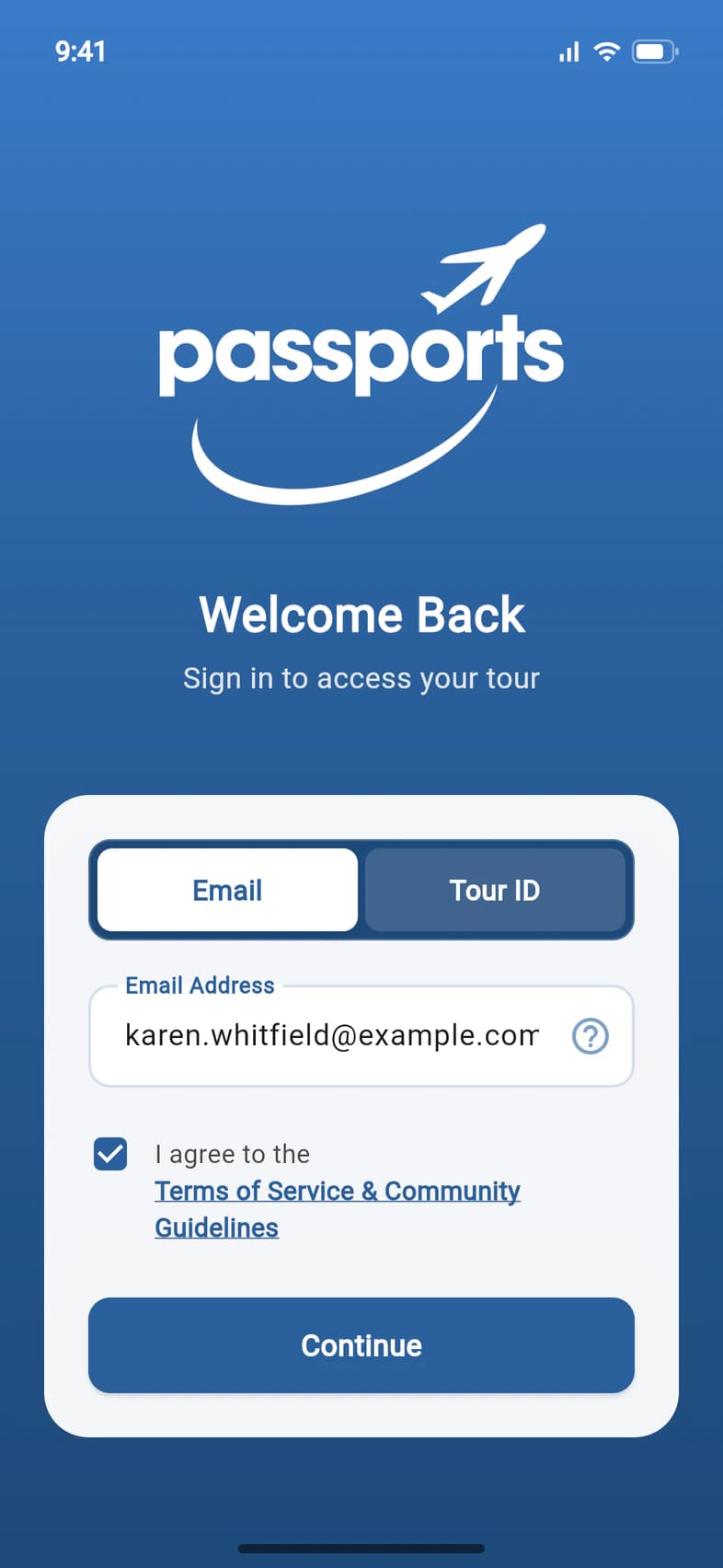
Open PassportsGo. On Welcome Back, leave Email selected and type your address in Email Address 1.
Tick I agree to the Terms of Service & Community Guidelines 2, then tap Continue 3.
Use the primary email address Passports has on file for you. Not sure which one that is? Tap the ? at the end of the email box.
- Step 2
Choose email or text
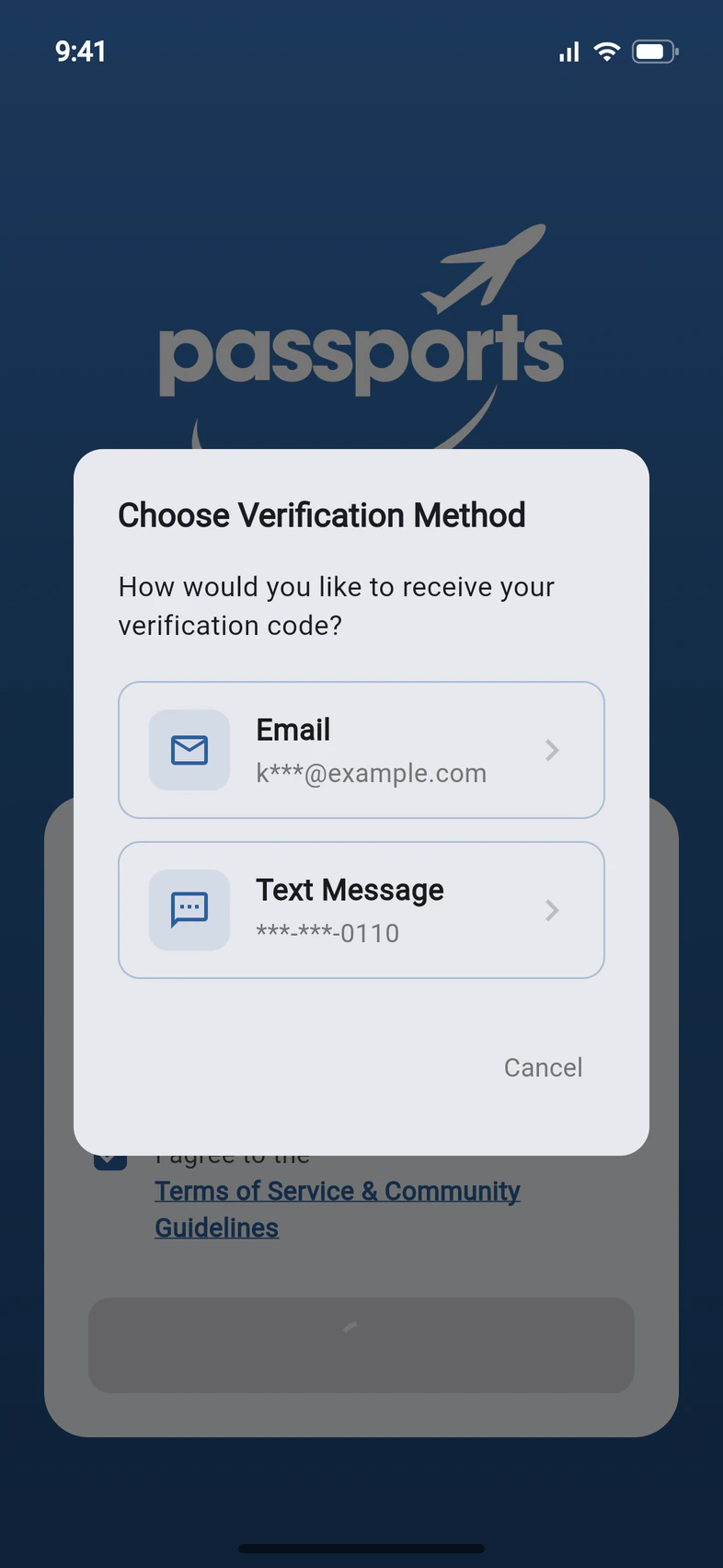
If Passports has your mobile number, PassportsGo asks where to send your code: Email 1 or Text Message 2. Tap one.
With no mobile number on file, you skip this step and the code goes to your email.
- Step 3
Enter the code
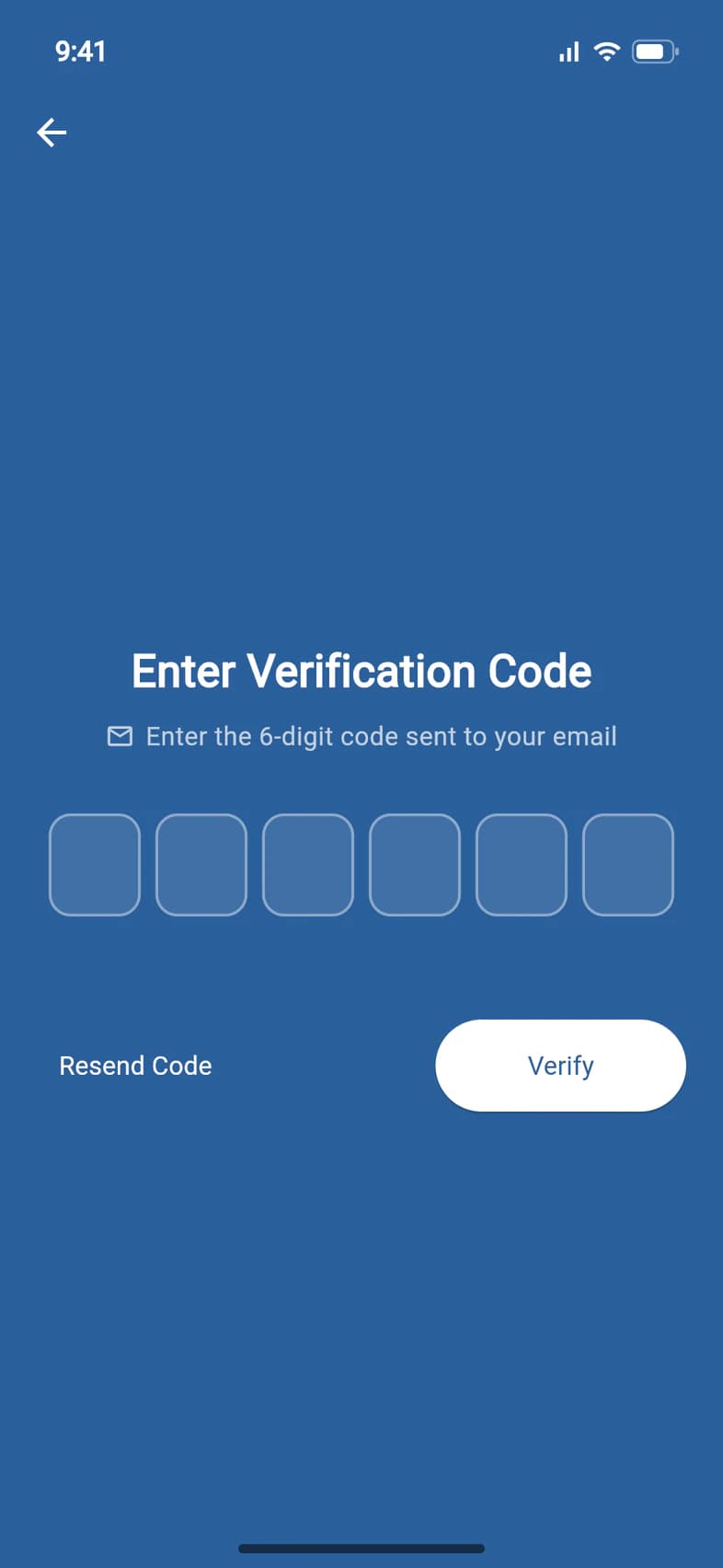
Open the email or text from Passports and type the 6-digit code into the boxes 1. PassportsGo signs you in as soon as the sixth digit is in, or tap Verify 2.
No code after a few minutes? Check your spam or junk folder, then tap Resend Code 3.
Chose Text Message and no text came? Tap Didn't get a text? Email me the code below the buttons, and a new code goes to your email. A phone that once replied STOP to a Passports text gets no codes by text.
Each code works once, for 10 minutes, and stops working after five wrong tries. If yours is refused, or PassportsGo says This code has expired, tap Resend Code and use the newest one.
- Step 4
You're in
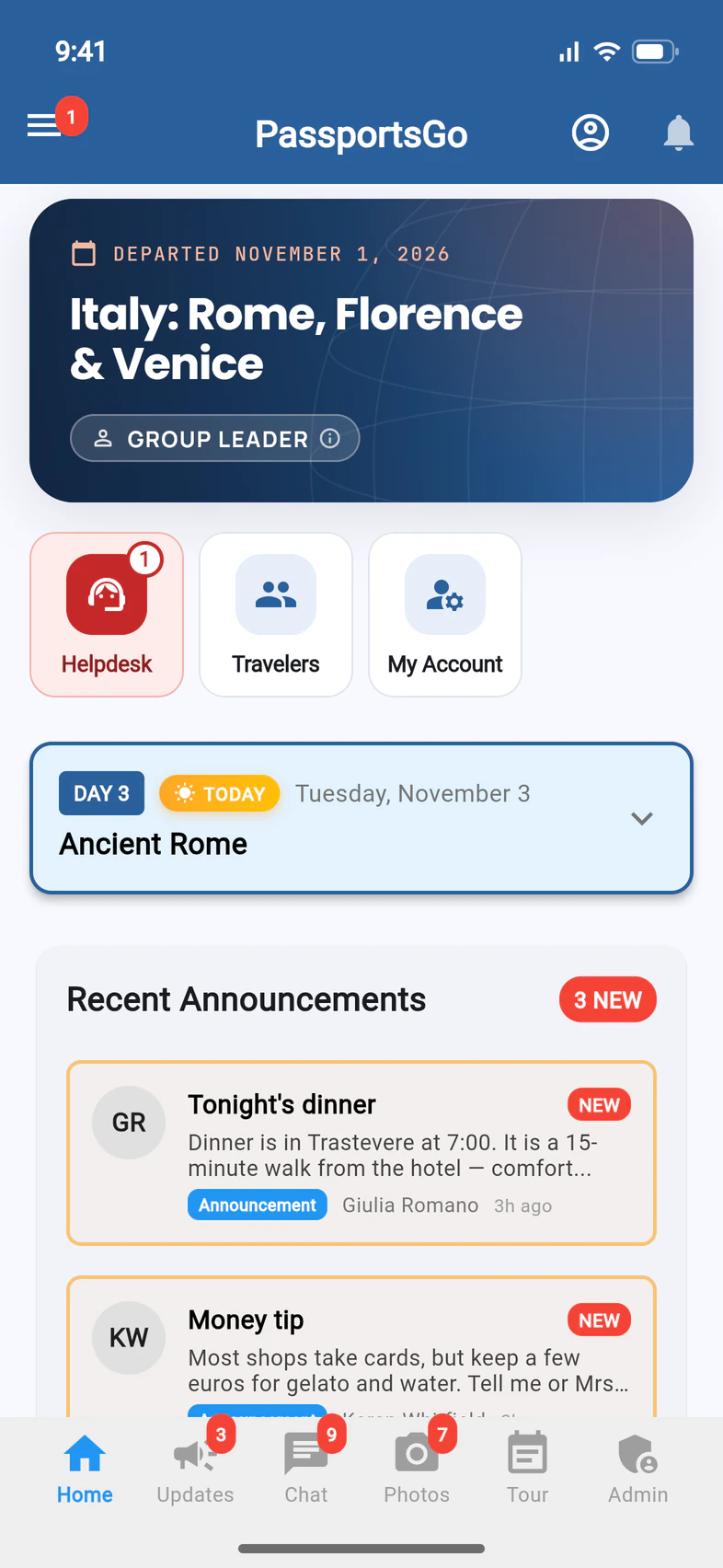
You land on Home for your tour 1. Next time you open PassportsGo on this phone or computer, you're still signed in.
Good to know
Is there a password?
No. Whenever you sign in on a new phone or browser, PassportsGo sends a fresh 6-digit code to your email or phone.
It says my email address isn't registered.
Try your other email address. PassportsGo uses the one Passports has on file for you as the group leader. If none of them work, call Passports at 1-800-332-7277.
It says No active tours found.
You're signed in, but PassportsGo found no current tour for that email. After Checking your trips... the screen names the email you used. To use another email, tap Sign out, then sign in with the one Passports has on file for the tour you're leading now. Just enrolled? Tap Try again. Still stuck? Call Passports at 1-800-332-7277.
Can I skip the code?
Yes. PassportsGo emails and texts include a sign-in link. Tap it on the phone or computer you want to use and you're signed in. A link works for up to 30 days; an expired one says This link is no longer valid, so sign in with a code instead.
My old my.passports.com link doesn't sign me in.
Links from the old my.passports.com no longer sign anyone in. Open PassportsGo and sign in with your email or phone and a code.
Can I use a computer?
Yes. Go to passportsgo.com in any browser and sign in the same way.
No email from Passports arrives, not even my sign-in code.
If one of our emails to that address was once marked as spam, our emails can't reach it any more: no tour updates, sign-in codes or Helpdesk replies. If Passports has your mobile number, sign in with Text Message instead; if not, call Passports at 1-800-332-7277.
Once you're in, Home shows a red strip, We can't email you, naming your address. Tap Get our emails again, then Yes, email me, and our emails reach you again. That works once per address: after a second spam report, the strip asks you to contact us instead, with Contact us to open the Helpdesk.
I still can't sign in.
Call Passports at 1-800-332-7277 and we'll check the email and phone number on your record.
Screens show a sample family and tour — your names, dates and amounts will differ. Checked against the app October 28, 2026.
Call us. A real person in Worcester picks up.
Monday to Friday, 8am to 4pm Eastern — and around the clock once your group is on tour. Or email passportsgo@passports.com.