
Set a meeting point
Pick a time and put the pin on the spot. Everyone on the tour is notified, and reminded 10 minutes before.
Tell the group where and when to meet, right in the app. Pick a time, put the pin on the spot, and tap Create.
Everyone on the tour who has the app gets a notification now and a reminder 10 minutes before. Parents at home don't get meeting points.
The whole meeting point, from picking the time to closing it
Pick a time and put the pin on the spot, see who gets the notification and the 10-minute reminder, and close it when everyone's there.
Real app screens, sample tour · narration generated with AI
Before you start
- PassportsGo on your phone, with location allowed. Meeting points can't be set on passportsgo.com.
- Your tour under way: meeting points switch on when the tour starts.
- Step 1
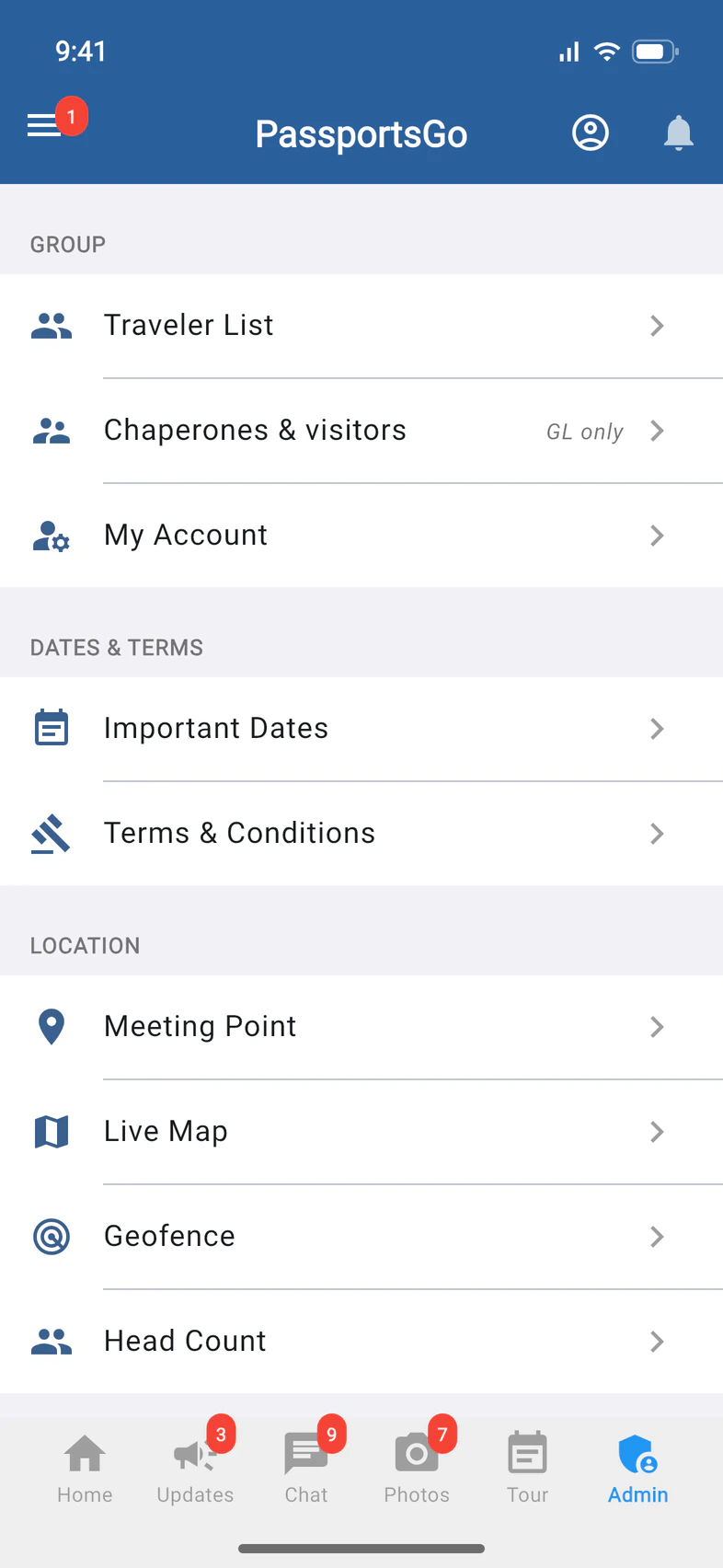
Open Meeting Point
Tap Admin 1, then Meeting Point 2 under LOCATION.
Admins you've chosen, like chaperones with Admin Functions, have the same tools.
- Step 2
Pick a time
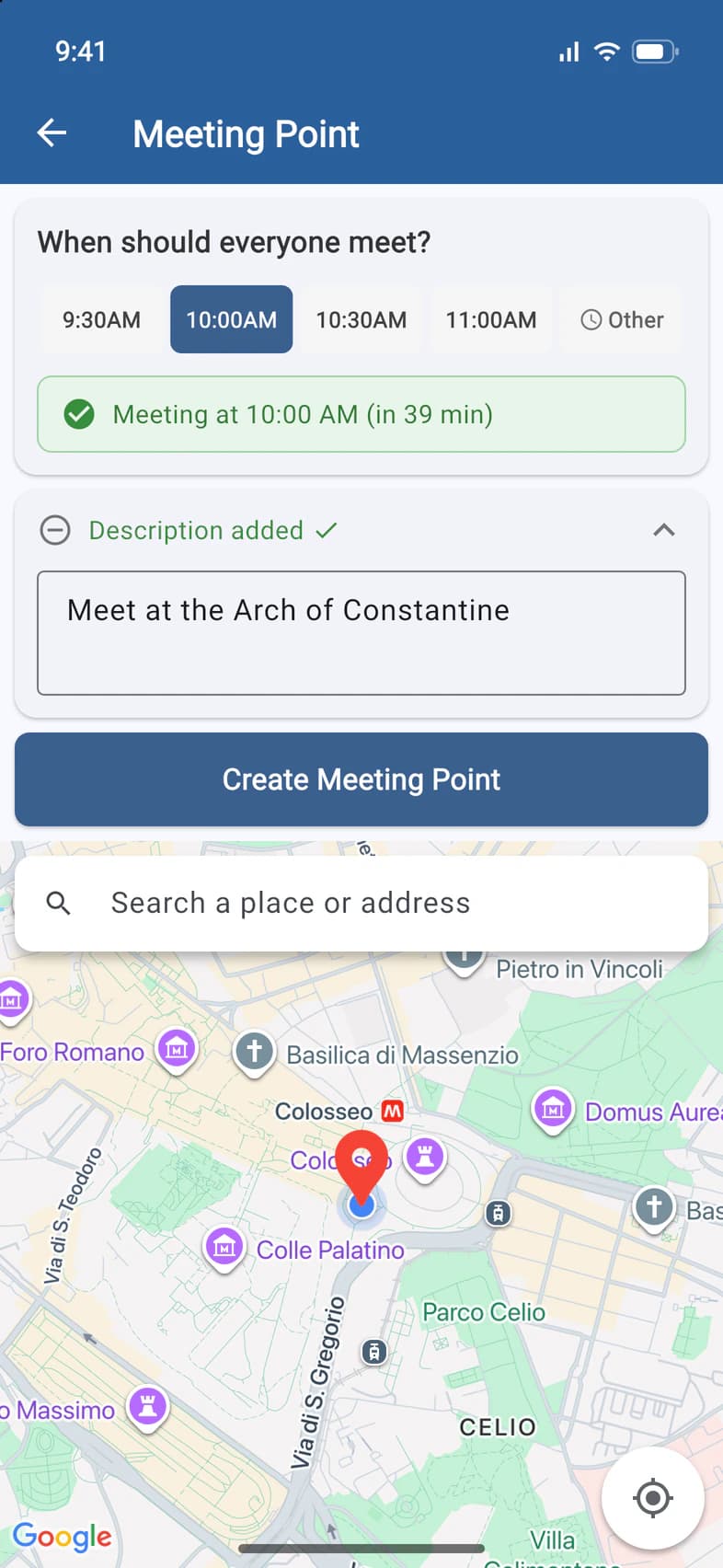
Under When should everyone meet?, tap one of the next four half-hour times, or Other to pick any time 1. The green line confirms it, with how long until then 2.
If you pick a time with Other that has already passed today, the meeting point is set for tomorrow.
- Step 3
Say where, and place the pin
Tap Add description (optional) and say where to meet 1. Then move the map until the red pin 2 sits on the spot. The map starts where you are.
Or search for a place or address 3: the map jumps there, and the place's name becomes the description if you haven't typed one.
- Step 4
Create the meeting point
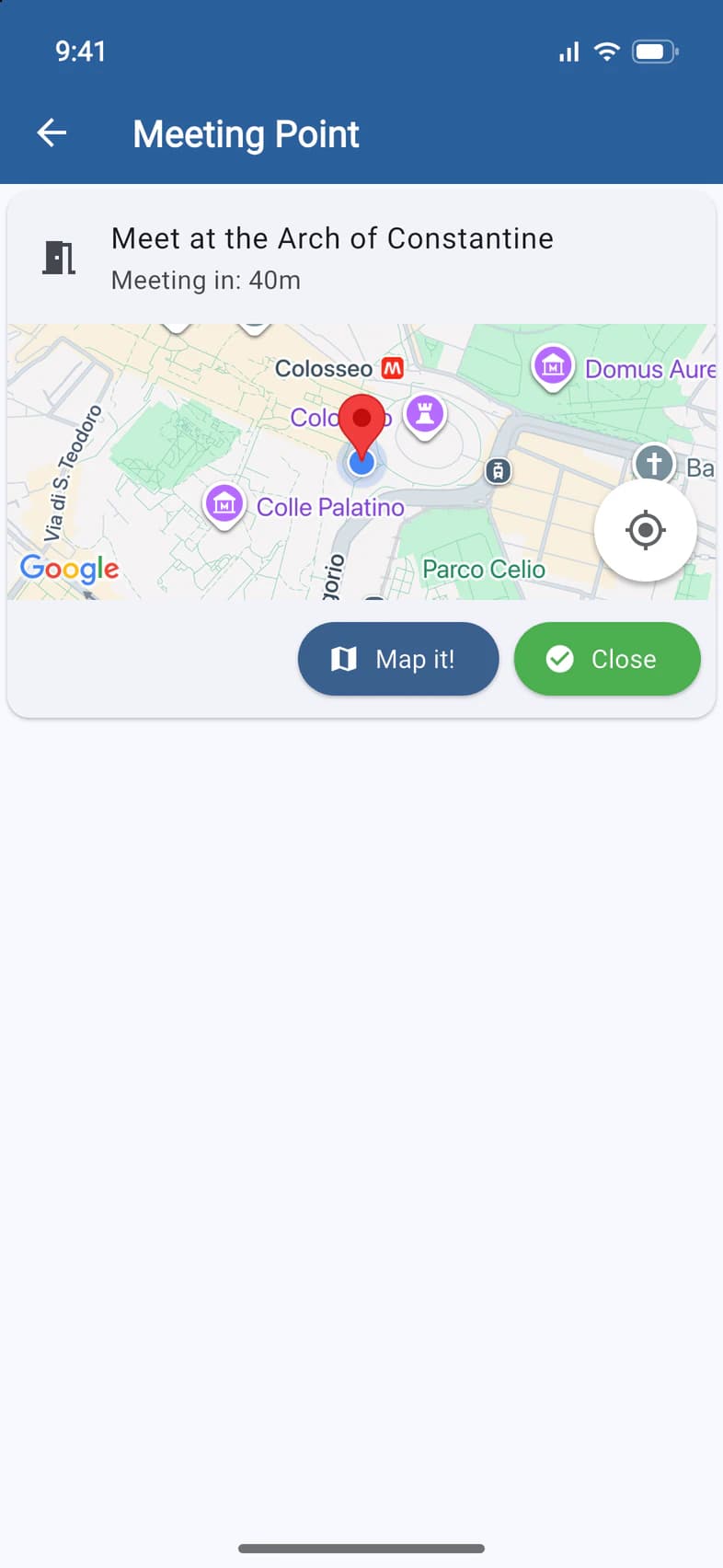
Tap Create Meeting Point. The page now shows the meeting point 1 and counts down to it 2.
Everyone on the tour who has the app gets a notification now, including your Tour Director. Everyone, you too, gets a reminder 10 minutes before the time.
- Step 5
What your group sees
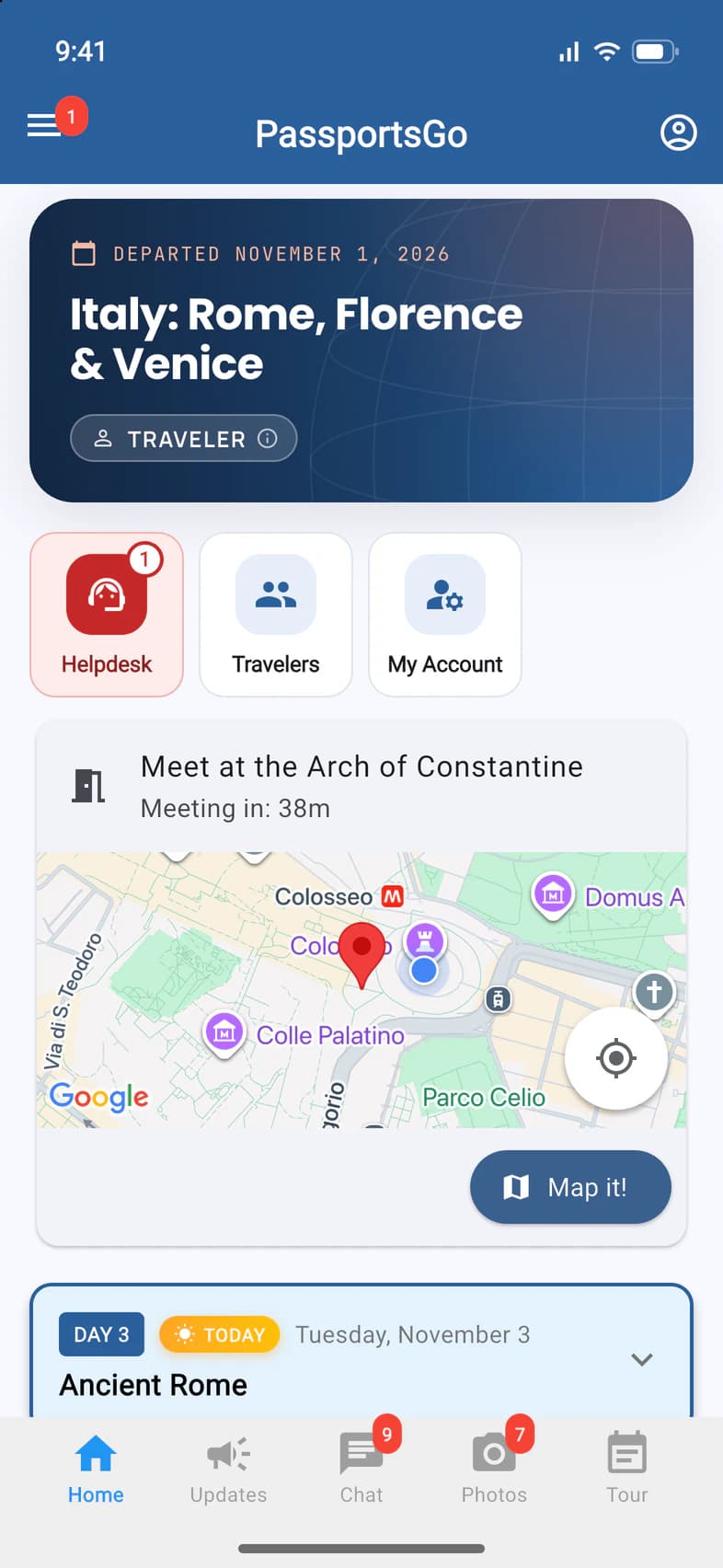
Travelers and chaperones find it on Home, right under the tiles 1. Map it! 2 opens directions in their maps app.
It stays on Home until an hour after the meeting time, or until you close it.
- Step 6
Close it
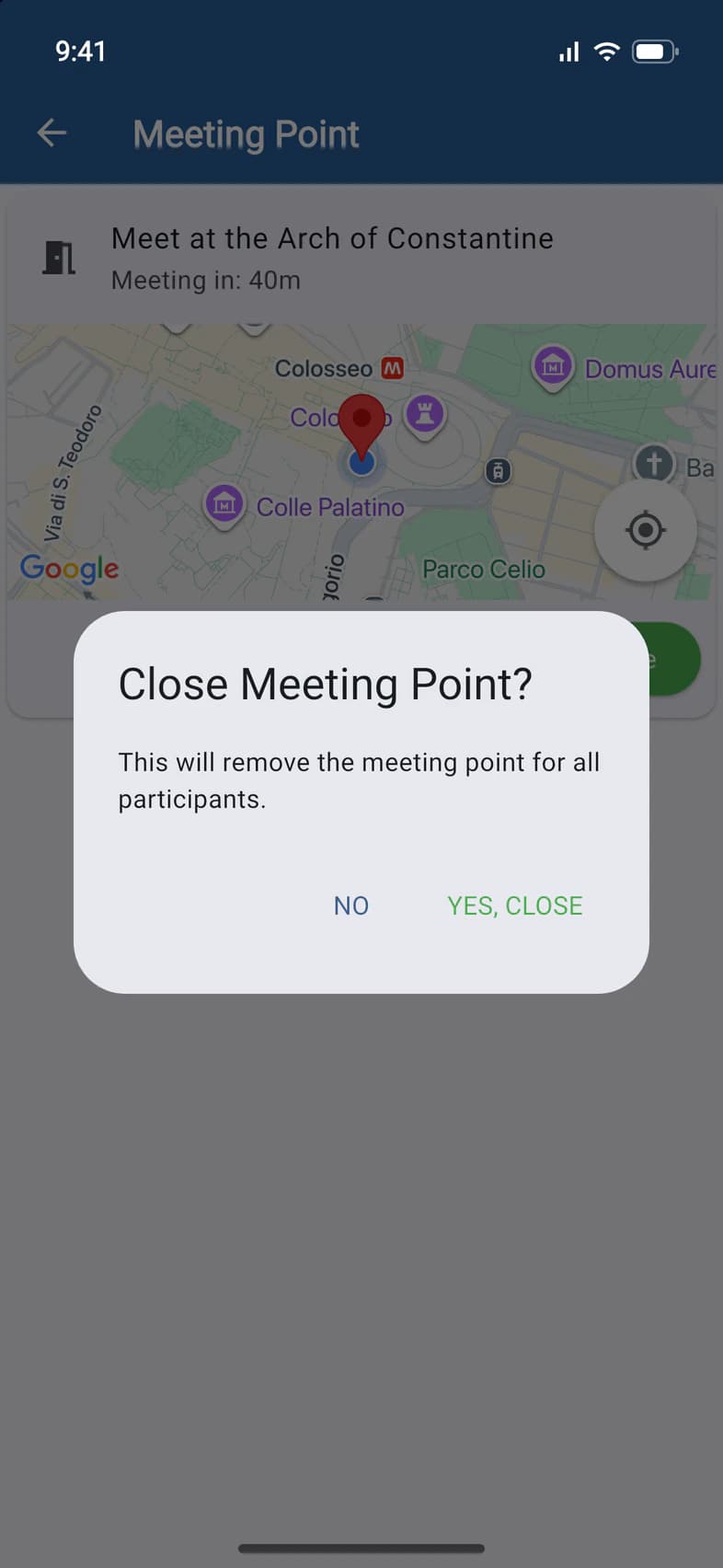
When everyone's there, tap Close on the meeting point, here or on your Home, then YES, CLOSE 1. It disappears for everyone.
There's one meeting point at a time. To change the time or place, close it and create a new one.
Good to know
Who gets the notification?
Everyone on the tour who has the app: travelers, chaperones and your Tour Director. Parents at home don't get meeting points, and don't see them in the app.
Can I change a meeting point?
Close it and create a new one. The group can have one meeting point at a time.
What happens once the meeting time has passed?
The meeting point stays up for another hour, and the countdown turns into how long ago the time was, such as Meeting time: 5 min ago. Then it leaves everyone's Home, and Meeting Point is ready for a new one. Close it sooner if you're done.
Can chaperones set meeting points?
Yes, if you've given them Admin Functions (see Make someone an admin). Your Tour Director can set them too; theirs say "Created by Tour Director".
It says "Location Permission Required".
Allow PassportsGo to use your location in your phone's settings, then open the page again. On passportsgo.com, meeting points and head counts don't work at all: use the app on your phone.
It says "Location Features Unavailable".
Either the tour hasn't started or is over (the page shows the dates the tools work), or Enable Location Tracking is off in Admin › Group Settings.
Screens show a sample family and tour — your names, dates and amounts will differ. Checked against the app November 3, 2026.
Call us. A real person in Worcester picks up.
Monday to Friday, 8am to 4pm Eastern — and around the clock once your group is on tour. Or email passportsgo@passports.com.