
Message your interest list
Send an email or text with an Enroll button to everyone on your list — and see what families receive.
Invite the families on your interest list by email, text or both. Every message carries a See the trip and enroll button or link to your enrollment page, and a way to say no. Replies come to your email.
- Step 1
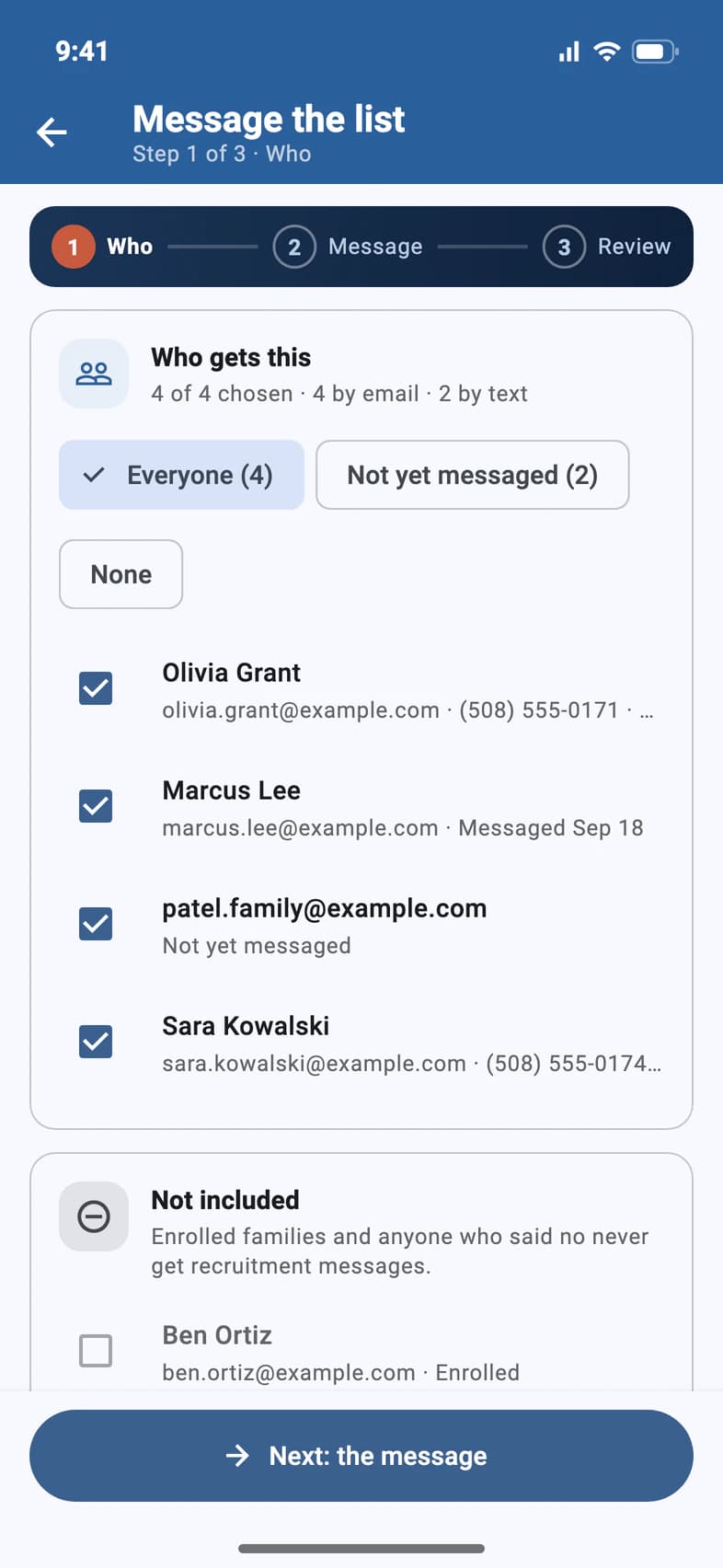
Choose who gets it
On the Recruitment tab, the Your next step card at the top has the button: Message the list, or Message them when some families haven't heard from you yet, with Message the whole list under it.
Pick Everyone 1 or Not yet messaged 2, or tick people one by one. Enrolled families and anyone who said no are never included. Tap Next: the message 3.
- Step 2
Write the message
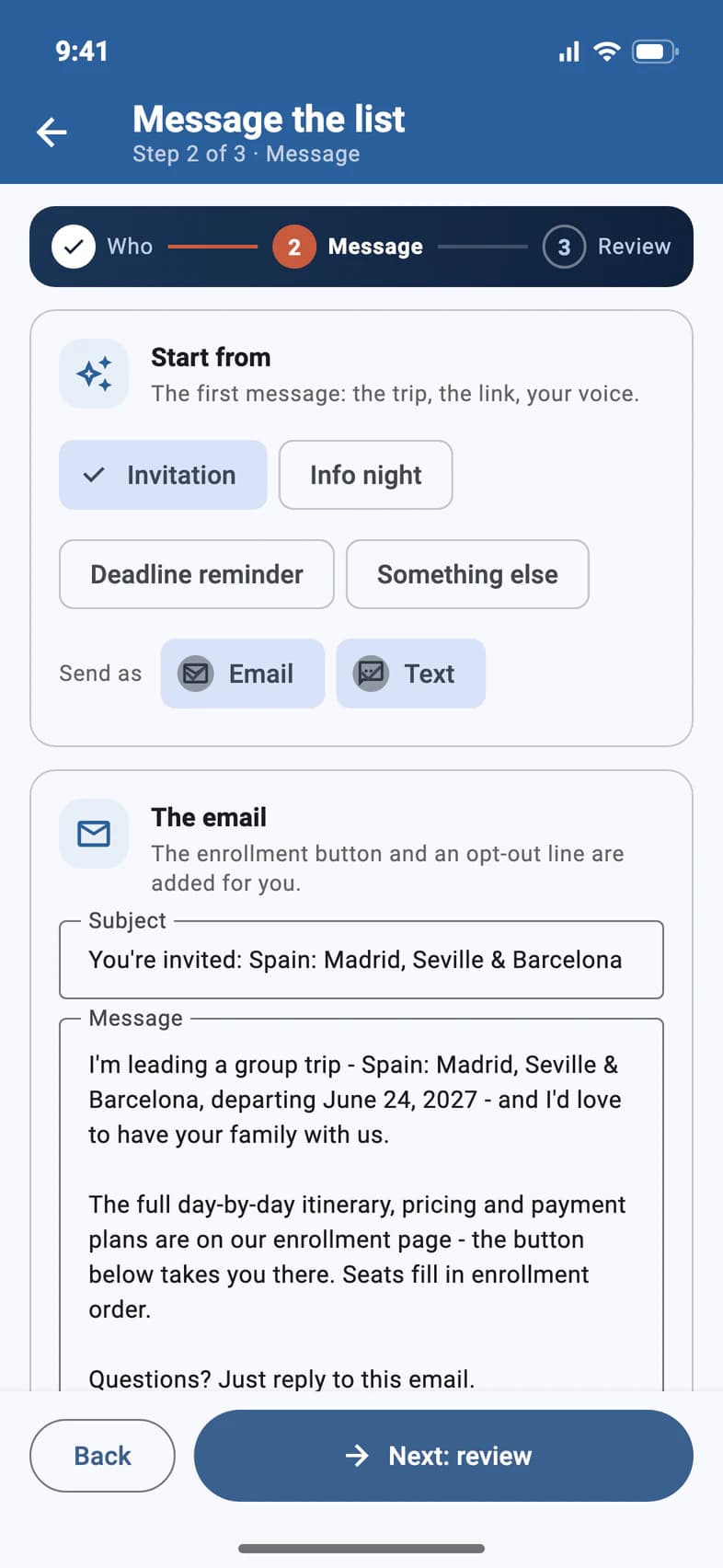
Start from a template 1: an Invitation, an Info night, a Deadline reminder, or Something else. Send it as an Email 2, a Text 3 or both, and make the words your own, from the Subject 4 down.
The enrollment button and the opt-out line are added for you.
Only text families who have asked you about the trip. Texts come from Passports with your name.
- Step 3
Check it and send
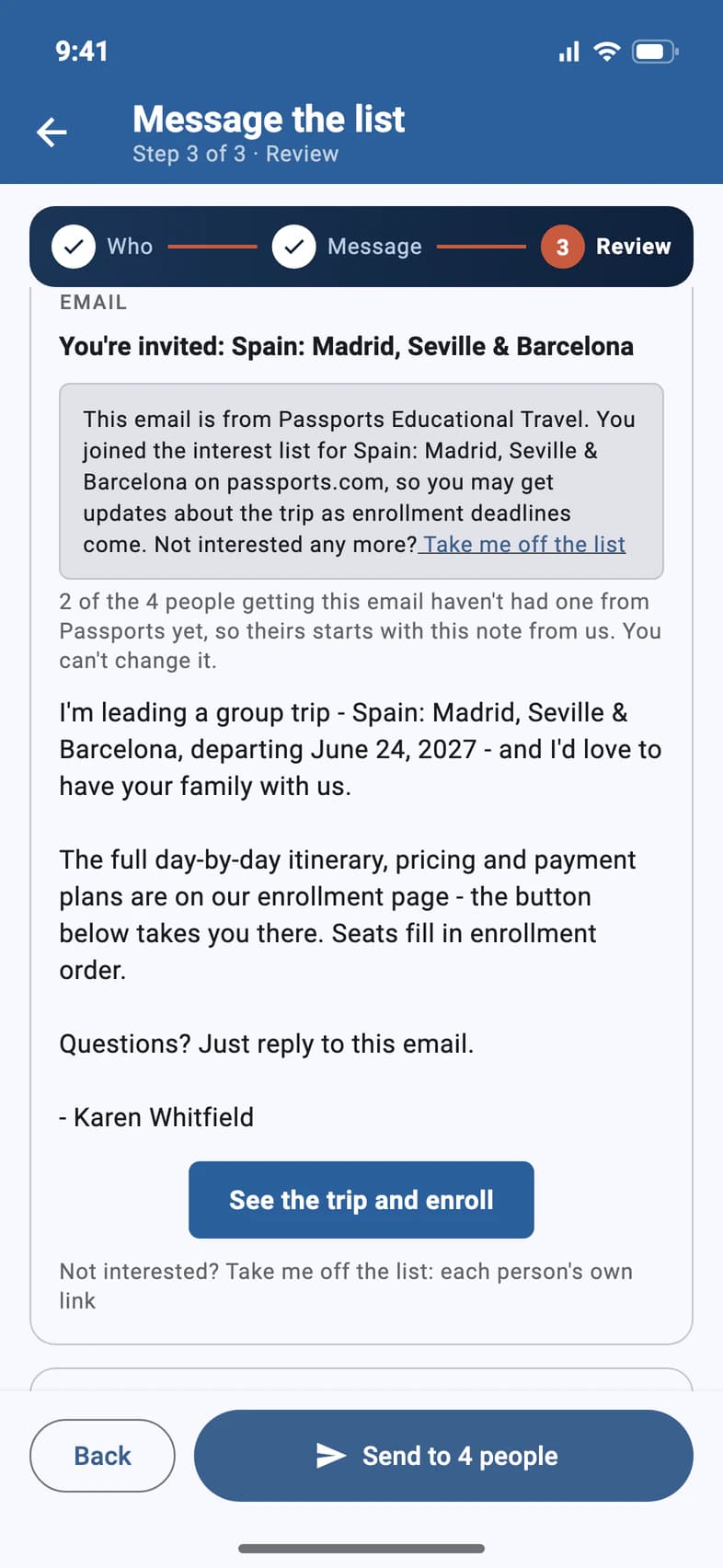
The last step shows exactly what families get. Someone who hasn't had an email from Passports yet gets a short note from us at the top of theirs 1: who we are, who added them, and a Take me off the list link. You can't change it; the line under it says how many of your people get it. Then comes your message, with its See the trip and enroll button 2.
The text preview below works the same way: a first text opens with our note, which says to reply NO to say no, or STOP to stop all our texts.
Scroll down and tap Send me a test to get it yourself first: the test starts with the note too. Then tap Send to … people 3.
Good to know
It says messages are not switched on for my group.
Sending is being turned on group by group. Contact Passports; in the meantime you can keep building your list.
Do families get a PassportsGo sign-in link?
No. The button takes them to your enrollment page. They join PassportsGo after they enroll.
Where do replies go?
To your email.
Can someone send these for me?
Yes: a chaperone or visitor with Can use Recruitment. Their messages are signed with their own name, and replies go to them. On a contact they added, our first note doesn't say who added them, just that the person has been added to the trip's interest list. See Let someone help you recruit.
Can I see what I sent before?
Yes. Messages sent, under Your people on the Recruitment tab, says how many batches you've sent and when the last one went. Tap it to see each batch: when, and how many emails and texts went out.
Can I email the interest list and my travelers together?
Yes, by email only: tap Message group at the top of the Traveler List and tick Interest list along with Travelers, Guardians or Chaperones, or on its own. The interest list gets its own version with the See the trip and enroll button, and its chip is grayed out once enrollment closes. Its Sent messages also lists what you sent from the Recruitment tab.
Can I write from my own email instead?
Yes. On the Recruitment tab, under Your people, Copy emails (beside Add contacts) copies your interest list's addresses, minus anyone who said no or unsubscribed, ready to paste into the Bcc line. To send the full invitation (photos, dates, hotels and the enrollment button) from your own account, tap the Email me the invitation tile under Share your tour, then the Email me the invitation button: Passports emails it to you, and you forward it. It helps when school email blocks mail from outside the district.
Screens show a sample family and tour — your names, dates and amounts will differ. Checked against the app November 3, 2026.
Call us. A real person in Worcester picks up.
Monday to Friday, 8am to 4pm Eastern — and around the clock once your group is on tour. Or email passportsgo@passports.com.