
Update PassportsGo
When a new version is ready, your phone asks as the app opens; after that, the red Update tile. On a computer, refresh.
PassportsGo gets new features and fixes often. When a new version is in the App Store and Google Play, the app on your phone asks you to update as it opens, and a red Update tile waits on Home until you do.
It takes a minute, and everything in the app is still there afterwards. On a computer there's nothing to install: passportsgo.com always opens the newest version.
- Step 1
Open PassportsGo
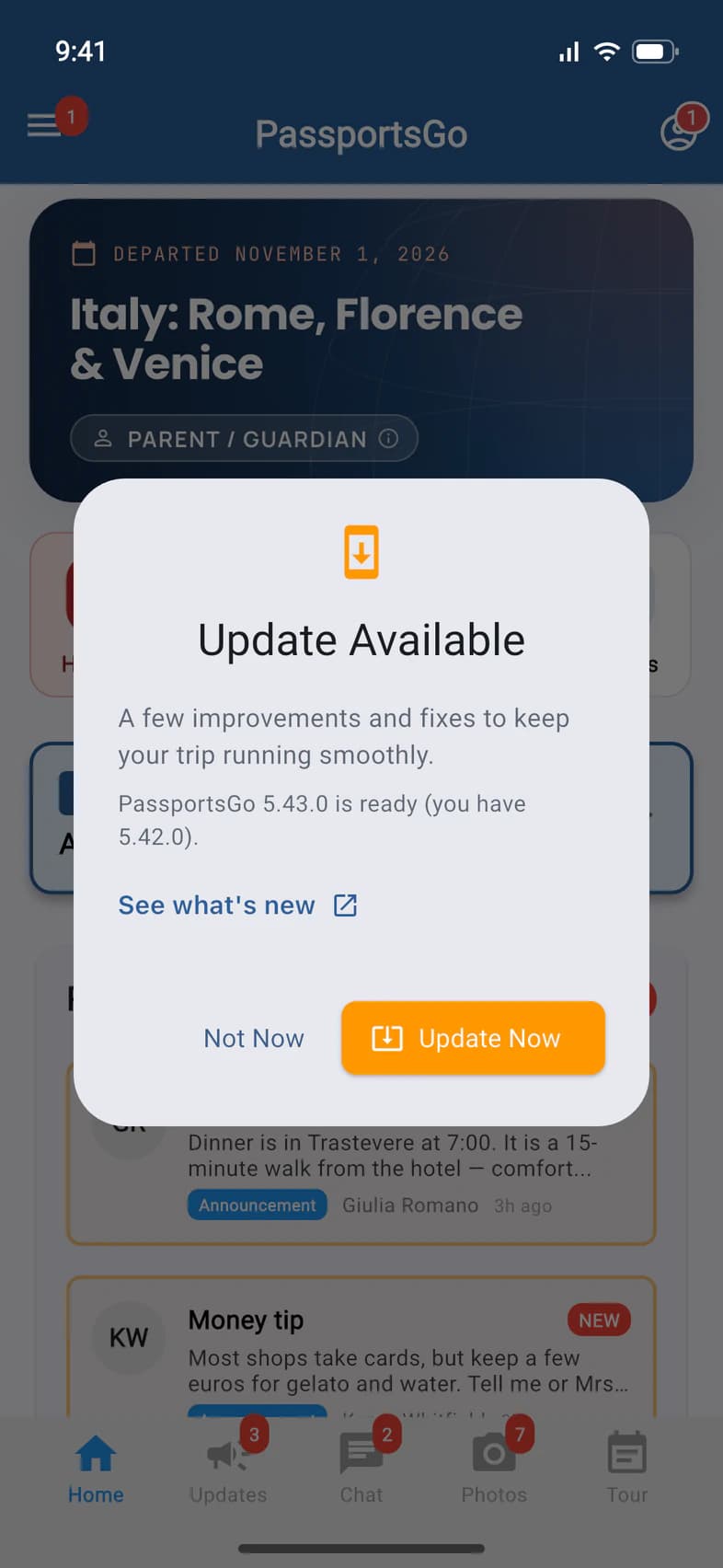
When a new version is ready, PassportsGo asks as soon as it opens: Update Available. The note says what's new, and the line under it 1 shows the new version and the one you have.
See what's new 2 opens the list of new features on passports.com. The message stays open, so you can come back and update.
- Step 2
Tap Update Now
Tap Update Now 1. On an iPhone the App Store opens at PassportsGo; on an Android phone, Google Play. Tap Update there, then open PassportsGo again once it's done.
An update is a download. Traveling abroad? Use Wi-Fi (at the hotel, say) rather than mobile data, which can cost extra.
- Step 3
Or tap Not Now
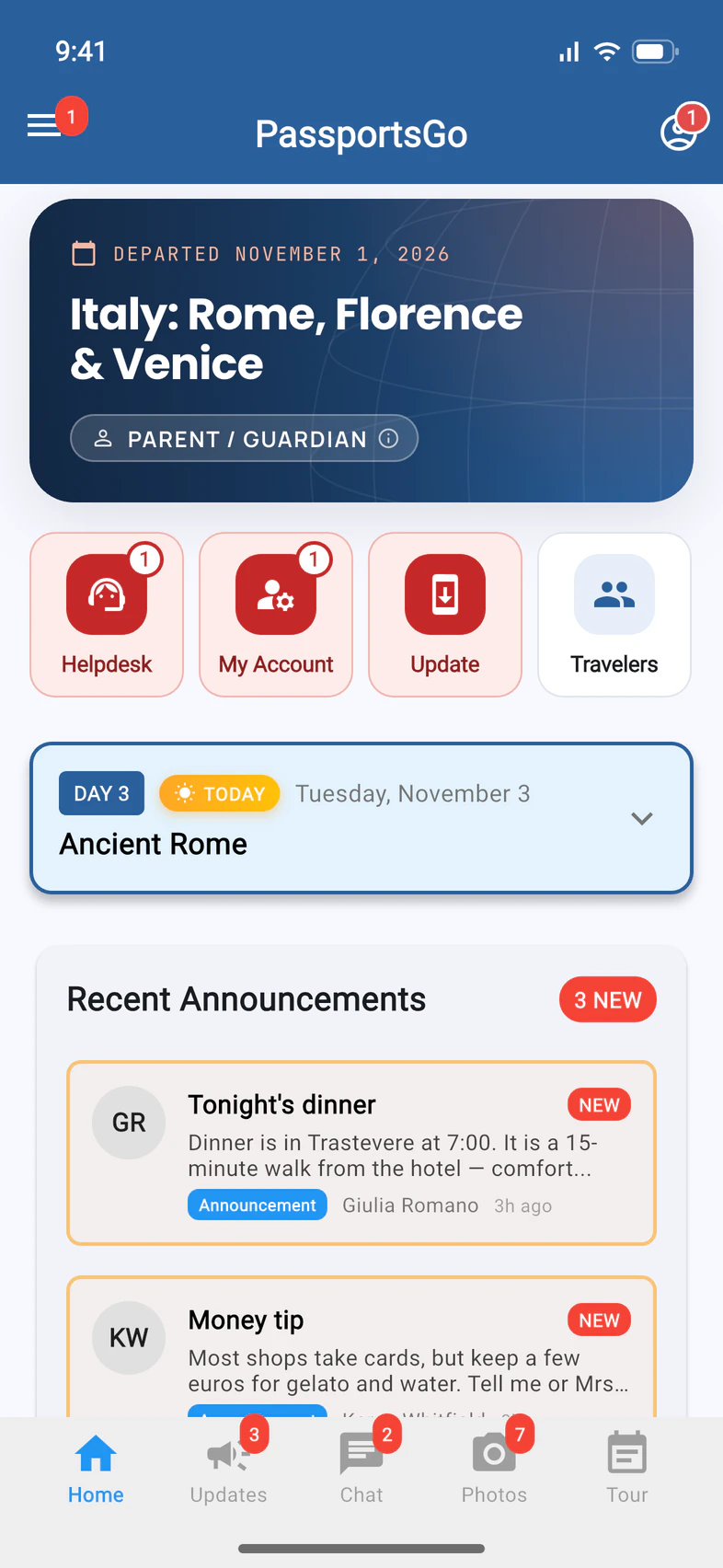
Not a good time? Tap Not Now. PassportsGo works as usual, and a red Update tile 1 waits on Home until you update. The message comes back another day.
- Step 4
Update from Home
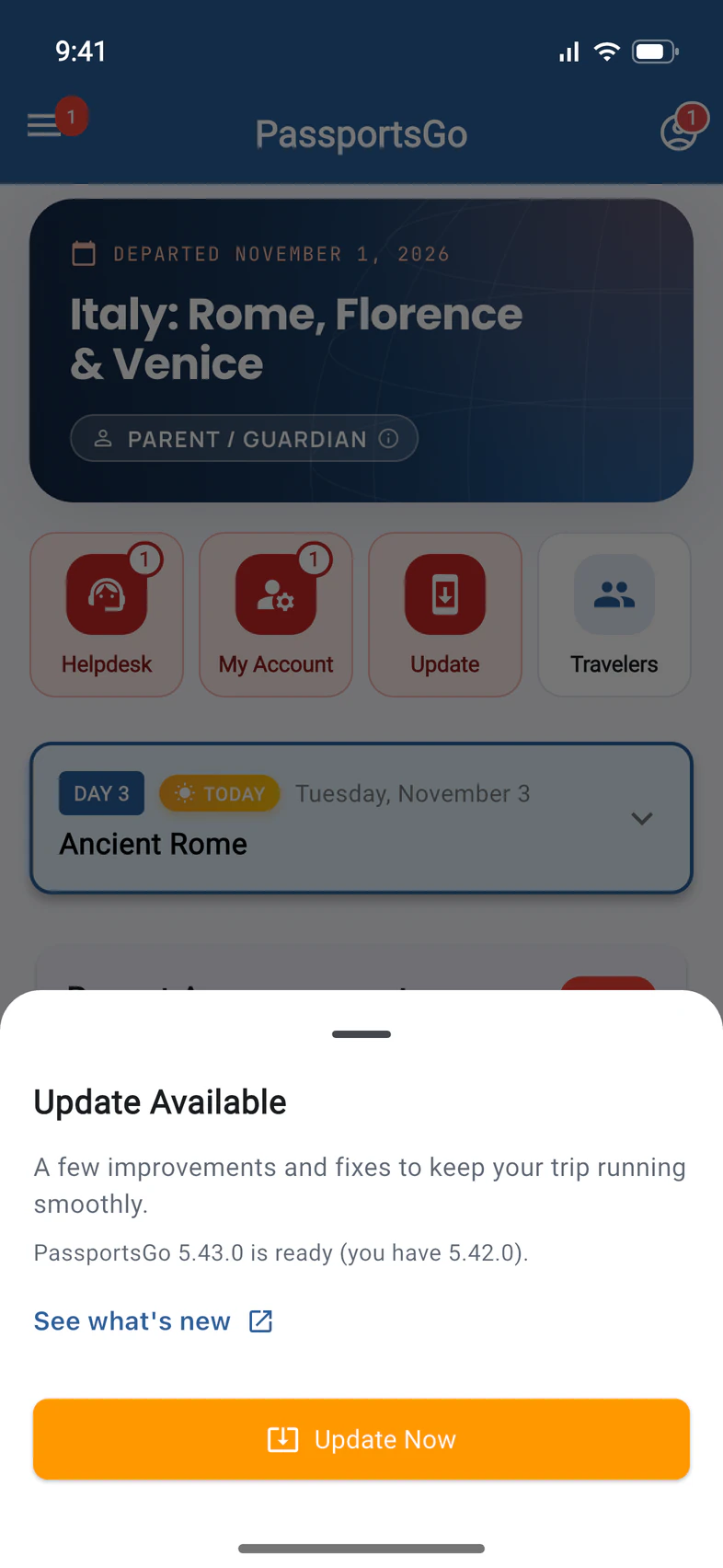
When you're ready, tap Update on Home. The same message opens: tap Update Now 1, then Update in the store, as in step 2.
- Step 5
Check your version
Once you've updated, the red Update tile is gone from Home.
To see which version you have, tap ☰ at the top left of Home, then Help, and scroll down to About: it shows the version and build (see Get help and send feedback). The version is also at the bottom of the ☰ menu, beside Logout.
Good to know
I tapped Not Now. Will it ask again?
Yes, another day, when you open PassportsGo: it asks at most once a day. Until you update, the red Update tile stays on Home.
Do I have to update?
It's a good idea: updates bring new features and fixes, and the app keeps working until you get to it. If a version ever gets too old to work, PassportsGo shows Update Required instead of Home until you update, but never while the group is traveling.
How do I update on a computer?
There's nothing to install, and no message pops up: passportsgo.com opens the newest version each time you open or refresh the page. If Home there ever shows the Update tile, tap it, then Refresh Now.
I didn't get the message.
If your phone updates apps by itself, it may already have the new version: then there's no message and no tile. Versions before 5.26 don't ask as they open: tap the red Update tile on Home instead.
Does everyone in the family need to update?
Each phone updates on its own: yours, your traveler's and any other with PassportsGo. Each one gets the same message and red tile until it's updated.
It won't update. Who can help?
Open the App Store or Google Play yourself, search for PassportsGo and tap Update. Still stuck? Call Passports at 1-800-332-7277.
Screens show a sample family and tour — your names, dates and amounts will differ. Checked against the app September 26, 2026.
Call us. A real person in Worcester picks up.
Monday to Friday, 8am to 4pm Eastern — and around the clock once your group is on tour. Or email passportsgo@passports.com.