
Share and download photos
Upload photos and short videos, see them on the map, and download the whole album.
Photos is the group's shared album. Travelers post photos and short videos during the tour, and everyone can react, comment and download the whole album afterwards.
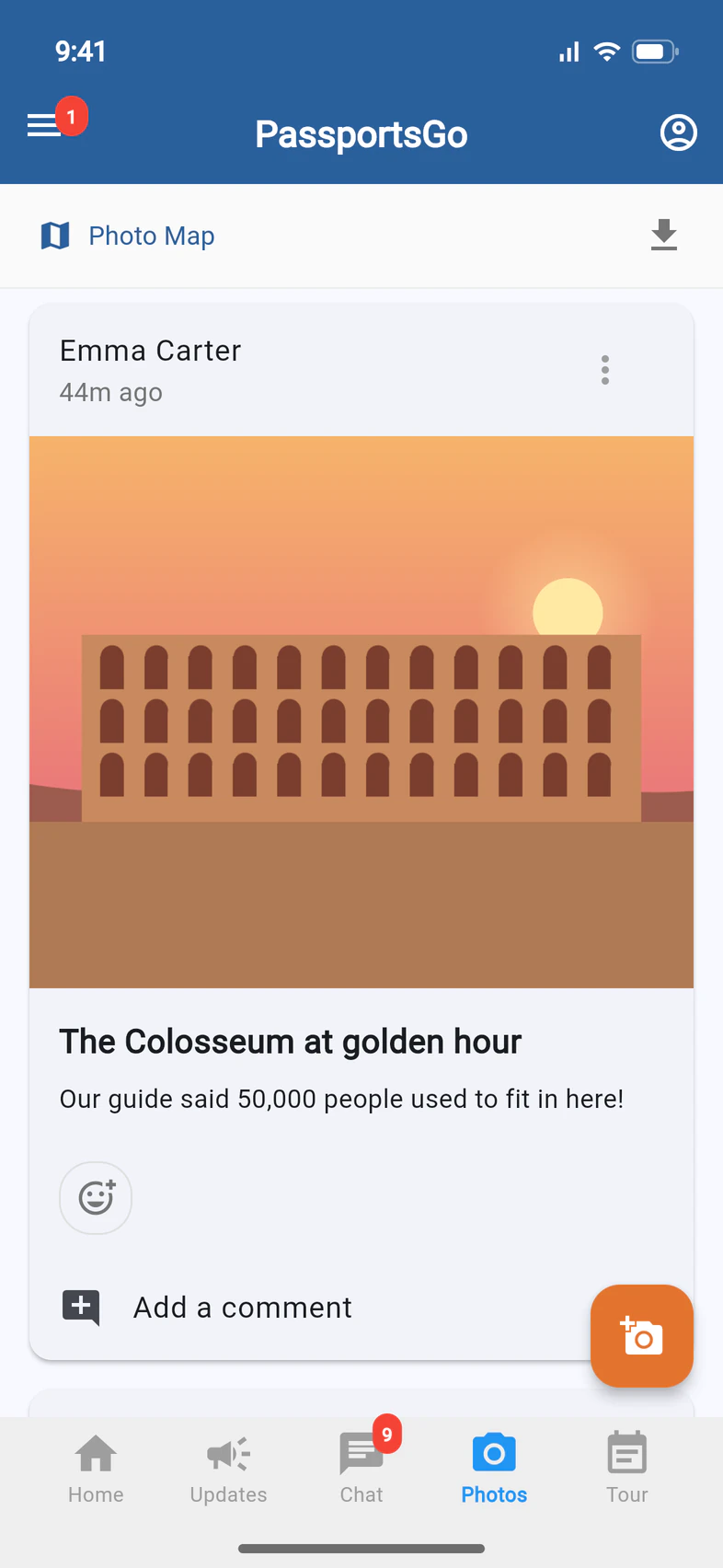
- Step 1
Open Photos
Tap Photos. Each post has a title and a description 1. React with the smiley, or tap Add a comment 2.
Travelers tap the orange camera 3 to post. Parents and guardians can look, react and download.
- Step 2
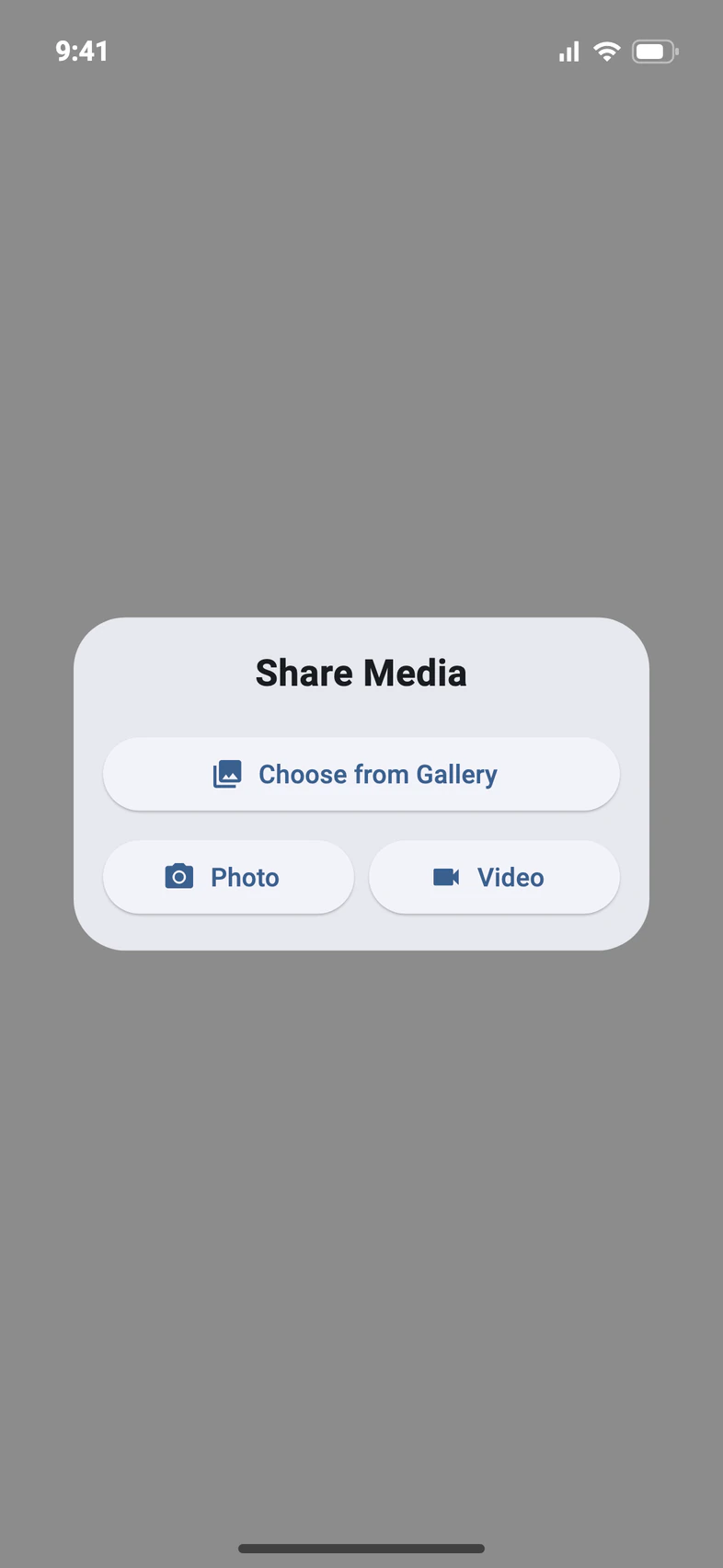
Pick your photos
Choose from Gallery 1 adds photos and videos you already took. Photo 2 or Video 3 takes one now. Videos must be under 90 seconds and 100 MB.
- Step 3
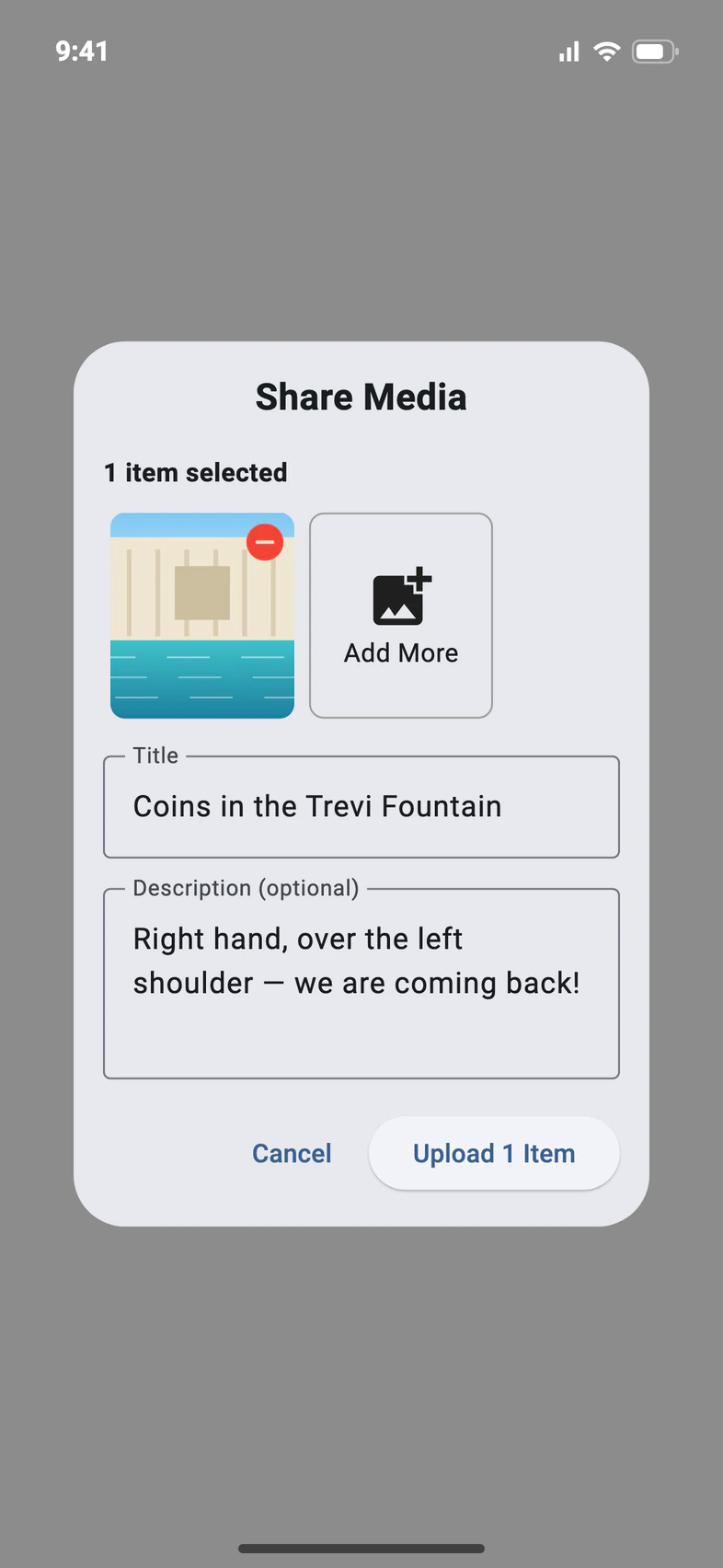
Add a title and post
Give the post a Title 1 (you have to) and a description if you like. Add More 2 adds another photo to the same post. Tap Upload 3.
Picked a lot of photos? Preparing your photos... shows while they're prepared, and Upload and Add More come back once they're in.
Check the title before you post: it can't be changed afterwards. If your group leader reviews photos first, you see yours marked Pending Review, and everyone else sees it once it's approved.
Good to know
How do I download all the photos?
Tap the download arrow at the top of Photos. On a phone, Save to Device saves them to your photo gallery. Or pick Email Download Link and Passports emails you a link to the whole album.
Where were these taken?
Tap Photo Map at the top of Photos to see the pictures on a map. It shows the same photos as your Photos feed.
Why isn't my photo on the Photo Map?
The map shows each photo where it was taken, so the photo has to carry its location. On an iPhone, a photo you pick keeps its location unless the Location switch is off in the photo picker's Options. If a photo you pick has no location, Share Media tells you before you upload and says what to check: that switch, and whether your iPhone's Camera saves locations. Photos posted from a computer don't appear on the map.
A photo shouldn't be there.
Tap ⋮ on the photo and Flag Photo. The group leaders are notified.
Screens show a sample family and tour — your names, dates and amounts will differ. Checked against the app November 3, 2026.
Call us. A real person in Worcester picks up.
Monday to Friday, 8am to 4pm Eastern — and around the clock once your group is on tour. Or email passportsgo@passports.com.