
Turn on location sharing
What's shared, with whom, and only during the tour — and how to fix it when it's off.
During the tour, PassportsGo shares a traveler's location so the group leaders can keep everyone safe: head counts, meeting points, the live map and alerts if someone wanders off. It's on by default for travelers, and only during the tour dates.
Parents at home are never tracked.
Every pin, how fresh it is, and a nudge for whoever’s missing
Open Live Map, read each pin's color and the list of how everyone shares, find anyone in a tap, and remind the people whose location isn't coming in.
Real app screens, sample tour · narration generated with AI
Before you start
- PassportsGo on the traveler's phone (location can't be shared from a computer).
- Step 1
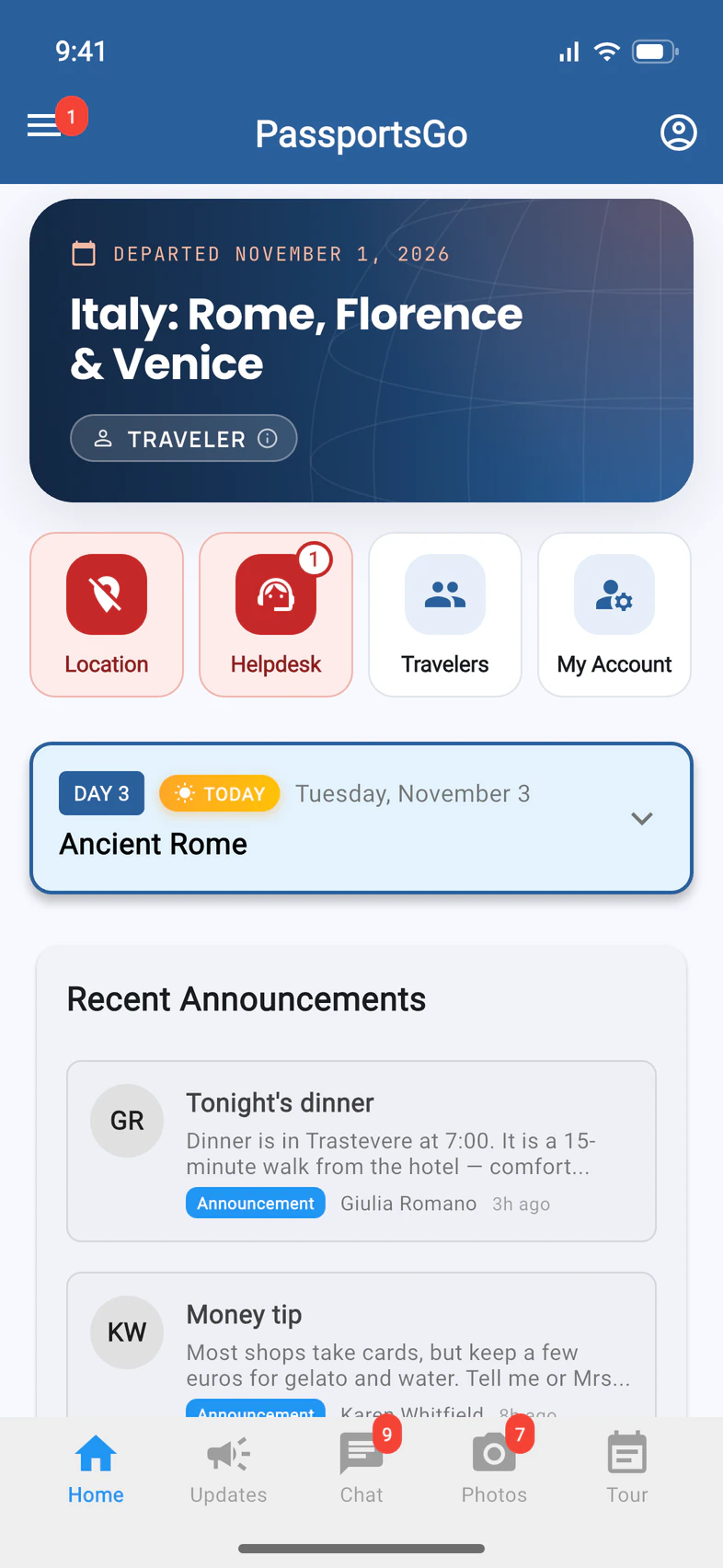
Look for a red Location tile
If Home shows a red Location tile 1, sharing isn't fully working. Tap it.
- Step 2
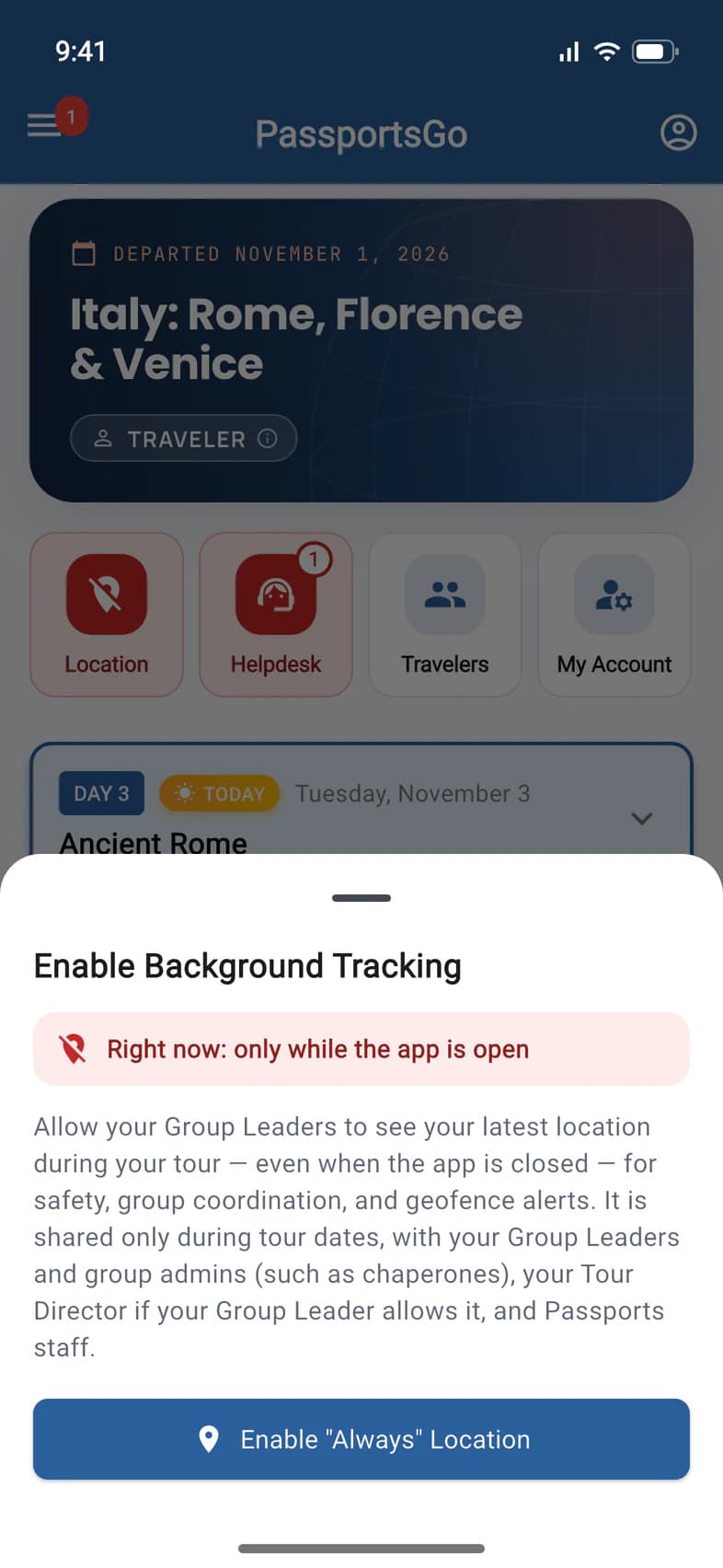
Fix it in one tap
The sheet says what's wrong 1: here, the phone shares only while the app is open. Tap the button 2. An iPhone asks you once: choose "Change to Always Allow". On Android, tap I Agree, Continue, then choose Allow all the time on the page your phone opens. Sharing starts straight away: PassportsGo says Background location enabled!
If your phone doesn't ask, PassportsGo shows the steps instead: Open Settings, then Location, then Always (on Android: Open Settings, Permissions, Location, then Allow all the time).
- Step 3
See who sees it
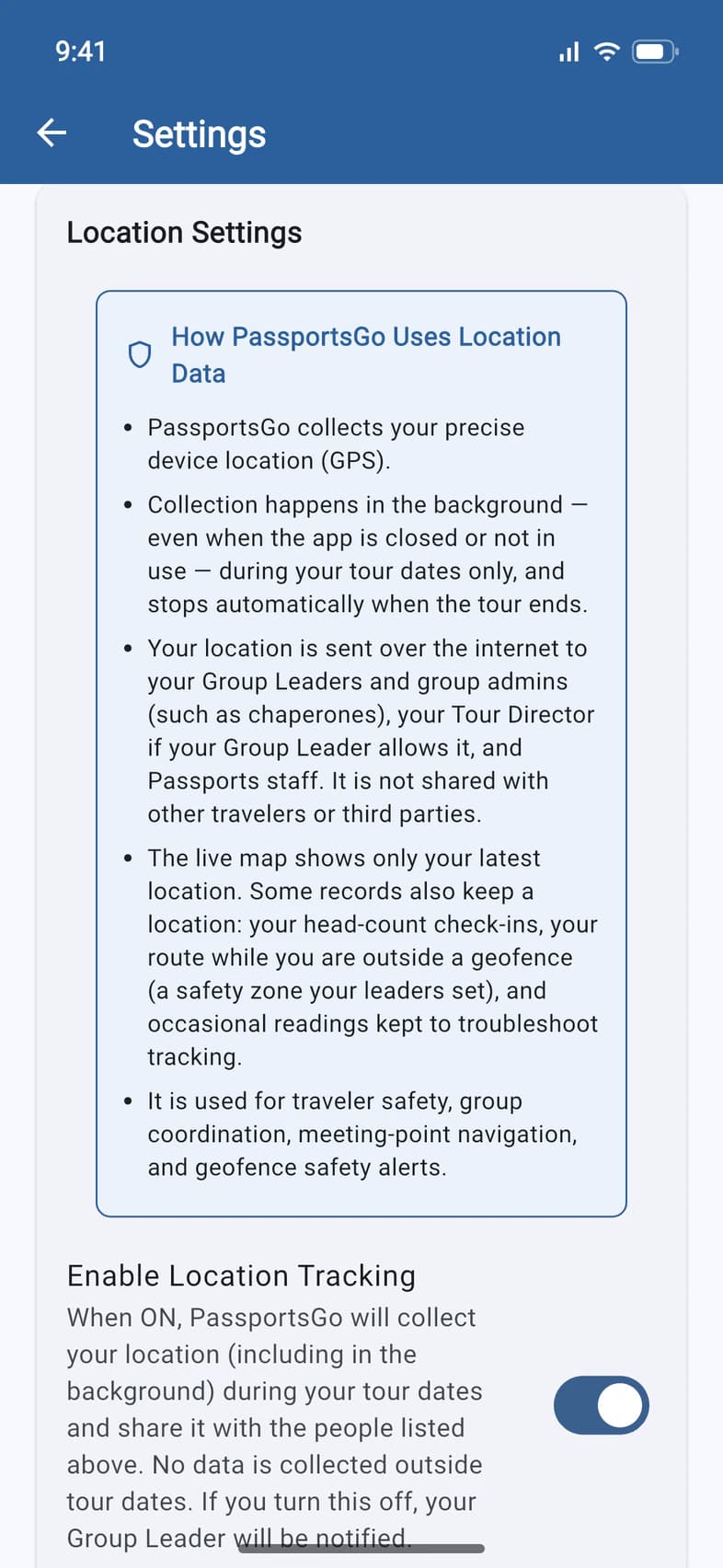
Tap ☰, Settings, then scroll to Location Settings 1. It spells out what is shared: your location "is sent over the internet to your Group Leaders and group admins (such as chaperones), your Tour Director if your Group Leader allows it, and Passports staff. It is not shared with other travelers or third parties."
Enable Location Tracking 2 is your choice, and PassportsGo never switches it off by itself. Change it, then tap Save Settings at the bottom. If you turn it off, your group leader is told, and Home won't nag you with a red Location tile: turn it back on here when you're ready.
Good to know
The sheet says something else.
Each problem has its own button:
- Sharing is off (older versions of PassportsGo sometimes switched it off): tap Turn On Sharing, then I Agree, Continue.
- Not shared yet, or an "Allow Once" that ran out: tap Share My Location and choose "Allow While Using App" when your phone asks (on Android, "While using the app").
- Blocked in your phone's settings: tap Open Settings, then Location, and choose Always (or While Using the App) with Precise Location on. On Android: Open Settings, Permissions, Location, then Allow all the time.
- Location Services is off for the whole phone: open the Settings app, tap Privacy & Security, then Location Services, and turn it on. On Android, tap Turn On Location and switch on Use location.
Will PassportsGo keep asking for my location?
No. It asks by itself at most once a day, and only while your phone still can: before you've answered, or after an "Allow Once" ran out. Otherwise the red Location tile on Home waits for you to tap it.
What does PassportsGo keep?
In the app's words: "The live map shows only your latest location. Some records also keep a location: your head-count check-ins, your route while you are outside a geofence (a safety zone your leaders set), and occasional readings kept to troubleshoot tracking."
Is my location shared after the tour?
No. After the tour's last day, the phone stops sharing the next time PassportsGo opens or checks in, within minutes: the location arrow (on Android, the Tour location active notification) goes away. Passports doesn't store anything sent after the tour.
I have PassportsGo on two phones.
Only one device per account shares location. Choose it in Settings › Devices with Use for location.
Can other travelers see where I am?
No. It isn't shared with other travelers or third parties.
Screens show a sample family and tour — your names, dates and amounts will differ. Checked against the app October 19, 2026.
Call us. A real person in Worcester picks up.
Monday to Friday, 8am to 4pm Eastern — and around the clock once your group is on tour. Or email passportsgo@passports.com.